In this guide
The QuickBooks Tool Hub is Intuit’s free repair app for QuickBooks Desktop on Windows. Download it only from Intuit’s own help article (the file is QuickBooksToolHub.exe), install it, then open the tab that matches your problem: Company File Issues for damaged data, Network Issues for H202 and multi-user errors, Program Problems for crashes and PDF/print errors, and Installation Issues for install errors.
Many top search results for “QuickBooks Tool Hub download” are copycat pages, spam posts and “helpline” numbers that have nothing to do with Intuit. This guide shows the safe download, what each tool does, and when to stop and contact Intuit through its own site.
What is QuickBooks Tool Hub?
Tool Hub is a small launcher that collects Intuit’s separate repair tools in one window. Intuit describes it as the place to fix common errors such as Error 6123, H202 and “QuickBooks has stopped working”, plus installation, company file, network, PDF and printing problems.
A few things to know first:
- It’s for QuickBooks Desktop for Windows (Pro Plus, Premier Plus, Accountant, Enterprise). QuickBooks Online runs in your browser and doesn’t use it, and there’s no Mac version.
- Intuit recommends Windows 11, 64-bit for the best results. It also runs on Windows 10.
- It’s free. No real Intuit tool asks you to pay, buy a “license” for the repair, or call a number to activate it.
Where to download QuickBooks Tool Hub safely
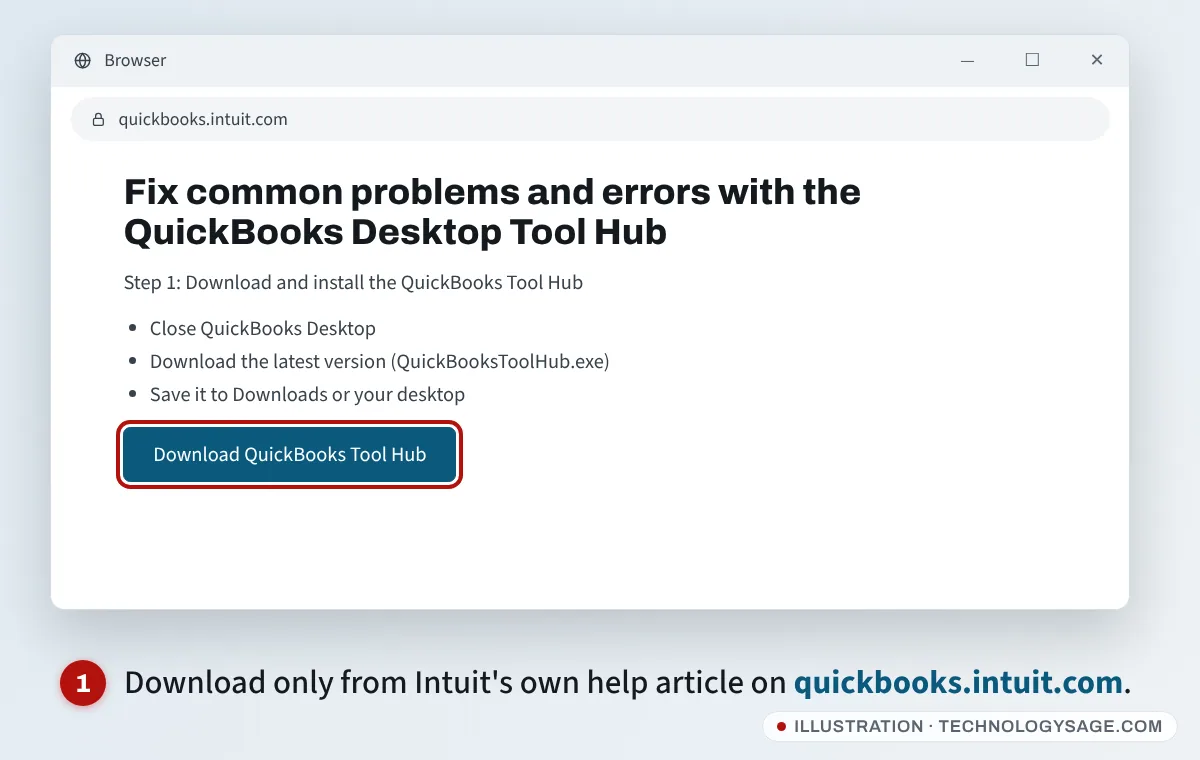
The only safe source is Intuit. Open Intuit’s help article Fix common problems and errors with the QuickBooks Desktop Tool Hub by typing quickbooks.intuit.com yourself, and use the download link in step 1 of that article. The link downloads from Intuit’s own download server (an address ending in download.intuit.com).
Avoid these, even if they rank above Intuit:
- Sites with “toolhub” or “quickbooks” in a domain that isn’t intuit.com (for example quickbookstoolhub-style domains, Google Sites, GitHub, Behance or document-sharing pages).
- Posts on Intuit’s feedback forum or community that link to outside downloads or list phone numbers. Anyone can post there, and spammers do.
- Search ads or pop-ups showing a “QuickBooks support” phone number.
A fake installer can contain malware or remote-access software, and a fake helpline will try to get you to install a remote-control app and pay for a “fix”. Intuit support never asks for gift cards, crypto, or your bank login to repair QuickBooks.
How to install QuickBooks Tool Hub
- Close QuickBooks Desktop.
- Download QuickBooksToolHub.exe from Intuit’s article and save it somewhere easy to find, such as Downloads or your desktop.
- Double-click QuickBooksToolHub.exe. Follow the on-screen steps and accept the license terms.
- When it finishes, double-click the QuickBooks Tool Hub icon on your desktop to open it. If you can’t find the icon, press the Windows key and type QuickBooks Tool Hub.
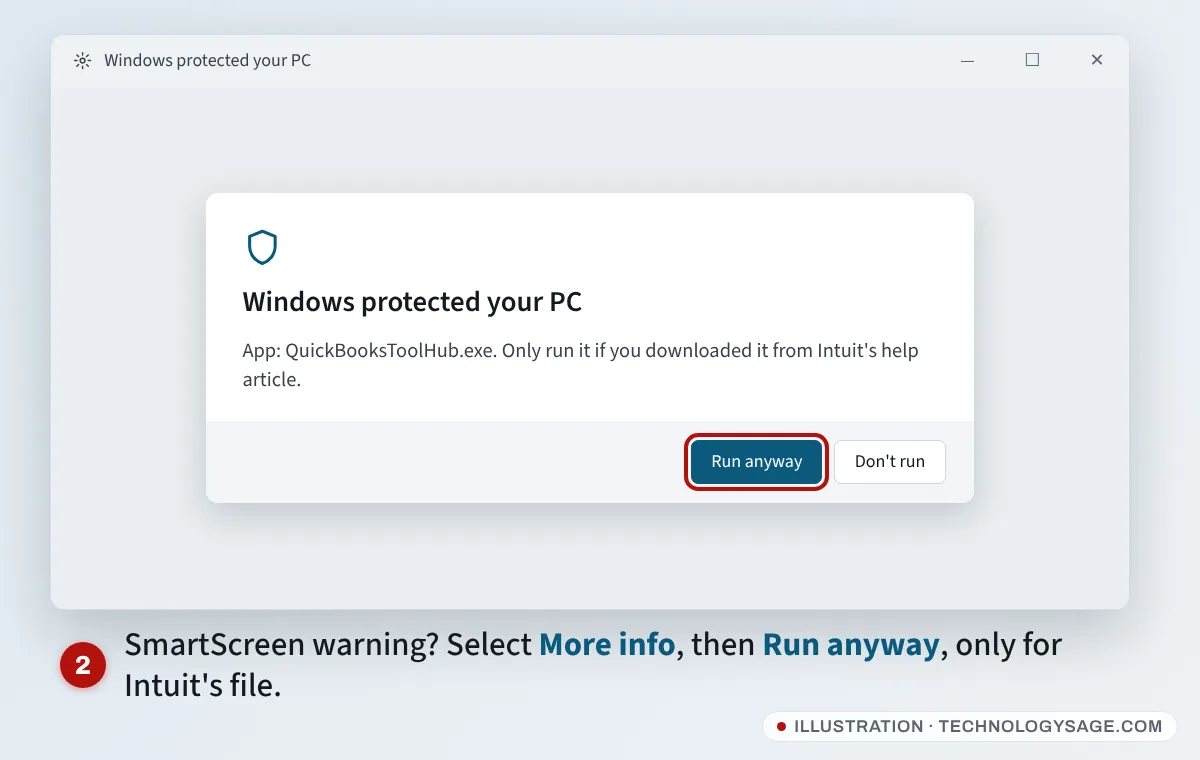
If Windows blocks the file: Intuit says to download it again with a different browser. If Microsoft Defender SmartScreen shows “Windows protected your PC”, select More info, then Run anyway, but only for the file you downloaded from Intuit’s link a minute ago. If you’re unsure where a file came from, delete it and download it again from the Intuit article.
Check your version: the Home tab shows the Tool Hub version. Intuit updates it now and then, so if you installed it a long time ago, uninstall it (Settings → Apps → Installed apps) and install the latest copy.
Which Tool Hub tab fixes which problem
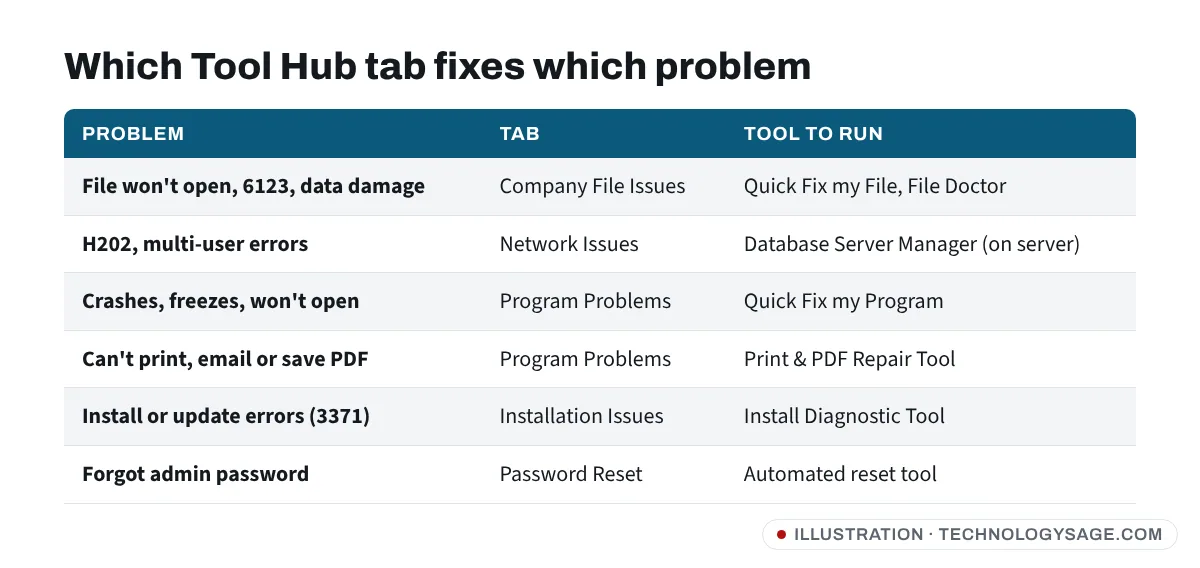
When you select a tool for the first time, Tool Hub downloads it in the background. Intuit says this can take 2-3 minutes, so leave the window open until it appears.
Company File Issues: Quick Fix my File and File Doctor
Use this when your company file won’t open, shows data errors, or gives errors like 6123 or 6000-series codes.
- Open Tool Hub and select Company File Issues.
- Select Quick Fix my File, wait for it to finish, select OK and try opening QuickBooks again.
- If that doesn’t help, select Run QuickBooks File Doctor. It can take up to a minute to open.
- Choose your company file from the drop-down list, or select Browse to find it.
- Select Check your file (the middle option), then Continue.
- Enter your QuickBooks admin password and select Continue.
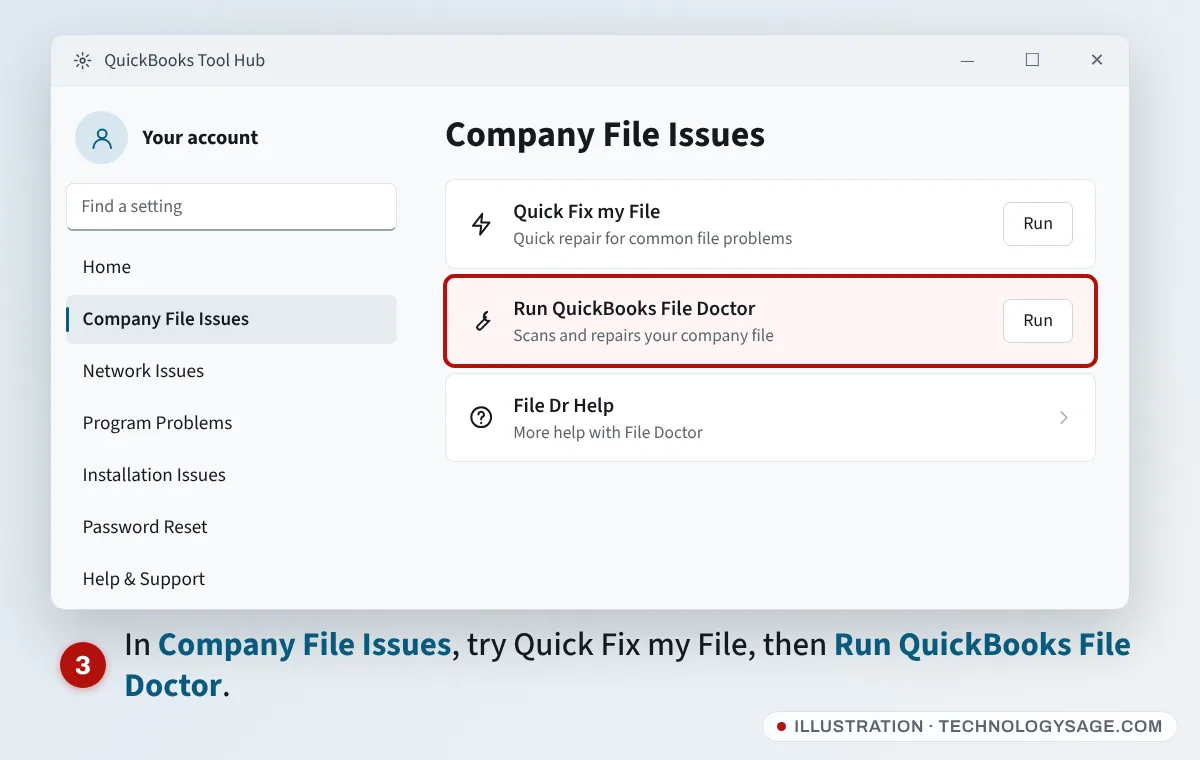
The scan can take 10-15 minutes on a large file. Intuit notes that File Doctor sometimes says it was unsuccessful even when it fixed the problem, so always try opening the file afterwards.
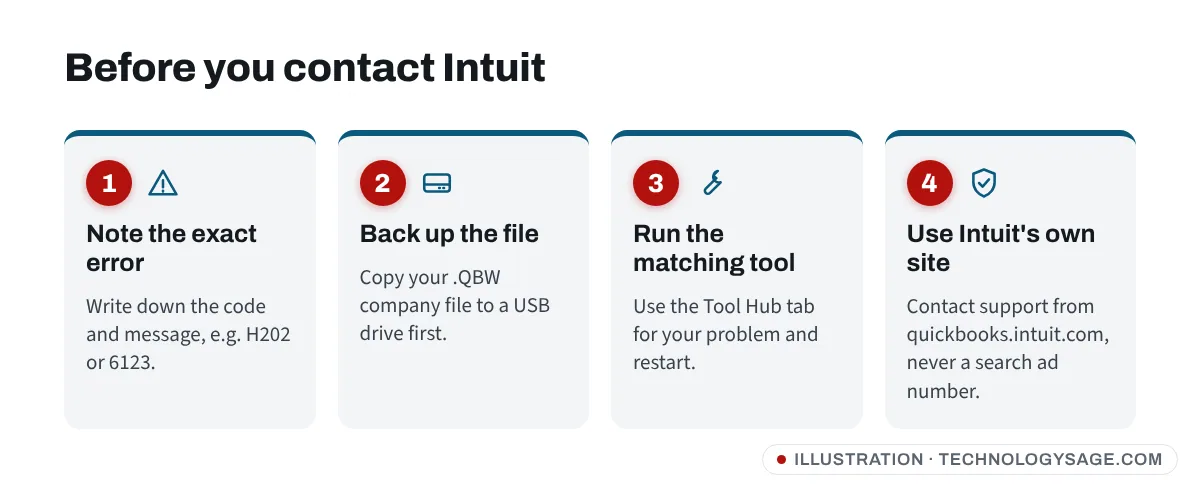
Before you run it: make a backup or copy of your company file (the .QBW file) if you can still open QuickBooks, or copy the file to a USB drive if you can’t.
Network Issues: H202 and multi-user mode
Use this for Error H202, H505 and other “can’t reach the company file on the server” problems. Intuit says to run these tools on the server computer (the PC that stores the company file), not on a workstation.
- Select Network Issues.
- Select QuickBooks Database Server Manager, choose the folder that holds your company file and select Start Scan.
- When it finishes, try opening the file in multi-user mode from the workstation again.
Program Problems: crashes, freezing and PDF errors
Use this when QuickBooks won’t open, freezes, closes on its own, or can’t print, email or save as PDF.
- Quick Fix my Program closes QuickBooks background processes and runs a quick repair. Restart the PC afterwards.
- QuickBooks Program Diagnostic Tool runs a deeper check and can take up to 20 minutes.
- QuickBooks Print & PDF Repair Tool fixes print, email and PDF errors in about a minute. If the printer itself is offline, see our guide to a printer that says offline when it’s connected.
Installation Issues: Install Diagnostic Tool
Use this when QuickBooks won’t install, update or uninstall, including errors such as 3371, 1402 or Microsoft .NET and C++ component errors.
- Select Installation Issues.
- Select QuickBooks Install Diagnostic Tool and let it run. It can take up to 20 minutes.
- Restart your computer, then open QuickBooks.
Older Tool Hub versions and many third-party guides also mention a Clean Install Tool. Intuit’s current reinstall instructions don’t rely on it: you uninstall QuickBooks from Control Panel → Programs and Features, rename the old QuickBooks folders (adding “old” to their names) if the problem continues, then reinstall with your license number. Reinstalling doesn’t delete your company files, but back them up first anyway.
Password Reset
The Password Reset tab opens Intuit’s automated tool for resetting a forgotten QuickBooks Desktop admin password. Follow the prompts; the details you enter must match the ones Intuit has for your license. You can only reset the password for your own licensed copy.
Advanced Tools and Help & Support
Advanced Tools gives shortcuts to common Windows utilities that Intuit’s articles use for troubleshooting. Help & Support links to Intuit’s official support pages. If Windows itself is unstable, our guide to SFC and DISM explains how to repair system files first.
If Tool Hub doesn’t fix it
- The tool won’t open or closes at once: restart the PC, right-click the Tool Hub icon and choose Run as administrator. If Windows says you need permission, see how to fix “You need permission to perform this action”.
- The install keeps failing: pause third-party antivirus for the install only, then turn it back on. Make sure Windows Update has finished.
- The same error comes back: write down the exact error code and message. Intuit’s help site has an article for most codes; search for the code on quickbooks.intuit.com.
- Your data is damaged and the tools can’t fix it: stop using the file and contact Intuit before trying anything else, so you don’t make it worse.
Contacting Intuit: start from Intuit’s own contact page or the Help menu in QuickBooks Desktop, and sign in so they can see your product. Never call a number from a search ad, forum post, pop-up or third-party “QuickBooks help” site. Real Intuit agents won’t ask you to pay by gift card or crypto, and won’t need your bank password.
Outside the US: Intuit has separate help sites for Canada and the UK with the same Tool Hub article; use the version for your country from quickbooks.intuit.com.
FAQ
Is QuickBooks Tool Hub free?
Yes. Intuit gives it away for QuickBooks Desktop users. Any site or caller charging for Tool Hub, or for “activating” it, is not Intuit.
Is QuickBooks Tool Hub safe to download?
It is when it comes from Intuit’s own help article and download server. Copies on other sites may be modified, so don’t use them even if they rank higher in search results.
Does Tool Hub work with QuickBooks Online or Mac?
No. It’s a Windows program for QuickBooks Desktop. QuickBooks Online problems are fixed in the browser (clearing cache, trying a private window) or through Intuit’s online support.
Will File Doctor delete my data?
It’s designed to repair the file, not erase it, but a repair can change damaged data. Back up or copy the company file before running it, and keep that copy until you’re sure everything looks right.
How do I uninstall QuickBooks Tool Hub?
Open Settings → Apps → Installed apps, find QuickBooks Tool Hub, select the three dots and choose Uninstall. Uninstalling it doesn’t affect QuickBooks or your company files.