In this guide
- Start with the quick checks
- 1. Check Disk Management
- 2. Assign a drive letter
- 3. Bring an offline disk online
- 4. Unallocated, RAW or not initialised: protect your files first
- 5. Fix USB drivers in Device Manager
- 6. Turn off USB power saving
- 7. SD cards and card readers
- 8. Check the drive for errors
- If it still doesn’t work
- FAQ
When a USB flash drive, external hard drive or SD card doesn’t show up in File Explorer, open Disk Management (right-click Start → Disk Management) and look for it. If it’s there without a drive letter, right-click it and choose Change Drive Letter and Paths → Add. If it isn’t in Disk Management at all, try another port and cable, then fix the USB drivers in Device Manager. Avoid any option that says Format or Initialize until you know your files are safe.
These steps are for Windows 11 (24H2 and 25H2) and work for flash drives, portable hard drives, SSDs and memory cards in a card reader.
Start with the quick checks
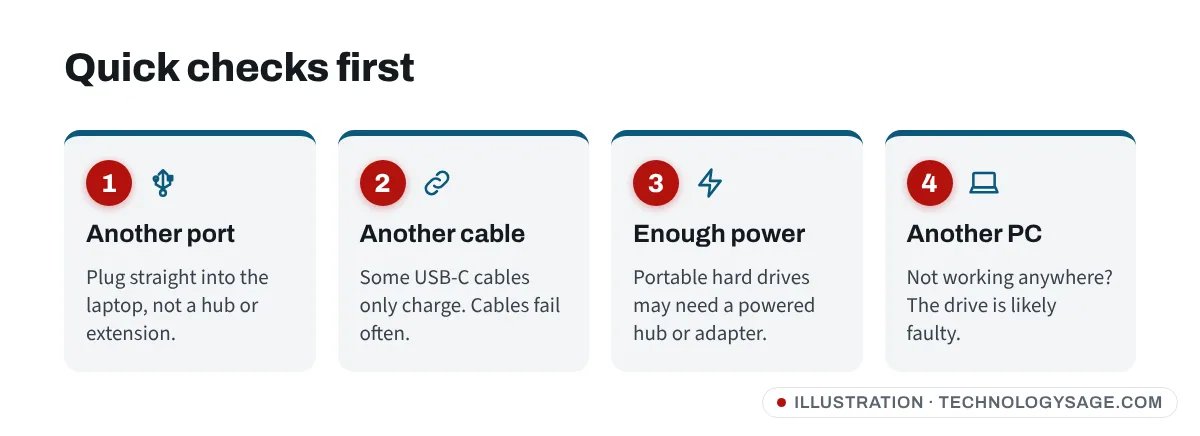
- Try a different USB port, ideally one directly on the laptop rather than a hub, dock or extension cable. Front ports on desktop PCs are often weaker than the ones at the back.
- Try a different cable for external hard drives. Cables fail more often than drives, and some USB-C cables only charge and don’t carry data.
- Check the power. Portable hard drives (the spinning kind) need more power than a flash drive. If you hear the drive clicking or spinning up and down, try a port on the other side, a powered USB hub, or the drive’s own power adapter if it came with one.
- Listen and look. Most drives have a light. No light and no sound usually means no power, a bad cable or a dead drive.
- Try another computer. If it doesn’t show on any computer, the drive (or its enclosure) is likely faulty. If it works elsewhere, the problem is your PC.
- Restart the PC with the drive unplugged, then plug it in after Windows has started.
1. Check Disk Management
Disk Management shows every drive Windows can see, even ones File Explorer hides.
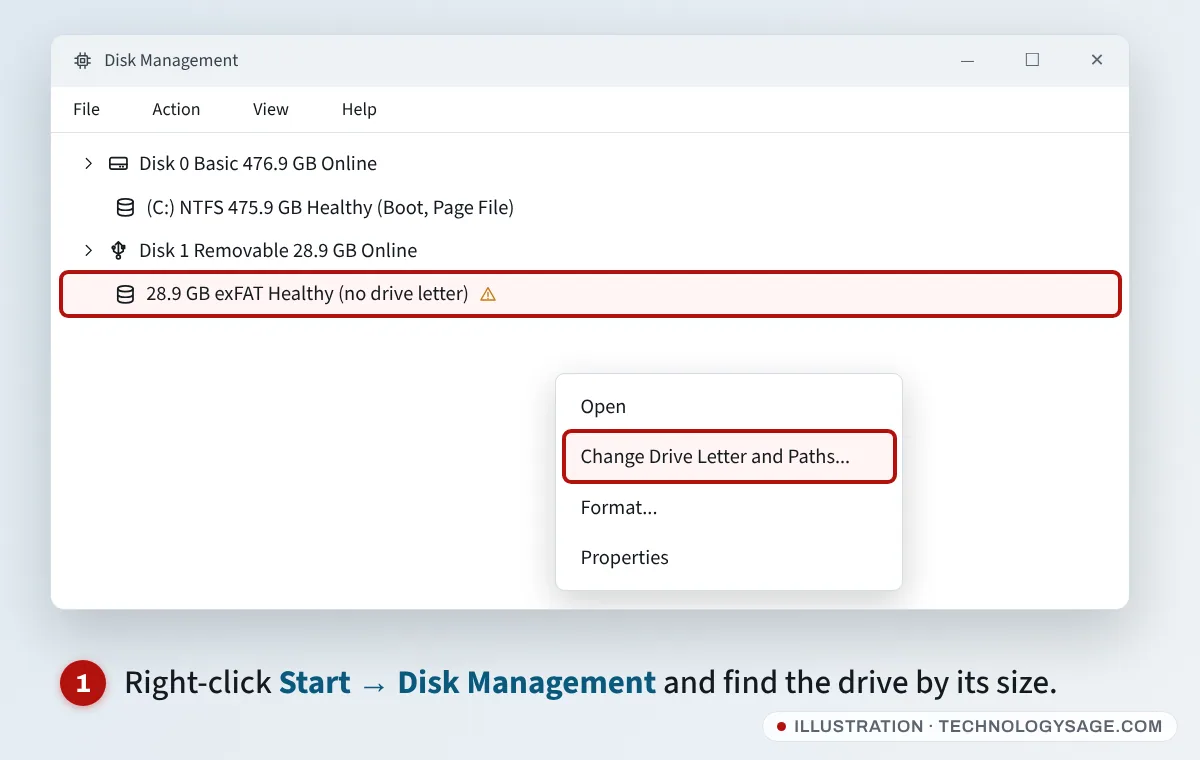
- Right-click Start (or press Windows + X) and choose Disk Management.
- Look in the lower half for a Removable disk or an extra Disk 1 / Disk 2 that matches the size of your drive.
What you see tells you what to do:
| What Disk Management shows | What it means | Go to |
|---|---|---|
| A healthy partition with no letter (e.g. “D:” missing) | Windows didn’t give it a drive letter | Fix 2 |
| Offline | Windows has switched the disk off | Fix 3 |
| Unallocated (black bar) | No partition, or it was deleted | Fix 4 |
| RAW file system | Damaged or unsupported format | Fix 4 |
| Not Initialized / Unknown | New disk, or a serious fault | Fix 4 |
| No Media (card readers) | No card detected, or a bad card | Fix 7 |
| Not listed at all | Driver, port, power or hardware | Fix 5 |
Windows 11 also shows this in Settings → System → Storage → Advanced storage settings → Disks & volumes, but Disk Management gives you more options.
2. Assign a drive letter
- In Disk Management, right-click the partition on your USB drive (the box with its size, not the “Disk 1” label on the left).
- Choose Change Drive Letter and Paths.
- Click Add, keep Assign the following drive letter, pick a letter that isn’t used (for example E: or F:) and click OK.
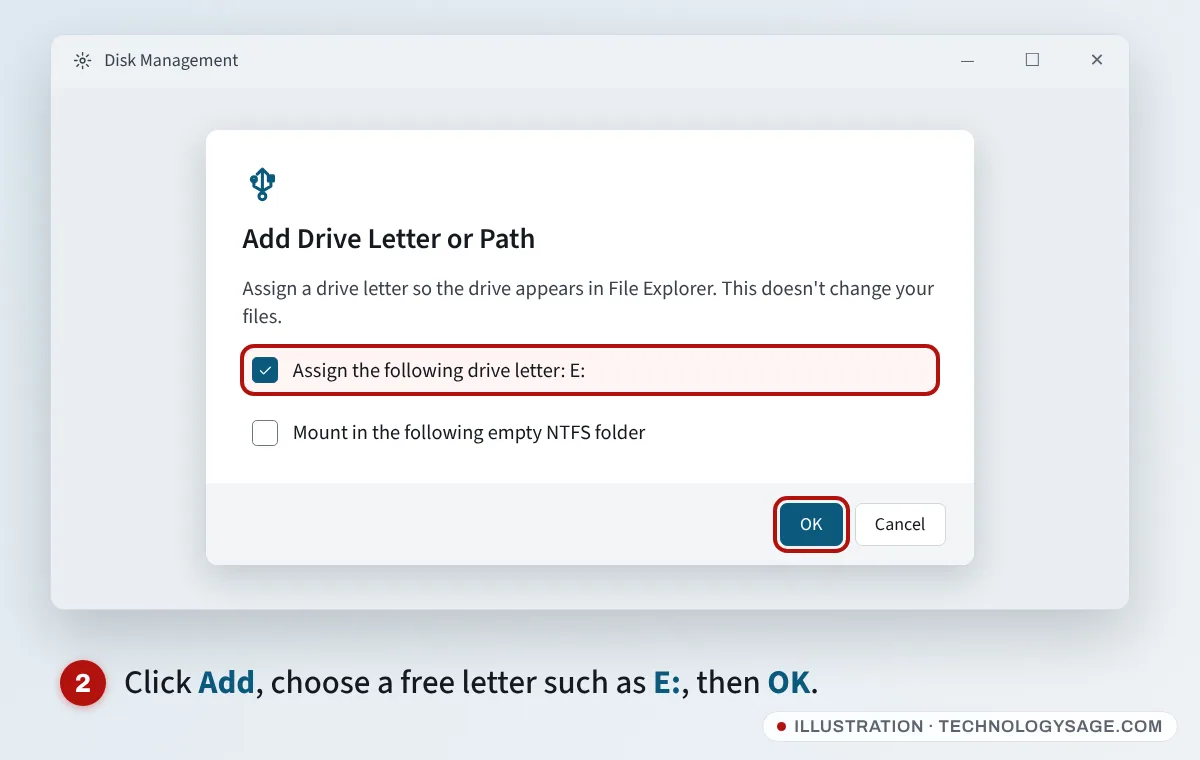
The drive should now open in File Explorer. If the letter option is greyed out, the partition isn’t recognised properly (see fix 4).
3. Bring an offline disk online
If the disk shows Offline, right-click the Disk 1 label on the left side and choose Online. Then check whether it needs a drive letter (fix 2). In Disks & volumes in Settings, the same option appears as Bring online.
4. Unallocated, RAW or not initialised: protect your files first
These states look like the drive is empty, but often the files are still physically there. What you do next depends on whether the drive holds files you need.
- No important files on it (or it’s brand new): right-click the unallocated space and choose New Simple Volume, then follow the wizard, choosing exFAT for drives you also use on TVs, phones or Macs, or NTFS for Windows-only drives. For a RAW drive, right-click it and choose Format. For a new disk showing Not Initialized, right-click the Disk label and choose Initialize Disk (use GPT).
- It holds files you need: don’t format, initialise or create a volume. Each of those can overwrite what’s left. Try the drive on another computer first, then use data recovery software, or take it to a data recovery service. See our guide to recovering data from a formatted drive for the basics.
If Windows says the drive is write-protected when you try to format it, see how to remove write protection on a USB flash drive.
5. Fix USB drivers in Device Manager
If the drive doesn’t appear in Disk Management at all:
- Right-click Start and choose Device Manager.
- Click View → Show hidden devices.
- Expand Disk drives and Universal Serial Bus controllers. Look for your drive, an Unknown USB Device or anything with a yellow warning sign.
- Right-click the faulty entry and choose Uninstall device. Unplug the drive, restart the PC and plug it back in.
- If that doesn’t help, uninstall each USB Root Hub and USB host controller entry under Universal Serial Bus controllers (your USB mouse and keyboard stop briefly, which is normal), then restart. Windows reinstalls them.
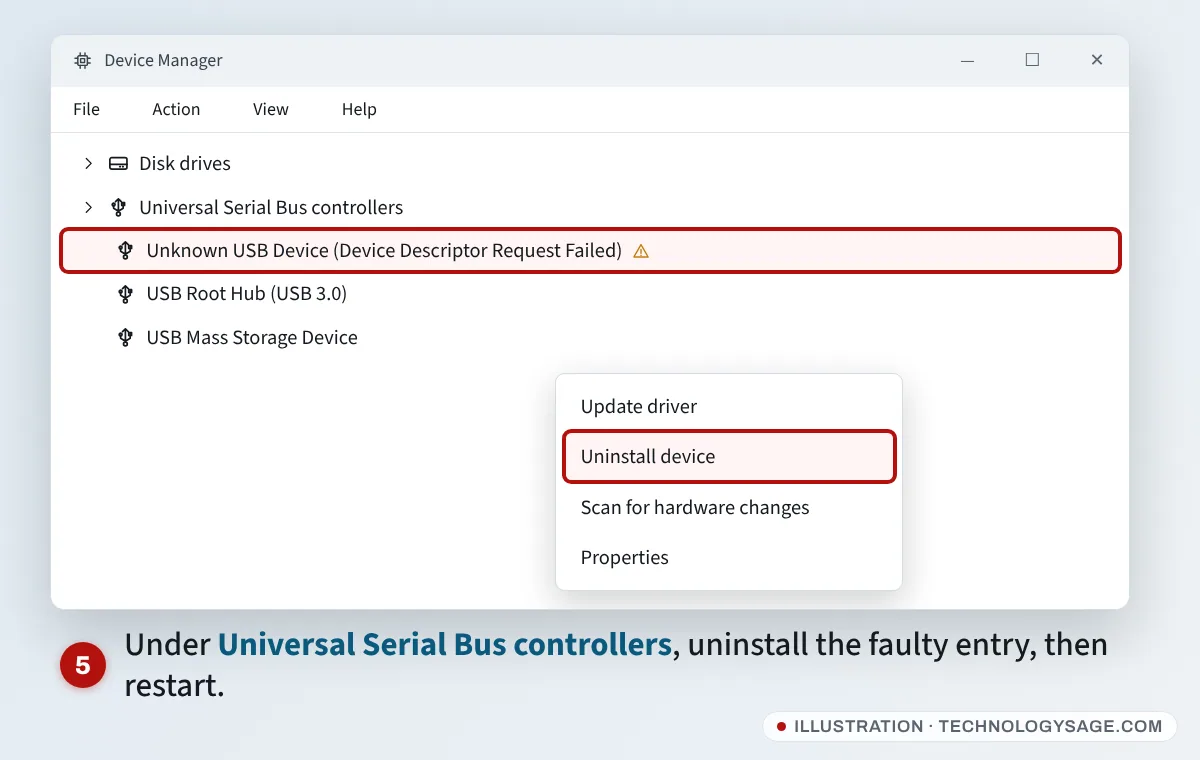
If you see USB device not recognized or Unknown USB Device (Device Descriptor Request Failed), try another port and cable first. That error usually means the PC and drive can’t talk properly, which is often a cable, port or power issue.
Also install your PC’s chipset and USB drivers from the maker (HP Support Assistant, Lenovo Vantage, Dell SupportAssist or MyASUS) and any updates in Settings → Windows Update → Advanced options → Optional updates (if updates won’t finish installing, see Windows Update stuck). Our guide on how to install drivers covers this.
6. Turn off USB power saving
Windows can switch off USB ports to save power, which can make drives disappear, especially on laptops running on battery.
- In Device Manager → Universal Serial Bus controllers, open each USB Root Hub (or Generic USB Hub). If it has a Power Management tab, untick Allow the computer to turn off this device to save power.
- In Control Panel → Hardware and Sound → Power Options, click Change plan settings → Change advanced power settings. If you see USB settings → USB selective suspend setting, set it to Disabled. Many newer laptops don’t show this option; that’s normal.
7. SD cards and card readers
- Check the card’s lock switch on the side of full-size SD cards. Slide it towards the metal contacts to unlock it.
- Try the card in a phone or another reader. Built-in laptop card readers often need a “card reader” driver (Realtek or similar) from the laptop maker.
- No Media in Disk Management means the reader works but can’t read the card.
8. Check the drive for errors
Once the drive has a letter, check it before copying anything important onto it:
- Open File Explorer → This PC, right-click the drive and choose Properties.
- On the Tools tab, click Check under Error checking, then Scan and repair drive.
You can do the same from Command Prompt (Admin) with chkdsk E: /f (replace E with your drive’s letter). Our older guide shows how to repair and format an external disk with Command Prompt. Formatting erases everything, so back up first.
If it still doesn’t work
- The drive works on other PCs but not yours: reinstall USB controllers (fix 5), update the BIOS and chipset drivers, and try a different port type (USB-A and USB-C).
- Clicking, beeping or the drive getting hot: stop using it. A hard drive that clicks is failing mechanically, and each attempt can make recovery harder. If the files matter, take it to a data recovery specialist.
- Brand-new drive with the wrong size, or one that “fills up” early: it may be a fake-capacity drive from an unofficial seller. Buy storage from reputable shops.
- You need the files urgently: try the drive on another computer or a phone with a USB OTG adapter before trying anything that writes to it.
FAQ
Why is my USB drive not showing in File Explorer?
Most often it has no drive letter, it’s formatted in a way Windows can’t read, or the port, cable or power supply is the problem. Disk Management tells you which.
Will assigning a drive letter delete my files?
No. Changing or adding a drive letter only changes how Windows labels the drive. Formatting, initialising and creating a new volume are the steps that can erase data.
My external hard drive lights up but doesn’t show. What’s wrong?
Check Disk Management first. If it’s listed without a letter, add one. If it’s not listed, try another cable and port, and a powered hub or the drive’s own power adapter.
What format should I use for a USB drive?
exFAT works on Windows, macOS, most TVs and Android phones and handles files over 4 GB. NTFS is best for Windows-only drives. FAT32 is only needed for some older devices and can’t store files larger than 4 GB.
Is it safe to use free data recovery tools?
Use well-known tools from their official websites only. Avoid cracked or “free full version” downloads, which often contain malware, and never install recovery software onto the drive you’re trying to recover.