In this guide
- 1. Turn off Airplane mode and check the wireless key
- 2. Add the Wi-Fi tile back to Quick Settings
- 3. Enable the Wi-Fi adapter
- 4. Do a hard reset (full shutdown)
- 5. Show hidden devices and reinstall the Wi-Fi driver
- 6. Start the WLAN AutoConfig service
- 7. Run the troubleshooter and Network reset
- 8. Check the BIOS and update Windows
- Wi-Fi is on, but my network isn’t listed
- If it still doesn’t work
- FAQ
If the Wi-Fi option has disappeared from your Windows 11 laptop, first make sure Airplane mode is off and press your laptop’s wireless key (the key with an aeroplane or antenna icon, sometimes with Fn). If Wi-Fi is still missing, go to Settings → Network & internet → Advanced network settings and click Enable next to the Wi-Fi adapter. When the adapter isn’t listed at all, Windows can’t see the Wi-Fi hardware: a hard reset, the WLAN AutoConfig service or a fresh Wi-Fi driver usually brings it back.
This guide covers two different problems:
- The Wi-Fi button or settings are gone, so you can’t even look for networks. Start at fix 1.
- Wi-Fi is on but your network isn’t in the list while other devices see it. Jump to the section on that near the end of this guide.
1. Turn off Airplane mode and check the wireless key
- Press Windows + A to open Quick Settings.
- If the Airplane mode tile is highlighted, click it to turn it off.
- If there’s still no Wi-Fi tile, look on your keyboard’s top row for a key with an aeroplane or a wireless antenna icon (often F12 on HP, F7 on many Lenovo IdeaPads and Fn + F2 on many Asus models). Press it once, wait a few seconds and check again.
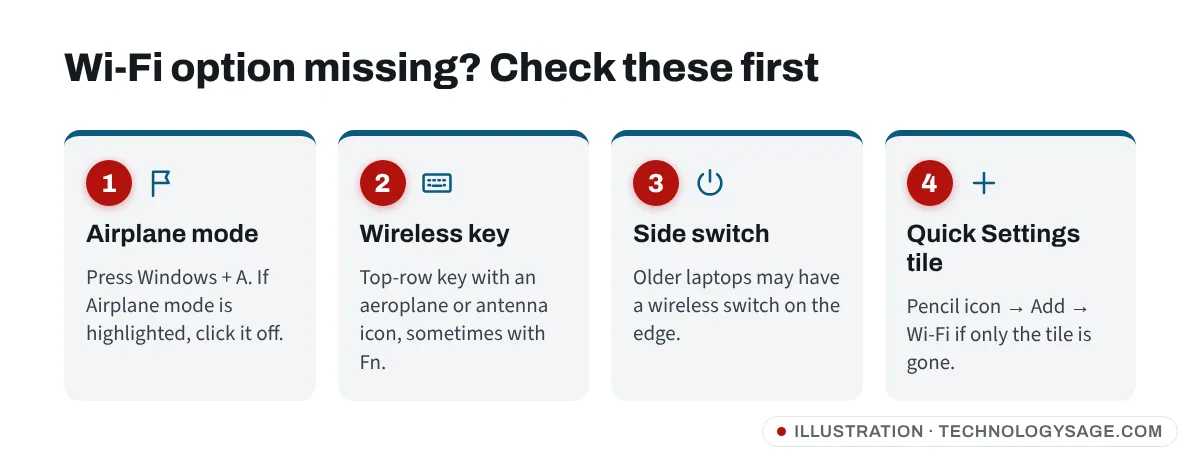
Some older laptops also have a physical wireless switch on the side or front edge. Slide it to on.
2. Add the Wi-Fi tile back to Quick Settings
If Wi-Fi works in Settings → Network & internet but its tile is missing from Quick Settings, it was only removed from the panel:
- Press Windows + A.
- Click the pencil icon (Edit quick settings), then Add.
- Choose Wi-Fi and click Done.
3. Enable the Wi-Fi adapter
A disabled Wi-Fi adapter makes the Wi-Fi option vanish from Quick Settings and Settings.
- Open Settings → Network & internet → Advanced network settings.
- Under Network adapters, find Wi-Fi and click Enable.
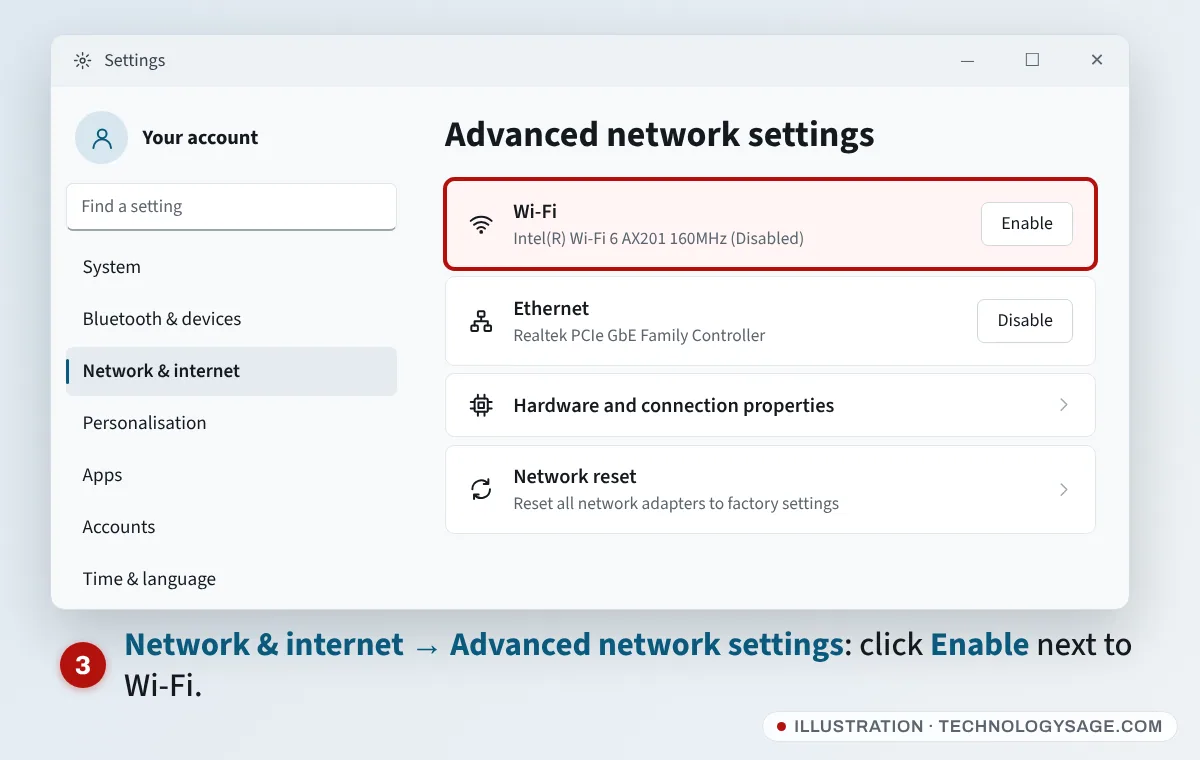
If you don’t see Wi-Fi there, check Device Manager:
- Right-click Start and choose Device Manager.
- Expand Network adapters. The Wi-Fi adapter usually has “Wireless”, “Wi-Fi” or “802.11” in its name (for example Intel Wi-Fi 6 AX201, Realtek RTL8821CE, MediaTek or Qualcomm).
- If it has a down-arrow icon, right-click it and choose Enable device.
4. Do a hard reset (full shutdown)
Windows’ Fast Startup can leave the Wi-Fi card in a stuck state, and a normal restart doesn’t always clear it.
- Hold Shift while you click Start → Power → Shut down. This does a full shutdown.
- Unplug the charger and hold the power button for 15 seconds.
- Plug the charger back in and switch on.
On many laptops this alone brings back a Wi-Fi adapter that vanished from Device Manager.
5. Show hidden devices and reinstall the Wi-Fi driver
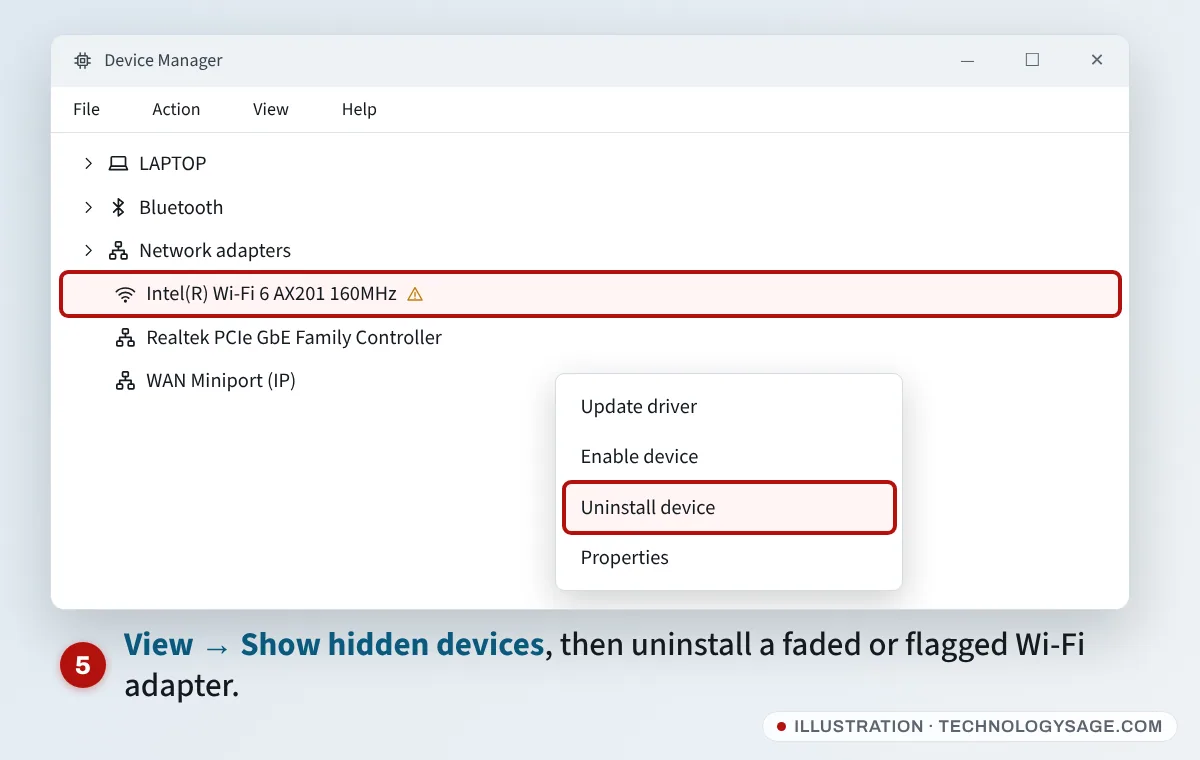
- In Device Manager, click View → Show hidden devices.
- Expand Network adapters. If the Wi-Fi adapter appears faded or with a yellow warning sign, right-click it and choose Uninstall device. Tick Attempt to remove the driver for this device only if you already have a replacement driver downloaded.
- Click Action → Scan for hardware changes, or restart. Windows reinstalls the adapter.
If it comes back with a warning sign, install the Wi-Fi (WLAN) driver for your exact model from the maker’s support site: support.hp.com, support.lenovo.com, dell.com/support or the Asus support page for your model. Download it on another computer or your phone and copy it over with a USB drive or cable, or connect the laptop to your phone by USB tethering to get online temporarily. Our guide on how to install drivers explains the steps.
If Wi-Fi disappeared after a driver update, open the adapter’s Properties → Driver and click Roll Back Driver.
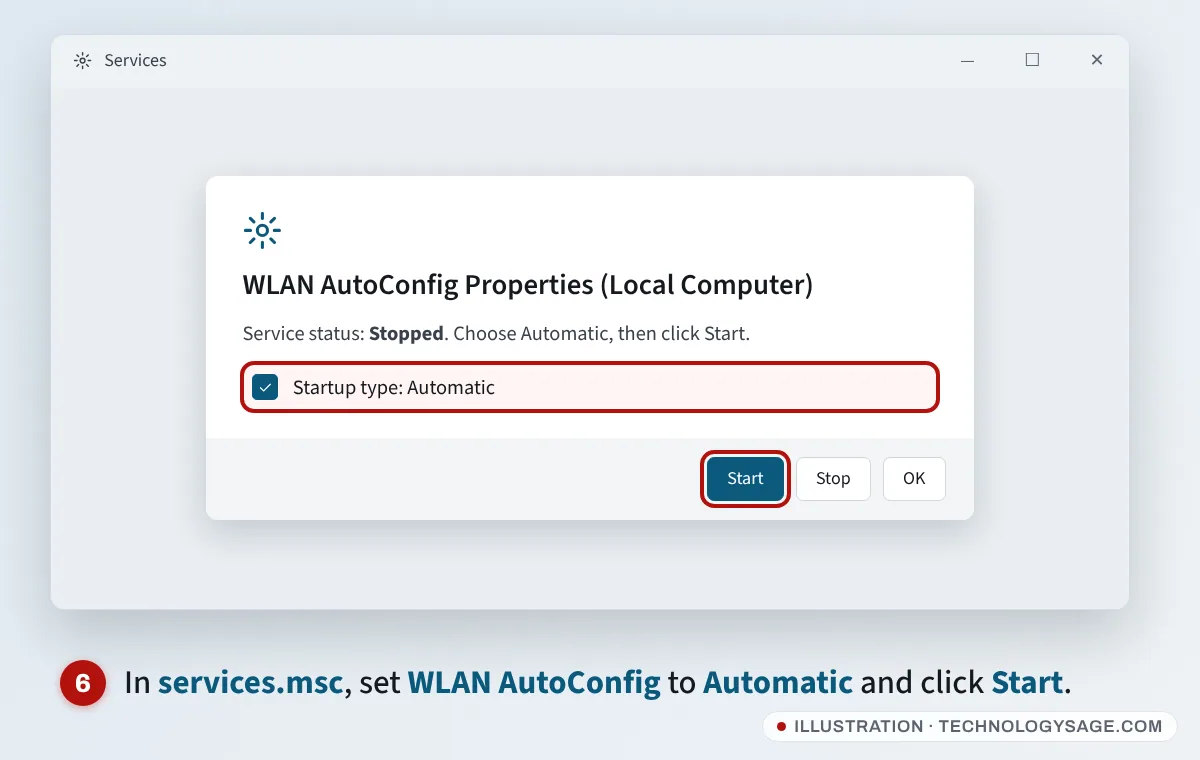
6. Start the WLAN AutoConfig service
Windows needs the WLAN AutoConfig service to show and manage Wi-Fi.
- Press Windows + R, type
services.mscand press Enter. - Double-click WLAN AutoConfig.
- Set Startup type to Automatic, click Start if it isn’t running, then OK.
7. Run the troubleshooter and Network reset
- Go to Settings → System → Troubleshoot → Other troubleshooters and run Network and Internet (it opens in the Get Help app).
- If that doesn’t help, go to Settings → Network & internet → Advanced network settings → Network reset and click Reset now. Windows reinstalls all network adapters and restarts. You’ll need to re-enter Wi-Fi passwords afterwards.
8. Check the BIOS and update Windows
- BIOS: some laptops have a setting to turn off the wireless card. Restart and open the BIOS (F2 on most Lenovo, Dell and Asus laptops; Esc then F10 on HP). Look for Wireless, WLAN or Wireless LAN under the configuration or security menus and make sure it’s Enabled.
- Windows Update: if you can get online by cable or USB tethering, install everything in Settings → Windows Update, including Advanced options → Optional updates, which often has Wi-Fi drivers.
Wi-Fi is on, but my network isn’t listed
- Move closer to the router and restart it (unplug for 30 seconds).
- 5 GHz-only networks: older or budget laptops may only support 2.4 GHz. If your router has separate 2.4 GHz and 5 GHz names, try the 2.4 GHz one. If you’re not sure what your laptop supports, check its specifications on the maker’s site.
- Hidden network: if the Wi-Fi name is hidden, click Hidden network in the list (or Settings → Network & internet → Wi-Fi → Manage known networks → Add network) and type the exact name and password.
- Router channel: some laptops don’t see routers on 5 GHz channels above 48, or on 2.4 GHz channels 12-13 (allowed in some countries, not others). Set the router to an automatic or lower channel in its settings.
If it still doesn’t work
- Adapter never appears in Device Manager, even after the hard reset and BIOS check: the Wi-Fi card may have failed or come loose. A USB Wi-Fi adapter is a cheap workaround; a repairer can replace the internal card on most laptops. Read our tips on taking your laptop for repair.
- Wi-Fi appears but says “No internet”: see Wi-Fi connected but no internet.
- Wi-Fi keeps dropping: see laptop Wi-Fi keeps disconnecting.
- Need internet right now: use a phone hotspot over USB, or connect an Ethernet cable. See ways to connect your laptop to the internet.
FAQ
Why has the Wi-Fi option disappeared on my laptop?
The usual causes are Airplane mode, a disabled Wi-Fi adapter, a driver problem after an update, the WLAN AutoConfig service being stopped, or the Wi-Fi card getting stuck. A full shutdown and hard reset fixes the last one surprisingly often.
How do I turn on Wi-Fi on a laptop without the Wi-Fi button?
Press the wireless key on your keyboard, or go to Settings → Network & internet → Advanced network settings and click Enable next to Wi-Fi. If the tile is just missing from Quick Settings, add it back with the pencil icon.
Will Network reset delete my files?
No. It only resets network adapters and settings. Your files and apps stay. You’ll need to reconnect to Wi-Fi and set up any VPN again.
Can I use a USB Wi-Fi adapter instead?
Yes. A USB Wi-Fi adapter is an easy fix if the internal card has failed. Most work on Windows 11 without extra drivers, but check the box says Windows 11 compatible.