In this guide
- Step 0: Work out which problem you have
- Step 1: Restart and check the connection
- Step 2: Clear the print queue
- Step 3: Check the port and driver
- Step 4: Blank pages, lines or missing colours
- Step 5: Flashing lights and error messages
- Step 6: “Parts inside your printer are at the end of their service life”
- If it still doesn’t work
- Safety note: fake Epson support
- FAQ
If your Epson printer is not printing, first turn it off and on, cancel any stuck jobs in the Windows print queue, and make sure the printer and laptop are on the same Wi-Fi (or the USB cable is plugged straight into the laptop). Then run Epson’s free Printer Connection Checker. If the printer feeds paper but the pages come out blank or streaky, the problem is ink flow, not the connection: run a Nozzle Check and Head Cleaning from the printer’s Maintenance menu.
This guide covers EcoTank models (the L-series such as L3250, L3210 and L5290, and the ET-series sold in the US and Europe) as well as Expression, WorkForce and older cartridge models.
Step 0: Work out which problem you have
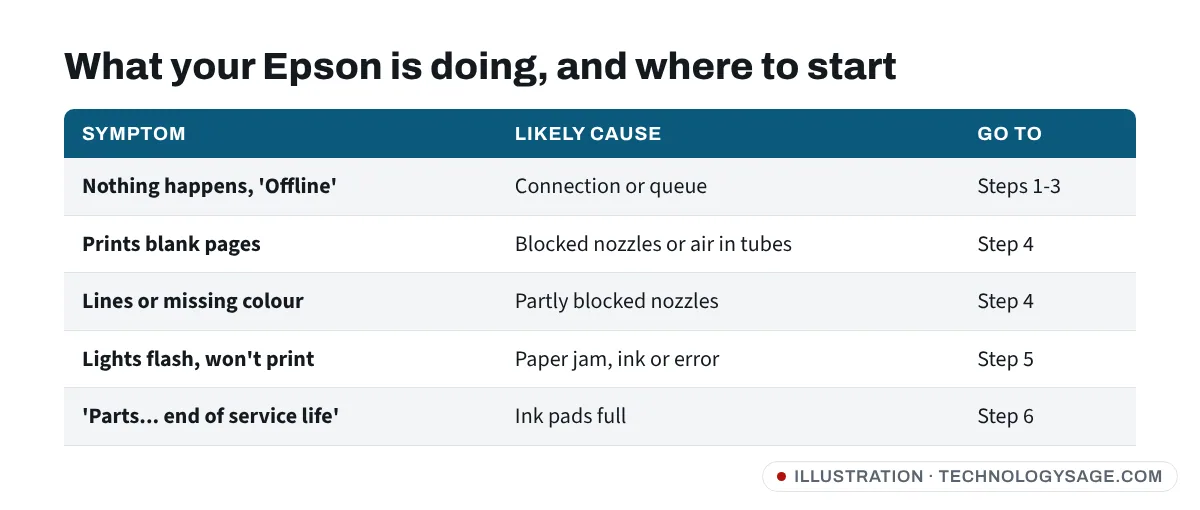
Print something small and watch the printer:
- Nothing happens at all (no noise, no paper): the job isn’t reaching the printer. Start at Step 1.
- Paper feeds but comes out blank, faded or with lines: the job arrives, but ink isn’t reaching the paper. Go to Step 4.
- Lights flashing or an error on the screen: go to Step 5.
Step 1: Restart and check the connection
- Turn the printer off with its power button, wait 30 seconds and turn it on again. Wait until it is quiet and ready.
- Restart the laptop.
- Wi-Fi: print a network status sheet from the printer (on many EcoTank models without a screen, you hold the Wi-Fi or network button; check your model’s manual for the exact button). Make sure the network name (SSID) matches the one your laptop uses.
- USB: try another USB port on the laptop itself and avoid hubs and long extension cables.
Then run Epson’s own checker:
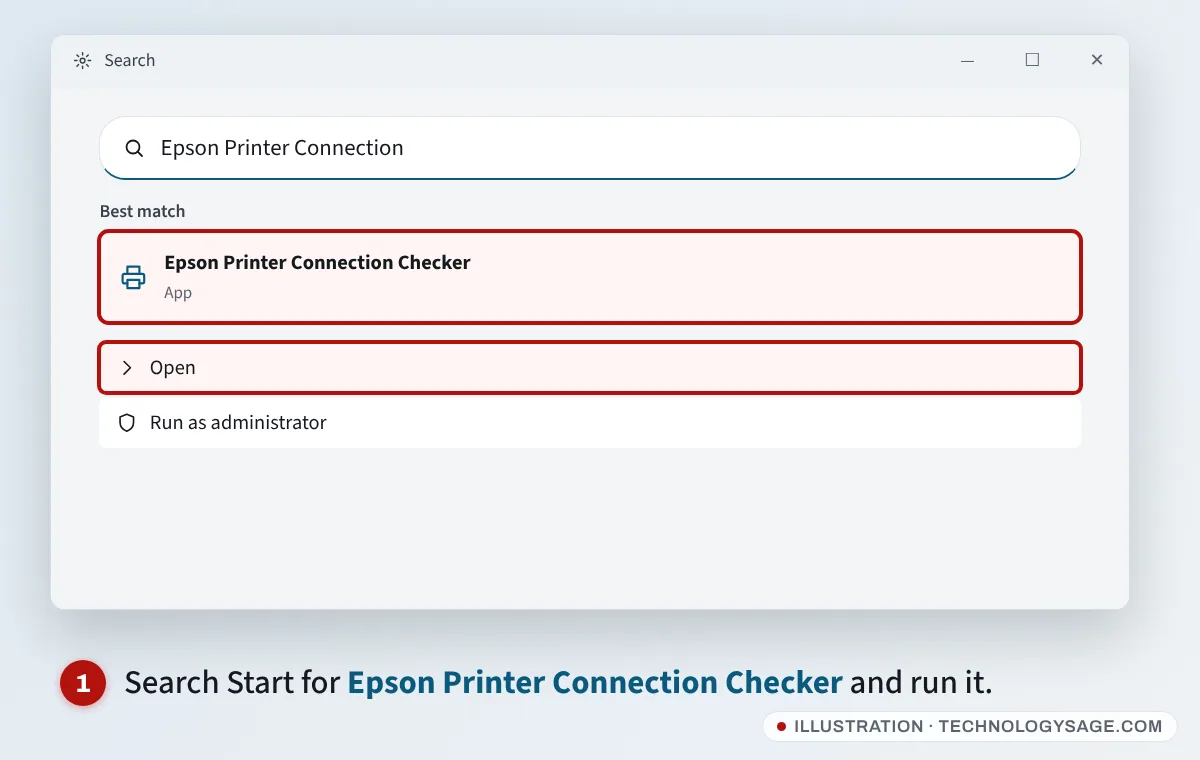
- Click Start and search for Epson Printer Connection Checker.
- Open it and follow the prompts. It checks the link between the PC and the printer and can fix the port settings for you.
If the app isn’t there, your printer may be using the basic Windows driver. Download the full driver for your exact model from Epson’s support website for your country (for example epson.com, epson.co.uk or epson.eu). In some regions, the support page is reached through the local Epson site.
Step 2: Clear the print queue
A single stuck document can block everything behind it.
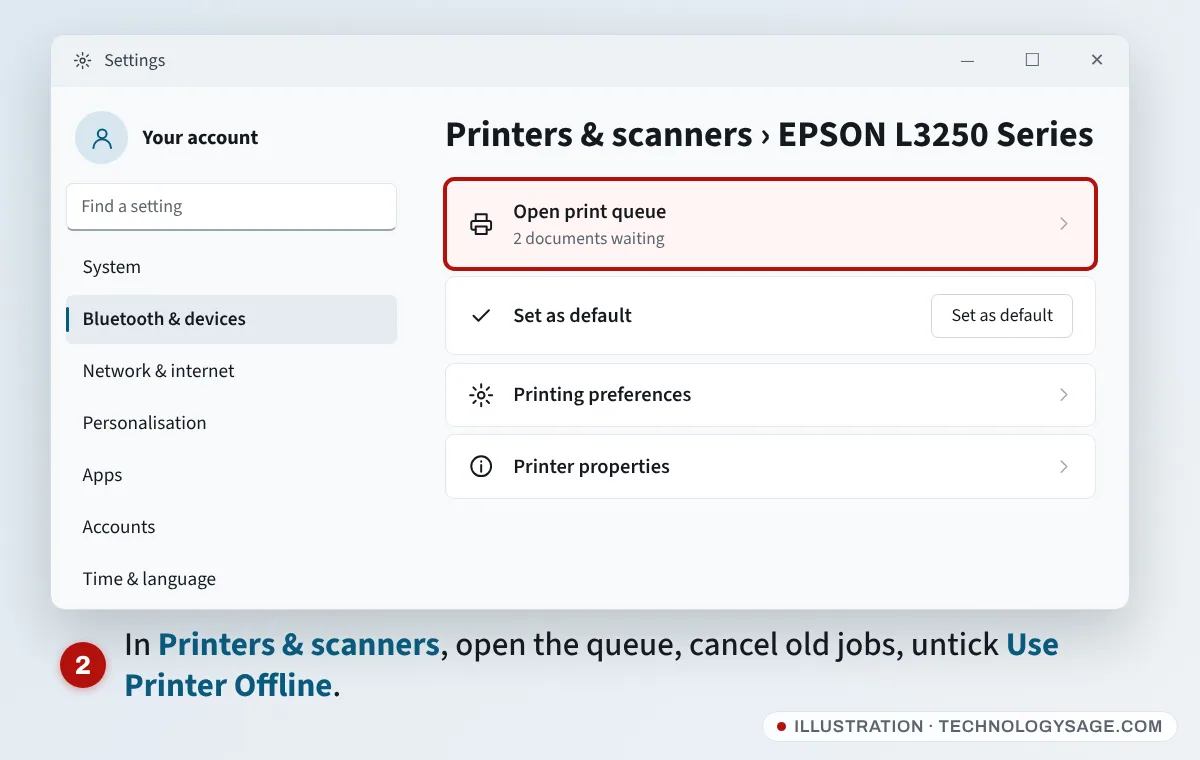
- Open Settings → Bluetooth & devices → Printers & scanners and select your Epson.
- Select Open print queue.
- Cancel every document: open the Printer menu and choose Cancel All Documents.
- In the same Printer menu, make sure Use Printer Offline and Pause Printing are not ticked.
- Back on the printer’s page, select Set as default so your apps don’t send jobs to Microsoft Print to PDF or another printer.
If jobs refuse to delete, restart the Print Spooler service. Our main guide to a printer that says offline shows how, plus how to fix the network port.
Step 3: Check the port and driver
- On the printer’s page in Printers & scanners, select Printer properties, then the Ports tab.
- For a Wi-Fi printer, the ticked port should show the same IP address as the network status sheet. If it differs, run Printer Connection Checker again or remove the printer and add it back. Addresses change because most routers hand them out dynamically; see dynamic vs static IP addresses.
- For a USB printer, the ticked port should be a USB port (for example USB001).
- If the printer worked before a Windows update and stopped after, uninstall the printer in Printers & scanners (Remove), restart, and install the latest driver from Epson’s site. Our guide to installing drivers on a laptop covers the basics.
On Android phones, the free Epson Smart Panel app can print and check ink levels over Wi-Fi, which is a quick way to see whether the printer itself is working.
Step 4: Blank pages, lines or missing colours
This is the most common EcoTank problem, especially if the printer hasn’t been used for a few weeks, sits in a hot room, or was refilled after a tank ran dry. Ink dries in the print head nozzles or air gets into the ink tubes.
Run a nozzle check
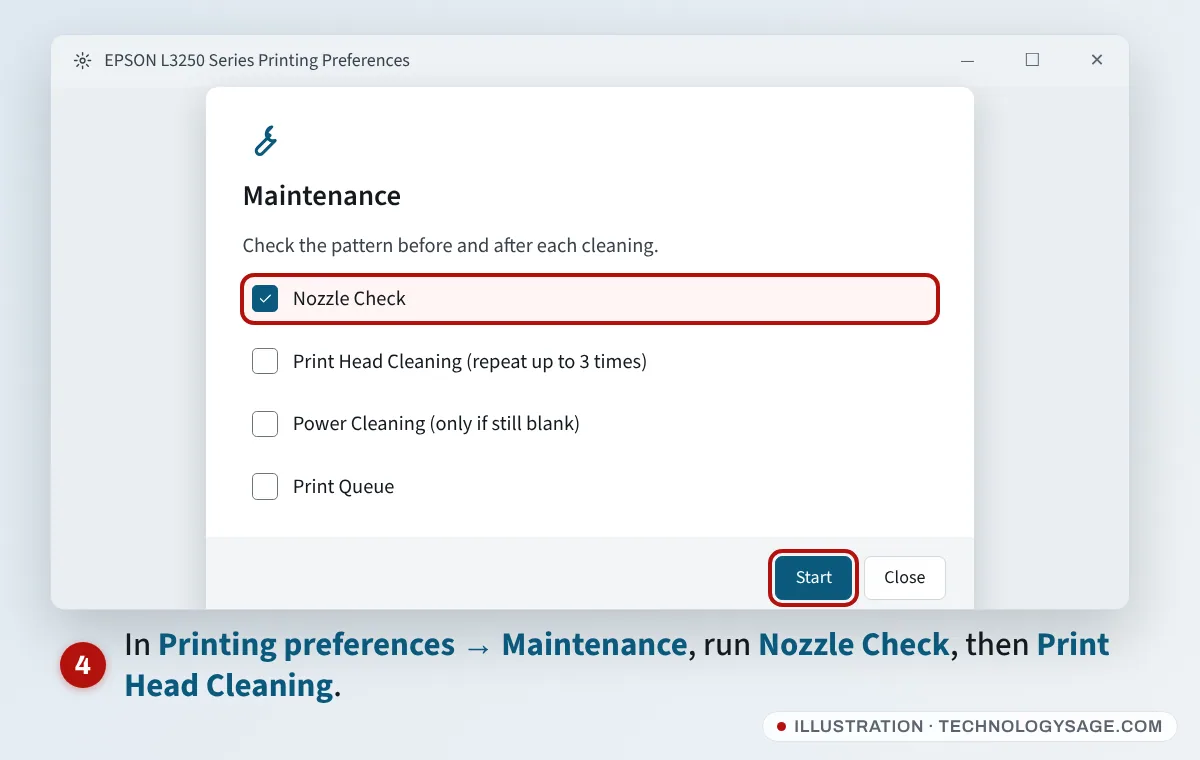
- Load plain A4 or Letter paper.
- In Printers & scanners, select your Epson, then Printing preferences.
- Open the Maintenance tab (on some drivers it’s called Utility) and choose Nozzle Check.
- Look at the printed pattern. Every colour block should be a complete grid of lines. Gaps mean blocked nozzles; a missing block means that colour isn’t reaching the head at all.
You can also start a nozzle check from the printer’s control panel. On many screenless EcoTank models you hold a button while turning the printer on; the exact button differs by model, so check the manual.
Clean the print head
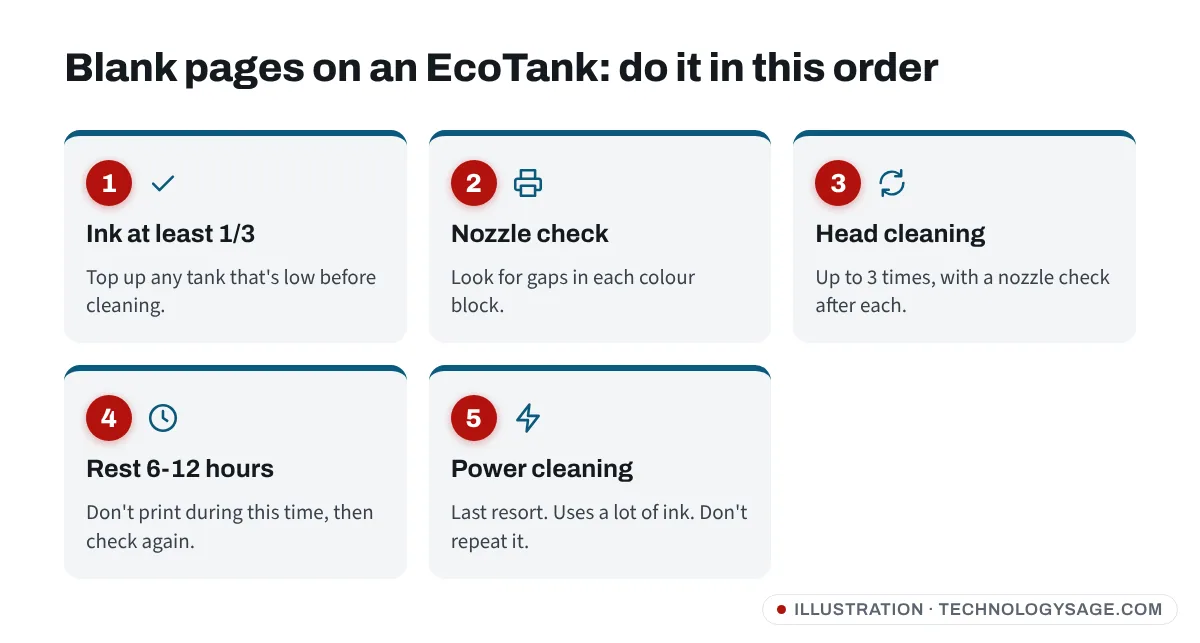
- In the same Maintenance tab, choose Print Head Cleaning (or Head Cleaning).
- When it finishes, run another Nozzle Check.
- Repeat up to three times. Each cleaning uses some ink.
- If the pattern is still broken, stop printing and leave the printer for at least 6 hours (Epson suggests 12 for some models), then do another nozzle check.
Power cleaning (EcoTank only, last resort)
If one colour is still completely missing, EcoTank printers have Power Cleaning (sometimes called Ink Flush or Power Clean on older models). It pushes a lot of ink through to clear air from the tubes.
- Fill each tank to at least one third before you start.
- Run it once, then wait about 12 hours before the next nozzle check.
- Don’t run it again and again. It fills the ink pads inside the printer faster (see Step 6). If one power clean doesn’t help, contact Epson support or an authorised service centre.
Use genuine or correct ink
Cheap unbranded refill bottles are sold almost everywhere, from Lagos and Nairobi markets to online shops in India and Pakistan, but the wrong ink or mixed brands can clog the head. Use the ink bottle number listed for your model (it’s printed on the printer and in the manual). Never pour black ink into a colour tank.
Step 5: Flashing lights and error messages
- Paper light flashing: reload paper, check for a jam, and remove any torn pieces gently. Make sure the paper guides touch the stack.
- Ink light on (EcoTank): top up the tank, then reset the ink level as the manual describes. On some models you hold the ink or stop button for a few seconds.
- All lights flashing: turn the printer off, check for a jam or packing tape, and turn it on again. If they keep flashing, note the pattern and check your model’s manual on Epson’s site, which lists what each pattern means.
Step 6: “Parts inside your printer are at the end of their service life”
Epson inkjets have sponge pads that soak up ink used during cleaning. When the printer counts that they’re nearly full, it shows a message such as “Parts inside your printer are at the end of their service life” or “Service required”, and it may stop printing.
- Epson says these pads are not designed to be replaced by users. Contact Epson or an authorised service provider to replace them.
- For some models, Epson offers an official reset utility to allow a short extra period of printing. Check Epson’s own support page for your model.
- Avoid unofficial “resetter” programs and key sellers on social media and marketplaces. Many contain malware, and a reset doesn’t stop full pads from leaking ink onto your desk.
If it still doesn’t work
- Print a nozzle check from the printer’s buttons. If that prints well, the printer is fine and the problem is on the laptop: reinstall the driver.
- Try printing from your phone with Epson Smart Panel. If the phone works, the laptop’s driver or port is at fault.
- Make sure the router isn’t showing an internet or Wi-Fi fault light; see what a red router light means.
Safety note: fake Epson support
Pages showing an “Epson printer support” phone number on document-sharing or forum sites are often scams. They try to get remote access to your laptop or charge for “repairs”. Get contact details only from Epson’s official website for your country, and never pay a stranger with gift cards, airtime or crypto.
FAQ
Why is my Epson printer printing blank pages after refilling?
Air may have entered the tubes or the nozzles dried while the tank was empty. Run a nozzle check and head cleaning, rest the printer for several hours, and use power cleaning once if a colour is still missing.
How do I get my Epson printer back online?
Restart the printer and laptop, check that both are on the same Wi-Fi, run Epson Printer Connection Checker, and untick Use Printer Offline in the print queue.
How many times should I run head cleaning?
Up to three times in a row, with a nozzle check after each. Then rest the printer for at least 6 hours before trying again.
My Epson prints from the phone but not from the laptop. What now?
The printer is fine. Remove the printer in Windows, restart, and install the latest driver for your model from Epson’s website.