In this guide
Spotify “Something went wrong” is a general error: the app (or web player) asked Spotify’s servers for a page, a playlist or your account details and didn’t get a usable answer back. Most of the time the cause is a weak or filtered internet connection, an out-of-date app, or a corrupted cache. Restart the app, check your connection (turn off any VPN), update Spotify, and if it’s still there, clear the cache or reinstall.
On a computer or in the browser you usually see “Something went wrong. Try reloading the page.” On a phone it’s often “Something went wrong” with a Try again button, sometimes on the Home, Search or Library screen while the rest of the app looks fine.
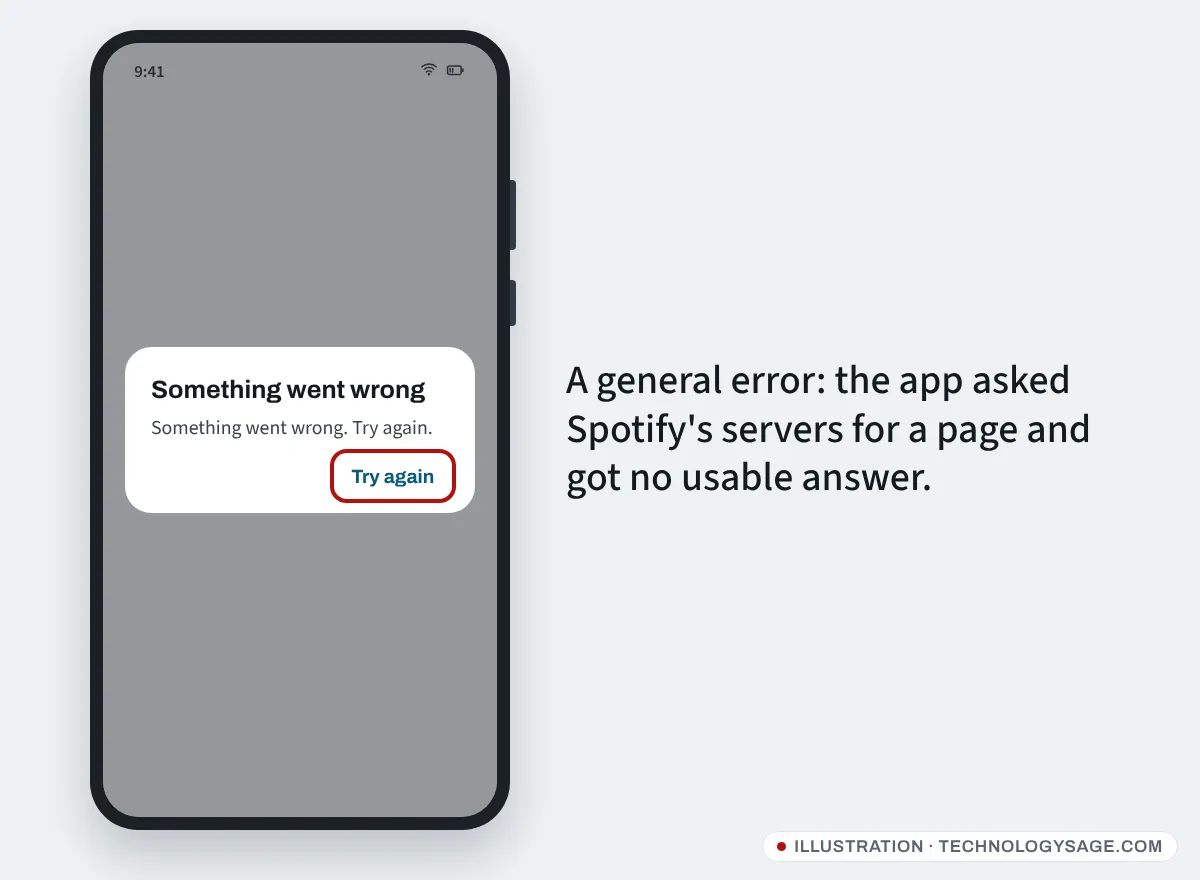
What does “Something went wrong” mean on Spotify?
It isn’t a specific error code. Spotify shows it when a request fails and there’s no more specific message to give you. Spotify’s own help page for playback problems lists it next to “Page not available” and recommends the same first steps for both: restart the app, update it, then reinstall it.
The usual triggers are:
- Connection problems. Patchy Wi-Fi or mobile data, a captive portal on public Wi-Fi you haven’t signed into, or a network (school, office, hotel) that blocks streaming.
- VPN, proxy or ad-blocking DNS. These can block or reroute the servers Spotify needs.
- An old app version. Spotify changes its servers and pages often; very old versions stop loading some screens.
- A corrupted cache. Spotify stores a lot of data locally. If it gets damaged, pages fail to load.
- An outage on Spotify’s side. Less common, but it happens, and then nothing you do on your device helps.
- Account or region problems. If you’re abroad or your account country doesn’t match where you are, some pages may not load.
Quick fixes
These three solve most cases. Try them in order.
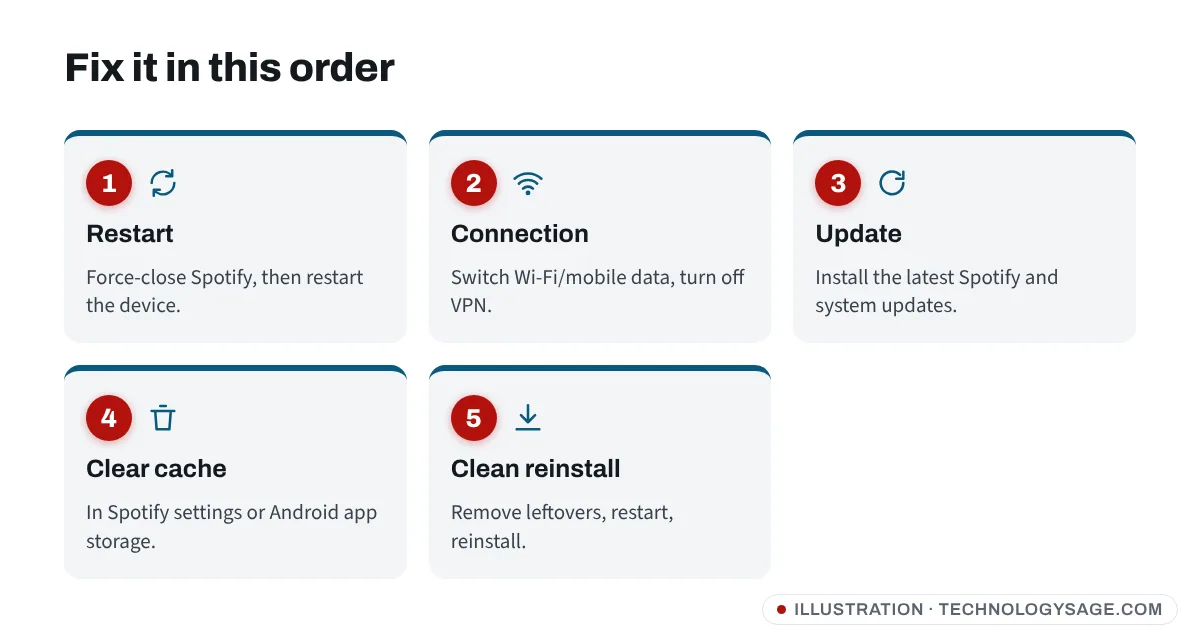
1. Restart the app (and the device)
Fully close Spotify, don’t just minimise it:
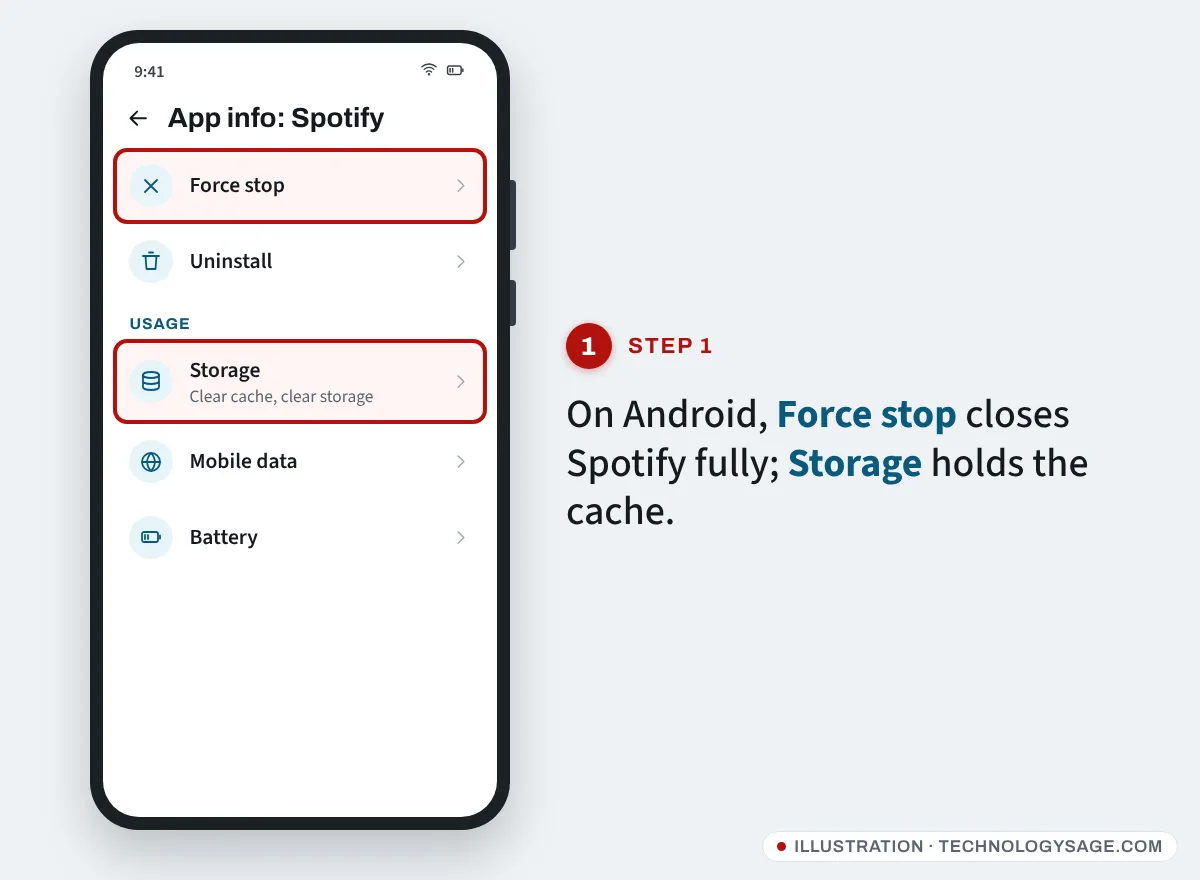
- Android: open recent apps and swipe Spotify away, or go to Settings → Apps → Spotify → Force stop.
- iPhone: swipe up from the bottom (or double-press Home) and swipe Spotify away.
- Windows: right-click the Spotify icon in the system tray (near the clock) and choose Quit, not just the window’s X.
- Mac: press Cmd + Q with Spotify open.
Open it again. If the error is still there, restart the phone or computer too.
2. Check the connection and turn off VPN
Open a website or another streaming app. If it’s slow too, the problem is your internet, not Spotify.
- Switch between Wi-Fi and mobile data to see if one works.
- Turn off any VPN or proxy and try again. Spotify’s community moderators suggest this as a standard step, and a VPN can also make your account look like it’s in another country.
- On public Wi-Fi, open a browser and make sure you’ve accepted the login page.
- If you use a custom Private DNS or an ad-blocking DNS on Android, set it back to Automatic for a test.
If websites load but some apps don’t, our guides to Wi-Fi connected but no internet and DNS_PROBE_FINISHED_NO_INTERNET walk through network fixes.
3. Update Spotify
Open Google Play or the App Store, search for Spotify and tap Update if it’s offered. On a computer, the desktop app updates itself; in the menu (the ⋯ or your profile picture) you may see Update available. Restart now. If you installed Spotify from the Microsoft Store, check for updates in the Store’s Library.
Also make sure your phone or computer’s own system updates are installed. Spotify’s help page lists an up-to-date operating system as one of its checks.
More fixes
4. Clear the Spotify cache
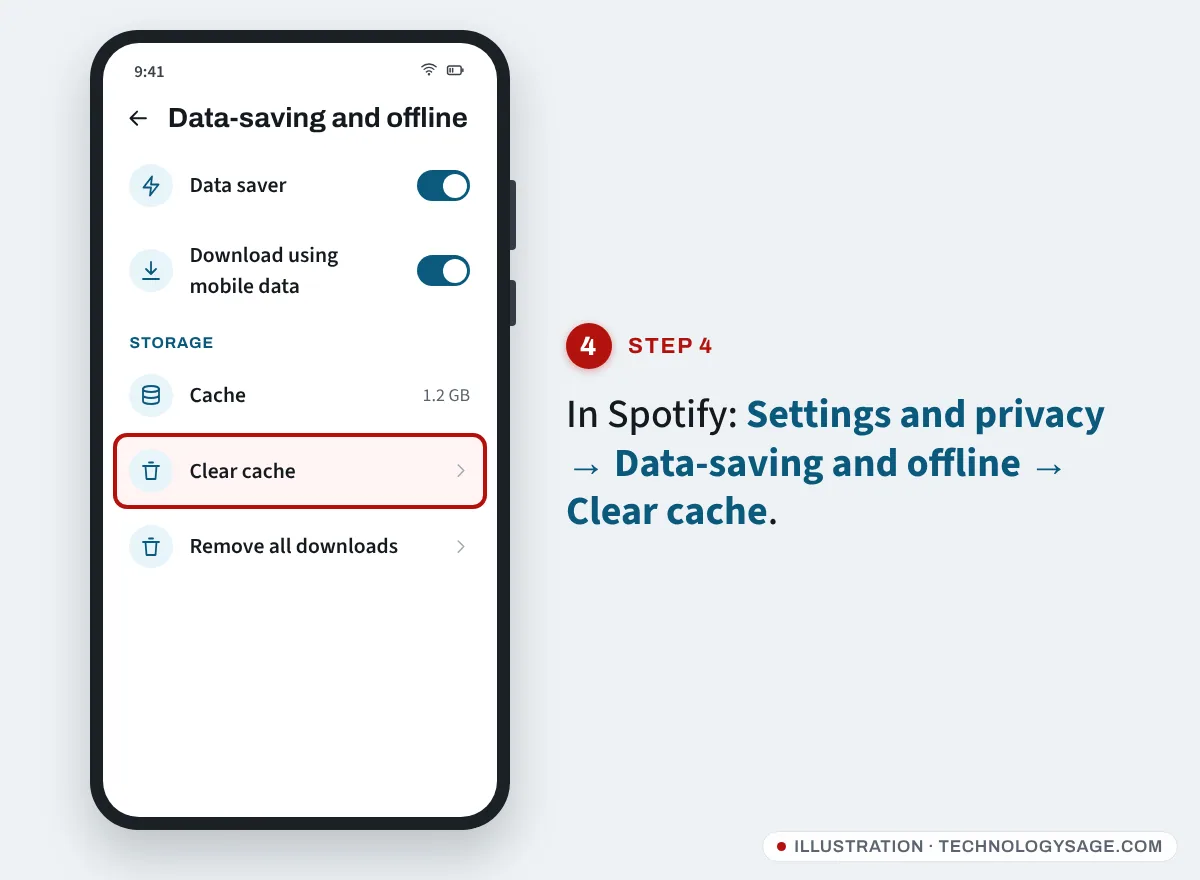
Clearing the cache removes temporary data but keeps your account, playlists and library. It may also remove some downloaded songs on some versions, so be on Wi-Fi in case you need to download again.
- In the app (Android and iPhone): tap your profile picture → Settings and privacy → Data-saving and offline (on some versions this is under Storage) and tap Clear cache.
- Android system settings: Settings → Apps → Spotify → Storage (or Storage & cache) → Clear cache. Avoid Clear storage unless you’re ready to log in again and re-download everything.
- Desktop app: open Settings from your profile picture, scroll to Storage, and click Clear cache.
5. Make sure there’s enough free space
Spotify’s help page says your device should have at least 250 MB of free memory. When storage is almost full, the cache can’t be written and pages fail. Free some space and try again. Samsung owners can use our guide to fixing internal storage full on Samsung.
6. Log out and back in
Logging out refreshes your account session, which helps when the error appears only on your library, playlists or profile.
- Phone: profile picture → Settings and privacy, scroll to the bottom and tap Log out.
- Desktop: click your profile picture → Log out.
Make sure you log back in with the same method you used before (email, phone number, Google, Facebook or Apple). Logging in a different way can open a different, empty account, which looks like your music has disappeared.
7. Try the web player or another device
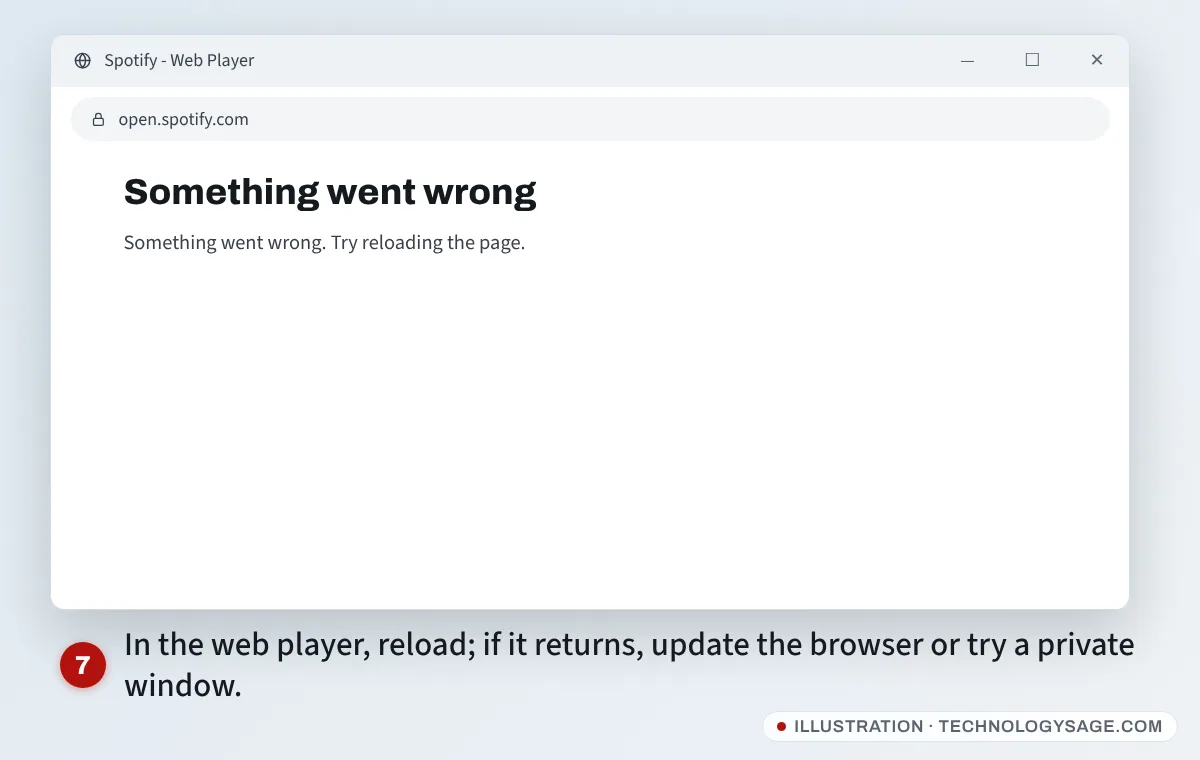
Open open.spotify.com in a browser, or try Spotify on another phone or computer. Spotify suggests this test to work out where the problem is:
- Works elsewhere: the problem is your device or app. Carry on with the reinstall below.
- Fails everywhere: it’s probably your account, your network or a Spotify outage.
If the web player shows “Something went wrong. Try reloading the page.”, update the browser, try a private or incognito window, and turn off ad-blocking extensions for open.spotify.com. Shared school or office networks may block the web player entirely.
8. Check your firewall or antivirus (PC and Mac)
On a computer, Spotify’s help page asks you to make sure your firewall isn’t blocking Spotify. If you recently installed security software, allow Spotify in it, or pause it briefly to test (then turn it back on).
9. Reinstall Spotify (clean reinstall)
If a normal reinstall doesn’t help, Spotify recommends a clean reinstall, which also removes leftover data. You’ll need to re-download offline music afterwards.
- Android: Settings → Apps → Spotify → Storage → Clear storage and Clear cache, then Uninstall. In your Files app, open Internal storage → Android → data and delete the com.spotify.music folder if it’s still there (newer Android versions may not let you see this folder; that’s fine). Restart the phone and install Spotify from Google Play.
- iPhone: clear the cache in Spotify first, then Settings → General → iPhone Storage → Spotify → Delete App. Turn the phone off for a few minutes, then reinstall from the App Store.
- Windows: Settings → Apps → Installed apps (on Windows 10, Apps & features), find Spotify and choose Uninstall. Reinstall from the Microsoft Store or spotify.com.
- Mac: quit Spotify, drag it from Applications to the Bin, then in Finder click Go, hold Option and choose Library. In Caches, delete the com.spotify.client folders, and in Application Support, delete the Spotify folder. Restart and reinstall.
10. Check your account country (if you’re travelling)
Spotify Free can be used outside your account’s country for 14 days; after that you need to update the country in your account settings. If you’ve moved, update the country on your account page at spotify.com. A VPN can also make Spotify think you’re in another country, so leave it off.
If nothing works
If you’ve done a clean reinstall, tried another network and the web player, and still see “Something went wrong”:
- Check for an outage. Spotify posts known problems on its @SpotifyStatus account on X and on the Ongoing Issues board in the Spotify Community.
- Note the details: which device, which screen shows the error, your app version (in Settings and privacy → About), and whether it happens on Wi-Fi, mobile data or both.
- Contact Spotify through Spotify Support, where you can find the contact options for your account.
Spotify will never ask for your password in a message, and real Spotify support doesn’t ask you to pay to fix your account. Be wary of “support” accounts on social media that DM you after you post about a problem.
FAQ
Why does Spotify keep saying “Something went wrong”?
Usually because the app can’t reach Spotify’s servers properly: a weak connection, a VPN or blocked network, an outdated app, a damaged cache or a Spotify outage. Restart the app, turn off any VPN, update Spotify and clear the cache.
How do I fix “Something went wrong. Try reloading the page” on Spotify?
Reload the page first. If it comes back, update your browser, try a private window, disable ad blockers for open.spotify.com, and check you’re not on a network that blocks streaming. In the desktop app, clear the cache in Settings → Storage, then log out and back in.
Will reinstalling Spotify delete my playlists?
No. Your playlists, liked songs and library are stored in your Spotify account. Reinstalling only removes downloaded songs and podcasts, which you’ll need to download again.
Does clearing the Spotify cache delete my downloads?
It can. Clearing the cache removes temporary files, and on some app versions it also removes offline downloads. Your playlists and account stay as they are.
Is Spotify down, or is it just me?
Try Spotify on another device or network. If it fails everywhere for you and for friends, check @SpotifyStatus on X and the Spotify Community’s Ongoing Issues board.