
In this guide
Your BitLocker recovery key is a 48-digit number, and for most home PCs it’s stored in the Microsoft account that was signed in when encryption was turned on. On another phone or computer, go to aka.ms/myrecoverykey, sign in, find the key whose Key ID matches the one on your blue screen, and type it in. If it isn’t there, check a work or school account, a printout, a USB drive, or the person who set up the PC.
Microsoft can’t look the key up for you or create a new one, so the places below are the only ones it can be. Work through them in order before you consider resetting anything.
What the BitLocker recovery screen means
BitLocker (called Device encryption on many Windows 11 Home laptops) encrypts your drive and normally unlocks it silently at startup using the TPM security chip. When Windows sees that something about the startup has changed, it stops and asks for the recovery key instead. That’s a security feature: it stops a thief who swaps hardware or boots another system from reading your files.
The screen says BitLocker recovery and Enter the recovery key for this drive, and shows a Recovery key ID. On Windows 11 version 24H2 and later, it can also show a hint of which Microsoft account holds the key.
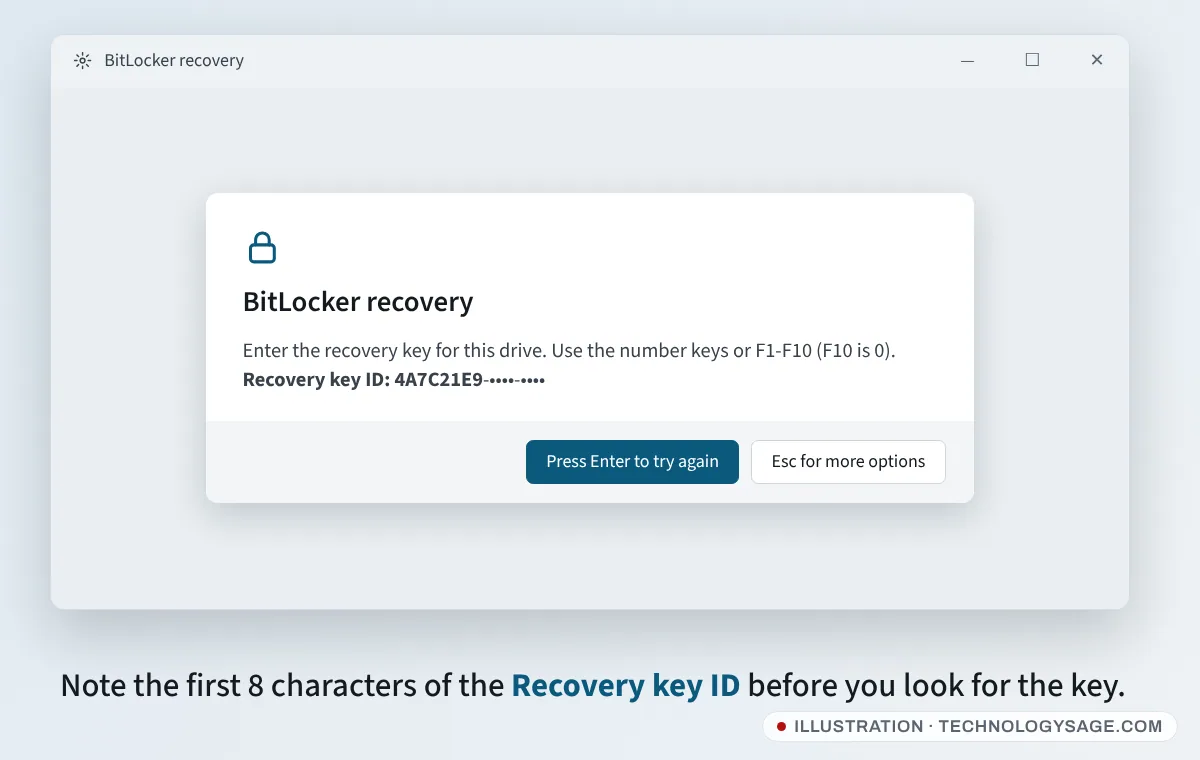
Before you do anything else, write down the first 8 characters of the Recovery key ID. If you’ve owned more than one PC, your account may hold several keys, and the ID is how you pick the right one.
Many people see this screen for the first time on a laptop they never knowingly encrypted. That’s normal: lots of new laptops turn on device encryption automatically when you sign in with a Microsoft account, and back the key up to that account.
Where to find your BitLocker recovery key
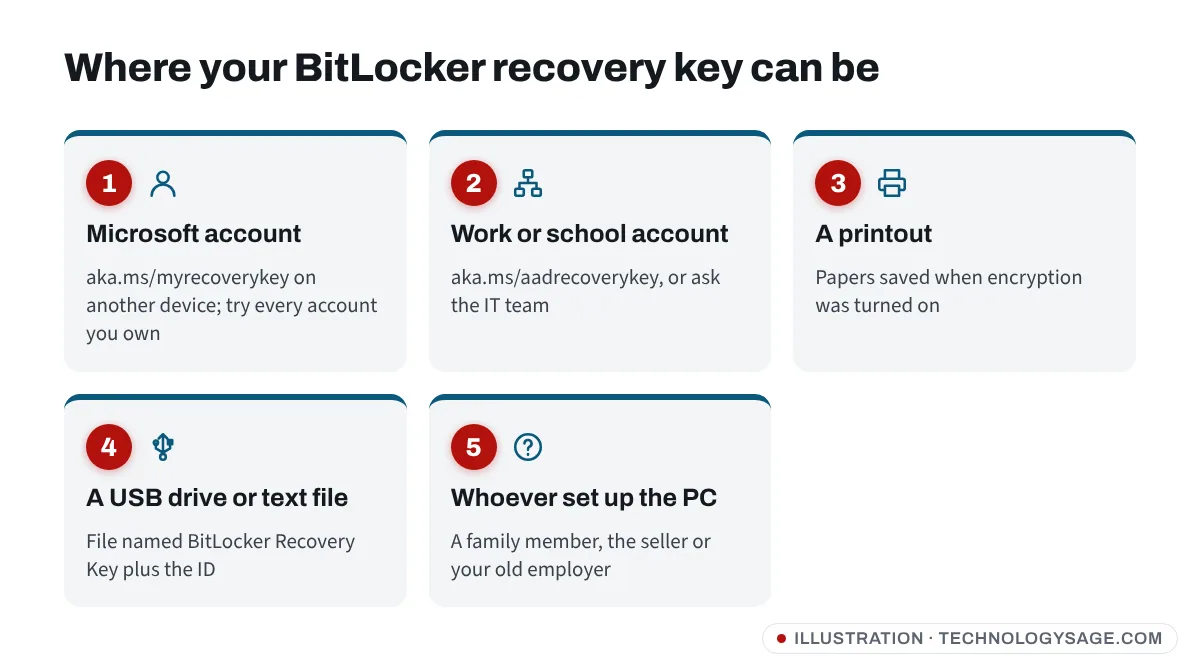
1. Your Microsoft account (most home PCs)
- On another device, open aka.ms/myrecoverykey. It takes you to the recovery keys page of your Microsoft account.
- Sign in with the Microsoft account you use on the locked PC.
- Look down the list for the Key ID that starts with the same 8 characters as your screen.
- Type the matching 48-digit Recovery key on the locked PC and press Enter.
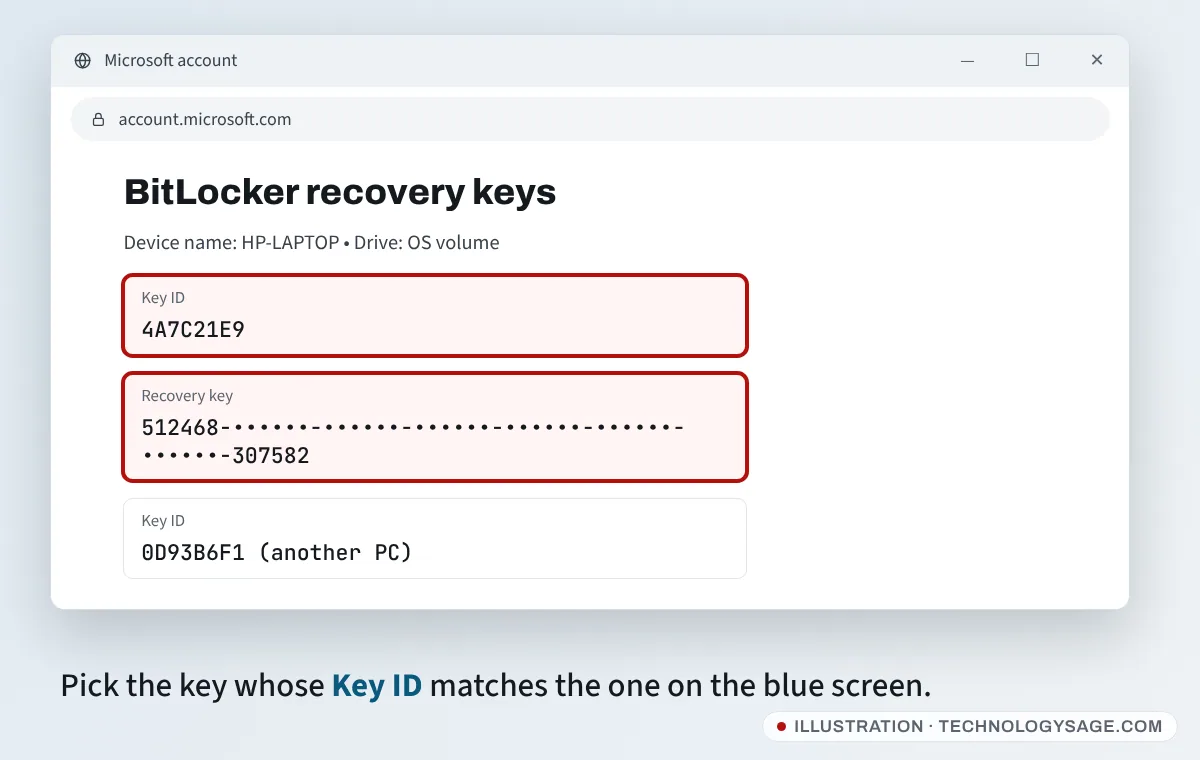
If the list is empty or no ID matches, try every Microsoft account you’ve ever used (old Outlook, Hotmail or Live addresses too). The key is saved to whichever account was signed in when encryption started, which may be someone else’s: a partner, parent or child who set the laptop up for you. If you can’t get into your account, recover it first through Microsoft’s official sign-in pages.
2. A work or school account
If the PC was ever signed in to an employer’s or school’s account (even briefly, for Outlook or Teams), the key may be there instead:
- Go to aka.ms/aadrecoverykey and sign in with the work or school account.
- Select Devices, expand the device, and choose View BitLocker Keys.
- Match the key ID.
If that page doesn’t show the key, the organisation’s IT department can. For a company-managed laptop, contact IT first anyway.
3. A printout, USB drive or text file
When BitLocker is turned on manually, Windows offers to print the key or save it to a file or USB drive. Look in the folder where you keep warranty papers and receipts. If you have a USB stick that might hold it, plug it into the locked PC and follow the prompts, or open it on another computer and look for a text file whose name starts with BitLocker Recovery Key followed by the key ID.
4. The person or shop that set up the PC
A laptop bought second-hand, set up by a retailer’s setup service or handed down from a former employer may have its key in someone else’s account. Ask them to check their recovery keys page for your key ID.
Scam warning: no app, “unlock service” or support agent can bypass BitLocker. Anyone who says they can, for a fee, remote access or gift cards, is a scammer. Real Microsoft support doesn’t cold-call you and can’t retrieve lost keys. Don’t call phone numbers from search ads or pop-ups claiming to be Microsoft.
Why did BitLocker suddenly ask for the recovery key?
The prompt usually follows a change to the startup process, not a fault with your drive.
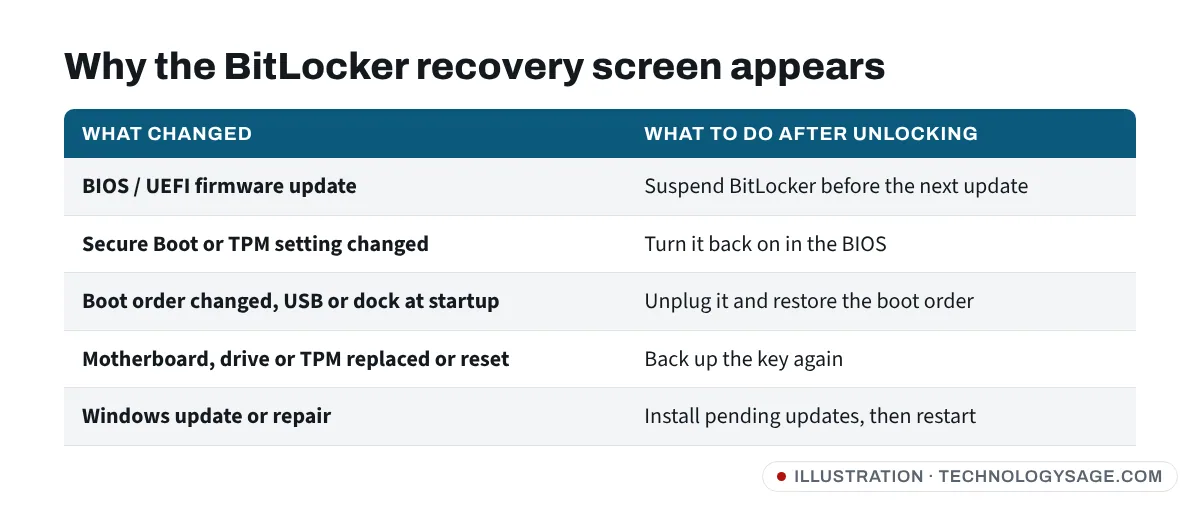
- A BIOS or UEFI firmware update. This is the most common cause. Updates delivered through Windows Update or the maker’s app (Dell, HP, Lenovo and others) don’t always pause BitLocker first.
- Changed BIOS settings: Secure Boot turned off, the TPM disabled or cleared, legacy/CSM boot turned on, or the boot order changed.
- Something plugged in at startup, such as a USB stick, external drive or docking station that the PC tries to boot from.
- Hardware changes: a new motherboard, a replaced drive, or a repair shop resetting the TPM.
- Windows updates and repairs. Some updates, Startup Repair or recovery tools can trigger it, and Microsoft has listed this as a known issue more than once. (If an update itself is stuck, see Windows Update stuck.)
- Too many wrong PIN attempts if you use a BitLocker startup PIN.
Enter the key once and Windows should start normally. If the cause was a one-off update, the screen won’t come back.
If the recovery key doesn’t work
- Check the ID again. A key for a different PC or drive won’t work, even if it’s in your account.
- Watch for typing errors. The key is eight groups of six digits. If the number row doesn’t respond, the screen accepts F1-F10 (F10 is 0). Number pads often don’t work unless Num Lock is on.
- Use the keyboard on the laptop itself. Some wireless and USB keyboards aren’t ready at this stage.
- The screen returns after every restart. Enter the key, then go into the BIOS (the key varies by maker: often F2, F10, F12, Del or Esc) and make sure Secure Boot is enabled, the TPM/PTT/fTPM is enabled, and the boot mode is UEFI. Undo any setting you changed just before the problem began. Some makers have released BIOS fixes for recovery loops after firmware updates, so check your PC maker’s support page for a newer BIOS.
- It asks for a different drive. Press Esc for more recovery options, where you may be able to skip a secondary data drive and unlock it later from Windows.
Stop the recovery screen from coming back
Once you’re back in Windows:
-
Save a fresh copy of the key. Search Start for Manage BitLocker and select Back up your recovery key (on Home editions, use Settings → Privacy & security → Device encryption and check that it says the key is backed up to your Microsoft account). Microsoft’s back-up guide covers each option. Keep a printout somewhere other than the laptop bag.
-
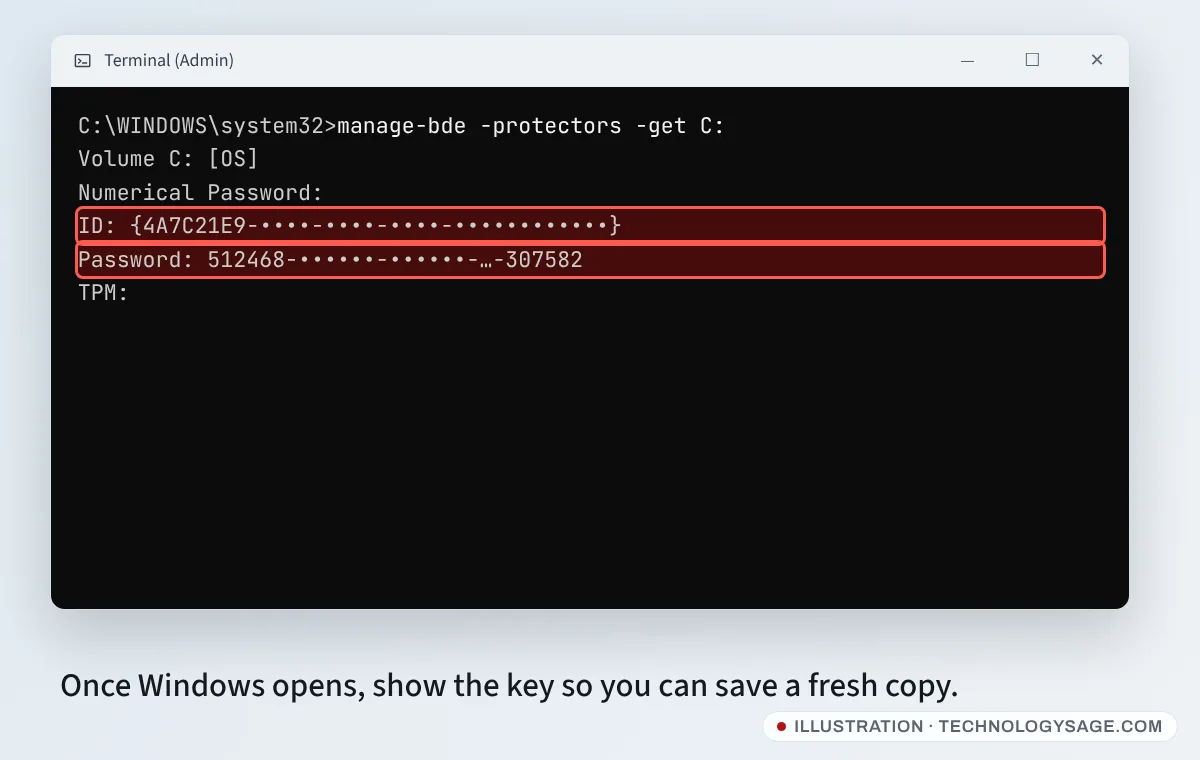
Or show the key from an admin terminal. Right-click Start, choose Terminal (Admin) and run:
manage-bde -protectors -get C:The Numerical Password section shows the ID and the 48-digit key.
-
Suspend BitLocker before a BIOS update. In Manage BitLocker, choose Suspend protection; it turns back on by itself after the restart. On any edition you can do the same from an admin terminal:
manage-bde -protectors -disable C: -RebootCount 1 -
Check the other drives. If you have encrypted data drives or USB drives, back up their keys too.
If you can’t find the BitLocker recovery key
Without the key, the data on an encrypted drive can’t be read. That’s the whole point of encryption, so a recovery shop can’t help either. Your remaining choice is to reset or reinstall Windows, which erases everything on the drive:
- On the recovery screen press Esc, then look for Skip this drive to reach the Windows recovery options.
- Choose Troubleshoot → Reset this PC → Remove everything.
Before you do this, be sure you’ve checked every account and every person who could have set the PC up. Files you synced to OneDrive or another cloud service are safe and will come back when you sign in again. If the PC won’t start at all afterwards, see PC won’t boot. For an external drive locked by BitLocker To Go, our older guide to recovering data from a BitLocker-encrypted drive covers unlocking with a password or key.
For everything in one place, Microsoft’s official page is Finding your BitLocker recovery key in Windows.
FAQ
How do I get my BitLocker recovery key from my Microsoft account?
On any device, go to aka.ms/myrecoverykey, sign in with the account you used on the locked PC, and choose the key whose Key ID matches the first 8 characters on the screen.
Can Microsoft give me my BitLocker recovery key?
No. Microsoft support can’t retrieve, provide or recreate a lost key. It only exists where it was saved: your Microsoft account, an organisation’s account, a printout or a file.
Why is BitLocker asking for a recovery key when I never turned it on?
Many laptops switch on device encryption automatically when you first sign in with a Microsoft account. A BIOS update, a Secure Boot or TPM change, or a hardware repair then triggers the recovery screen.
Can I bypass the BitLocker recovery screen without the key?
Not without losing the data. You can reset or reinstall Windows, which wipes the drive, but nothing can decrypt it without the key.
Will the BitLocker recovery screen come back?
Usually not, once the key has been entered and the change that caused it is settled. Suspend BitLocker before future BIOS updates, and if it reappears on every restart, check Secure Boot and TPM settings in the BIOS.