In this guide
To install Kodi on an Android phone, open the Google Play Store, search for “Kodi” and install the app published by the XBMC Foundation, or download the official APK from kodi.tv. Kodi is free, legal, open-source media-centre software. What it does not do is give you DStv, SuperSport or Premier League channels for free: the “DStv add-ons” and “Kodi builds” that promise that are piracy, they break constantly, and many come with malware.
This guide replaces our older article on installing Kodi to watch DStv channels. We no longer recommend that, for the reasons below.
What Kodi is (and what it isn’t)
Kodi started life as XBMC, a media centre for the original Xbox, and is now run by the non-profit XBMC Foundation. It is a player and organiser: you point it at your own videos, music and photos (on the phone, a memory card, a USB drive or a home network share) and it turns them into a tidy library with posters, descriptions and subtitles.
Kodi ships with no content at all. Everything else comes from add-ons, small plug-ins that fetch video or audio from somewhere. The official Kodi repository, built into the app, only accepts add-ons for legal sources. Third-party “repos” and “builds” shared on YouTube, Telegram and WhatsApp are a different matter: most of the ones promising live sport or pay-TV channels simply scrape pirated streams.
How to install Kodi on Android from Google Play
This is the easiest and safest way, because Play picks the right version for your phone and keeps it updated.
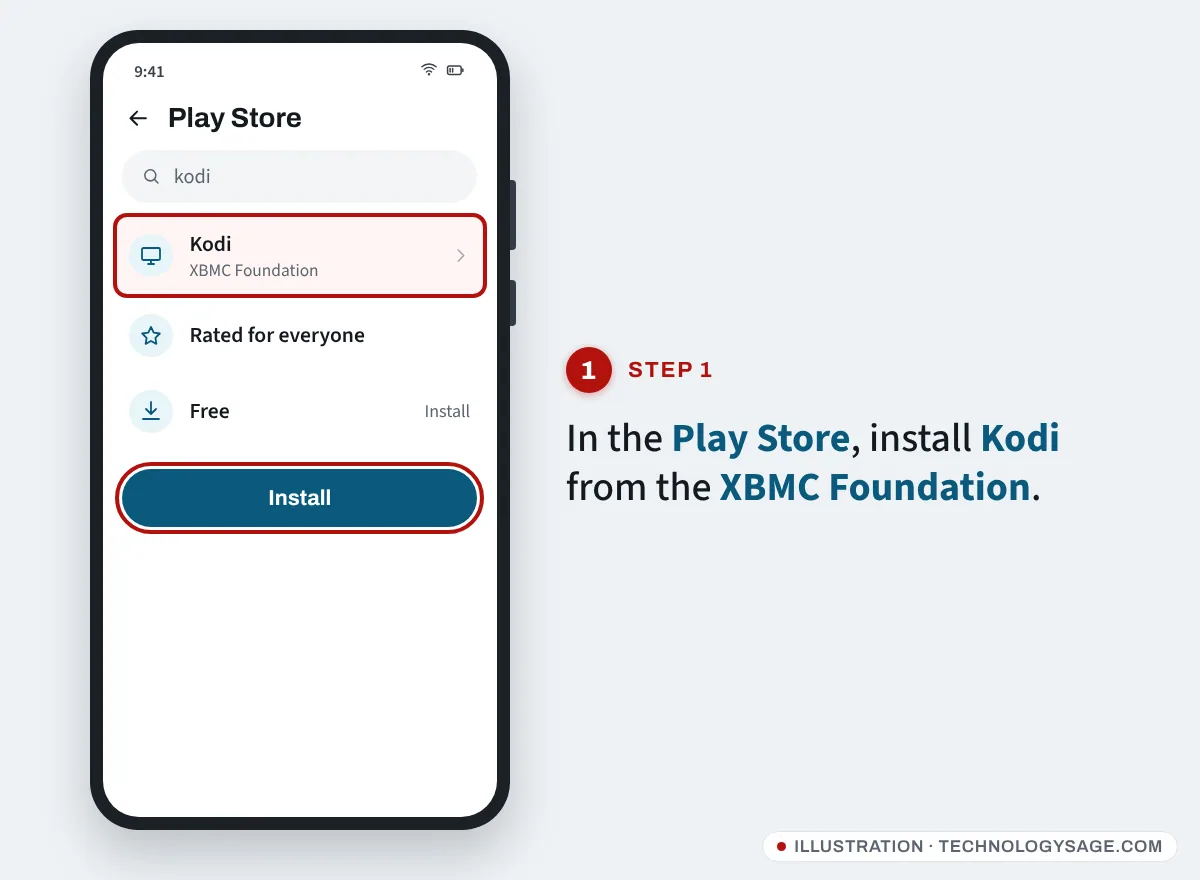
- Open the Play Store and search for Kodi.
- Check the developer is XBMC Foundation. Ignore look-alikes with names such as “Kodi TV Live” or “Kodi Sports”.
- Tap Install, then Open.
- When Kodi asks for access to photos, media or files, tap Allow. Kodi needs it to see the videos and music on your phone.
Kodi is a big app and works best on a phone with at least 2 GB of RAM and a few hundred MB of free storage. It runs on Android 5.0 and later, though recent phones give a much smoother experience.
Installing from kodi.tv instead
Sometimes a new Kodi release reaches kodi.tv before it reaches the Play Store, and some phones and TV boxes don’t have Play at all. In that case:
- In Chrome, go to kodi.tv, tap Download and choose Android.
- Pick ARMV8A (64BIT) for most phones made in the last several years. Older or very cheap phones may need ARMV7A (32BIT).
- Open the downloaded APK. Android asks you to allow installs from Chrome: tap Settings, turn on Allow from this source, go back and tap Install.
- After installing, turn Allow from this source off again.
Only download the APK from kodi.tv. Kodi APKs on other sites, or “pre-loaded” Kodi versions, are a common way to slip malware onto phones. See our guide to the “App not installed” error if the APK refuses to install.
What you can legally do with Kodi
Play your own media library
This is what Kodi is best at:
- Open Kodi and tap Videos (or Music).
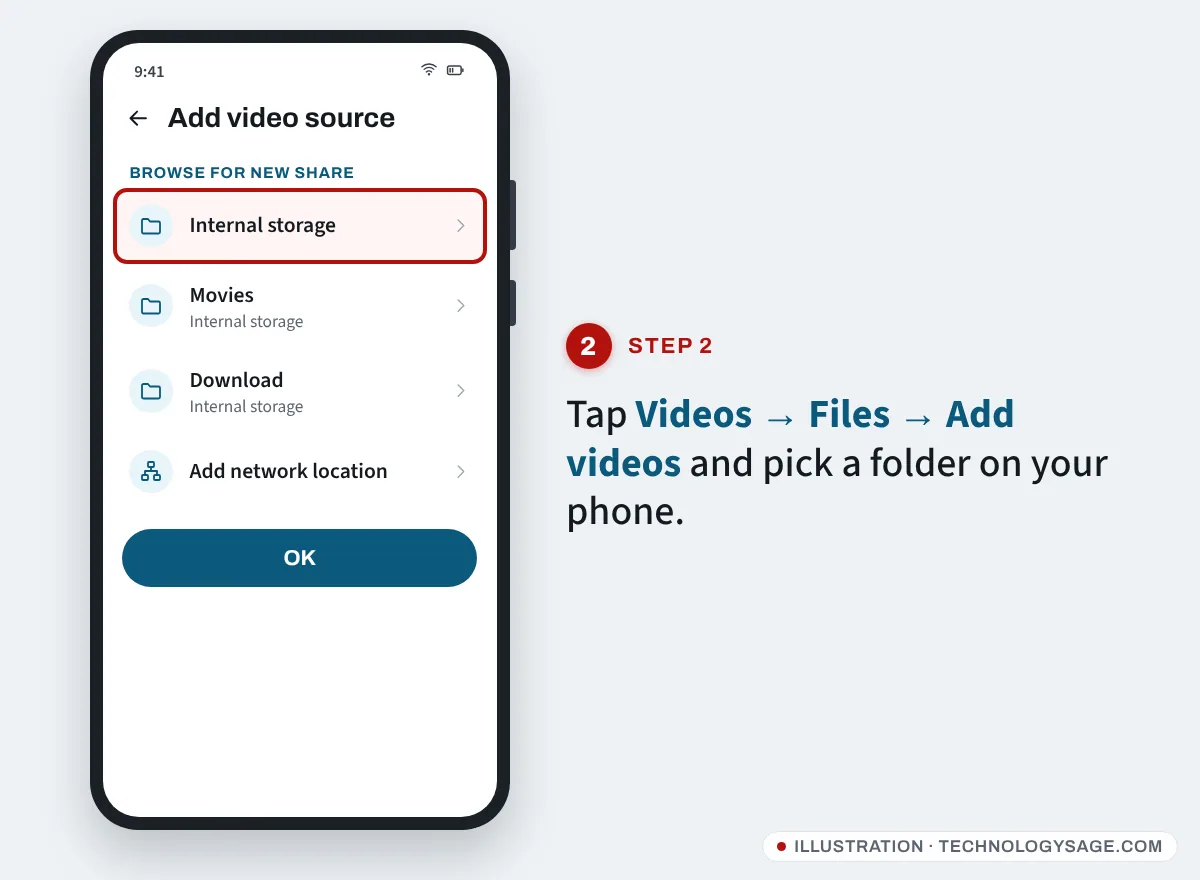
- Tap Files → Add videos… → Browse.
- Choose the folder where your videos are, for example Internal storage → Movies or a Download folder, and tap OK.
- Set the content type (Movies or TV shows) so Kodi can fetch posters and descriptions.
Kodi plays almost any format, including MKV files that some phone players can’t open, and handles subtitle files neatly. If your files are on a laptop or a network drive at home, Kodi can play them over Wi-Fi without copying them to your phone.
Install add-ons from the official repository
- Tap Add-ons in the side menu, then Install from repository.
- Choose Kodi Add-on repository.
- Browse Video add-ons, Music add-ons or Podcast-type add-ons and tap one to install it.
The official repository contains add-ons for things such as podcasts, internet radio, public-domain film archives and some broadcasters’ free on-demand services. What is in it changes over time and some add-ons only work in certain countries, so expect to browse. Note that the official repository won’t give you SuperSport, DStv or Premier League matches, because no one holds the rights to give them away.
Use it as a player on a TV box
If you have an Android TV box, Kodi makes a good front end for your home media library on the big screen. For pay-TV and live sport on a TV, use the broadcaster’s own app instead: see how to watch live football on Android TV.
Why “DStv add-ons” for Kodi are a bad idea
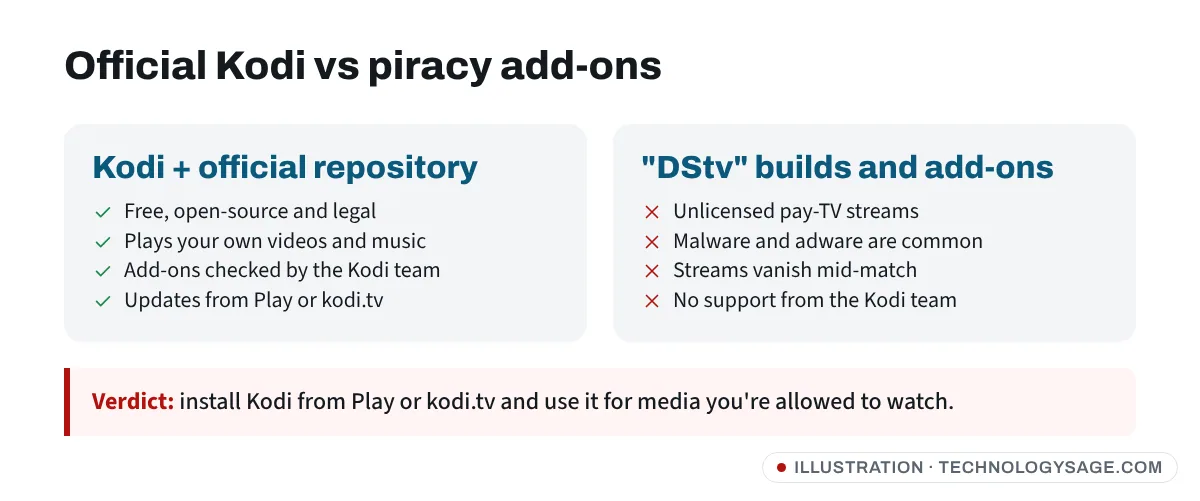
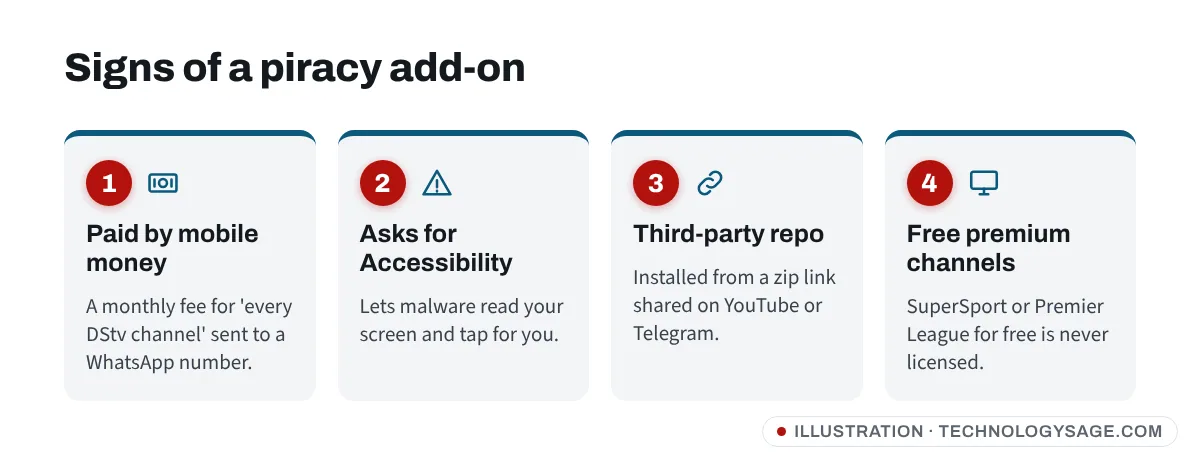
Search for “Kodi DStv” and you’ll find add-ons and builds that claim to show SuperSport, the Premier League and every DStv channel for free, or for a small monthly fee paid by mobile money. All of them are unlicensed, and the problems are real:
- They are illegal to distribute and, in many countries, to use. Pay-TV piracy is pursued under copyright and cybercrime laws in Kenya, Nigeria, South Africa and elsewhere. In early 2026, MultiChoice and its anti-piracy partner Irdeto worked with South African police on raids that led to arrests and convictions under the Cybercrimes Act, and 819 illegal accounts were disabled.
- Malware. Security firms including ThreatFabric and Kaspersky reported in 2026 that fake streaming and IPTV apps were spreading Android banking malware. A warning sign is any app or add-on installer that asks for Accessibility access, which lets it read your screen and tap buttons for you.
- They stop working. Pirate streams are taken down all the time, often in the middle of a match, and there is nobody to complain to.
- Kodi itself can’t help you. The Kodi team doesn’t support piracy add-ons and its forum won’t help with them.
If you already installed a Kodi “build” or an add-on from a stranger’s repository, uninstall Kodi (Settings → Apps → Kodi → Uninstall), reinstall the clean version from Play, and check your phone: see how to remove viruses from Android.
Legal ways to watch what people use “Kodi DStv” for
- DStv channels on your phone: the official DStv Stream app, included with a DStv subscription, with streaming-only plans in some countries. See how to watch DStv on your Android phone.
- Football from about KES 750 or NGN 6,000 a month: DStv Starter includes SuperSport KICKOFF with selected Premier League matches (as of November 2026; check the official site). For a full price breakdown, see how to watch the Premier League live.
- Free and legal football: free-to-air broadcasters, SABC+ in South Africa and official highlights on YouTube. See free legal ways to watch football.
- Free live TV apps: news channels and national broadcasters stream for free in official apps and on YouTube. See the best legal live TV apps for Android.
If Kodi doesn’t work on your phone
- “App not compatible” in the Play Store: your phone may be too old or use a processor Kodi doesn’t support. Try the 32-bit APK from kodi.tv.
- Kodi can’t see your videos: go to Settings → Apps → Kodi → Permissions and allow Photos and videos or Files and media. On Android TV 11 and later, choose Allow all the time for file access.
- Kodi is slow or crashes: close other apps, clear Kodi’s cache (Settings → Apps → Kodi → Storage → Clear cache), and avoid “builds” and skins that load dozens of add-ons.
- A video plays without sound: in the playback menu (the gear icon), check the audio stream and try switching Settings → System → Audio passthrough off.
FAQ
Is Kodi legal?
Yes. Kodi is free, open-source software and is legal to install and use. What can be illegal is using third-party add-ons that stream pay-TV channels, films or sport without permission.
Can I watch DStv on Kodi?
Not legally. No official Kodi add-on carries DStv or SuperSport. To watch DStv on a phone, use the official DStv Stream app with a subscription.
Is Kodi on the Google Play Store?
Yes. Search for “Kodi” and check that the developer is the XBMC Foundation. You can also get the official APK from kodi.tv.
Is Kodi safe on Android?
Kodi from Google Play or kodi.tv is safe. The risk comes from modified Kodi versions, “builds” and add-ons from unknown repositories, which can contain malware or adware.
Does Kodi cost money?
No. Kodi is completely free. Anyone selling “Kodi” or charging a monthly fee for a Kodi add-on with premium channels is selling an unlicensed service.