In this guide
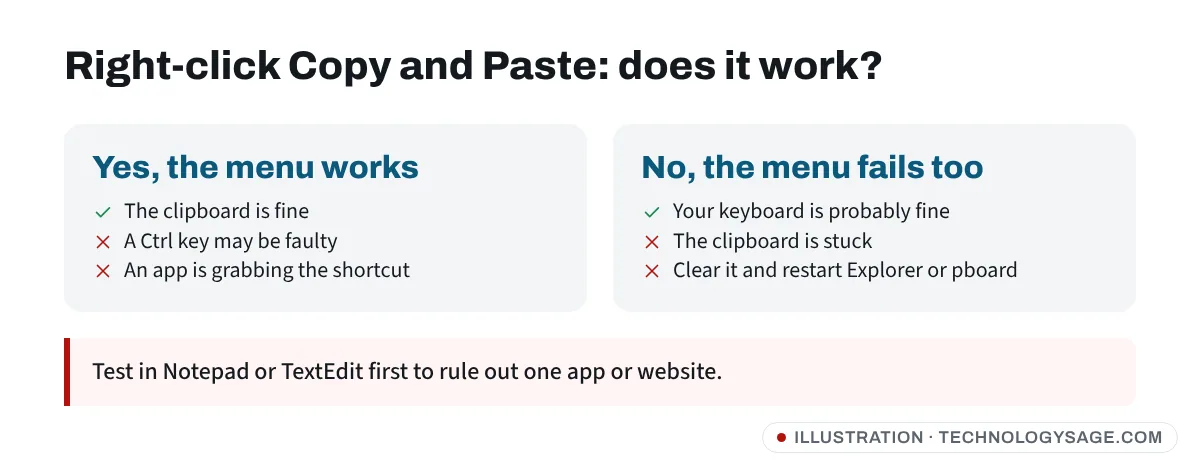
When copy and paste is not working, first find out whether the problem is the keyboard shortcut or the clipboard itself: right-click the text and choose Copy, then right-click where you want it and choose Paste. If that works, a Ctrl key or a background app is interfering with Ctrl + C and Ctrl + V. If even the menu fails, the clipboard is stuck: on Windows, clear it in Settings → System → Clipboard and restart Windows Explorer; on a Mac, quit the pboard process in Activity Monitor. A restart fixes most cases on both.
Below are the fixes in order, for Windows 10, Windows 11 and macOS.
Is it the app, the keyboard or the clipboard?
- Try another app. Copy some text in Notepad (Windows) or TextEdit (Mac) and paste it in the same app. If that works, the problem is in the original app or website.
- Use the menu instead of the keys. Right-click and choose Copy / Paste, or use the app’s Edit menu. If the menu works but the keys don’t, the keyboard or a shortcut-grabbing app is the cause.
- Try the other Ctrl key. Laptops have one on each side. If one works and the other doesn’t, that key is faulty.
- Try alternative shortcuts. On Windows, Ctrl + Insert copies and Shift + Insert pastes in most apps.
Some content can’t be copied on purpose: banking and streaming apps, protected PDFs, and websites that block selecting text. That isn’t a fault on your computer.
Fix copy and paste on Windows
1. Restart the app, then the PC
Save your work, close the app completely and reopen it. If copy and paste is broken in every app, restart Windows (Start → Power → Restart). It’s the quickest fix for a stuck clipboard.
2. Clear the clipboard and reset clipboard history
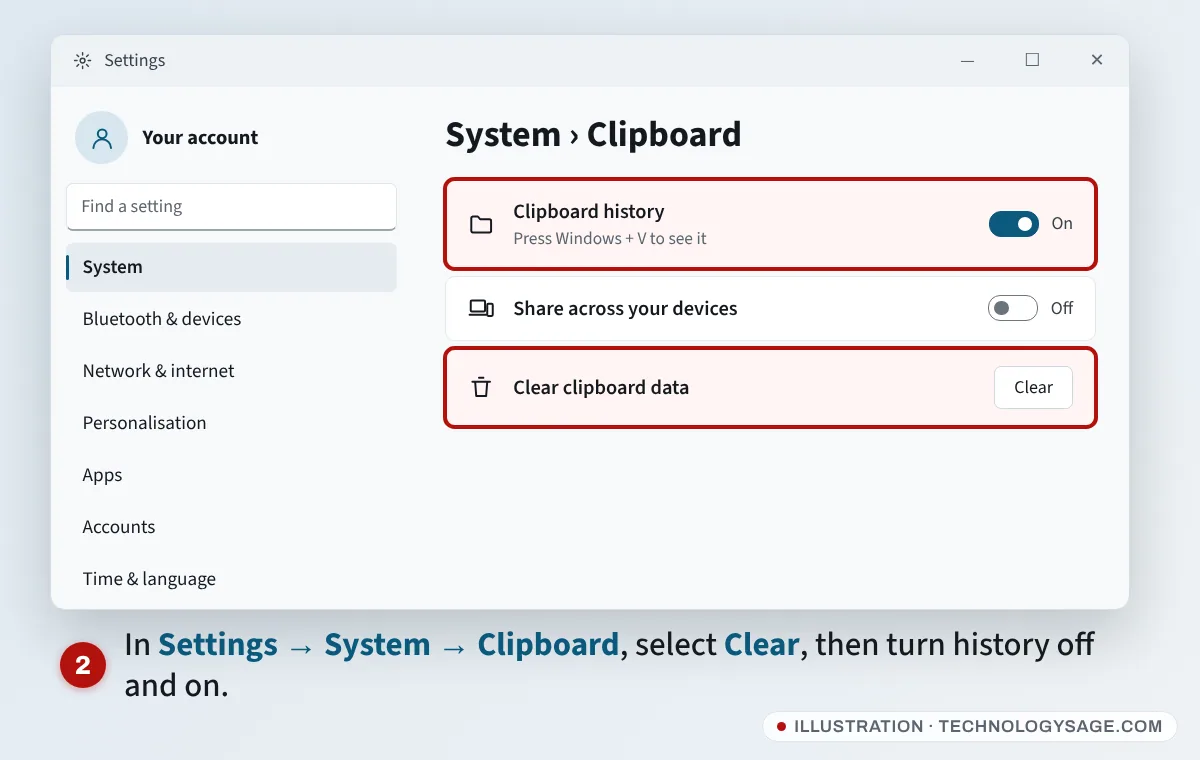
- Press Windows + I and go to System → Clipboard.
- Next to Clear clipboard data, select Clear.
- Switch Clipboard history off, wait a few seconds, and switch it back on.
- Try copying again. With history on, Windows + V shows recent items you’ve copied, which is a good way to check whether copying worked at all.
If your organisation manages the PC, some clipboard options may be greyed out.
3. Restart Windows Explorer
Windows Explorer runs the taskbar, desktop and much of the copy-and-paste between windows. Restarting it often unsticks the clipboard without a full restart.
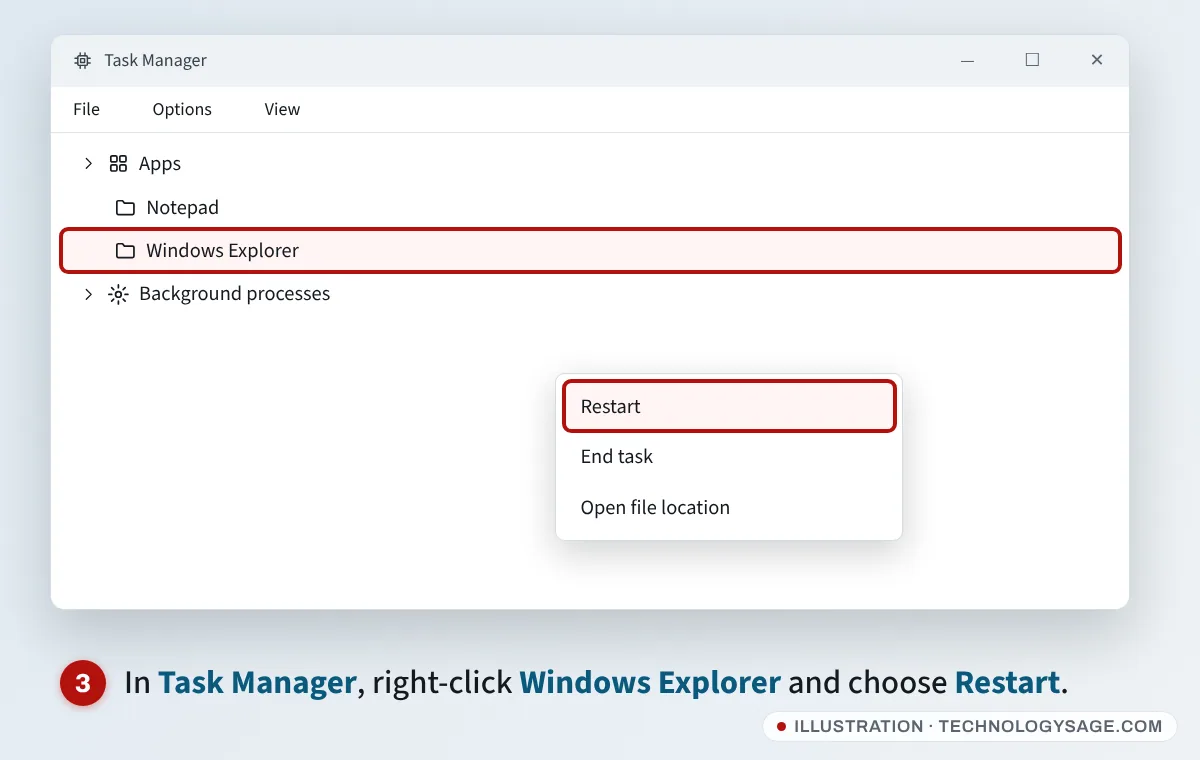
- Press Ctrl + Shift + Esc to open Task Manager.
- On the Processes tab, find Windows Explorer.
- Select it and choose Restart (right-click it, or use the button at the top).
The taskbar disappears for a second and comes back.
4. Close apps that grab the clipboard or shortcuts
Clipboard managers, screenshot tools, translation pop-ups, remote-control apps, game overlays, password managers and virtual machine software can take over the clipboard or Ctrl shortcuts.
- Close them from the notification area (the ^ arrow in the taskbar) and test again.
- To find the culprit, open Task Manager → Startup apps, disable non-essential apps, restart, and turn them back on one at a time.
5. Check the keyboard
- Open the on-screen keyboard (Windows + Ctrl + O) and use its Ctrl and C keys. If copying works this way, your physical keyboard has a problem.
- A stuck key, especially Alt, Ctrl or Windows, can make every shortcut behave strangely. Press each one a few times.
- If several keys are dead, see our guides to a laptop keyboard not working and the Windows key not working.
6. Copy and paste in Remote Desktop
If copying between your PC and a remote computer stopped working:
- In Remote Desktop Connection, open Show Options → Local Resources and make sure Clipboard is ticked.
- On the remote computer, open Task Manager, find rdpclip.exe (RDP Clipboard Monitor) on the Details tab, and choose End task.
- Still in Task Manager, choose Run new task, type
rdpclip.exeand press Enter. Microsoft’s own troubleshooting suggests restarting rdpclip this way. - If it still fails, disconnect and reconnect the session.
7. Repair Windows system files
If copy and paste is broken everywhere and nothing above helps, repair Windows’ system files.
- Right-click Start and choose Terminal (Admin) (on Windows 10, Windows PowerShell (Admin) or Command Prompt as administrator).
- Run this command and wait for it to finish:
sfc /scannow- Then run:
DISM /Online /Cleanup-Image /RestoreHealth- Restart the PC.
Neither command deletes your files. Also install pending updates in Settings → Windows Update.
Fix copy and paste on a Mac
1. Use the Edit menu
Try Edit → Copy and Edit → Paste in the menu bar. If those work but Command + C and Command + V don’t, check the Command keys and any keyboard or clipboard utilities you’ve installed.
2. Restart the clipboard (pboard)
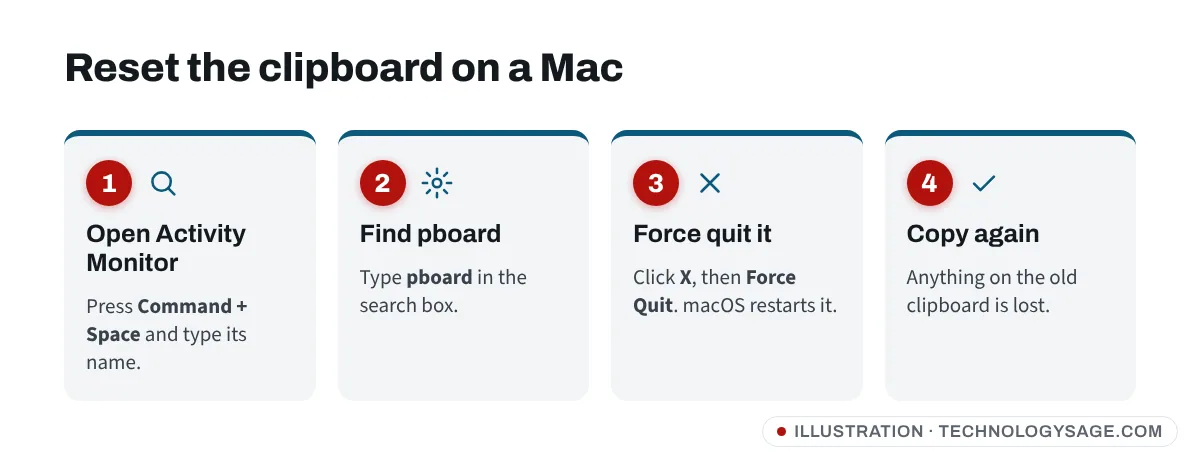
macOS runs the clipboard in a process called pboard. Quitting it makes macOS start a fresh one. Anything currently on the clipboard is lost.
- Open Activity Monitor (press Command + Space, type Activity Monitor, press Return).
- Type pboard in the search box.
- Select pboard, click the X (Stop) button in the toolbar, and choose Force Quit.
- Try copying and pasting again.
You can do the same in Terminal with:
killall pboard3. Restart the Mac
Choose Apple menu → Restart. If copying still fails in every app after a restart, install any pending macOS updates in System Settings → General → Software Update.
4. Fix copying between iPhone and Mac (Universal Clipboard)
Universal Clipboard needs both devices signed in to the same Apple Account with Wi-Fi, Bluetooth and Handoff on. On the Mac, check System Settings → General → AirDrop & Handoff → Allow Handoff between this Mac and your iCloud devices. On the iPhone, check Settings → General → AirPlay & Continuity (on older iOS, AirPlay & Handoff) → Handoff.
If it still doesn’t work
- Only in one program (Excel, a browser, a design app): update that program, and check its own settings, since some apps have their own clipboard options. In browsers, test in a private window to rule out extensions.
- Only in one website: the site may block copying. Paste into the address bar to test, or use the site’s own share or download options.
- The pointer vanished too: see mouse cursor disappeared.
- After a recent Windows update: check Settings → Windows Update → Update history and our guide if Windows Update is stuck.
FAQ
Why is Ctrl+C and Ctrl+V not working?
Either a Ctrl key is faulty, an app is taking over the shortcut, or the clipboard is stuck. If right-click Copy and Paste work, check the keyboard and close clipboard or screenshot tools. If they don’t, clear the clipboard and restart Windows Explorer.
How do I reset the clipboard in Windows?
Open Settings → System → Clipboard and select Clear next to Clear clipboard data. Restarting Windows Explorer in Task Manager, or restarting the PC, also resets it.
Why can’t I paste anything on my Mac?
The pboard process may be stuck. Open Activity Monitor, search for pboard and force quit it, then try again. If that doesn’t help, restart the Mac.
Can a virus stop copy and paste from working?
It’s possible but uncommon. Clipboard-hijacking malware usually swaps what you paste (for example a payment or crypto address) rather than blocking it. If pasted text changes by itself, run a full scan with Windows Security and change important passwords from another device.
What’s the alternative shortcut for copy and paste?
On Windows, Ctrl + Insert copies and Shift + Insert pastes in most apps. On both Windows and Mac, the right-click menu and the app’s Edit menu always work as long as the clipboard itself is working.