In this guide
- How to use Windows without a mouse (while you fix it)
- Why did my cursor disappear?
- Fix 1: Turn the touchpad back on with the keyboard
- Fix 2: Switch the touchpad on in Windows Settings
- Fix 3: Check your external mouse
- Fix 4: Show the pointer’s location and stop it hiding while typing
- Fix 5: Check for a second screen
- Fix 6: Restart the graphics driver, Explorer or the PC
- Fix 7: Update or reinstall the mouse and touchpad drivers
- Cursor disappeared on a Mac
- Cursor disappears only in one app
- FAQ
If your mouse cursor disappeared on a laptop, the touchpad has most likely been switched off. Press the touchpad key on your keyboard (usually one of F1-F12 with a touchpad icon, sometimes together with Fn), or open Settings → Bluetooth & devices → Touchpad and switch Touchpad on. With an external mouse, check its battery and USB receiver. On a Mac, quickly shake the mouse or swipe the trackpad from side to side: the pointer grows so you can spot it.
Below are all the fixes, plus how to get around Windows with the keyboard while the cursor is missing.
How to use Windows without a mouse (while you fix it)
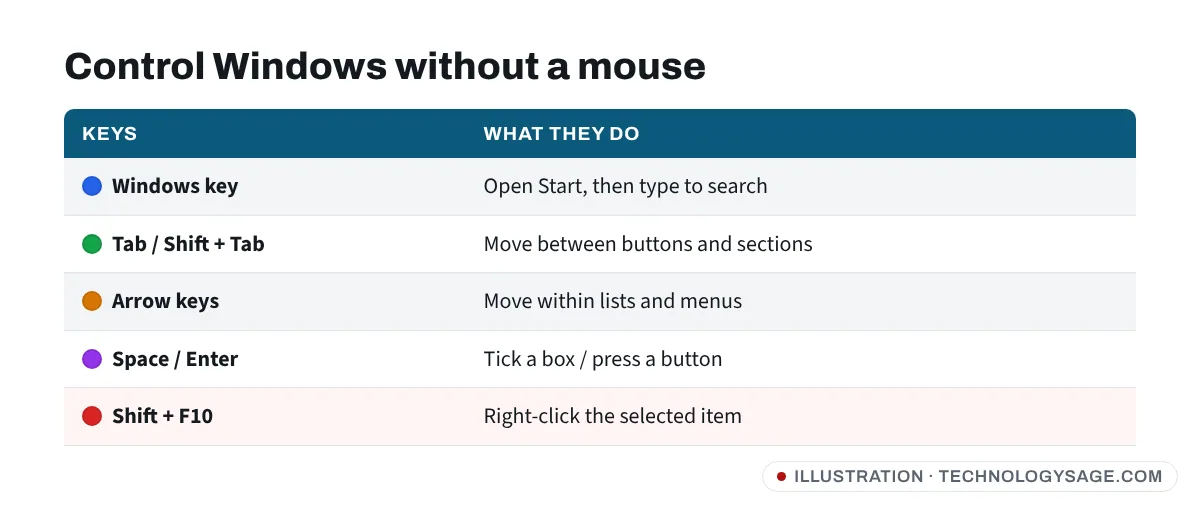
You’ll need these keys to reach the settings below:
| Keys | What they do |
|---|---|
| Windows key, then type | Search for and open any setting or app |
| Tab / Shift + Tab | Move between buttons and sections |
| Arrow keys | Move within lists and menus |
| Space / Enter | Tick a box / press a button |
| Shift + F10 | Right-click the selected item |
| Alt + F4 | Close the current window |
If the keyboard doesn’t respond either, the PC may be frozen. Press Caps Lock: if its light doesn’t change, hold the power button for 10 seconds to switch off, then start the PC again. Our guide to a laptop keyboard not working helps if only the keyboard is dead.
Why did my cursor disappear?
- The touchpad was turned off with a function key, often by accident.
- The mouse lost power or connection (flat battery, unplugged USB receiver, Bluetooth dropped).
- The pointer moved to another screen, such as a TV or projector you connected earlier.
- Pointer settings hide it while typing, or a custom pointer scheme is broken.
- A graphics or touchpad driver glitch, often after a Windows update.
- One app is hiding it: games, video players and full-screen browsers hide the cursor on purpose.
Fix 1: Turn the touchpad back on with the keyboard
- Look along the top row of keys (F1-F12) for a touchpad icon, often a rectangle with a line through it or a finger touching a pad.
- Press that key. If nothing happens, hold Fn and press it.
- If your laptop has Fn Lock turned on, the F-keys behave the other way round. Lenovo laptops commonly use Fn + Esc to toggle it.
- Some HP laptops have a small light in the top-left corner of the touchpad. Double-tap that corner to switch the touchpad on or off.
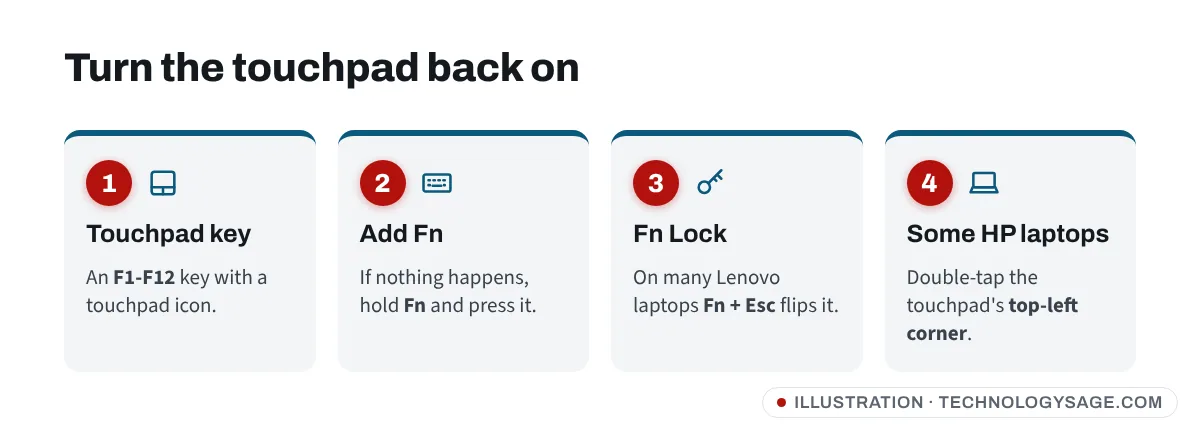
The key differs by brand and model, so check the icons on your own keyboard rather than pressing every F-key in turn (some switch off Wi-Fi or the screen).
Fix 2: Switch the touchpad on in Windows Settings
- Press Windows + I to open Settings.
- Press Tab until the search box is selected (or just start typing), type touchpad and press Enter.
- On Bluetooth & devices → Touchpad, make sure the Touchpad switch is On. Press Tab to reach it and Space to flip it.
- Expand the touchpad section and tick Leave touchpad on when a mouse is connected, so the touchpad keeps working if Windows thinks a mouse is plugged in.
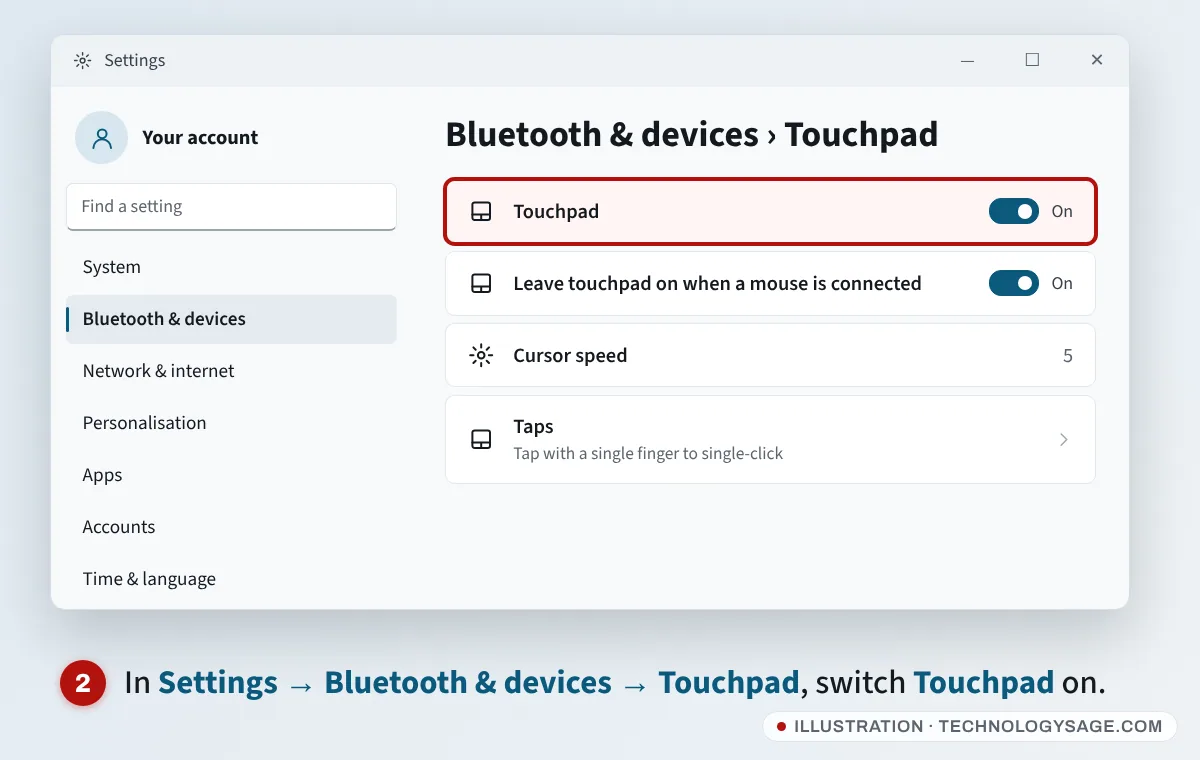
On Windows 10, the same switch is under Settings → Devices → Touchpad. If the touchpad is on but still doesn’t move the pointer, see our full guide to a laptop touchpad not working.
Fix 3: Check your external mouse
- Wireless mouse: turn it off and on (most have a switch underneath), and replace or charge the battery.
- USB receiver or cable: unplug it and plug it into a different USB port directly on the computer, not a hub.
- Bluetooth mouse: turn Bluetooth off and on (Windows + A opens quick settings). If it still won’t connect, remove it in Settings → Bluetooth & devices and pair it again.
- Test the mouse on another computer, or another mouse on this one, to see which is at fault.
Optical mice don’t track well on glass or shiny surfaces. Try a mouse mat or a sheet of paper.
Fix 4: Show the pointer’s location and stop it hiding while typing
- Press Windows + R, type
main.cpland press Enter. Mouse Properties opens. - Press Ctrl + Tab until you reach Pointer Options.
- Tick Show location of pointer when I press the CTRL key. Now pressing Ctrl draws circles around the cursor.
- Untick Hide pointer while typing if the pointer vanishes whenever you type.
- Use Ctrl + Tab to reach the Pointers tab and set Scheme to Windows Default (system scheme) in case a custom scheme is broken.
- Press Tab to reach OK and press Enter.
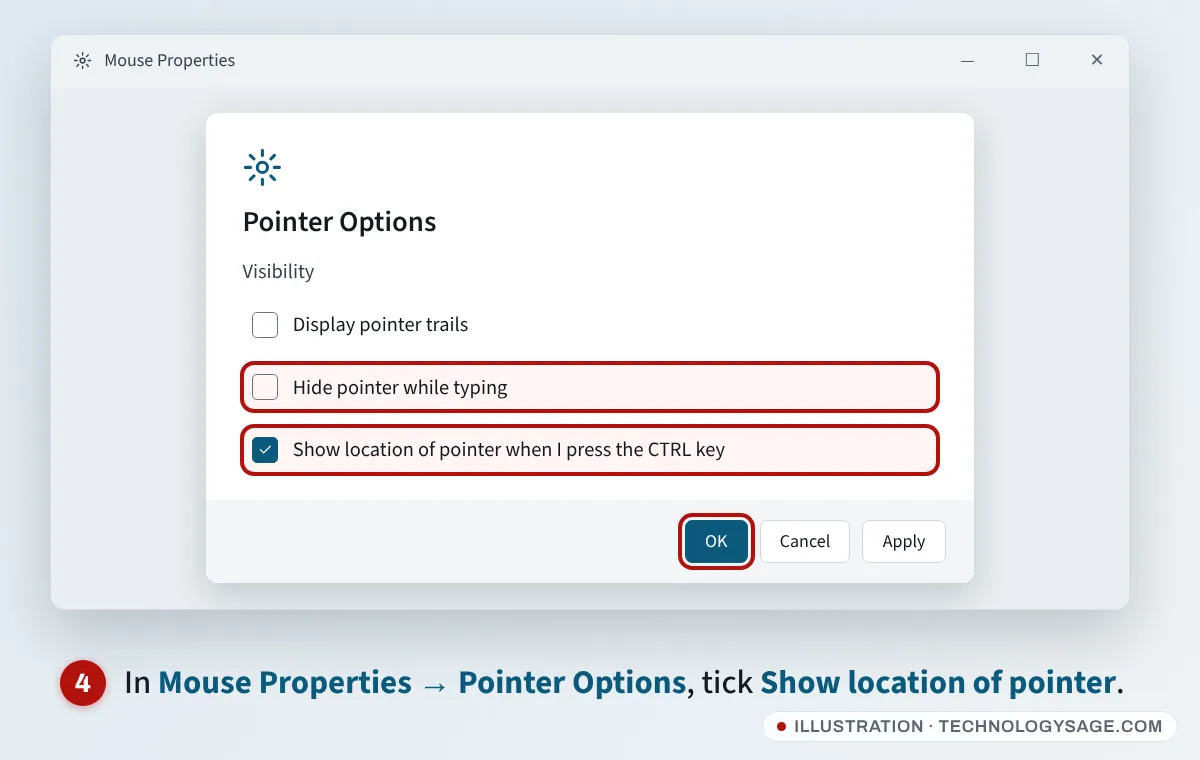
To make the cursor bigger and easier to see, open Settings → Accessibility → Mouse pointer and touch and increase the size or pick a bright colour.
Fix 5: Check for a second screen
If you used a TV, projector or second monitor, Windows may be extending the desktop onto it, and the cursor wandered off the edge.
- Press Windows + P.
- Use the arrow keys to choose PC screen only and press Enter.
- Move the mouse again.
Fix 6: Restart the graphics driver, Explorer or the PC
- Restart the graphics driver: press Windows + Ctrl + Shift + B. The screen flashes black for a second and you may hear a beep. This often brings back a pointer that vanished after waking from sleep.
- Restart Windows Explorer: press Ctrl + Shift + Esc to open Task Manager, find Windows Explorer, select it and choose Restart (Shift + F10 opens the right-click menu).
- Restart the PC: press Ctrl + Alt + Delete, then use Tab to reach the power icon in the bottom-right corner and choose Restart.
Fix 7: Update or reinstall the mouse and touchpad drivers
- Press Windows + X, then M to open Device Manager.
- Press Tab to move into the list, then use the arrow keys to reach Mice and other pointing devices and press the right arrow to expand it. Touchpads sometimes appear under Human Interface Devices instead.
- Select your touchpad or mouse, press Shift + F10 and choose Update driver, then Search automatically for drivers.
- If that doesn’t help, choose Uninstall device instead, confirm, and restart. Windows reinstalls a basic driver at start-up.
- For the full touchpad features, download the touchpad driver from your laptop maker’s official support site (HP, Dell, Lenovo, Asus, Acer and others list drivers by model).
If the cursor vanished right after a Windows update, also check Settings → Windows Update → Update history → Uninstall updates, or see our guide if Windows Update is stuck.
Cursor disappeared on a Mac
- Shake to find it: move the mouse, or your finger on the trackpad, quickly from side to side. The pointer grows for a moment. If it doesn’t, turn on System Settings → Accessibility → Display → Pointer → Shake mouse pointer to locate (on older macOS, System Preferences → Accessibility → Display).
- Move it to the Dock: drag the invisible pointer to the bottom of the screen. Hovering over the Dock often makes it reappear. Right-clicking can also bring it back.
- Make it bigger: in the same Pointer settings, increase Pointer size and choose a pointer outline colour that stands out.
- Check the mouse or trackpad: charge a Magic Mouse or Magic Trackpad, and check it’s connected in System Settings → Bluetooth.
- Built-in trackpad ignored? In System Settings → Accessibility → Pointer Control, turn off Ignore built-in trackpad when mouse or wireless trackpad is present.
- Restart the Mac from the Apple menu (or press Control + Command + Power if you can’t reach the menu; save your work first, as this restarts straight away).
Cursor disappears only in one app
- Games and video players hide the cursor on purpose. Press Esc or move the mouse to bring up controls.
- Chrome or Edge: if the pointer vanishes only in the browser, try turning off Use graphics acceleration when available (Chrome: Settings → System) and restart the browser.
- Screen flickering too? That points to a display or driver problem; see laptop screen flickering.
FAQ
How do I get my cursor back on my laptop?
Press the touchpad key on the top row (with Fn if needed), or open Settings → Bluetooth & devices → Touchpad and switch it on. If you use a mouse, check its battery and USB receiver.
Why does my cursor keep disappearing?
Usually Hide pointer while typing is on, a second screen is extending the desktop, or a touchpad driver is glitching. Turn off the hide option in Pointer Options, press Windows + P → PC screen only, and update the touchpad driver.
How do I find my mouse pointer on the screen?
On Windows, turn on Show location of pointer when I press the CTRL key in Mouse Properties, then press Ctrl. On a Mac, shake the mouse or swipe the trackpad quickly.
What is the shortcut to restore the cursor in Windows?
There’s no single “show cursor” key, but Windows + Ctrl + Shift + B restarts the graphics driver, which often brings it back. The touchpad toggle key (an F-key with a touchpad icon) fixes most laptop cases.
Can I use Windows without a mouse?
Yes. Use the Windows key to search, Tab and the arrow keys to move, Enter to select and Shift + F10 to right-click.