In this guide
- Why Brother printers go offline
- Step 1: Restart and print a network report
- Step 2: Turn off “Use Printer Offline”
- Step 3: Run Brother’s Network Connection Repair Tool
- Step 4: Check the port and IP address in Windows
- Step 5: Restart the Print Spooler and reinstall
- Brother printer not printing (but not offline)
- If it still doesn’t work
- Beware of fake Brother support numbers
- FAQ
When a Brother printer shows offline in Windows 11, restart the printer and the laptop, then print a Network Configuration Report from the printer to check it’s on the same Wi-Fi as your laptop. Next, open the print queue and untick Use Printer Offline. If it’s still offline, run Brother’s free Network Connection Repair Tool from Brother Utilities, which fixes the printer’s IP address in Windows for you.
These steps cover Brother laser printers (HL-L2350DW, HL-L2370DW, DCP-L2550DW, MFC-L2710DW and similar) and inkjets (DCP-T and MFC-J series). Menu names on the printer differ slightly between models.
Why Brother printers go offline
The usual reasons are that the printer was asleep or off when you printed, the router gave the printer a new IP address (very common after a power cut), the printer connected to a different Wi-Fi network, or Use Printer Offline was switched on. A stuck job in the queue can also make Windows report “offline”.
Step 1: Restart and print a network report
- Turn the printer off, unplug it for 30 seconds, then turn it on and wait until the screen says Ready (or the ready light is steady).
- Restart the laptop.
- Print a Network Configuration Report from the printer.
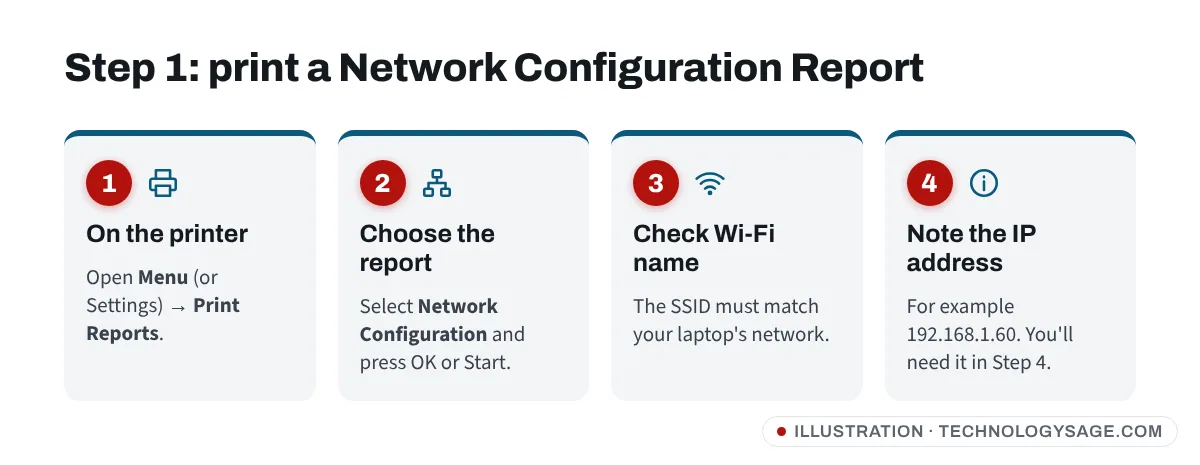
On models with a screen, press Menu (or Settings), then Print Reports → Network Configuration, and press OK or Start. On models without a screen, the button combination is listed in your model’s online guide at support.brother.com.
On the report, check:
- SSID (Wi-Fi name): it must be the same network as your laptop. Dual-band routers sometimes show two names; both normally work, but guest networks often don’t let devices see each other.
- IP Address: note it down. If it shows 0.0.0.0 or 169.254.x.x, the printer isn’t properly on the network. Set up Wi-Fi again from the printer’s menu, or with Brother’s setup software.
- Link status / Wireless status: should say active or connected.
Step 2: Turn off “Use Printer Offline”
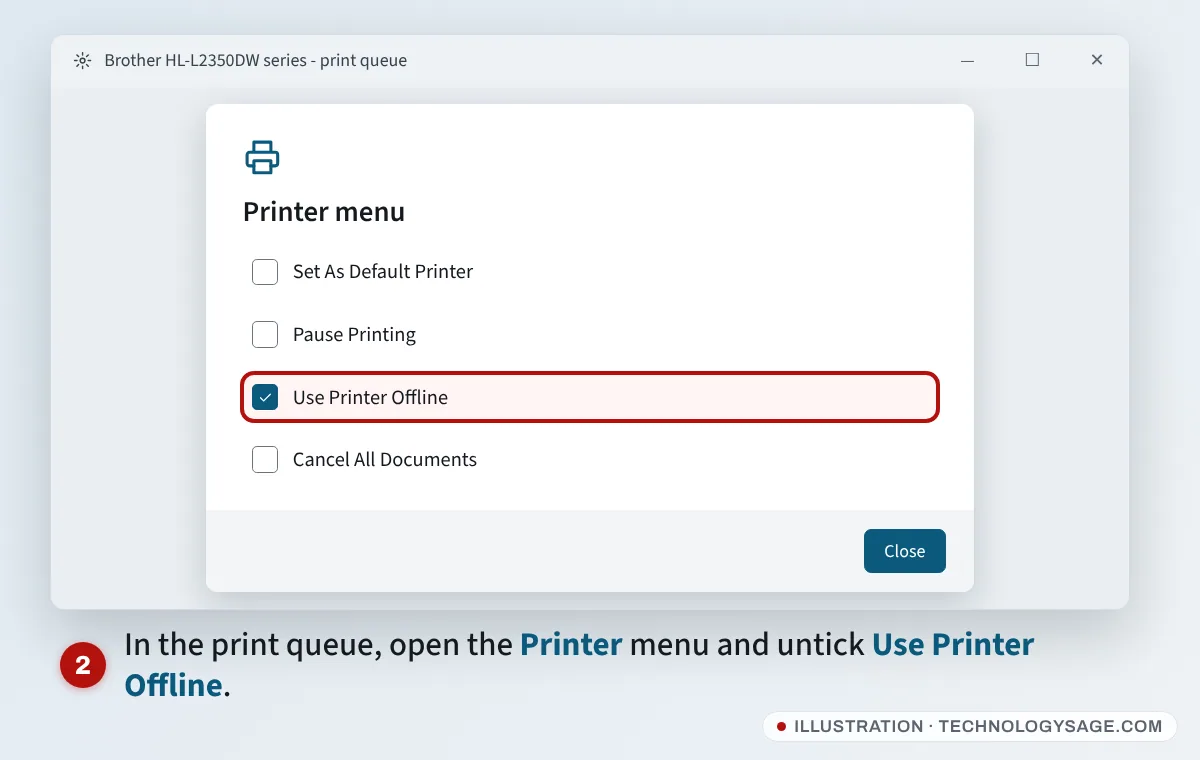
- Press Windows + I and go to Bluetooth & devices → Printers & scanners.
- Select your Brother printer, then Open print queue.
- Open the Printer menu and make sure Use Printer Offline and Pause Printing are not ticked.
- Choose Cancel All Documents to clear old jobs.
- Back on the printer’s page, select Set as default, and turn off Let Windows manage my default printer on the main Printers & scanners page so Windows doesn’t switch to another printer.
If you see two copies, such as “Brother HL-L2350DW series” and “Brother HL-L2350DW series (Copy 1)”, print a test page to each and remove the one that doesn’t work.
Step 3: Run Brother’s Network Connection Repair Tool
Brother’s tool finds the printer on your network and corrects the address Windows uses. It is installed with the full Brother driver package.
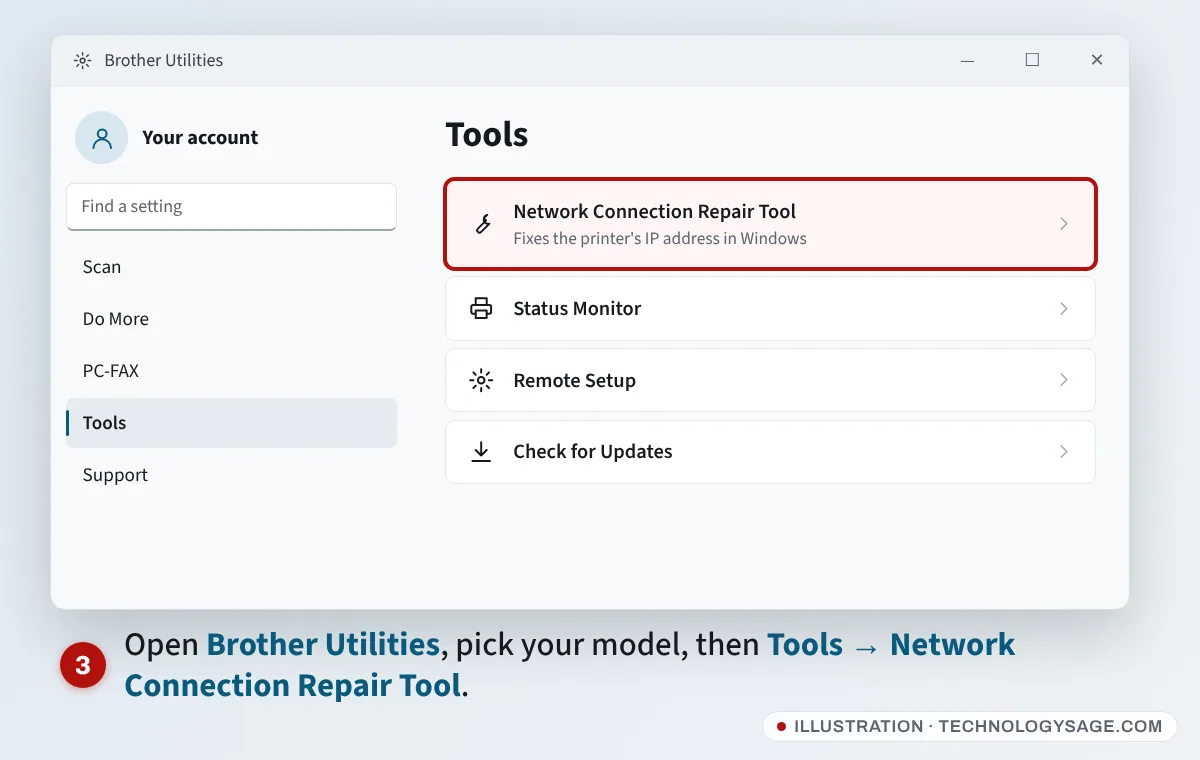
- Open Brother Utilities from the Start menu or desktop.
- Select your printer model from the drop-down list.
- Select Tools in the left-hand menu.
- Choose Network Connection Repair Tool and follow the steps. You need to be signed in as an administrator, and the printer must be on and on the same network.
- Print another Network Configuration Report afterwards to confirm the IP address is correct, then try printing.
If Brother Utilities isn’t installed, download the Full Driver & Software Package for your model from support.brother.com: choose your country, search your model number, and open Downloads. Brother’s iPrint&Scan app (for Windows, Android and iPhone) is another quick way to test whether the printer can be found on your network.
Step 4: Check the port and IP address in Windows
If the repair tool isn’t available, fix the port by hand.
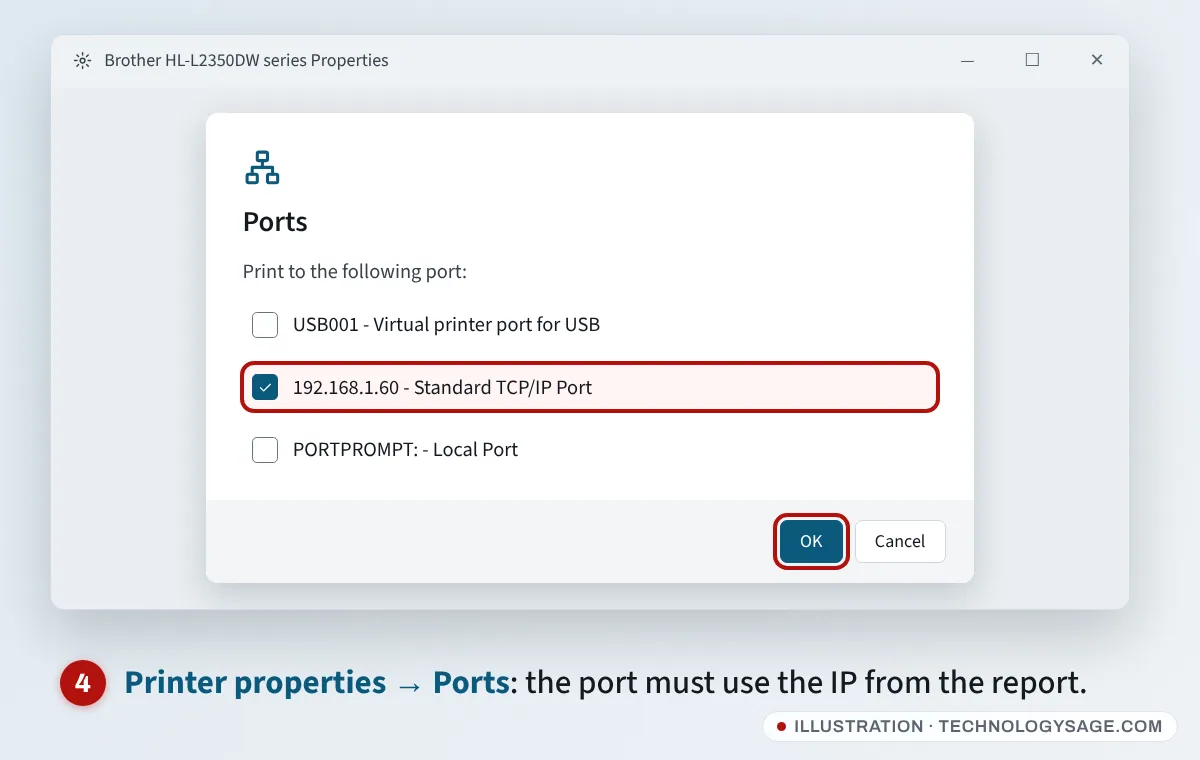
- In Printers & scanners, select your Brother, then Printer properties.
- Open the Ports tab.
- The ticked port should show the same IP address as your Network Configuration Report. If it’s a different number, select Add Port → Standard TCP/IP Port → New Port, enter the IP from the report and finish the wizard, then make sure the new port is ticked.
- With the port selected, choose Configure Port and untick SNMP Status Enabled. Some printers don’t reply to Windows’ status checks properly, which makes them look offline even when they’re working.
- Select Apply, then print a test page from the General tab.
To stop the IP address changing after power cuts, reserve it in your router’s settings (look for DHCP reservation or Address reservation). See dynamic vs static IP addresses for the background.
Step 5: Restart the Print Spooler and reinstall
- Press Windows + R, type
services.mscand press Enter. - Right-click Print Spooler and choose Restart.
- If it’s still offline, remove the printer in Printers & scanners (Remove), restart the laptop, and install the Full Driver & Software Package from Brother’s support site again. If you’re new to this, our guide on installing drivers on a laptop helps.
Our general guide to a printer that says offline has more detail on the spooler and ports, which apply to every brand.
Brother printer not printing (but not offline)
If Windows shows the printer as ready but nothing comes out, look at the printer’s screen or lights.
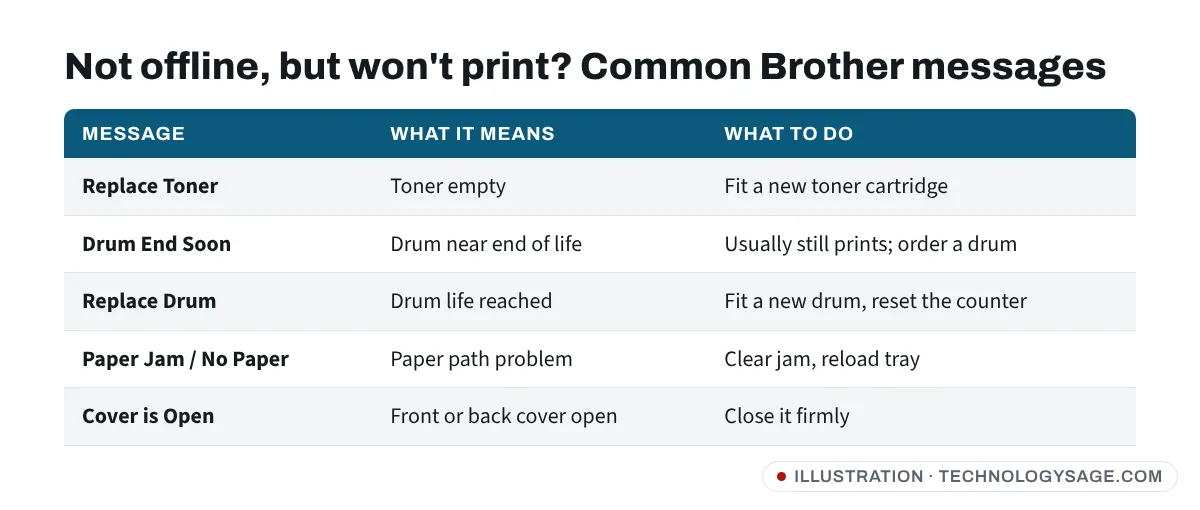
- Toner and drum messages: Brother laser printers use a separate toner cartridge and drum unit. Drum End Soon is a warning; most models keep printing for a while. Replace Toner or Replace Drum usually stops printing until you replace the part. After fitting a new drum, reset the drum counter as your model’s guide describes.
- Paper jams: open the front and back covers and remove any paper gently. Small torn pieces stop many models from printing.
- Inkjet (DCP-T, MFC-J): if pages come out blank, run Cleaning from the printer’s Ink or Maintenance menu and print a test page.
- USB printers: use a short cable plugged straight into the laptop. Avoid hubs.
If it still doesn’t work
- Phone test: if your phone can print through iPrint&Scan but the laptop can’t, the problem is on the laptop: reinstall the driver and check the port.
- Network type: in Settings → Network & internet → Wi-Fi, open your home network’s properties and set it to Private network, which helps Windows find devices.
- VPN or antivirus: turn off any VPN while printing, and check that third-party security software isn’t blocking local network devices.
- Router problem: if the router has a red light or no internet, sort that first; see what a red router light means. Printing over Wi-Fi doesn’t need internet, but a router fault can still knock the printer off the network.
Beware of fake Brother support numbers
Many pages ranking for “Brother printer offline” are spam documents and forum posts with a “Brother support” phone number. Brother’s real contact details are only on its official support site for your country. Never give a stranger remote access to your laptop or pay for “printer repairs” by gift card, airtime or crypto.
FAQ
Why does my Brother printer keep going offline?
Usually because the router gives it a new IP address after a restart or power cut. Run the Network Connection Repair Tool, untick SNMP Status Enabled, and reserve the printer’s IP address in your router.
How do I get my Brother printer online without the software?
Untick Use Printer Offline in the print queue, then make sure the port in Printer properties → Ports matches the IP address on the Network Configuration Report.
Does my Brother printer need internet to print?
No. It needs to be on the same Wi-Fi network as your laptop, or connected by USB. Internet is only needed for cloud and remote printing features.
How do I reconnect my Brother printer to a new Wi-Fi network?
Use the printer’s network menu (often Network → WLAN → Setup Wizard) to choose the new network and enter its password, or run Brother’s setup software. Then remove and re-add the printer in Windows.