In this guide
- First, is it the key or the Start menu?
- 1. Turn off Win Lock (the most common fix)
- 2. Switch off game mode in your keyboard software
- 3. Turn off Filter Keys and Sticky Keys
- 4. Try another keyboard or USB port
- 5. Restart Windows Explorer if the Start menu won’t open
- 6. Remove remapping tools
- 7. Check the registry for a Scancode Map (advanced)
- 8. Reinstall the keyboard driver
- 9. Repair Windows system files
- If it still doesn’t work
- FAQ
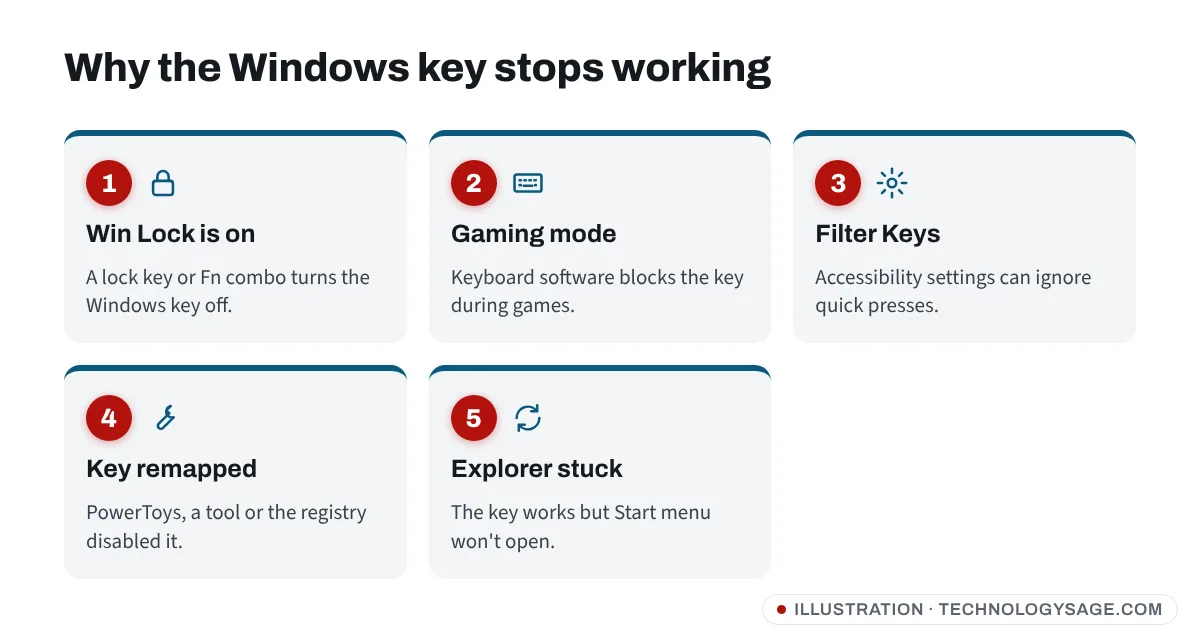
If your Windows key is not working, the most common cause is a Windows key lock: gaming keyboards and many laptops can switch the key off with a dedicated Win Lock key or an Fn combination, and keyboard software does the same in “game mode”. Turn that lock off first. If the key still does nothing, check Filter Keys, look for a remapping tool or registry setting that disabled it, and restart Windows Explorer if the key works but the Start menu won’t open.
The fixes below are in order, quickest first, and work on Windows 11 and Windows 10 with any brand of laptop or keyboard.
First, is it the key or the Start menu?
Two different problems look the same. Press Windows + E. If File Explorer opens, the key itself works and the trouble is the Start menu (jump to fix 5). If nothing happens, Windows isn’t receiving the key at all, so start with fix 1.
You can also open the On-Screen Keyboard: right-click the Start button, choose Run, type osk and press Enter. Click its Windows key. If Start opens from there, Windows is fine and the physical key or keyboard is being blocked.
1. Turn off Win Lock (the most common fix)
Many keyboards let you disable the Windows key so you don’t drop out of a game by accident. Look for:
- A Win Lock key on gaming keyboards, often marked with a padlock and “Win”, or a Windows logo with a lock. Press it once and try again.
- An Fn combination on laptops. Dell says the Windows key on its gaming laptops is toggled with Fn + F6. Other makers use different keys, so look along the top row for a small Windows-logo-with-lock icon and press it together with Fn. Some people find Fn + Windows toggles it.
- A light on the keyboard. Some keyboards show a “Win Lock” or game-mode light when the key is disabled.
The exact key depends on your model; your keyboard’s manual or the maker’s support page will name it.
 Photo: Christian Wiediger on Unsplash
2. Switch off game mode in your keyboard software
If you use software from your keyboard or laptop maker (the gaming apps from Logitech, Razer, Corsair, SteelSeries, ASUS, MSI and others), open it and look for Game mode, Gaming mode or a “disable Windows key” option. These modes often turn the Windows key off and can stay on after you close a game. Turn the option off, or set your profile back to the default.
3. Turn off Filter Keys and Sticky Keys
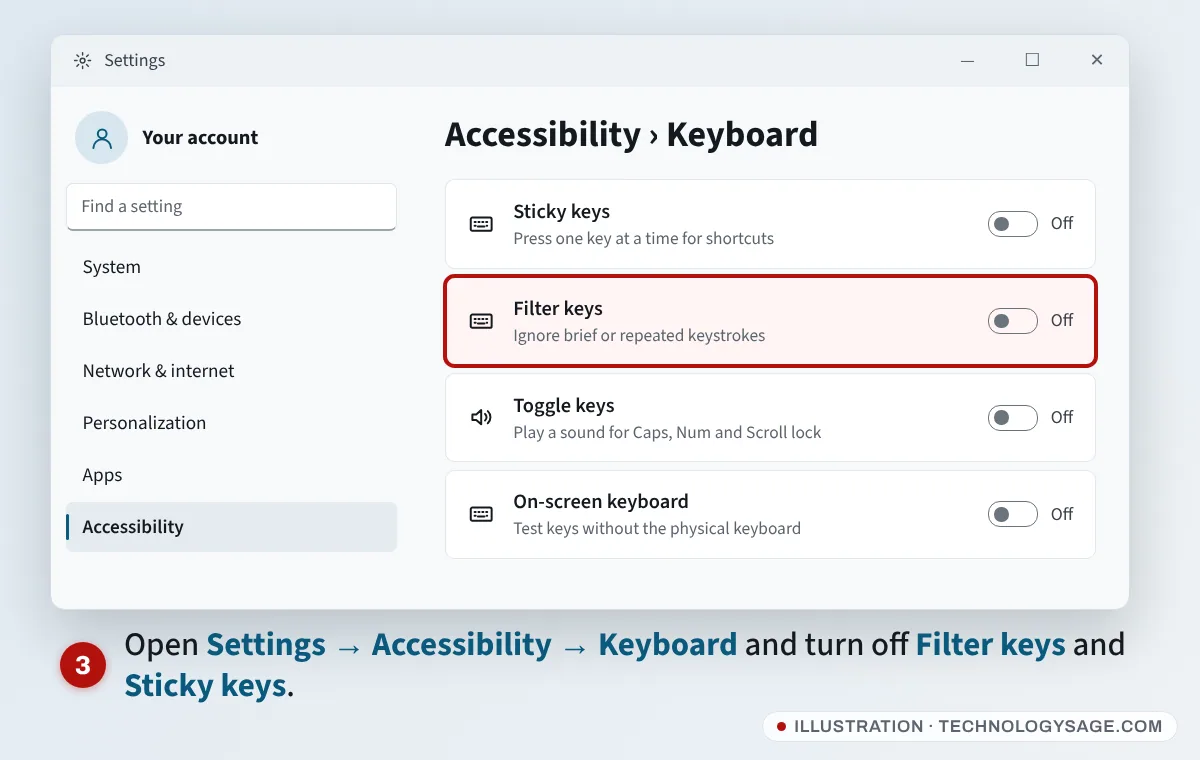
Filter Keys tells Windows to ignore short or repeated presses, which can make the Windows key seem dead.
- Open Settings (right-click the Start button → Settings).
- Go to Accessibility → Keyboard.
- Turn off Filter keys and Sticky keys.
On Windows 10 these are under Settings → Ease of Access → Keyboard.
4. Try another keyboard or USB port
Plug in a different USB keyboard, or try your keyboard on another computer. If the Windows key works on another keyboard, your original keyboard has a fault or a lock you haven’t found. On a laptop, a working USB keyboard points to the built-in keyboard (see our guide to a laptop keyboard not working for that). Crumbs under the key can also stop it registering; turn the keyboard upside down and use a little compressed air.
For wireless keyboards, replace the batteries and re-pair them, since a weak connection can drop single key presses.
5. Restart Windows Explorer if the Start menu won’t open
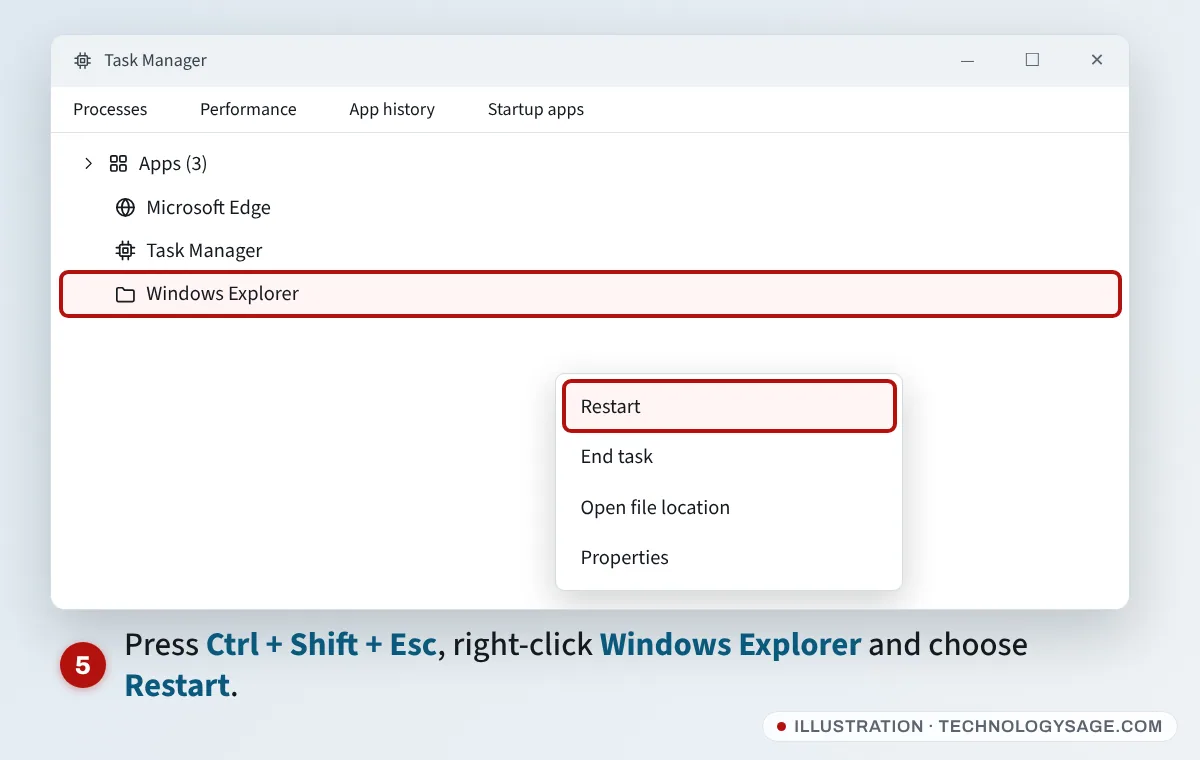
If Windows + E works but Start doesn’t open, restart the process that draws the taskbar and Start menu:
- Press Ctrl + Shift + Esc to open Task Manager.
- On the Processes tab, find Windows Explorer.
- Right-click it and choose Restart. The taskbar disappears for a moment and comes back.
A full restart (not just shut down, which can resume from a saved state) does the same and more. Install pending updates from Settings → Windows Update too, because Start menu bugs are often fixed in updates.
6. Remove remapping tools
Key remappers can switch the Windows key off or point it somewhere else:
- Microsoft PowerToys: open PowerToys → Keyboard Manager and remove any mapping for the Win key, or turn Keyboard Manager off.
- Other tools: AutoHotkey scripts, gaming macros, or a “key disabler” app. Close them and test again.
7. Check the registry for a Scancode Map (advanced)
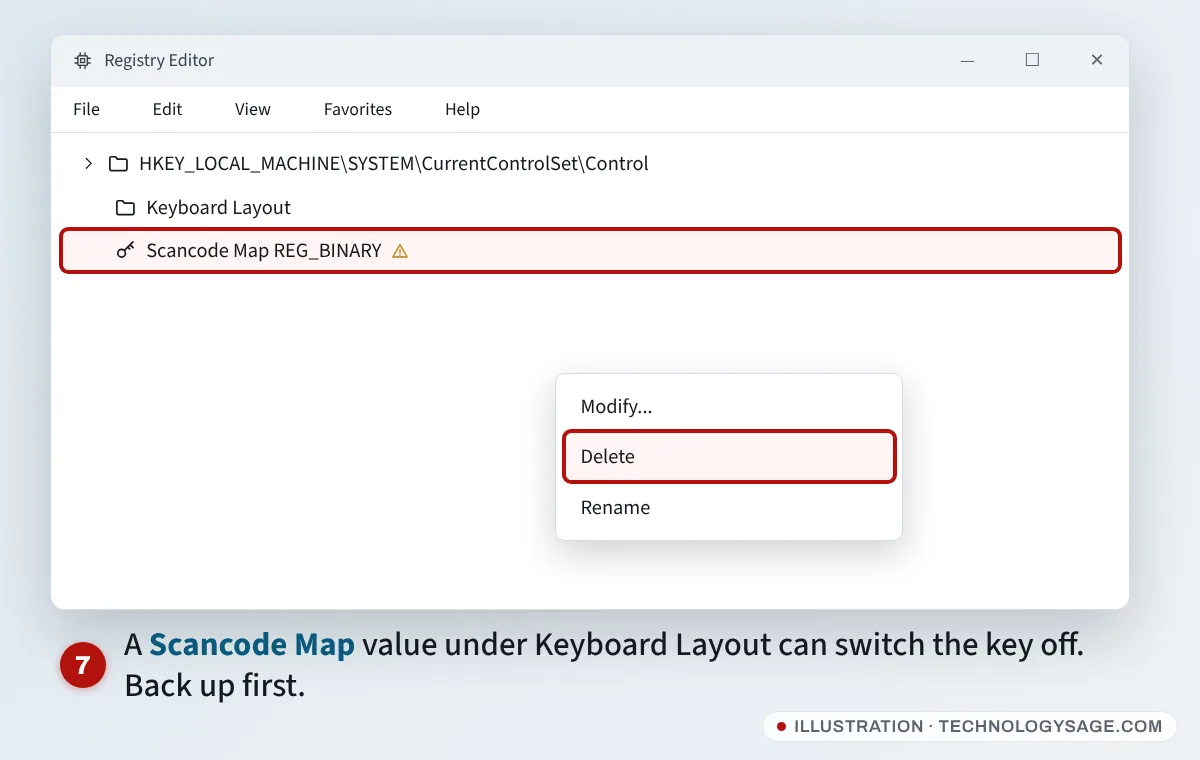
Some tools disable the Windows key by writing a Scancode Map value to the registry. It stays in force even after the tool is uninstalled. Editing the registry wrongly can cause problems, so make a backup first (in Registry Editor, File → Export).
- Right-click the Start button, choose Run, type
regeditand press Enter. - Go to
HKEY_LOCAL_MACHINE\SYSTEM\CurrentControlSet\Control\Keyboard Layout. - If you see a value named Scancode Map in the right pane, right-click it and choose Delete. (The similarly named Keyboard Layouts key is normal; leave it alone.)
- Restart the PC.
Also check HKEY_CURRENT_USER\Software\Microsoft\Windows\CurrentVersion\Policies\Explorer for a value called NoWinKeys. If it is set to 1, Windows-key shortcuts are disabled for your account; delete it and sign out and back in. On a work or school PC, these settings may be applied by your IT team and will come back; ask them instead.
8. Reinstall the keyboard driver
- Right-click the Start button and choose Device Manager.
- Expand Keyboards.
- Right-click your keyboard (often Standard PS/2 Keyboard on laptops, or HID Keyboard Device for USB) and choose Uninstall device.
- Restart. Windows reinstalls the driver automatically.
If your laptop maker supplies its own keyboard or hotkey utility, reinstall the latest version from the maker’s support site as well; on many laptops the Fn-key functions depend on it. Our guide on how to install drivers on Windows covers that.
9. Repair Windows system files
If the Start menu and other Windows features misbehave, repair system files. Right-click Start, choose Terminal (Admin) or Command Prompt (Admin), and run these one at a time:
DISM /Online /Cleanup-Image /RestoreHealth
sfc /scannow
Restart when both finish. Our SFC vs DISM guide explains what each one does. As a last test, create a new local user account in Settings → Accounts → Other users; if the Windows key works there, your own profile has a broken setting.
If it still doesn’t work
- Works in one game but not on the desktop, or the reverse? That is almost always the keyboard software’s game profile.
- Other keys are also failing? The problem is wider than the Windows key; see copy and paste not working for shortcut problems, or treat it as a keyboard fault.
- Only fails at the sign-in screen? Some laptops ignore the Windows key until you have signed in; that’s normal.
- New laptop with the problem out of the box? Check for a Win Lock icon on the function keys and contact the maker under warranty if nothing works.
FAQ
How do I unlock my Windows key?
Press the Win Lock key on your keyboard, or the Fn combination your laptop uses (for example Fn + F6 on Dell gaming laptops). Look for a key with a Windows logo and padlock. Then check your keyboard software for a game mode that disables the key.
Why did my Windows key suddenly stop working?
Usually you pressed the Win Lock key or Fn combo by accident, a game turned on keyboard game mode, or Filter Keys was switched on by holding Shift for eight seconds. Less often, an update or a remapping tool is to blame.
Can I open Start without the Windows key?
Yes. Click the Start button, or press Ctrl + Esc, which opens Start on Windows 11 and Windows 10.
Does Windows Game Mode disable the Windows key?
The Game Mode setting in Windows doesn’t normally turn off the Windows key. The “game mode” that does is on the keyboard itself or in its companion software.