In this guide
To clear a printer paper jam, switch the printer off, unplug it, then open every door and tray and pull the stuck sheet out slowly in the direction the paper normally travels, using both hands. If the printer says paper jam but there’s no paper, a small torn scrap, a moved carriage or a dirty paper sensor is usually to blame: check the rear door and duplex unit with a torch, make sure the cartridge carriage moves freely, then do a full power reset.
These steps work for HP, Canon, Epson, Brother and most other inkjet and laser printers. Your printer’s screen often shows exactly which door to open, so read it before you start.
Before you start: stay safe
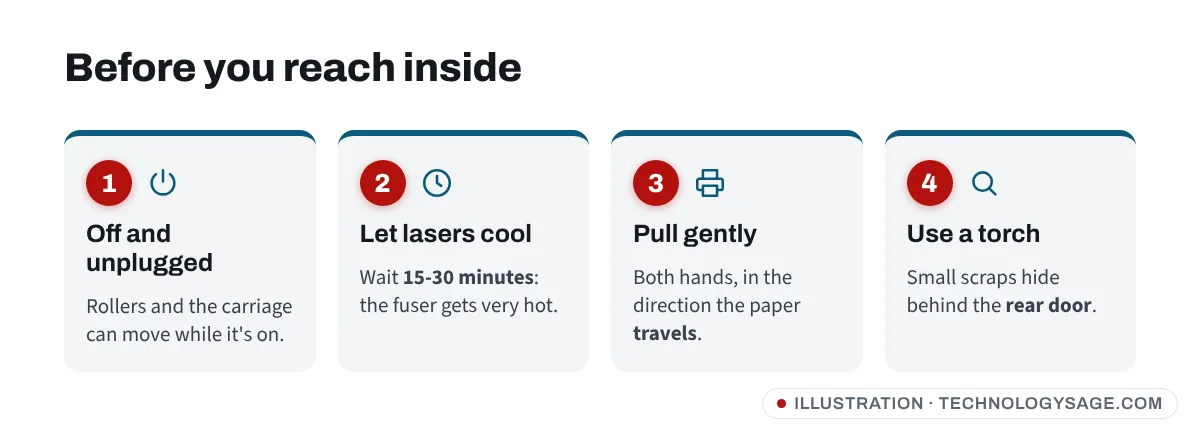
- Turn the printer off and unplug it. Rollers and the carriage can move suddenly while it’s on.
- On a laser printer, wait 15-30 minutes. The fuser near the paper exit gets very hot.
- Never pull paper back against the feed direction or yank it out of the front. HP warns this can tear the paper and damage the mechanism.
- Don’t use tools like knives or screwdrivers inside the printer. Tweezers are fine for small scraps you can see.
How to clear a real paper jam
Step 1: Check the input tray
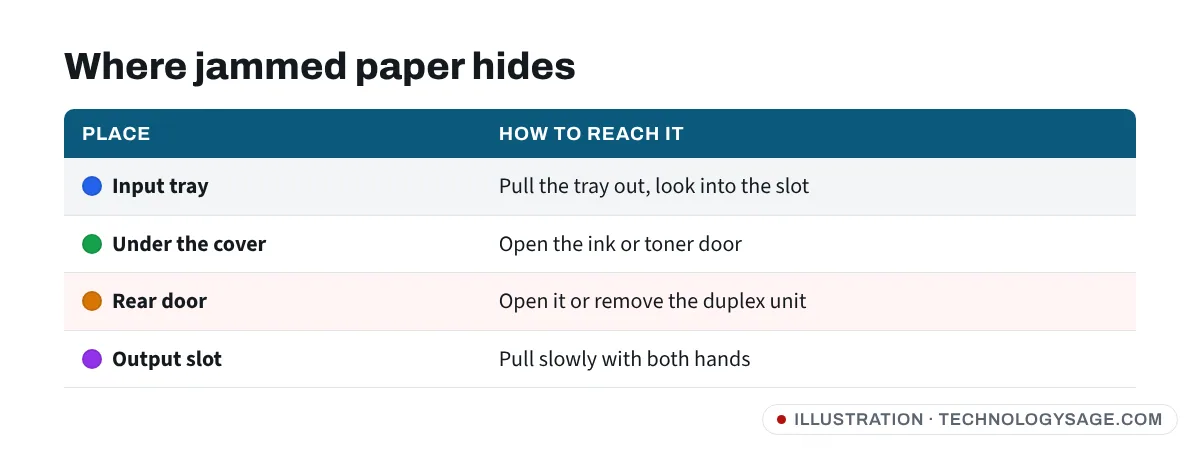
- Pull out the paper tray (or lift the rear feed guide on a top-loading printer).
- Remove any sheets that are crumpled or half-fed.
- Look into the empty tray slot with a torch for a sheet that has slipped underneath.
Step 2: Check the output area and front cover
- If paper is sticking out of the output slot, hold it with both hands and pull it out slowly and evenly.
- Open the front or top cover (the one you open to change ink or toner).
- On an inkjet, look along the path under the cartridge carriage. On a laser, remove the toner/drum unit and look underneath it.
Step 3: Open the rear door or duplex unit
Most jams that “can’t be seen” are at the back.
- Open the rear access door, or remove the rear duplex unit (the part that flips paper over for two-sided printing) by pressing its release buttons.
- Pull any paper out in the direction it was moving.
- Check the rollers inside the door for small, torn corners.
Step 4: Close everything and power on
Close every door firmly (a door that isn’t latched can trigger its own error), plug the printer in, switch it on and print one test page.
Printer says paper jam but there’s no paper
A “phantom” or false jam means a sensor still thinks something is in the way. HP describes these as a recognised issue and says its jam steps apply to both real and false jams. Work through these in order.
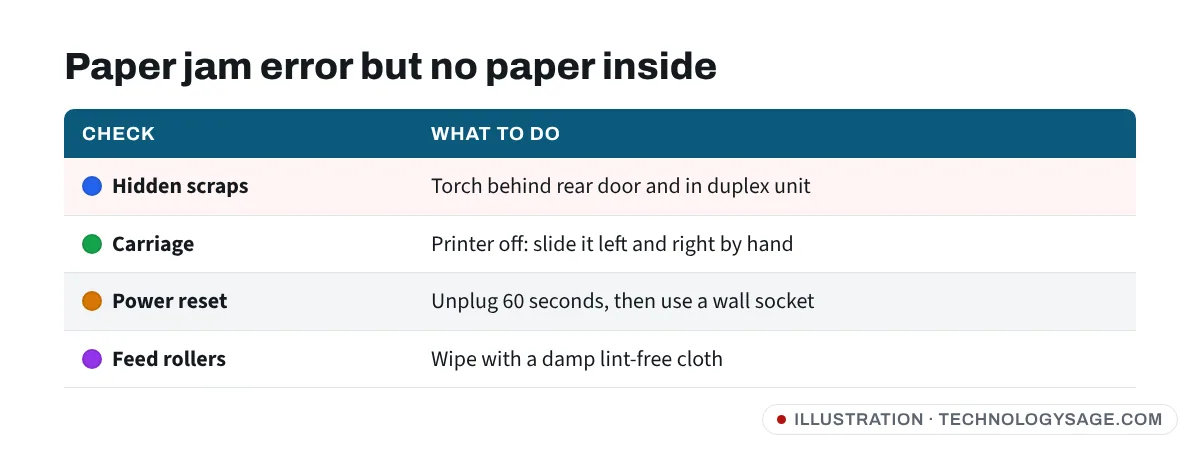
1. Look for small scraps with a torch
A piece of paper the size of a fingernail is enough to block a sensor. Check:
- Behind the rear door and inside the duplex unit.
- Under the cartridge carriage (inkjet) and under the toner/drum (laser).
- The tray slot, especially if you printed on labels, envelopes or photo paper.
Also look for foreign objects: paper clips, staples, a pen cap or a sticker.
2. Make sure the carriage moves freely (inkjet)
Many inkjets report a carriage stall as a “paper jam”.
- With the printer off and unplugged, open the cartridge access door.
- Gently slide the cartridge carriage left and right by hand. It should move smoothly across the full width.
- If it stops, look for paper or packing tape in its path. Brand-new printers sometimes still have orange or blue shipping tape and foam inside.
3. Do a full power reset
- With the printer on, unplug the power cord from the back of the printer.
- Unplug it from the wall too, and wait at least 60 seconds.
- Plug it straight into a wall socket, not a power strip or surge protector, and switch it on.
This clears temporary error states that survive a normal off/on.
4. Clean the paper feed rollers
Dusty or shiny rollers can’t grip paper, so sheets stop halfway and the printer reports a jam.
- Turn off and unplug the printer.
- Find the rubber rollers in the tray area and behind the rear door.
- Wipe them with a lint-free cloth lightly dampened with water (distilled water if you have it). Don’t use alcohol unless your printer’s manual says it’s safe.
- Let them dry for a few minutes before printing.
Many printers also have a Clean paper feed rollers or Paper feed roller cleaning option in the maintenance menu or printer app, which spins the rollers against a sheet of plain paper.
5. Update firmware and cancel stuck jobs
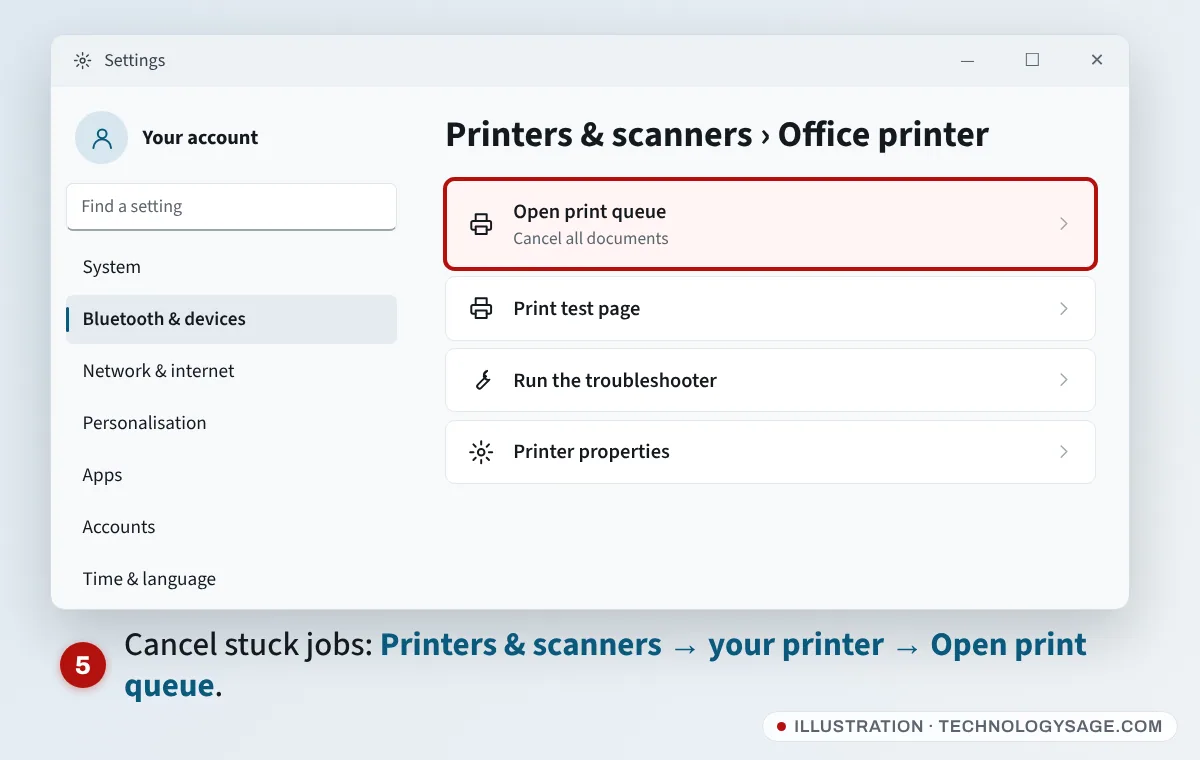
- Cancel all print jobs on your computer. In Windows, open Settings → Bluetooth & devices → Printers & scanners, select your printer, choose Open print queue and cancel everything.
- Update the printer’s firmware from its screen, the maker’s app (such as HP Smart) or its official support site.
If the printer also shows offline after all this, our guide to a printer that says it’s offline covers the Windows side.
Why does my printer keep jamming?
If you clear jams often, the cause is usually the paper, not the printer:
- Overfilled tray. Stay below the maximum line on the paper guides.
- Paper guides too loose or too tight. Slide them until they just touch the stack.
- Damp, curled or mixed paper. Keep paper in its wrapper, and don’t mix sizes or types in one tray.
- Fan the stack before loading so sheets don’t stick together.
- Wrong paper type in settings. Thick card or photo paper needs the right setting and often the rear or manual feed slot.
- Worn rollers. On older printers, rollers harden over time. Replacement roller kits exist for many models, or a repair shop can fit them.
If it still says paper jam
- The error returns immediately at power-on: a sensor or flag inside may be stuck or broken. That needs a repair shop or the maker’s support, especially if the printer is under warranty.
- Prints are also faded or streaky: see our guide to a printer printing faded.
- An Epson shows a jam with nothing inside: our Epson printer not printing guide has Epson-specific steps.
- A Brother printer: check our Brother printer offline guide for driver and network fixes once the jam is cleared.
A word of caution: if you search online for printer support, you will find look-alike “printer helpline” sites and numbers. Use only the support page or number on your printer maker’s official website, and never let a stranger take remote control of your computer to “fix” a paper jam.
FAQ
How do I clear a paper jam when there is no paper?
Check for small scraps behind the rear door and in the duplex unit with a torch, make sure the cartridge carriage slides freely, then unplug the printer for 60 seconds and plug it into a wall socket. Cleaning the feed rollers fixes many repeat false jams.
Can I pull jammed paper out of the front?
Only if that’s the direction the paper travels and it comes out easily. Pulling against the feed direction or yanking it can tear the sheet, leave scraps behind and damage the rollers.
Why does my printer say paper jam after I removed the paper?
A door isn’t fully closed, a small piece is still inside, or the printer needs a power reset to clear the error. Close every door until it clicks, then do the full unplug reset.
Do I need to turn off the printer to clear a jam?
Yes. Turning it off and unplugging it stops the rollers and carriage from moving while your hands are inside, and on laser printers it lets the hot fuser cool down.
Is a printer that keeps jamming worth fixing?
If it’s a cheap inkjet out of warranty and the rollers or sensors have failed, a repair can cost close to a new printer. Laser printers and business models usually have replaceable roller kits that make repair worthwhile.