In this guide
- Why a printer shows “Offline”
- Step 1: Do the quick checks
- Step 2: Turn off “Use Printer Offline”
- Step 3: Make sure Windows uses the right printer
- Step 4: Restart the Print Spooler
- Step 5: Fix the port on a network printer
- Step 6: Remove and re-add the printer
- Step 7: Use the maker’s own tool and driver
- If it still doesn’t work
- Safety note: avoid fake printer support
- FAQ
When Windows 11 says your printer is offline, the printer is usually fine: Windows has simply lost track of it. Restart the printer and the PC, make sure both are on the same Wi-Fi (or the USB cable is firmly in), then open Settings → Bluetooth & devices → Printers & scanners, open the print queue and untick Use Printer Offline. If it still shows offline, restart the Print Spooler service and check the printer’s port, as shown below.
These steps work for HP, Canon, Epson, Brother and most other brands. For brand-specific extras, see our guides to an Epson printer not printing and a Brother printer that’s offline.
Why a printer shows “Offline”
“Offline” only means Windows tried to talk to the printer and got no answer. Common reasons:
- The printer was asleep, switched off, or still starting up when you printed.
- The printer joined a different Wi-Fi network (or the router’s 5 GHz band while the laptop is on another network), or its IP address changed after a router restart.
- Use Printer Offline got switched on.
- A stuck print job has frozen the queue, or the Print Spooler service has stopped.
- Windows is sending to the wrong copy of the printer (you may see “HP DeskJet” and “HP DeskJet (Copy 1)”).
- The driver is old or broken after a Windows update.
Step 1: Do the quick checks
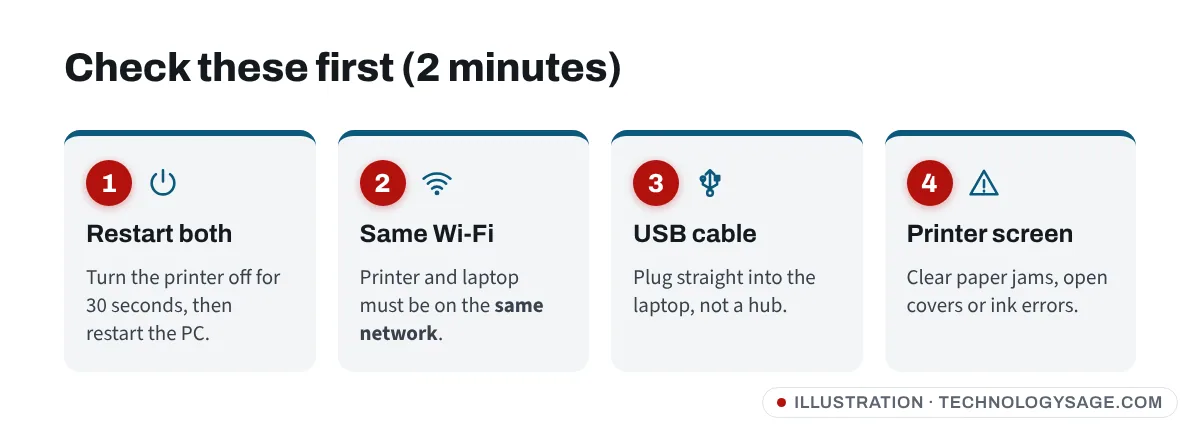
- Turn the printer off, unplug it for 30 seconds, plug it back in and wait until it is fully ready.
- Restart your laptop (a full Restart, not just closing the lid).
- Wi-Fi printer: print a network or Wi-Fi report from the printer’s control panel (most printers have this in the setup or network menu) and check the network name matches your laptop’s. If your internet is also playing up, fix that first with our guide to Wi-Fi connected but no internet.
- USB printer: use a different USB port on the laptop itself, not a hub or extension cable.
- Look at the printer’s own screen or lights. A paper jam, open cover, empty ink tank or error code can also make Windows report “offline”.
Step 2: Turn off “Use Printer Offline”
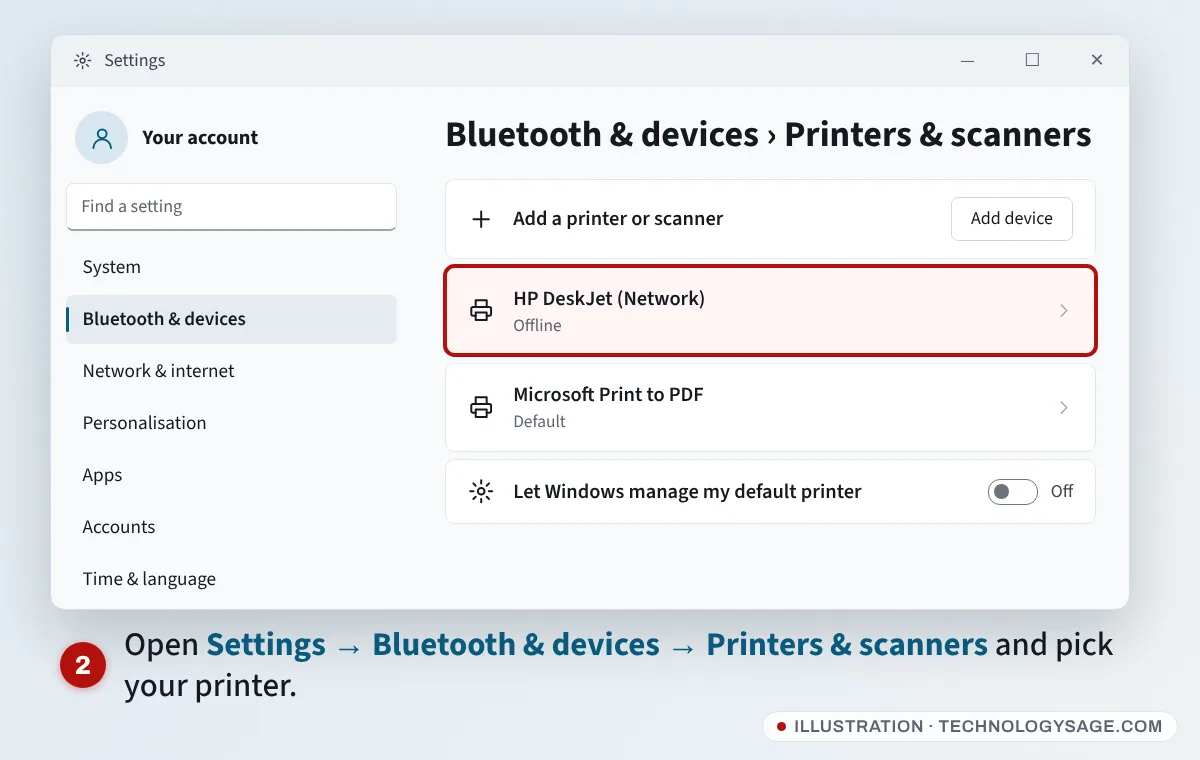
- Press Windows + I to open Settings.
- Go to Bluetooth & devices → Printers & scanners and select your printer.
- Select Open print queue.
- In the print queue window, open the Printer menu. If Use Printer Offline has a tick, select it to remove the tick. Also untick Pause Printing if it is ticked.
- While you are here, cancel any old jobs: open the Printer menu and choose Cancel All Documents.
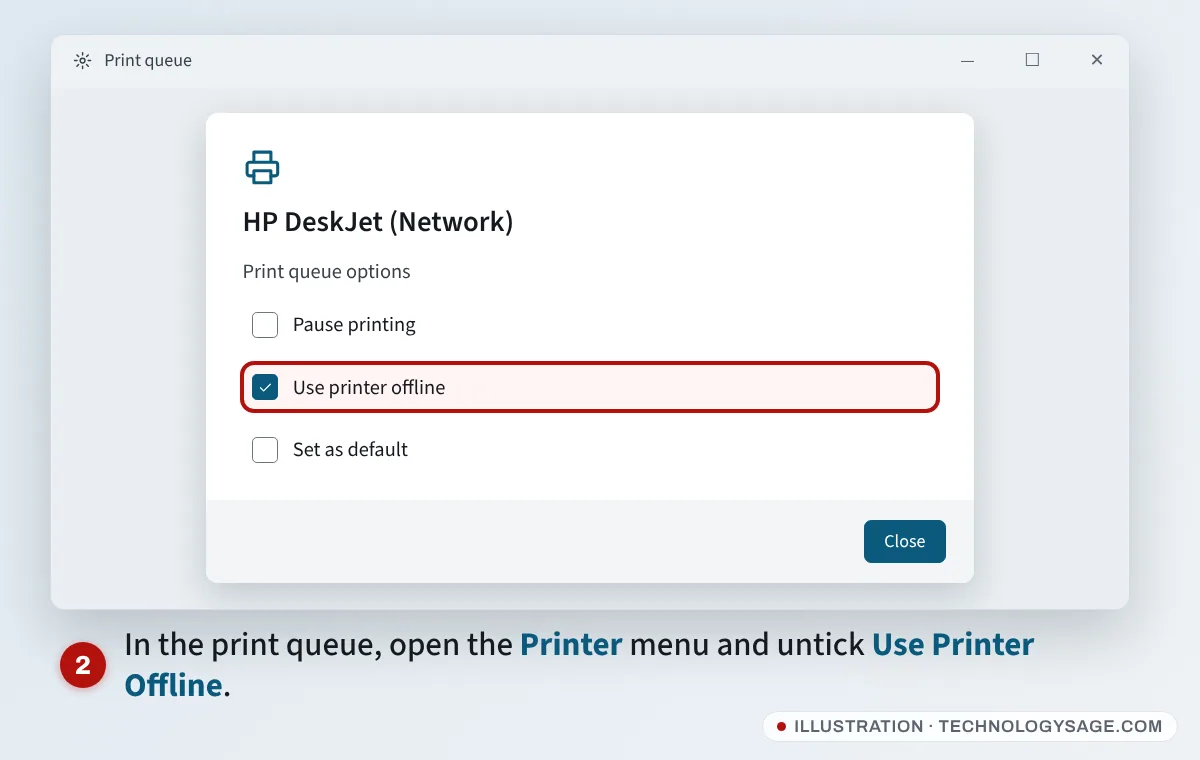
The menu layout differs slightly between Windows 11 builds. If you don’t see a Printer menu, look for the options under the ⋯ (more) button in the queue window.
Microsoft also offers an automatic printer troubleshooter. On Windows 11 it opens in the Get Help app: go to Settings → System → Troubleshoot → Other troubleshooters and select Run next to Printer.
Step 3: Make sure Windows uses the right printer
On the Printers & scanners page:
- If you see two copies of the same printer (for example “Canon G3010” and “Canon G3010 (Copy 1)”), print a test page to each. Keep the one that works and remove the other with Remove.
- Turn off Let Windows manage my default printer, then open your printer and select Set as default. Otherwise Windows may keep switching to Microsoft Print to PDF.
Step 4: Restart the Print Spooler
The Print Spooler is the Windows service that holds and sends print jobs. When it hangs, every printer can show offline.
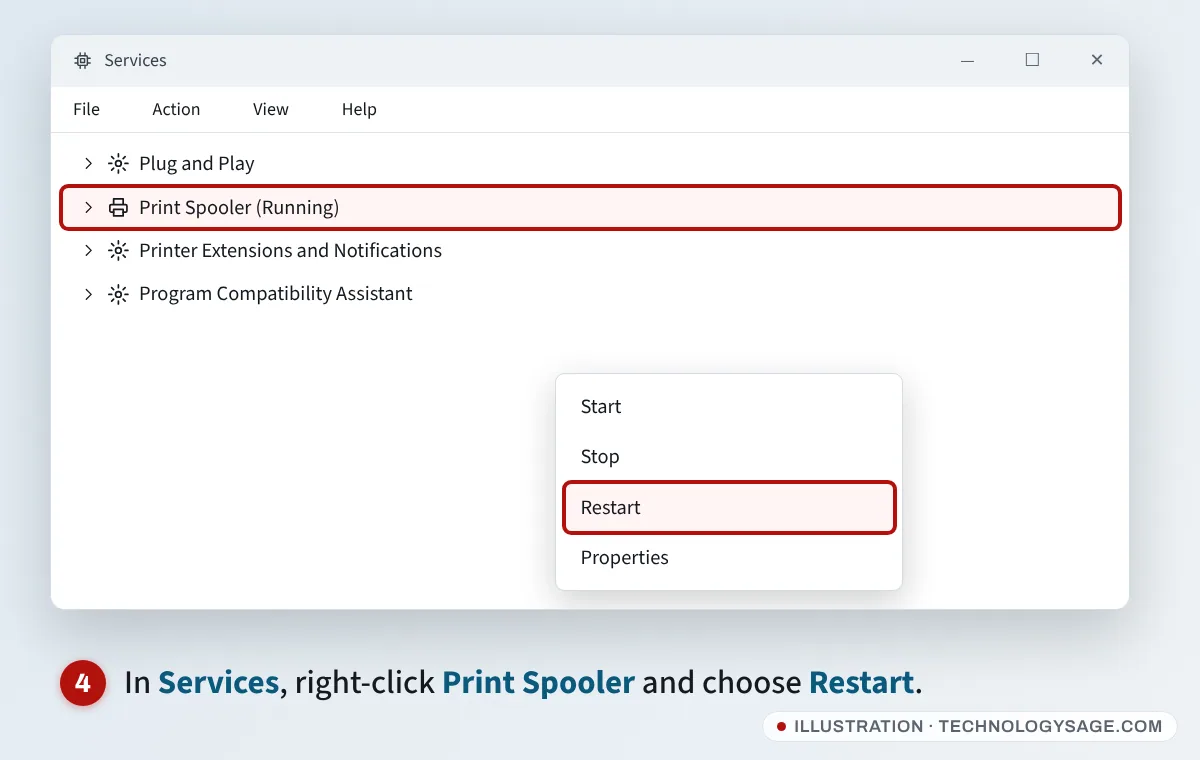
- Press Windows + R, type
services.mscand press Enter. - Scroll to Print Spooler.
- Right-click it and choose Restart. If it says Stopped, choose Start instead.
- Try printing again.
If jobs still won’t clear, stop the Print Spooler, open C:\Windows\System32\spool\PRINTERS in File Explorer, delete the files inside (not the folder), then start the Print Spooler again.
Step 5: Fix the port on a network printer
Routers hand out IP addresses, and after a power cut your printer may get a new one. Windows keeps knocking on the old address and calls the printer offline.
- Print the printer’s network or Wi-Fi report and note its IP address (for example 192.168.1.45).
- In Printers & scanners, select your printer, then Printer properties.
- Open the Ports tab. The ticked port should show the same IP address. If it doesn’t, the simplest fix is to remove the printer and add it again (Step 6).
- Still on the Ports tab, select Configure Port and untick SNMP Status Enabled, then OK.
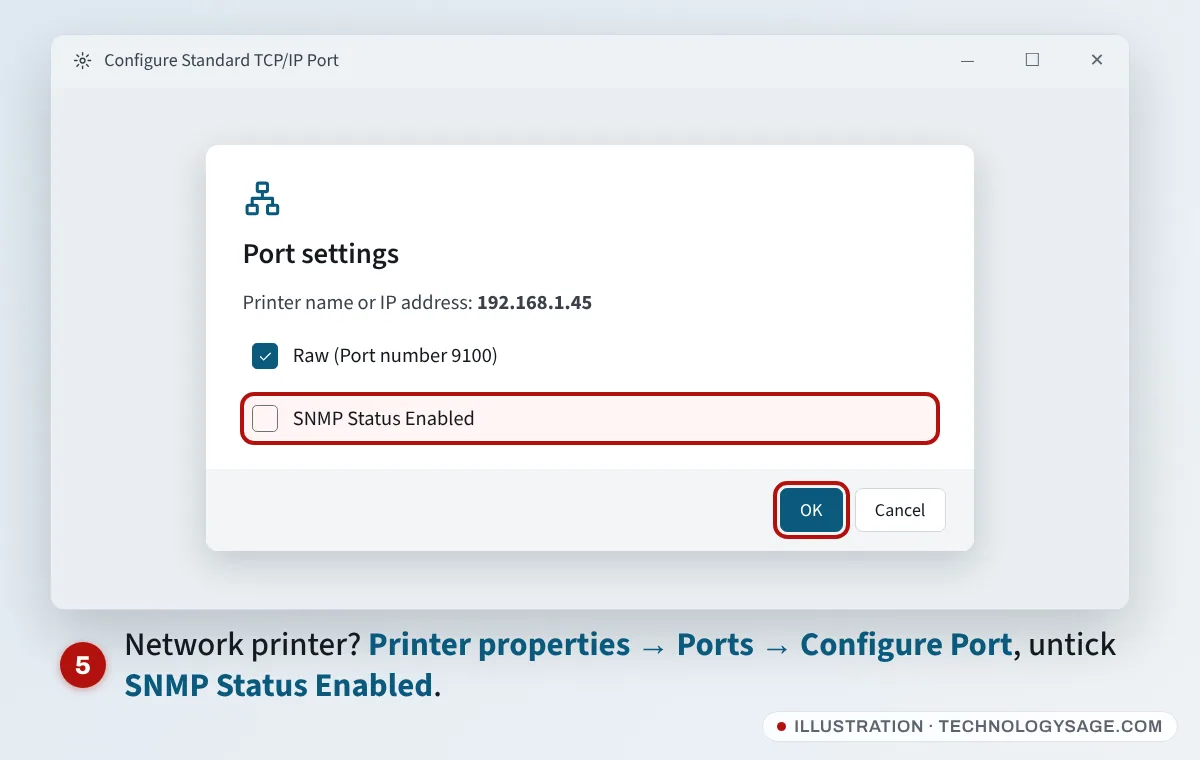
SNMP is how Windows asks the printer for its status. Some printers don’t answer those questions properly, so Windows marks them offline even though printing would work. Turning it off is a common fix for “offline but connected”. Some printers using WSD ports don’t have Configure Port; in that case skip this step.
To stop the address changing again, you can reserve the printer’s IP address in your router’s settings (often called DHCP reservation or Address reservation). Our explainer on dynamic and static IP addresses covers why addresses change.
Step 6: Remove and re-add the printer
- In Printers & scanners, select the printer and choose Remove.
- Restart the PC.
- Go back to Printers & scanners and select Add device. Windows will search for printers on your network and USB.
- If your printer doesn’t appear, select Add manually and choose to add it by IP address.
Step 7: Use the maker’s own tool and driver
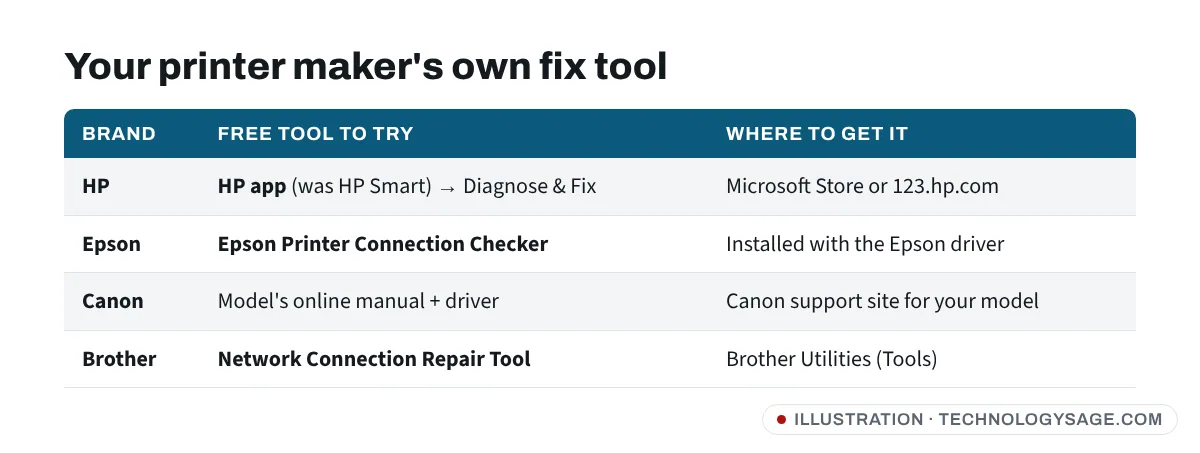
- HP: HP has retired the old HP Print and Scan Doctor. Use Diagnose & Fix in the HP app (formerly HP Smart), available from the Microsoft Store or 123.hp.com.
- Epson: search the Start menu for Epson Printer Connection Checker, which is installed with Epson’s driver. Drivers are on Epson’s website.
- Canon: download the full driver for your exact model from Canon’s support site for your country.
- Brother: open Brother Utilities, pick your model and run Network Connection Repair Tool from Tools. Drivers are at support.brother.com.
A fresh driver helps most when the printer went offline right after a Windows update. Our older guide on installing drivers on a Windows laptop covers the basics.
If it still doesn’t work
- Print from a phone: if your phone can print over the same Wi-Fi but the laptop can’t, the problem is on the laptop (driver, port or firewall), not the printer.
- Antivirus or VPN: turn off any VPN and try again. Third-party security suites sometimes block printer traffic on the local network.
- Network set to Public: go to Settings → Network & internet → Wi-Fi, select your network and check whether it is set to Private network. On your own home network, Private lets Windows find printers more easily.
- Guest or “isolation” Wi-Fi: office and hotel guest networks often stop devices seeing each other. Use USB or the main network instead.
- Try USB: a USB cable is the fastest way to test whether the printer itself still prints.
Safety note: avoid fake printer support
Search results for “printer offline” are full of pages showing a “printer support” phone number. HP, Epson, Canon and Brother do not charge you through a random number found on a forum post or document site. Never let a stranger take remote control of your laptop, and never pay with gift cards or airtime. Use only contact details found on the brand’s own website.
FAQ
Why does my printer keep going offline?
Usually the printer goes to sleep or gets a new IP address from the router. Reserve its IP address in the router, turn off SNMP Status Enabled on the port, and keep the printer driver up to date.
My printer is offline but my phone can print to it. Why?
The printer and network are fine, so the fault is on the laptop. Check Use Printer Offline, restart the Print Spooler, and remove and re-add the printer.
Does “Use Printer Offline” turn the printer off?
No. It tells Windows to hold jobs instead of sending them. It is meant for laptops that are away from the printer, but it sometimes gets left on by accident.
Do I need to reinstall Windows to fix an offline printer?
No. Removing the printer, restarting the spooler and installing the maker’s latest driver fixes almost every case.