In this guide
- What PATH is, in one paragraph
- Step 1: Check whether Python is installed at all
- Step 2: Use py -m pip (works without fixing PATH)
- Step 3: Install (or reinstall) Python with PATH set up
- Step 4: Fix the Microsoft Store shortcut (App execution aliases)
- Step 5: Add Python to PATH manually
- When pip itself warns about PATH
- Use a virtual environment for projects
- Other cases
- FAQ
“‘pip’ is not recognized as an internal or external command” means Windows can’t find pip.exe in any folder listed in your PATH — so either Python isn’t installed, or its folders were never added to PATH. The quickest fix is to skip the bare pip command and run it through Python instead: py -m pip install <package> (or python -m pip install <package>). To make pip and python work on their own, add Python to PATH as shown below, then open a new terminal.
The same cause sits behind “python is not recognized as an internal or external command”, PowerShell’s “The term ‘pip’ is not recognized as the name of a cmdlet”, and the Microsoft Store popping up when you type python. Here’s how to fix each one.
What PATH is, in one paragraph
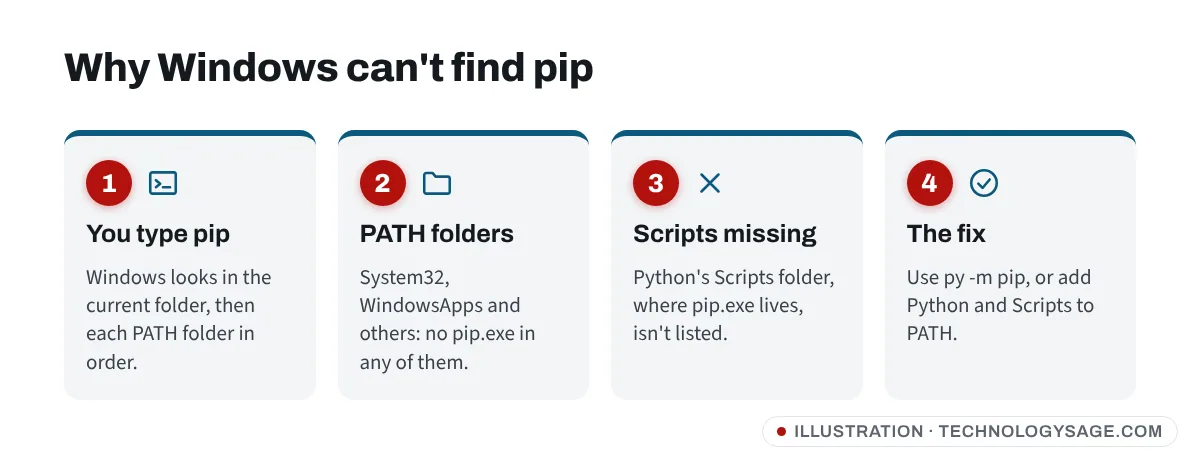
When you type a command like pip, Windows looks for pip.exe (or pip.bat, etc.) in the current folder and then in every folder listed in the PATH environment variable, in order. Python’s installer puts python.exe in one folder and pip.exe in a Scripts subfolder. If neither folder is in PATH, Windows gives up and prints “not recognized” — even though Python is installed.
Step 1: Check whether Python is installed at all
Open Command Prompt or Terminal and try each of these:
py --version
python --version
where python
py --versionprints a version → Python is installed and the py launcher works. Use thepy -m pipmethod below.pythonopens the Microsoft Store or prints “Python was not found; run without arguments to install from the Microsoft Store, or disable this shortcut from Settings > Manage App Execution Aliases” → that’s a Windows shortcut, not real Python. See Step 4.- Nothing works → install Python (Step 3).
Step 2: Use py -m pip (works without fixing PATH)
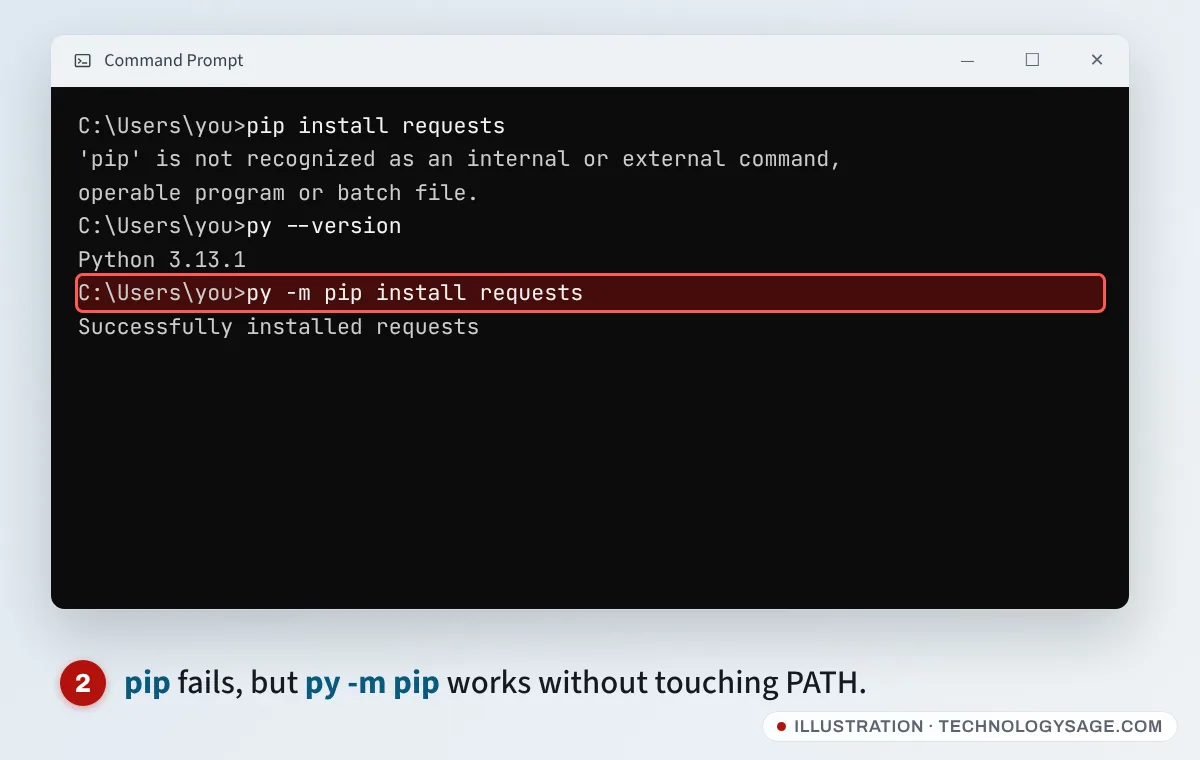
The Python docs recommend running pip as a module, because it always uses the pip that belongs to the Python you’re calling:
py -m pip install requestsor, if python works:
python -m pip install requestsThis avoids PATH problems for pip entirely, and also stops you installing packages into the wrong Python when you have more than one. If it says “No module named pip”, restore pip with:
py -m ensurepip --upgradeStep 3: Install (or reinstall) Python with PATH set up
Get Python only from python.org or the Microsoft Store (published by the Python Software Foundation).
With the Python install manager (the current recommended way on Windows 10 and 11): install it from the Microsoft Store or python.org. It provides the python, py and pymanager commands. When you first install a runtime it offers to add its global shortcuts folder (by default %LocalAppData%\Python\bin) to PATH — say yes. Useful commands:
py list
py list --online
py install --refresh
py list --online shows versions you can install; py install <version> installs one; py install --refresh recreates shortcuts and reports if the shortcuts folder is missing from PATH.
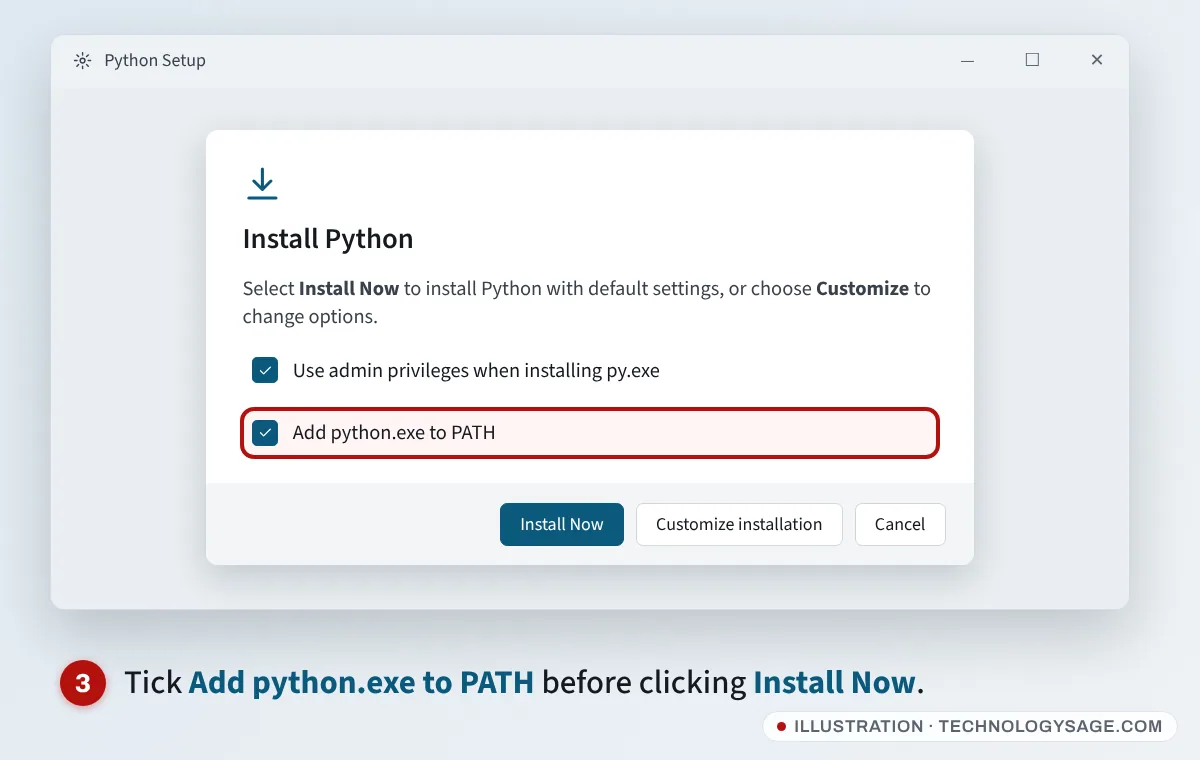
With the traditional installer (older Python versions, and still used by many guides): on the first screen, tick Add python.exe to PATH at the bottom (older versions say Add Python 3.x to PATH) before clicking Install Now. If you already installed without it, run the installer again, choose Modify, and on Advanced Options tick Add Python to environment variables.
After installing, close every terminal and VS Code window and open a new one. Terminals read PATH only when they start, which is the single most common reason a fix “didn’t work”.
Step 4: Fix the Microsoft Store shortcut (App execution aliases)
Windows includes python.exe and python3.exe shortcuts that open the Store if no Python is registered.
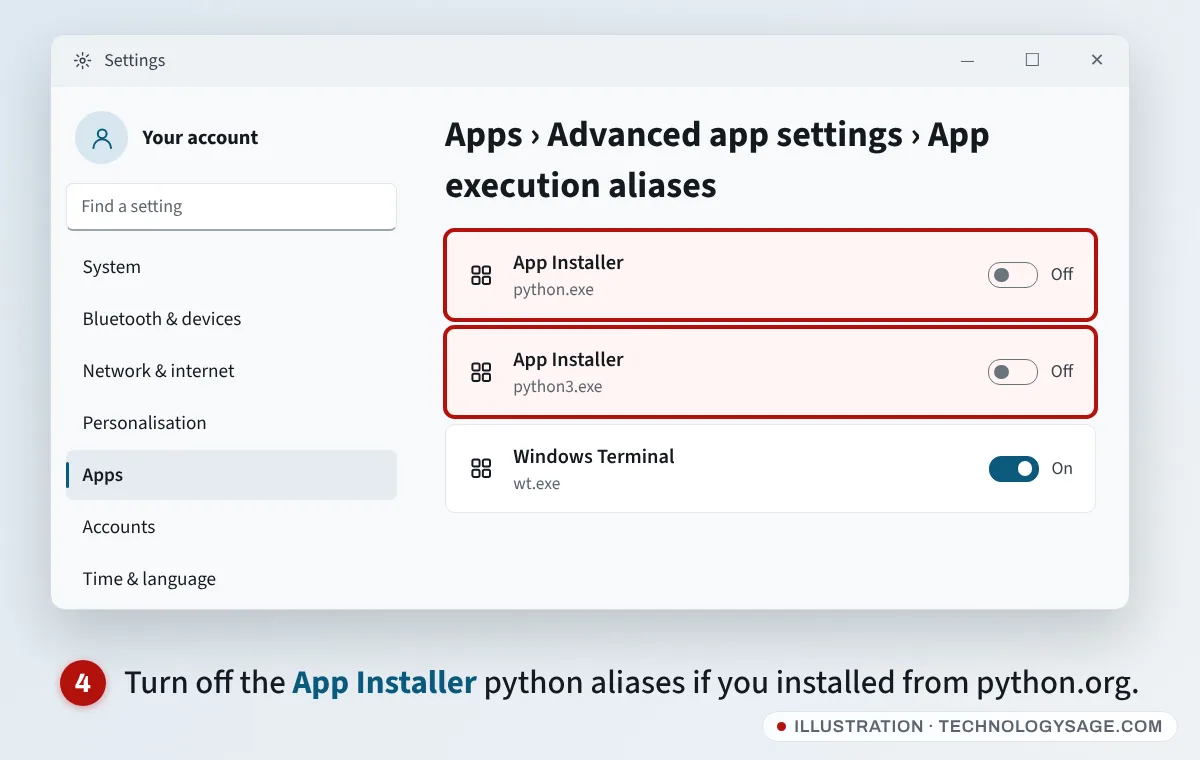
- Open Settings → Apps → Advanced app settings → App execution aliases (or search Start for Manage app execution aliases).
- If you installed Python from python.org with the traditional installer: turn off the App Installer entries for
python.exeandpython3.exe, so they stop intercepting the command. - If you use the Python install manager: make sure the Python (default) and Python install manager aliases are on. If they’re on and still don’t work, turn them off and on again.
Step 5: Add Python to PATH manually
If you’d rather not reinstall:
- Find where Python lives. If
pyworks, run:
py -c "import sys; print(sys.executable)"A traditional per-user install is usually something like C:\Users\<you>\AppData\Local\Programs\Python\Python313\python.exe (the number matches the version).
- Click Start, search Edit environment variables for your account, and open it.
- Under User variables, select Path and click Edit.
- Click New and add the Python folder (without
python.exe), then New again and add its Scripts subfolder, for example:C:\Users\<you>\AppData\Local\Programs\Python\Python313\C:\Users\<you>\AppData\Local\Programs\Python\Python313\Scripts\
- Click OK on every window, then open a new terminal and test
python --versionandpip --version.
Use the folders from your machine, not copied from a guide. If you have several Python versions, the one listed higher in Path wins; use Move up to change the order.
When pip itself warns about PATH
After pip install, you might see:
WARNING: The script example.exe is installed in ‘C:\Users\you\AppData\Roaming\Python\Python313\Scripts’ which is not on PATH.
That means the package installed fine, but its command-line tool lives in a folder Windows doesn’t search. Either add that exact folder to Path (Step 5), run the tool as a module (py -m <package> where supported), or use a virtual environment.
Use a virtual environment for projects
For coding projects, a virtual environment sidesteps most PATH and version mix-ups:
py -m venv .venv
.venv\Scripts\activate
pip install requests
Once activated, python and pip point at the project’s own copy. In PowerShell, if activation fails with a script-execution error, run Set-ExecutionPolicy -Scope CurrentUser RemoteSigned once and try again. VS Code and PyCharm detect .venv folders automatically.
Other cases
- Anaconda or Miniconda: use the Anaconda Prompt, or run
conda initfor your shell. Mixing conda and python.org installs in PATH causes confusion; prefer one. - Mac and Linux: the commands are usually
python3andpip3, or betterpython3 -m pip. On recent Linux distributions and Homebrew Python,pip installmay refuse with externally-managed-environment — that’s deliberate; create a virtual environment withpython3 -m venv .venvinstead. - “adb is not recognized” and other tools: exactly the same PATH problem. Add the tool’s folder to Path the same way — see ADB device unauthorized for the Android tools.
New to the language? Our explainer on whether Python is a programming or scripting language covers the basics, and the Command Prompt tricks guide helps with the terminal itself.
FAQ
Why is pip not recognized when Python is installed?
Because the Scripts folder that holds pip.exe isn’t in your PATH, or you haven’t opened a new terminal since installing. Use py -m pip straight away, and add both the Python folder and its Scripts folder to Path for a permanent fix.
How do I add Python to PATH on Windows 11?
Search Start for Edit environment variables for your account, edit Path under User variables, and add the Python folder and its Scripts folder with New. Or reinstall with Add python.exe to PATH ticked, or let the Python install manager add its shortcuts folder.
What’s the difference between py and python?
py is the Python launcher for Windows: it finds installed Pythons and lets you choose a version (for example py -3.12). python runs whichever Python comes first in PATH or the default the install manager has set.
Why does typing python open the Microsoft Store?
Windows’ App execution aliases point python.exe at the Store when no Python is registered. Install Python, or turn off the App Installer alias in Settings → Apps → Advanced app settings → App execution aliases if you installed from python.org.
Should I use pip or pip3?
On Windows, py -m pip is the most reliable choice. pip3 exists on some installs and is the norm on Mac and Linux, but running pip through the exact Python you mean avoids installing packages into the wrong version.