In this guide
- What the status at the top means
- 1. Check if the problem is your internet
- 2. Check whether Telegram itself is down
- 3. Turn off your VPN, or try one
- 4. Check Telegram’s proxy settings
- 5. Let Telegram use data in the background
- 6. Force stop and reopen Telegram
- 7. Set the date and time to automatic
- 8. Clear Telegram’s cache
- 9. Update or reinstall Telegram
- 10. Try a different network or DNS
- If it still doesn’t work
- FAQ
When Telegram is stuck on Connecting… or Updating…, the app cannot reach Telegram’s servers. The cause is almost always your connection: weak or blocked mobile data, a VPN or proxy that has stopped working, the phone’s data saver or battery saver cutting Telegram off in the background, or Telegram being restricted on your network or in your country. Start by switching between Wi-Fi and mobile data and restarting the app, then work down the fixes below.
The steps are written for Android (Tecno, Infinix, itel, Samsung and others), with notes for iPhone and Telegram Desktop on Windows.
What the status at the top means
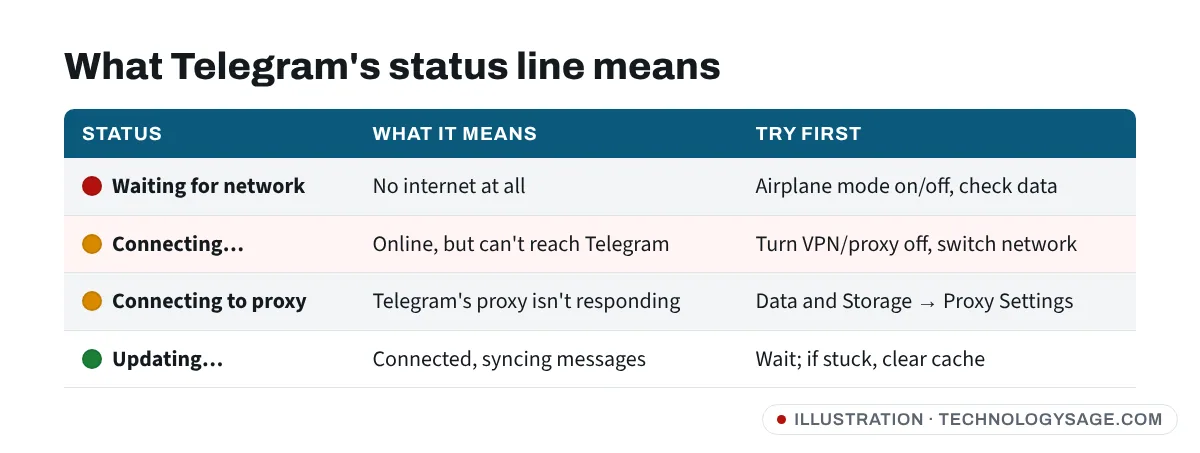
- Waiting for network: your phone has no internet connection at all.
- Connecting…: your phone is online, but Telegram cannot reach its servers.
- Updating…: Telegram is connected and syncing new messages. If it stays like this for minutes, the connection is very slow or keeps dropping.
- Connecting to proxy: Telegram is set to use a proxy that is not responding.
1. Check if the problem is your internet
Open a website in Chrome or play a YouTube video. If nothing loads, the problem is not Telegram.
- Turn Airplane mode on for 10 seconds, then off.
- Switch from Wi-Fi to mobile data, or the other way round.
- Check you still have data bundle or airtime left.
- If you are on Wi-Fi and websites don’t load, see Wi-Fi connected but no internet.
If other apps work but Telegram does not, carry on.
2. Check whether Telegram itself is down
Occasionally Telegram has an outage in some regions. If friends on other networks have the same problem at the same time, the issue is on Telegram’s side and you can only wait. Telegram’s official news channel and its accounts on other platforms usually mention large outages.
3. Turn off your VPN, or try one
A VPN or proxy that has stopped working is one of the most common reasons for a permanent Connecting….
- If you use a VPN, turn it off and see if Telegram connects.
- If you never use one, check Settings → Network & internet → VPN (on Samsung: Settings → Connections → More connection settings → VPN) for an app you forgot about, such as a “free data” or “booster” app.
In some countries Telegram is partly or fully blocked by networks or the government. In that case it will only connect through a VPN or proxy, where that is legal for you. Read are free VPNs safe before installing one at random.
4. Check Telegram’s proxy settings
Telegram has its own proxy setting, separate from any VPN app. If a proxy is switched on and no longer works, Telegram will be stuck on Connecting to proxy.
- Open Telegram and tap ☰ (menu) → Settings.
- Tap Data and Storage.
- Scroll to the bottom and tap Proxy Settings.
- Turn Use Proxy off if you don’t need it, or delete proxies that show as unavailable.
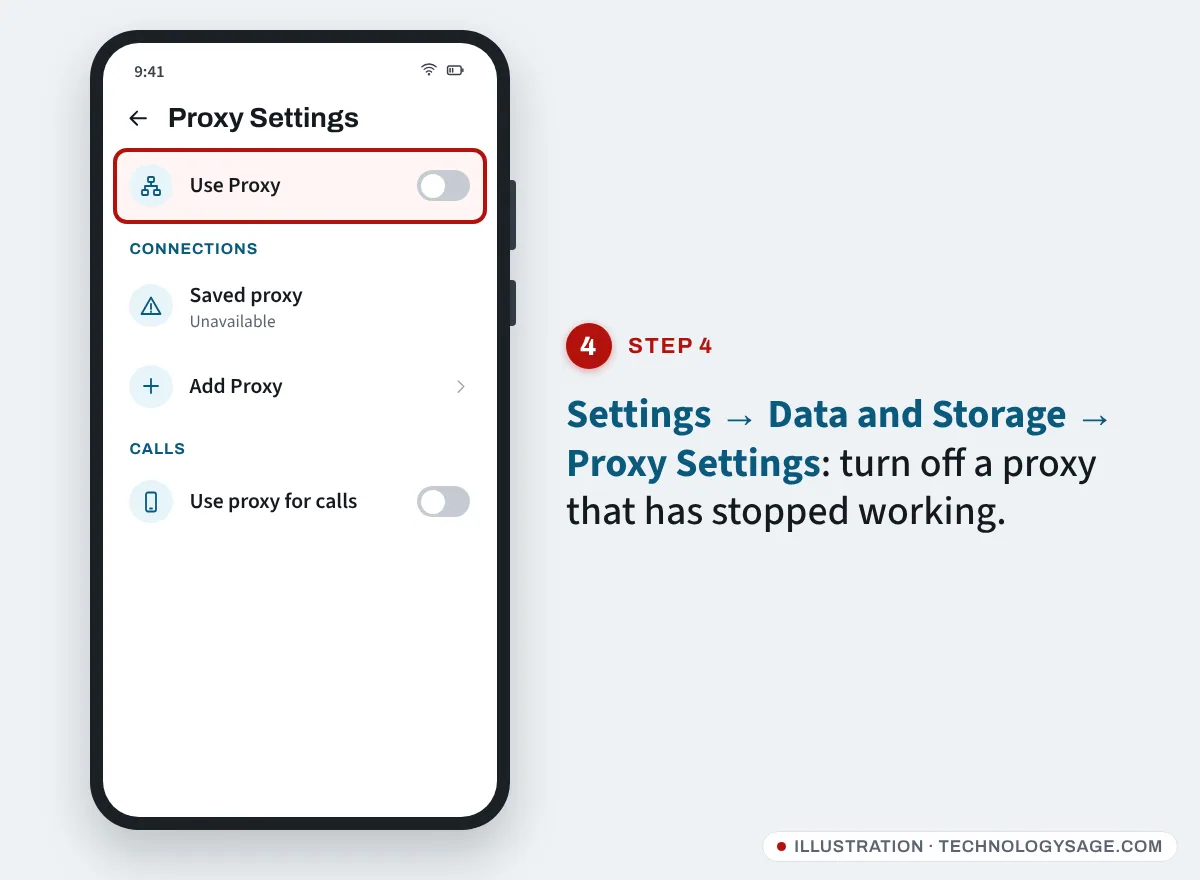
On iPhone the same option is under Settings → Data and Storage → Proxy. On Telegram Desktop, open Settings → Advanced → Connection type.
Only add a proxy from a source you trust. Proxy links shared in random groups can be run by anyone, and whoever runs the proxy can see when and how much you use Telegram (though not the content of your messages).
5. Let Telegram use data in the background
Android’s data saver and battery optimisation can stop Telegram connecting, especially on phones with aggressive power management such as Tecno (HiOS), Infinix (XOS) and itel.
- Long-press the Telegram icon and tap App info.
- Tap Mobile data (or Mobile data & Wi-Fi) and turn on Background data and Unrestricted data usage.
- Go back, tap Battery and choose Unrestricted (on some phones: Don’t optimise or turn off Power saving for Telegram).
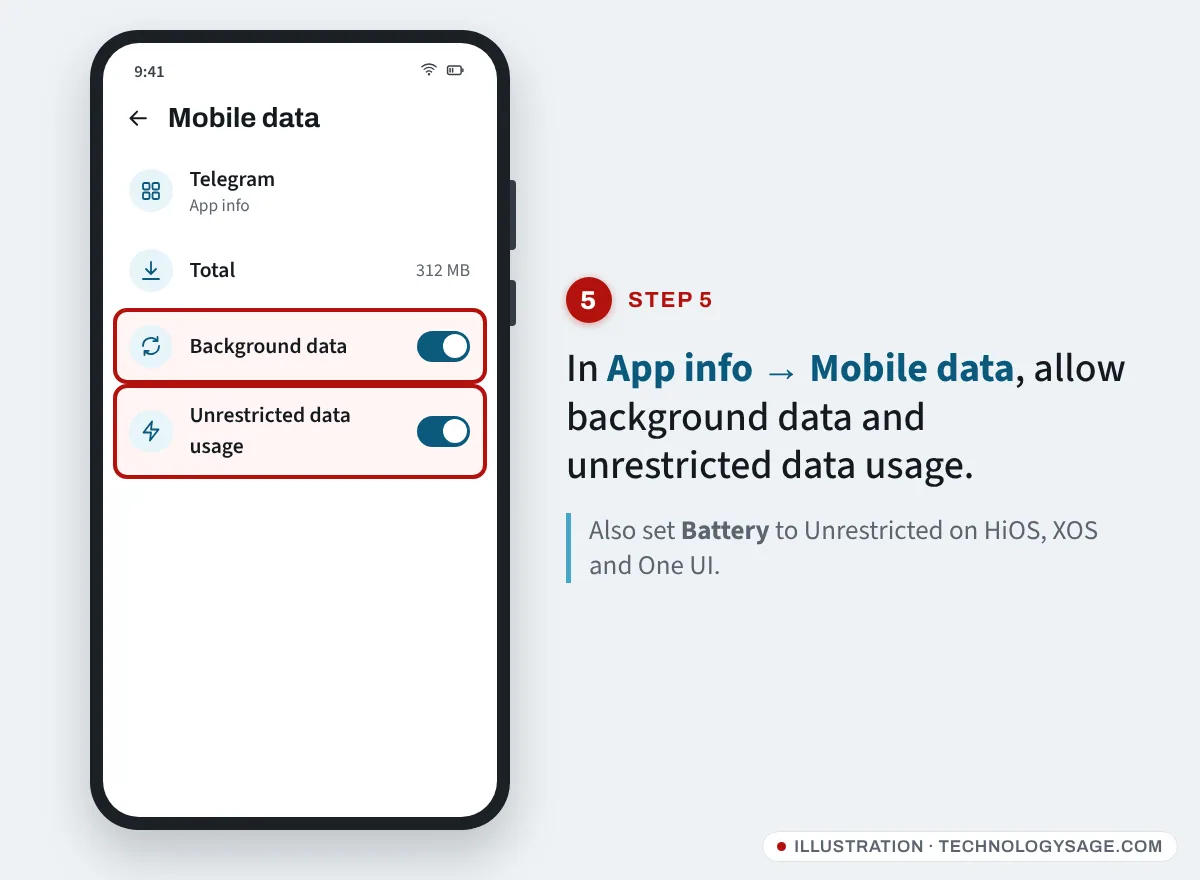
On iPhone, check Settings → Telegram and make sure Mobile Data and Background App Refresh are on, and turn off Low Data Mode for your network if Telegram keeps stalling.
6. Force stop and reopen Telegram
- Go to App info for Telegram.
- Tap Force stop, then OK.
- Open Telegram again.
On Windows, right-click the Telegram icon in the taskbar notification area and choose Quit Telegram, then open it again. Closing the window alone often leaves it running.
7. Set the date and time to automatic
Secure connections fail if your phone’s clock is far off.
Go to Settings → System → Date & time (on Samsung: Settings → General management → Date and time) and turn on Automatic date and time (it may be called Set time automatically or Network-provided time).
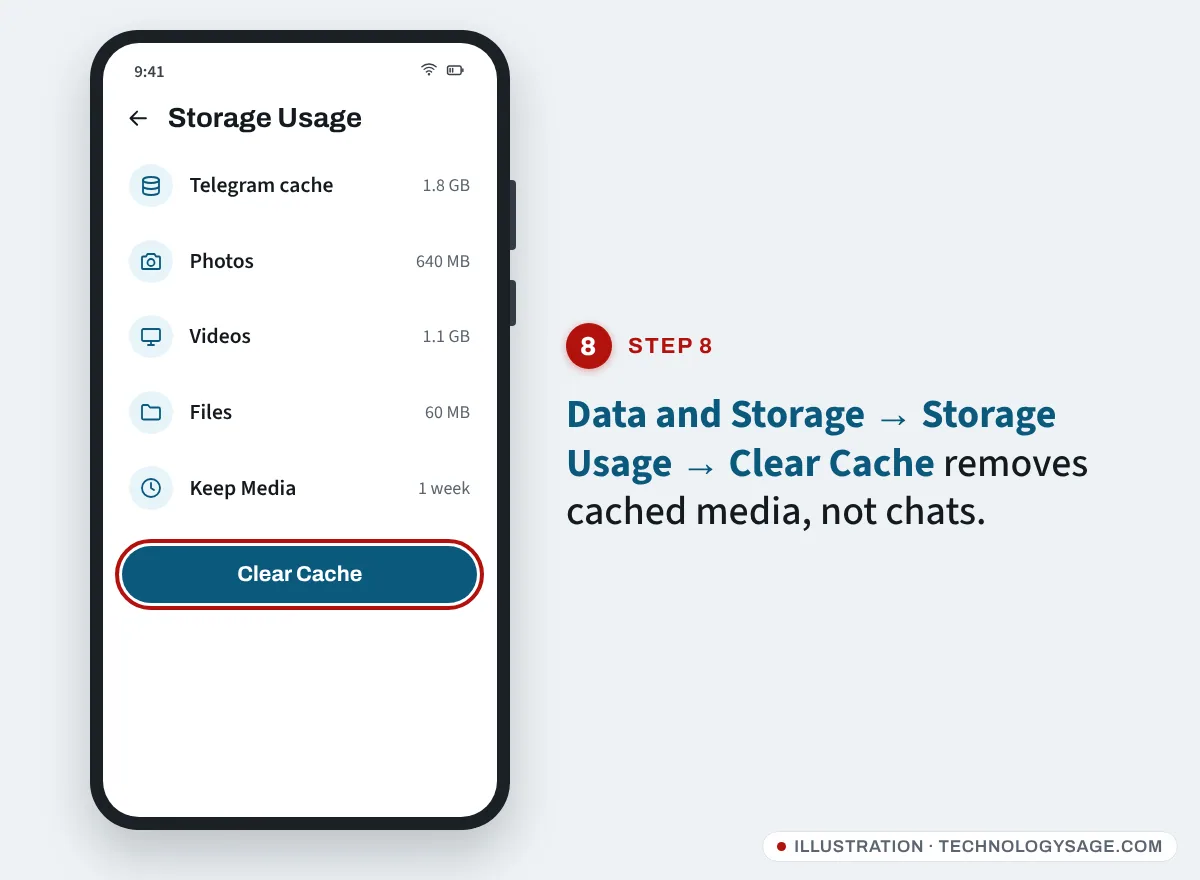
8. Clear Telegram’s cache
A corrupted cache can make Telegram stick on Updating… or fail to load chats.
- In Telegram, go to Settings → Data and Storage → Storage Usage.
- Tap Clear Cache.
This removes downloaded copies of media; your messages stay safe in Telegram’s cloud. Avoid Clear storage/Clear data in Android’s App info unless you know your login details, because it logs you out.
9. Update or reinstall Telegram
Open the Play Store (or App Store), search for Telegram and tap Update if it appears. Very old versions can stop connecting properly.
If updating doesn’t help, uninstall and reinstall Telegram. Your chats are stored in Telegram’s cloud, so they will come back when you log in, except Secret Chats, which exist only on the device. Before you reinstall, make sure you can receive the login code: Telegram usually sends it to your other logged-in devices first, and you will need your two-step verification password if you set one.
10. Try a different network or DNS
Some mobile networks and public Wi-Fi hotspots (schools, offices, hotels) block messaging apps.
- Try a different Wi-Fi network or another SIM.
- On Android 9 and later you can set Private DNS under Settings → Network & internet → Private DNS (on Samsung: Settings → Connections → More connection settings → Private DNS). Enter a provider hostname such as
dns.googleand test again. Change it back to Automatic if it makes no difference.
If it still doesn’t work
Telegram connects but messages won’t send. This may be a limit on your account, not a connection problem. If you see a message about being limited, or you can only message mutual contacts, see Telegram account banned or limited.
You can’t log in because the code doesn’t arrive. Telegram usually sends the login code to the Telegram app on another device where you are logged in, not by SMS. Check your other phones, tablets and computers. Make sure you entered your number in international format (for example +234 for Nigeria, +91 for India, +254 for Kenya).
Only Telegram Desktop fails. Check Settings → Advanced → Connection type and choose Use system proxy settings or Disable proxy, and allow Telegram through Windows Firewall or your antivirus.
Contacting Telegram. In the app, go to Settings → Ask a Question. Telegram’s support is run by volunteers, so replies can take time. Telegram will never ask for your login code or two-step verification password, so don’t share them with anyone claiming to be support.
FAQ
Why does Telegram say “Connecting” when my internet works?
Your phone is online, but Telegram cannot reach its servers. The usual causes are a VPN or proxy that has stopped working, background data restrictions, or Telegram being blocked on your network.
Why is Telegram stuck on “Updating”?
It is connected but struggling to sync. A slow or unstable connection is the main cause. Switch networks, clear the cache in Data and Storage → Storage Usage, and update the app.
Will I lose my chats if I reinstall Telegram?
Normal chats, groups and channels are stored in Telegram’s cloud and return when you log in. Secret Chats are stored only on the device and will be lost.
Does Telegram use a lot of data?
Messages use very little; auto-downloading photos and videos uses most of it. Adjust Settings → Data and Storage → Automatic media download and see our tips on reducing data usage on Android.