In this guide
- Step 1: Open Command Prompt in the recovery screen
- Step 2: Check whether your disk is GPT or MBR
- Step 3: Find the Windows volume and the EFI partition
- Step 4: Give the EFI partition a drive letter
- Step 5: Rebuild the boot files with bcdboot
- Step 6: Restart and check the boot order
- If bcdboot fails
- The fix for MBR (BIOS) disks: bootrec commands
- What is bcdedit and do you need it?
- If Windows still won’t start
- FAQ
Bootrec /fixboot “Access is denied” usually appears because your PC uses UEFI with a GPT disk, where the boot files live on a small hidden EFI System Partition, not in the boot sector that /fixboot was designed to repair. The fix is to give the EFI partition a drive letter with diskpart, then rebuild the boot files with bcdboot, for example bcdboot C:\Windows /s S: /f UEFI.
bootrec dates from the days of BIOS and MBR disks. On most PCs made in the last decade it can’t write where it wants to, so it fails with “Access is denied”, and bootrec /rebuildbcd often reports zero Windows installations. bcdboot is Microsoft’s tool for recreating the boot files on both kinds of system, and it’s what this guide uses.
Before you start: these steps don’t touch your personal files, except the optional format in the troubleshooting section, which only erases the small EFI partition. If your files aren’t backed up and the drive might be failing, copy them off first; our unmountable boot volume guide shows how to do it from the recovery screen.
Step 1: Open Command Prompt in the recovery screen
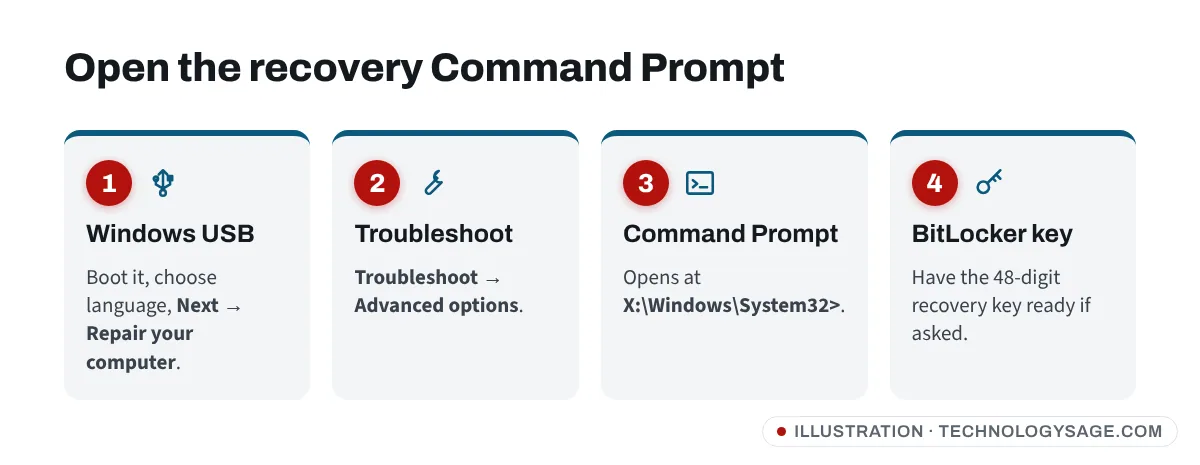
- Start from a Windows installation USB stick (ideally the same or a newer Windows version than the one installed). Choose your language, select Next, then Repair your computer.
- Or, if Windows fails to start two or three times, it opens the recovery screen by itself.
- Select Troubleshoot → Advanced options → Command Prompt.
If BitLocker is on, you’ll be asked for the 48-digit recovery key. If you sign in with a Microsoft account, you can usually find it at aka.ms/myrecoverykey on another device.
Step 2: Check whether your disk is GPT or MBR
Type these commands, pressing Enter after each:
diskpart
list disk
Look at the Gpt column for the disk with Windows (usually Disk 0). An asterisk (*) means it’s a GPT disk, so your PC boots in UEFI mode: follow Steps 3-6. No asterisk means MBR: skip to the MBR section further down.
Step 3: Find the Windows volume and the EFI partition
Still in diskpart, type:
list vol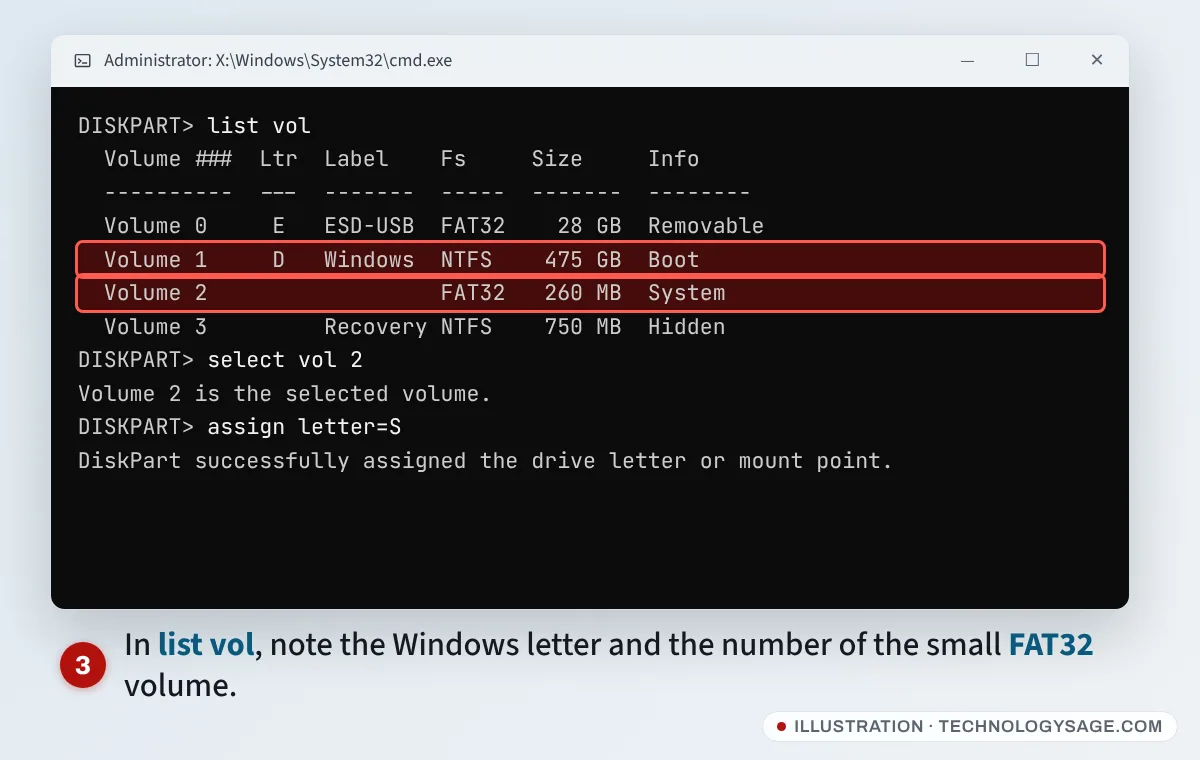
You’re looking for two volumes:
- The Windows volume: NTFS, the biggest one, often labelled Windows or OS. In the recovery screen it’s often D:, not C:. Note its letter.
- The EFI System Partition: FAT32, small (usually 100-500 MB), with Hidden or System in the Info column and no letter. Note its volume number.
If you’re not sure which is the Windows volume, you can check after leaving diskpart with dir D:\Windows (it should list the Windows folder’s contents).
Step 4: Give the EFI partition a drive letter
Select the EFI volume by its number (here, Volume 2) and assign a letter that isn’t in use. S is a common choice:
select vol 2
assign letter=S
exit
Double-check you selected the FAT32 volume, not the Windows one. diskpart confirms with “DiskPart successfully assigned the drive letter or mount point.”
Step 5: Rebuild the boot files with bcdboot
Now recreate the boot files on the EFI partition, using your Windows volume letter (here D:) and the EFI letter you just assigned (S:):
bcdboot D:\Windows /s S: /f UEFI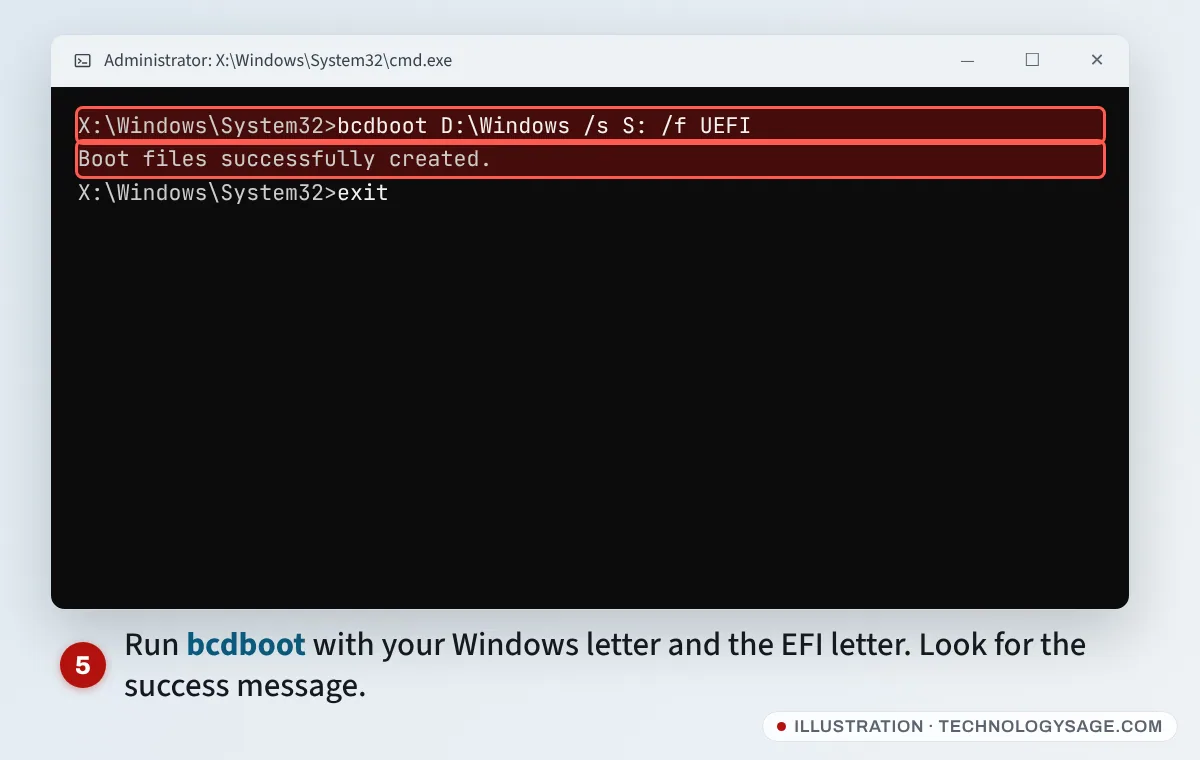
What each part means:
D:\Windows: the Windows folder to copy the boot files from./s S:: the partition to write them to (the EFI partition)./f UEFI: create UEFI boot files. (/f ALLwrites both UEFI and BIOS files, which Microsoft’s own troubleshooting guide uses;UEFIis enough for a GPT disk.)
You should see Boot files successfully created. This also creates a fresh boot configuration (BCD) with a Windows Boot Manager entry.
Step 6: Restart and check the boot order
- Type
exit, remove the USB stick and select Continue or Turn off your PC. - If Windows still doesn’t start, open the BIOS or UEFI setup (usually F2, Del, F10 or Esc, depending on the maker) and make sure Windows Boot Manager on the right drive is first in the boot order. Our guide to the Windows Boot Manager explains this screen.
The S: letter disappears by itself after a restart, so there’s nothing to undo.
If bcdboot fails
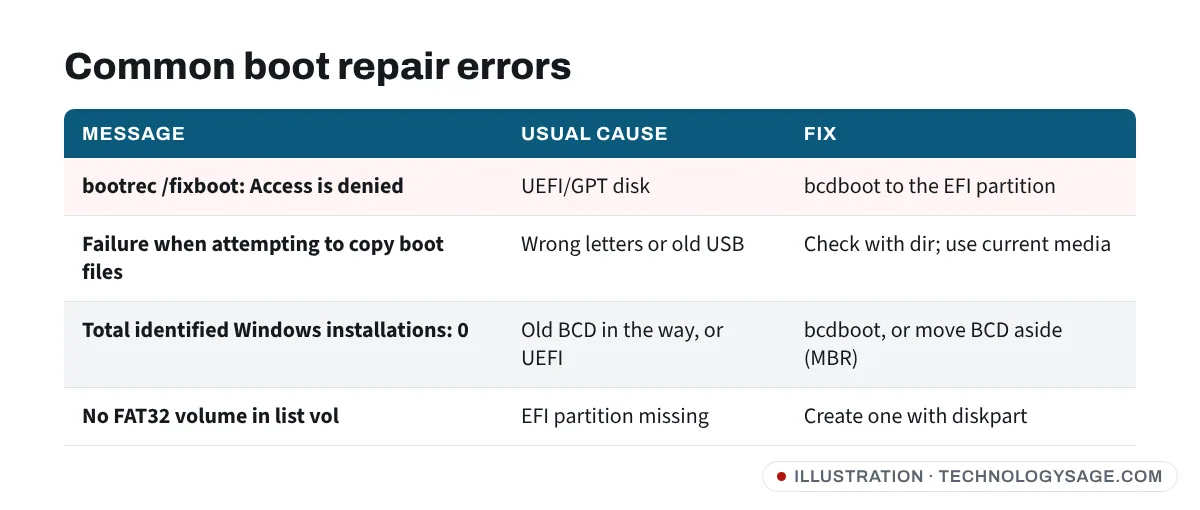
“Failure when attempting to copy boot files.” Usually the letters are wrong. Check the Windows letter with dir D:\Windows and that S: is the FAT32 EFI partition (dir S: should show an EFI folder). Running bcdboot from a USB stick with an older Windows version than the one installed can also cause it, so use current installation media.
The EFI partition is damaged. If the letters are right and bcdboot still fails, you can reformat the EFI partition and run bcdboot again.
Warning: formatting erases everything on that partition. On a PC that only runs Windows, bcdboot recreates it all. If you dual-boot Linux or another system, its boot loader is stored there too and will be lost, so don’t do this unless you know how to reinstall it. Make sure S: really is the small FAT32 EFI partition before you press Enter:
format S: /FS:FAT32Confirm with Y, then run the bcdboot D:\Windows /s S: /f UEFI command again.
There’s no EFI partition at all. This happens after some failed clones or partition changes. You can create one by shrinking the Windows volume slightly. Back up first: working with partitions always carries some risk. In diskpart (here, Windows is volume 1 on disk 0):
select disk 0
select vol 1
shrink desired=200
create partition efi size=100
format quick fs=fat32 label="System"
assign letter=S
exit
Then run the bcdboot command from Step 5.
The fix for MBR (BIOS) disks: bootrec commands
If list disk showed no asterisk in the Gpt column, your PC uses BIOS and MBR, and the classic bootrec commands are the right tools. Run them one at a time:
bootrec /fixmbr
bootrec /fixboot
bootrec /scanos
bootrec /rebuildbcd/fixmbrrewrites the master boot record without touching the partition table./fixbootwrites a new boot sector to the system partition./scanoslists the Windows installations it can find./rebuildbcdrebuilds the boot list. Type Y when it asks to add an installation.
If /fixboot says “Access is denied” on an MBR disk, run this first, then try bootrec /fixboot again:
bootsect /nt60 sysIf the command isn’t recognised, it’s in the boot folder of the Windows USB stick: run E:\boot\bootsect /nt60 sys (replace E: with the USB stick’s letter).
If /rebuildbcd finds 0 Windows installations, the old boot list is in the way. Back it up and move it aside, then rebuild. Run these on the drive that holds the Boot folder: C: in this example, but on many PCs it’s the small System Reserved partition, so check with dir C:\Boot first:
bcdedit /export C:\bcdbackup
attrib C:\boot\bcd -h -r -s
ren C:\boot\bcd bcd.old
bootrec /rebuildbcd
On an MBR disk you can also use bcdboot D:\Windows /s C: /f BIOS, where C: is the active system partition.
What is bcdedit and do you need it?
bcdedit views and edits the boot configuration data (BCD) store. For repairs, you rarely need to change anything with it, but it’s useful for checking:
bcdedit /enumlists the boot entries. Under Windows Boot Manager, apathending in\EFI\Microsoft\Boot\bootmgfw.efimeans a UEFI system. Under Windows Boot Loader,osdeviceanddeviceshould point to your Windows partition.bcdedit /export C:\bcdbackupmakes a backup before you change anything, andbcdedit /import C:\bcdbackuprestores it.
Avoid deleting entries with bcdedit unless you know exactly what they are. bcdboot is the safer way to rebuild.
If Windows still won’t start
- Run Startup Repair once more after rebuilding the boot files: Troubleshoot → Advanced options → Startup Repair.
- Check the Windows files:
sfc /scannow /offbootdir=D:\ /offwindir=D:\Windows(see our guide to SFC vs DISM). - If you see a different error now, such as BOOTMGR is missing, inaccessible boot device or operating system not found, follow that guide. Our PC won’t boot guide brings all the start-up errors together.
FAQ
Why does bootrec /fixboot say access is denied?
On UEFI PCs with GPT disks, the boot files live on a separate FAT32 EFI partition, and /fixboot tries to write a boot sector that this setup doesn’t use. Rebuild the boot files with bcdboot on the EFI partition instead.
Is it safe to format the EFI partition?
Only if Windows is the only operating system, and only the small FAT32 EFI partition. bcdboot recreates the Windows boot files afterwards. If you dual-boot, the other system’s boot loader is erased too.
What’s the difference between bootrec and bcdboot?
bootrec repairs the old BIOS/MBR boot records and the boot list. bcdboot copies fresh boot files from your Windows folder to the system partition and creates a new boot list, on both UEFI and BIOS systems. On modern PCs, bcdboot is the one that works.
Will bcdboot delete my files?
No. It only writes boot files to the EFI or system partition. Your Windows partition and personal files aren’t changed.
What does “Total identified Windows installations: 0” mean?
bootrec /rebuildbcd couldn’t find a Windows installation to add, often because it’s looking in the wrong place on a UEFI system, or because the existing boot list is in the way. Use bcdboot on UEFI systems, or move the old BCD aside on MBR systems as shown above.