In this guide
- Before you start: can you still switch back to Google Assistant?
- Fix 1: Turn on “Hey Google” in the Gemini app
- Fix 2: Retrain Voice Match
- Fix 3: Make Gemini your default digital assistant
- Fix 4: Allow the microphone
- Fix 5: Stop battery saver from killing it
- Fix 6: Match your languages
- Fix 7: Turn on Gemini on the lock screen
- Fix 8: Update and clear the Google app
- Fix 9: Check whether your phone or account is supported
- If it still doesn’t work
- FAQ
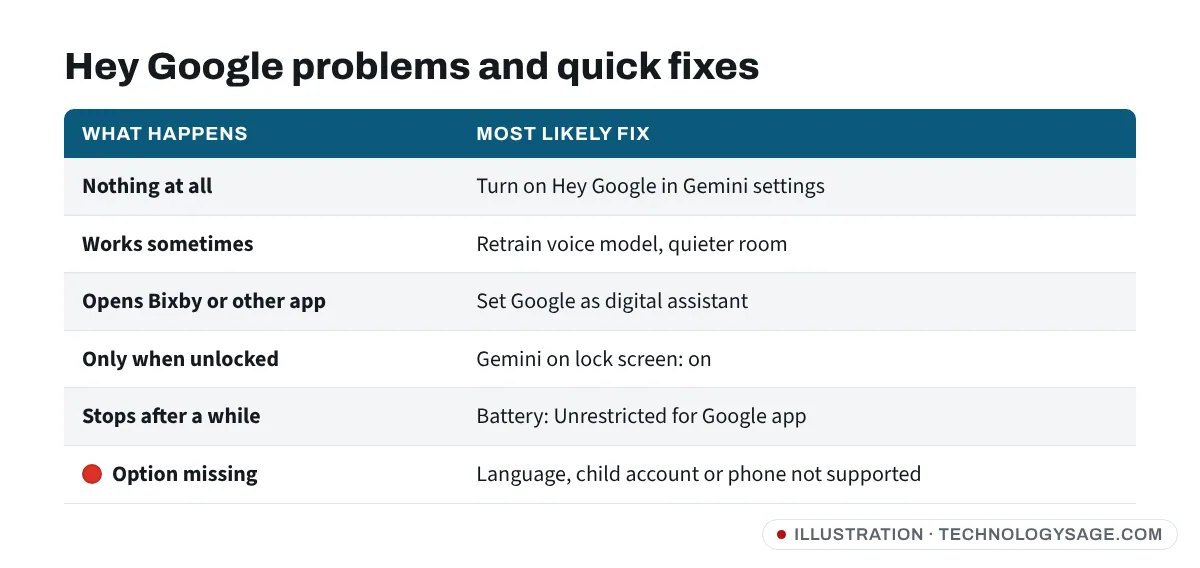
If “Hey Google” stopped working after your phone switched to Gemini, the hands-free setting usually needs turning on again inside the Gemini app: open Gemini → your profile picture → Settings → Talk to Gemini hands-free and switch on Hey Google, then retrain Voice Match. If that’s already on, check the Google app’s microphone permission, battery saver and language settings below.
Google finished replacing Google Assistant with Gemini on Android phones in September 2026, so the old Assistant menus most guides describe have moved or gone. The fixes below match the current setup. They work on Samsung Galaxy, Tecno, Infinix, itel, Pixel, Xiaomi and other Android phones, though menu names vary slightly.
Before you start: can you still switch back to Google Assistant?
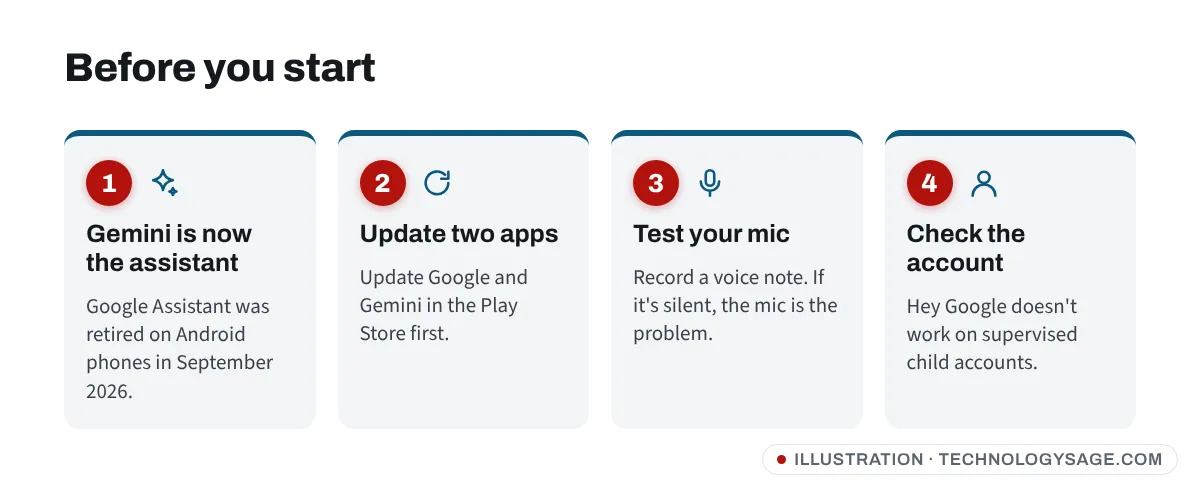
On phones and tablets, no. Google’s support notice now says you can no longer use or switch back to Google Assistant on your phone, tablet or paired devices (Wear OS watches, headphones and Android Auto), and the Switch to Google Assistant option has been removed from recent versions of the Google app. Nest speakers and displays were unchanged at the time of writing.
So the goal is to make “Hey Google” work with Gemini. If you’d rather not use Gemini at all, see how to turn off Gemini.
Fix 1: Turn on “Hey Google” in the Gemini app
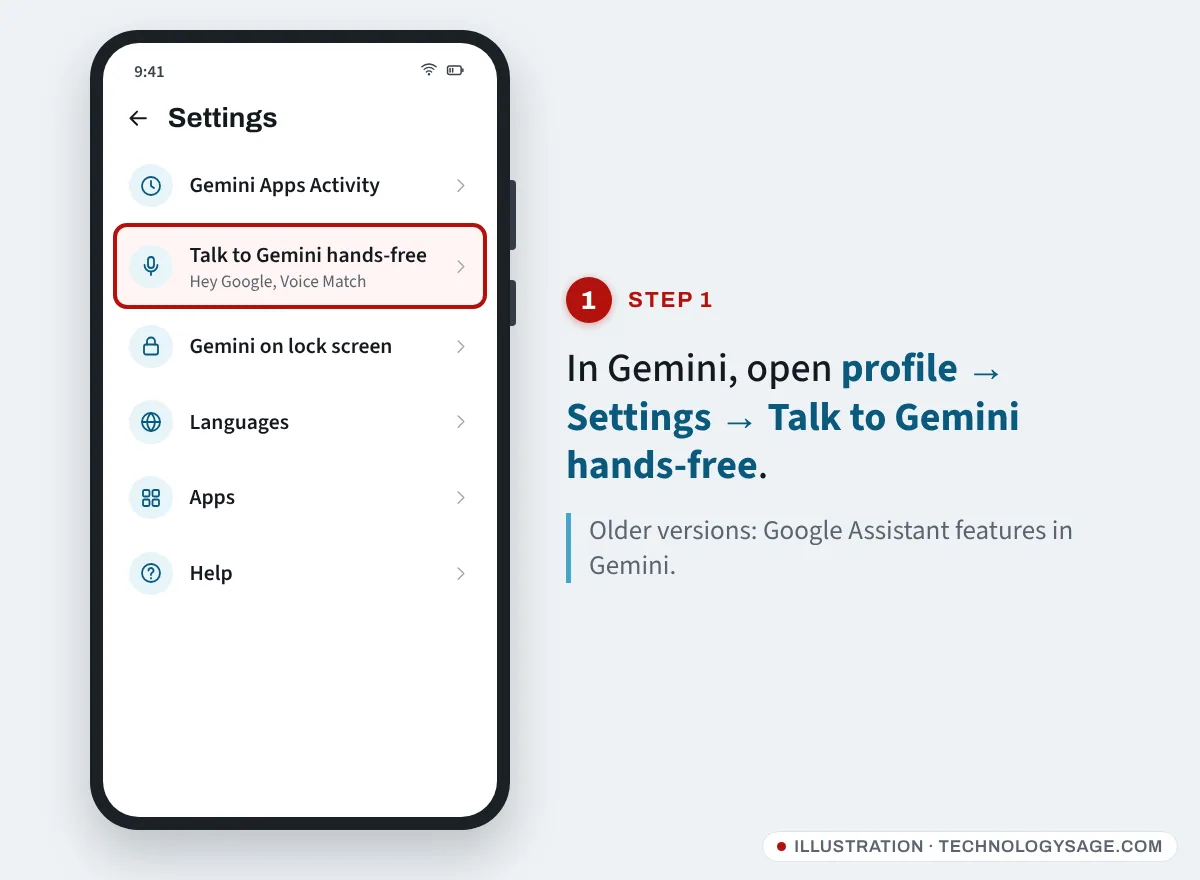
- Open the Gemini app. (On some phones it opens when you long-press the power button or home button.)
- Tap your profile picture or initial at the top right.
- Tap Settings.
- Tap Talk to Gemini hands-free. On some versions this is called Google Assistant features in Gemini or Hey Google & Voice Match.
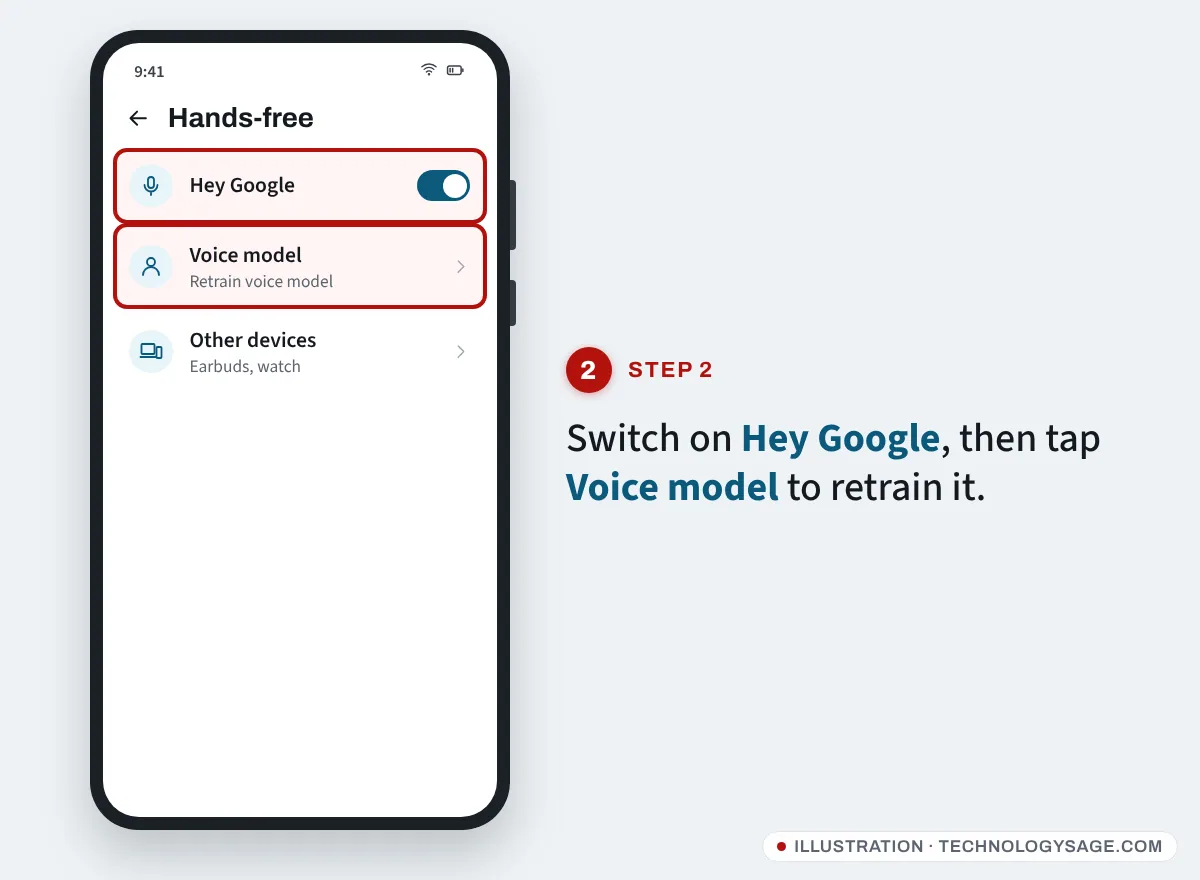
- Switch on Hey Google and follow the prompts to set up Voice Match.
If the switch is greyed out, turn it off, restart the phone, and turn it on again. Some users found this after an update.
Fix 2: Retrain Voice Match
If Gemini responds sometimes but not reliably, your voice model may be poor or out of date.
- Go back to Talk to Gemini hands-free (Fix 1).
- Tap Voice model or Retrain voice model.
- Say the phrases in a quiet room, at your normal speaking volume and distance.
In September 2026 Google acknowledged complaints about Voice Match accuracy and said it was working to improve it, so some misses may be on Google’s side.
Fix 3: Make Gemini your default digital assistant
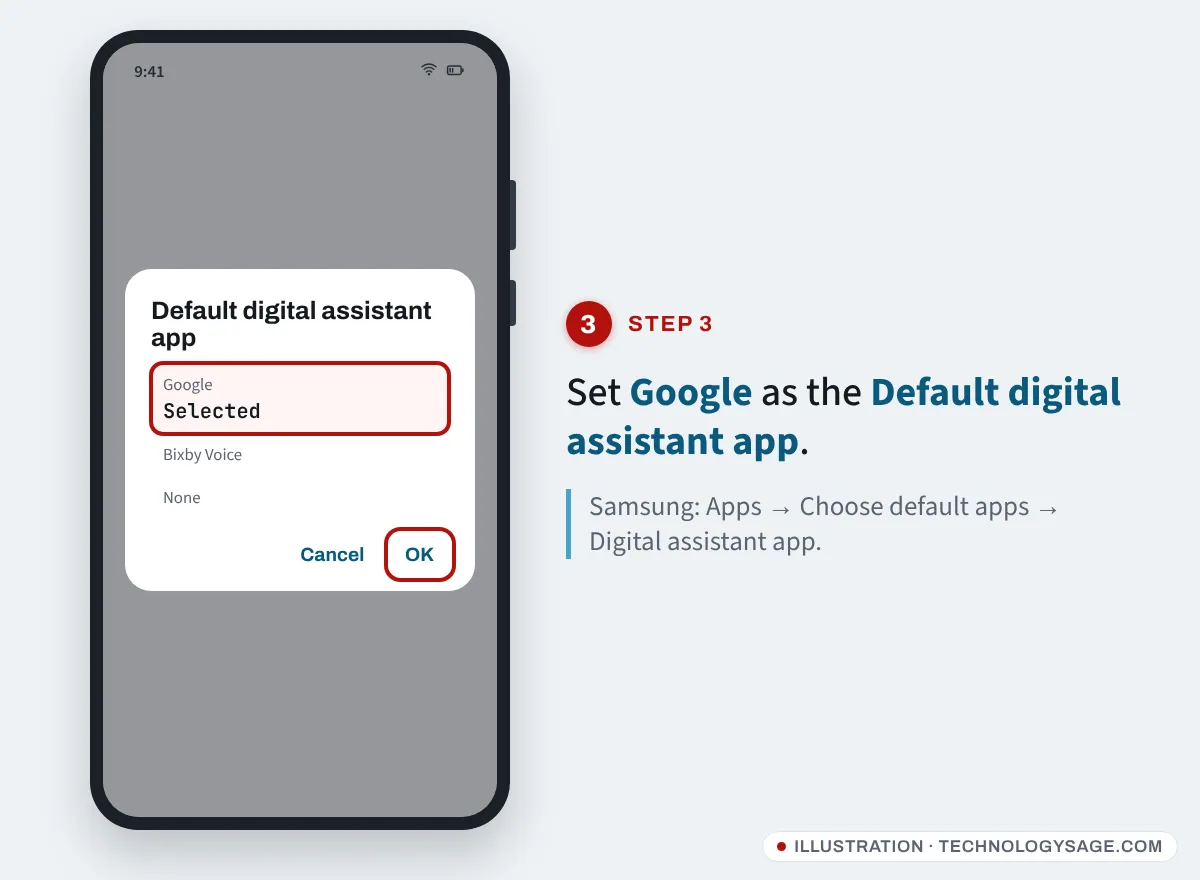
If saying “Hey Google” opens nothing, or opens Bixby or another assistant, check the default:
- Open Settings → Apps → Default apps → Digital assistant app. On Samsung it’s Settings → Apps → Choose default apps → Digital assistant app.
- Tap Default digital assistant app and choose Google (Gemini).
Fix 4: Allow the microphone
- Open Settings → Apps → Google → Permissions → Microphone and choose Allow.
- Do the same for the Gemini app if it appears separately.
- Check the quick settings panel for a microphone access or privacy switch (Android 12 and later) and make sure it’s on.
Test your mic with a voice note. If no app can hear you, it’s a hardware or blocked-mic problem, not Gemini. Cases and screen protectors can also cover the mic hole.
Fix 5: Stop battery saver from killing it
“Hey Google” needs the Google app to listen in the background. Power saving modes, especially the aggressive ones on Tecno, Infinix, itel and Xiaomi phones, can stop it.
- Turn off Battery saver / Power saving and test.
- Open Settings → Apps → Google → Battery and choose Unrestricted (or “No restrictions”).
- On Tecno, Infinix and itel, also check any app-freezing or “auto-start” list in your phone manager and allow the Google app.
Fix 6: Match your languages
Hands-free Gemini is not available in every language. If your phone, the Google app and Gemini use different languages, the hotword may stop.
- Set your phone language under Settings → System → Languages (Samsung: General management → Language).
- In Gemini settings, check Languages and pick a supported one such as English (United States, UK, India or another listed variant).
Fix 7: Turn on Gemini on the lock screen
If “Hey Google” works only when the phone is unlocked:
- In Gemini, go to profile → Settings → Gemini on lock screen.
- Turn on Use Gemini without unlocking.
Even then, Gemini may ask you to unlock before showing personal results.
Fix 8: Update and clear the Google app
- Update Google and Gemini in the Play Store.
- Go to Settings → Apps → Google → Storage and tap Clear cache. Restart.
- If it still fails, tap Clear storage/data for the Google app, then set up Fix 1 again.
Also avoid beta builds: some Pixel users found “Hey Google” broke on Android 17 beta updates.
Fix 9: Check whether your phone or account is supported
“Hey Google” with Gemini isn’t available on every device, country, language or account. It is not available for supervised child accounts (Family Link). Gemini’s hands-free features are aimed at phones that meet Google’s minimum requirements, so some older or low-memory phones may miss hands-free features. If none of these limits apply and nothing works, send feedback from the Gemini app’s Help menu so Google sees the problem.
If it still doesn’t work
- Try saying “OK Google” instead of “Hey Google”; both should work.
- Remove Bluetooth earbuds: Gemini may be listening through them.
- Test in a quiet room. Fans, TV and traffic make hotword detection worse.
- If your phone is struggling for space, the Google app can misbehave; see Samsung storage full fixes, which work on most Android phones.
FAQ
Why did Hey Google stop working after Gemini?
The switch from Google Assistant to Gemini resets or moves the hands-free setting. Turn on Hey Google under Gemini → profile → Settings → Talk to Gemini hands-free and retrain Voice Match.
How do I switch back to Google Assistant?
As of November 2026 you can’t on phones and tablets. Google removed the option when it completed the move to Gemini.
Why does Hey Google work only when my phone is unlocked?
Turn on Gemini on lock screen → Use Gemini without unlocking. Some answers will still ask you to unlock for privacy.
Is Gemini free to use with Hey Google?
Yes, the basic Gemini assistant is free. Paid Google AI plans add higher limits; see is Gemini free.
Hey Google works on my laptop but not my phone. Why?
The phone has its own settings. On Windows, mic problems have different fixes; see microphone not working on Windows 11.