In this guide
- Fix 1: Turn on the microphone privacy switches
- Fix 2: Choose the right microphone
- Fix 3: Allow the device, raise the volume and test
- Fix 4: Check the mute key, earbuds and app settings
- Fix 5: Update or reinstall the audio driver
- Fix 6: Run the audio troubleshooter
- Fix 7: Check Windows updates and recent changes
- If it still doesn’t work
- FAQ
When a laptop microphone stops working in Windows 11, the cause is usually a privacy switch, the wrong input device or a mute key, not a broken mic. Open Settings → Privacy & security → Microphone and turn on Microphone access, Let apps access your microphone and Let desktop apps access your microphone. Then go to Settings → System → Sound, choose your laptop’s microphone under Input, and use Test your microphone to check it picks up your voice.
Work through the fixes below in order. Each one takes a minute or two.
Fix 1: Turn on the microphone privacy switches
Windows can block every app from using the mic, even though the mic itself works. There is often no error message: the app simply hears silence.
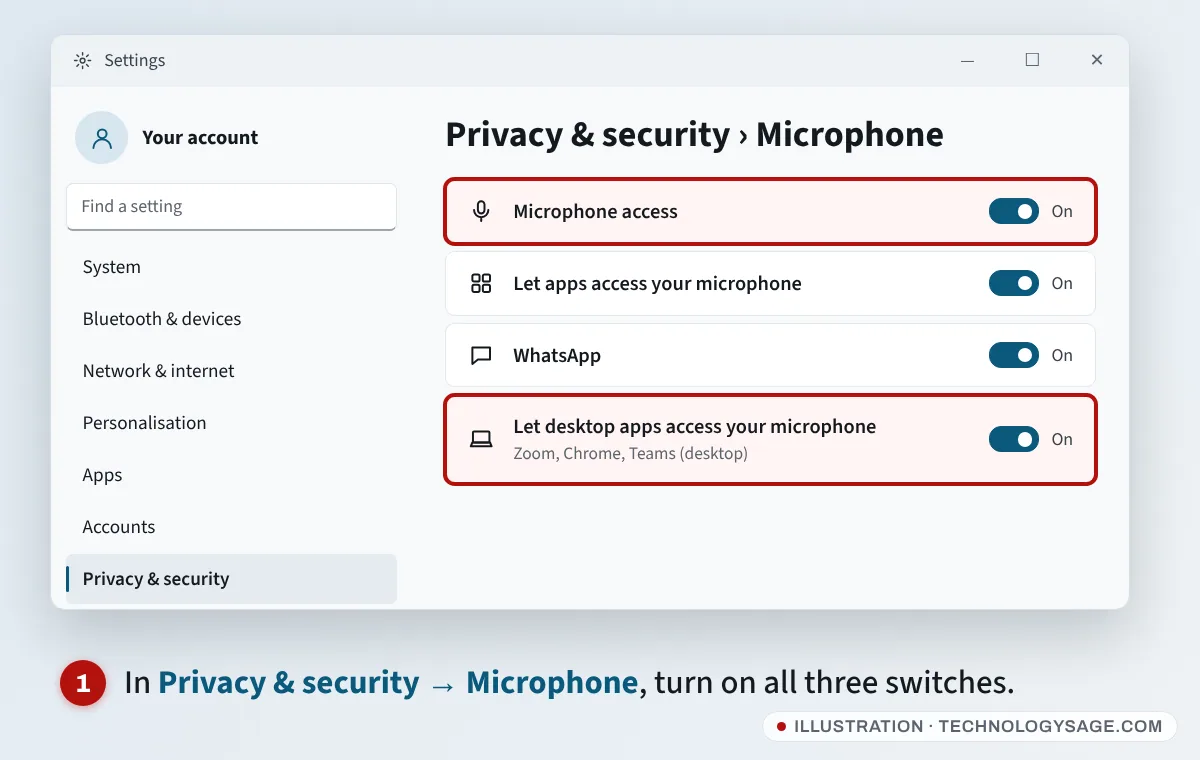
- Press Windows + I to open Settings.
- Go to Privacy & security, then under App permissions select Microphone.
- Turn on Microphone access.
- Turn on Let apps access your microphone, then make sure the app you need (for example WhatsApp or Camera) is on in the list.
- Scroll down and turn on Let desktop apps access your microphone. This covers apps installed from the web, such as Zoom, Chrome, Firefox and the desktop version of Teams. They don’t appear individually in the list.
If you use the mic in a browser (Google Meet, WhatsApp Web), the browser must also allow it: click the lock or settings icon next to the web address and set Microphone to Allow.
Fix 2: Choose the right microphone
Laptops often have several “microphones”: the built-in array, a headset jack, Bluetooth earbuds, a webcam. Windows may pick the wrong one.
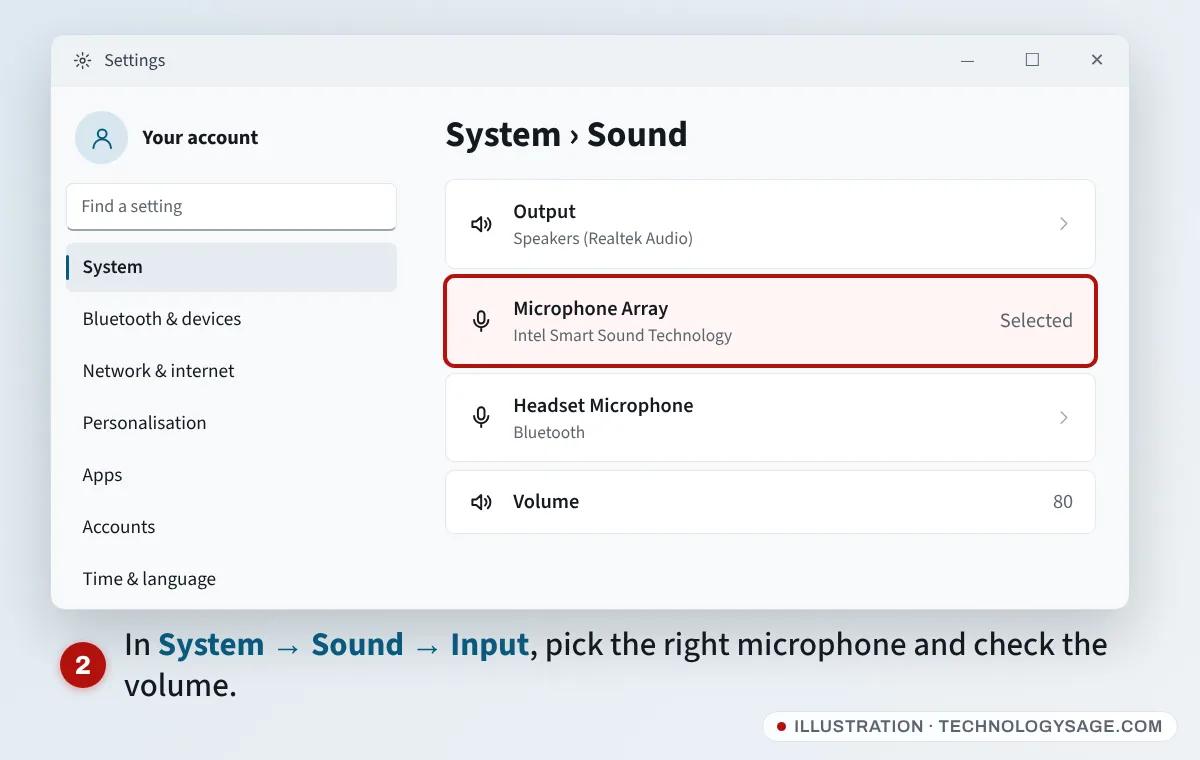
- Go to Settings → System → Sound.
- Scroll to Input. Under Choose a device for speaking or recording, select the built-in mic, usually called Microphone Array or Internal Microphone.
- Speak and watch the volume bar move.
If you use a wired headset with one combined plug, some laptops need you to tell the audio app that a headset (not headphones) is connected. A pop-up usually appears when you plug it in.
Fix 3: Allow the device, raise the volume and test
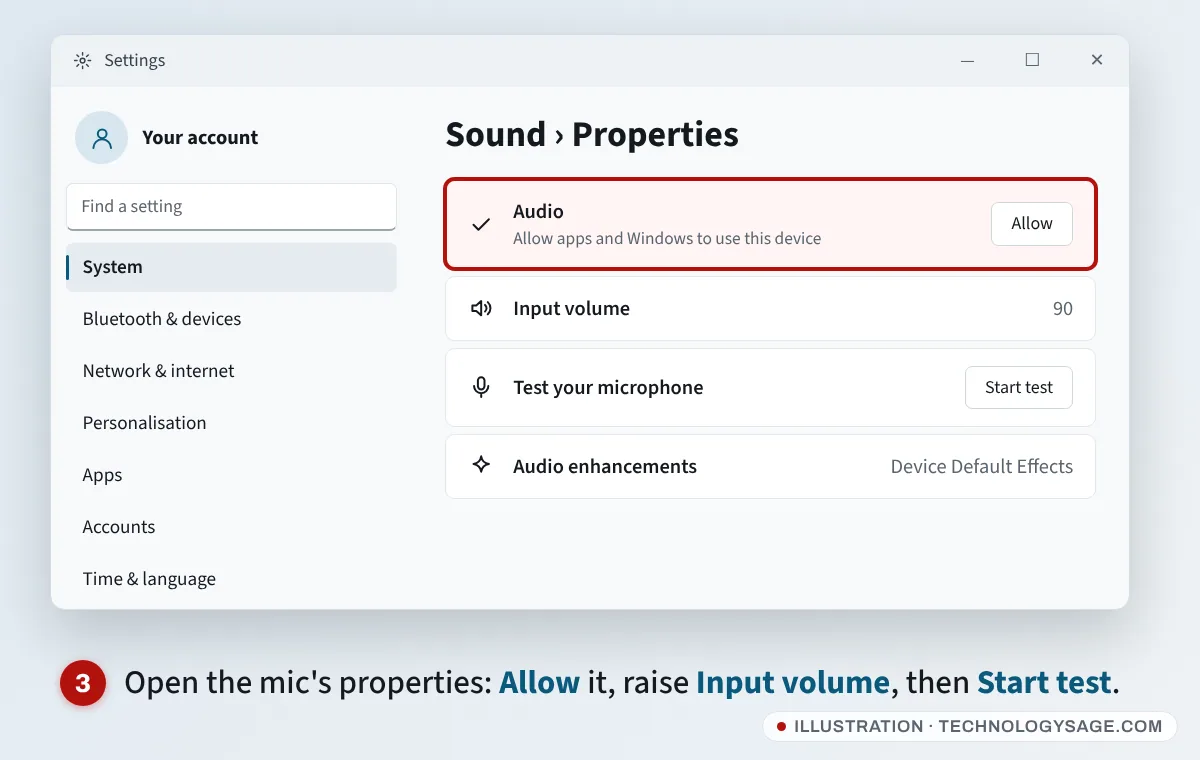
- In Settings → System → Sound, select your microphone under Input to open its properties.
- Next to Audio, if you see Allow, select it. If the button says Don’t allow, the device is already allowed.
- Set Input volume to around 80 to 100.
- Under Test your microphone, select Start test, speak normally, and check the result.
- If your voice sounds robotic or cuts out, try turning Audio enhancements off.
Fix 4: Check the mute key, earbuds and app settings
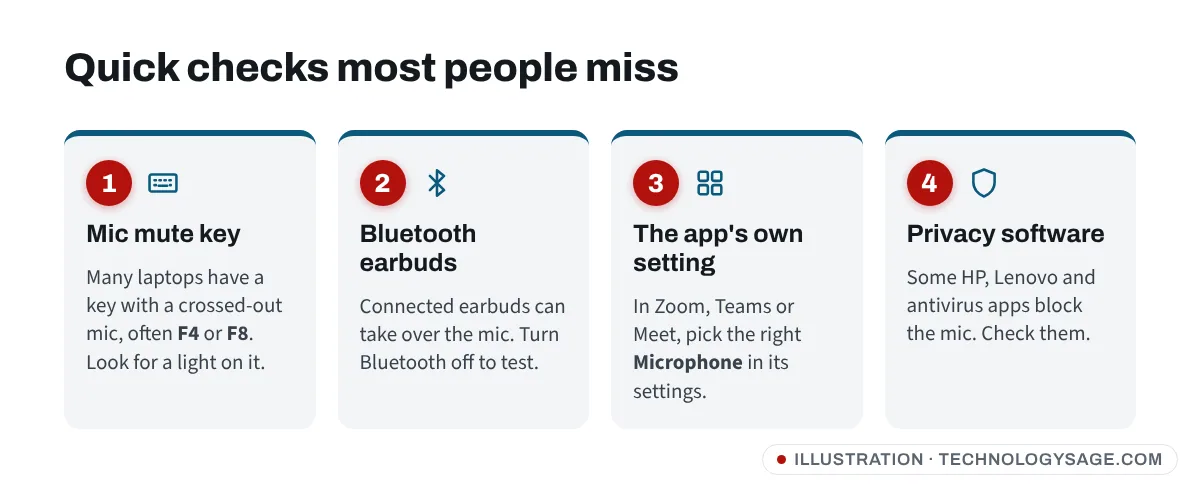
- Mic mute key: many HP, Lenovo, Dell, Acer and ASUS laptops have a key with a crossed-out microphone, often F4 or F8 (sometimes with Fn). A small light on the key usually means the mic is muted.
- Bluetooth earbuds: if earbuds or a speaker are connected, apps may use their mic. Turn off Bluetooth in Quick Settings (Windows + A) to test the built-in mic.
- The app’s own settings: Zoom, Teams, Google Meet and Discord each choose their own microphone. Open the app’s audio or device settings and pick the same mic that worked in the Windows test. Also check you’re not muted in the call.
- Privacy or security apps: some laptops come with privacy tools from the maker, and some antivirus apps have “microphone protection”. Open them and allow your app.
- Physical cover or switch: a few business laptops have a hardware privacy switch on the side.
Fix 5: Update or reinstall the audio driver
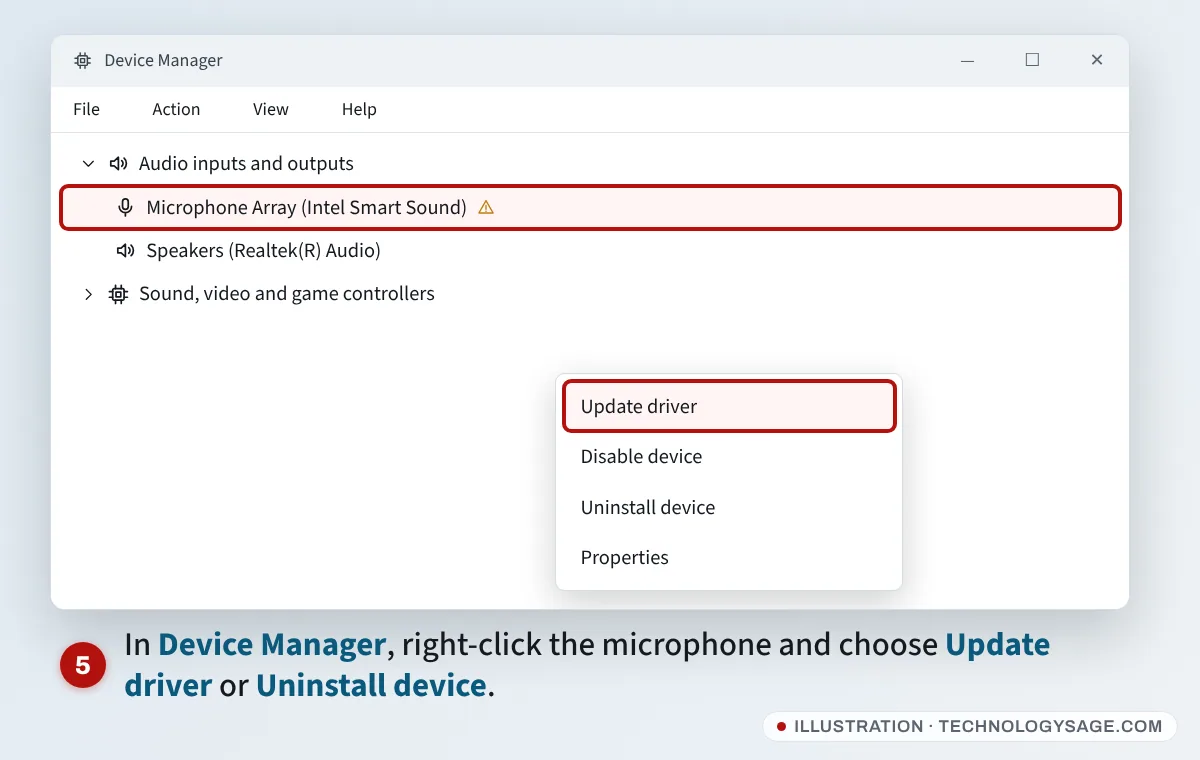
- Right-click Start and choose Device Manager.
- Expand Audio inputs and outputs. Also check Sound, video and game controllers.
- Right-click your microphone (or the audio device, such as Realtek Audio or Intel Smart Sound Technology) and choose Update driver → Search automatically for drivers.
- If that doesn’t help, right-click it, choose Uninstall device, then restart the laptop. Windows reinstalls it automatically.
- If a yellow warning sign stays, download the audio driver for your exact laptop model from the maker’s support site (HP, Dell, Lenovo, Acer, ASUS). Our older guide on installing drivers on a laptop walks through it.
On many newer laptops, the built-in mic is connected through Intel Smart Sound Technology or a similar audio chip. If the mic disappeared after a driver update, installing the maker’s version of that driver often brings it back.
Fix 6: Run the audio troubleshooter
- Go to Settings → System → Troubleshoot → Other troubleshooters.
- Select Run next to Audio (on older builds it may be called Recording Audio).
- On current Windows 11 versions this opens the Get Help app. Choose your microphone when asked and follow the steps.
Fix 7: Check Windows updates and recent changes
- If the mic stopped right after a Windows update, check Settings → Windows Update for newer fixes, or uninstall the latest update from Update history → Uninstall updates. If updates themselves are stuck, see Windows Update stuck.
- If it stopped after installing a new app (such as a voice changer or screen recorder), uninstall that app. Some add virtual microphones that take over as the default.
- Restart the laptop fully: Start → Power → Restart.
If it still doesn’t work
- Test with a headset: if a wired or USB headset mic works but the built-in mic doesn’t, the built-in mic or its cable may be faulty. That needs a repair, especially after a drop or liquid spill. See taking your laptop for repair for what to ask.
- Check in the BIOS: some laptops let you disable the internal mic in the BIOS or UEFI setup. Look for “Microphone” under integrated devices.
- Try another user account: if the mic works in a new Windows account, a setting in your account is the cause.
- Camera also not working? The webcam and mic often share privacy settings. The same Fix 1 steps apply under Privacy & security → Camera.
If your keyboard keys aren’t responding either (including the mute key), see our guide to a laptop keyboard not working.
FAQ
Why does my mic work in Settings but not in Zoom or Teams?
Turn on Let desktop apps access your microphone, then pick the same mic inside the app’s audio settings. Also check the app hasn’t muted you on join.
How do I unmute my laptop microphone with the keyboard?
Look for a key with a crossed-out microphone, often F4 or F8. Press it (or Fn + that key) and check whether the key’s light turns off.
Why does my laptop mic only pick up noise or sound very quiet?
Raise the Input volume in the mic’s properties, turn off Audio enhancements, and keep the vents clear. A noisy fan can also be picked up; see why a laptop fan gets loud.
My Bluetooth headset mic sounds terrible. Is that normal?
Often, yes. When a Bluetooth headset uses its mic, many switch to a lower-quality call mode. For better sound, use the laptop’s built-in mic or a wired headset.