In this guide
ERR_ADDRESS_UNREACHABLE means your browser knows which IP address it wants, but your device can’t find any path to get there. It happens most often when you try to open a router or other home device (an address like 192.168.1.1) while you’re on mobile data, a VPN or a different Wi-Fi, and sometimes when a VPN, a broken IPv6 setup or a router fault cuts off the route to normal websites. The quickest fix is to make sure you’re on the right network with the VPN off, then restart the router.
This is a guide for visitors and home users. It covers Chrome, Edge and other Chromium browsers on Windows, Mac, Android and iPhone.
What does ERR_ADDRESS_UNREACHABLE mean?
The browser shows a page headed This site can’t be reached, with the code ERR_ADDRESS_UNREACHABLE at the bottom. On Android you might also see it inside apps that show web pages.
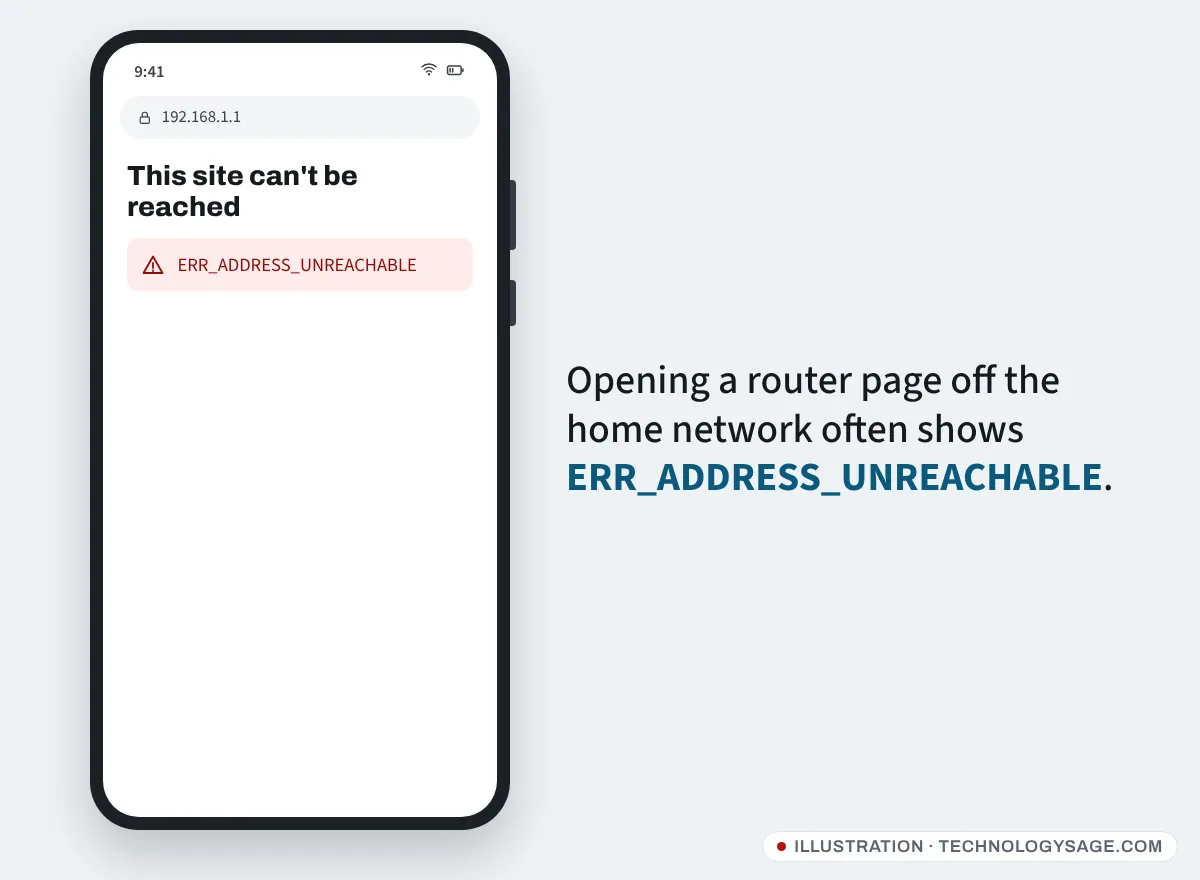
Chromium’s network error list describes ERR_ADDRESS_UNREACHABLE (error -109) as: “The IP address is unreachable. This usually means that there is no route to the specified host or network.” In plain words, the name lookup worked (so it isn’t a DNS problem like DNS_PROBE_FINISHED_NO_INTERNET), but there is no road from your device to that address.
That tells you where to look:
- Private addresses (192.168.x.x, 10.x.x.x, 172.16-31.x.x) only work inside the network they belong to. From mobile data, another Wi-Fi or a VPN, they are unreachable.
- Normal websites become unreachable when your VPN, router or internet provider has lost its route, or when your device tries an IPv6 path that doesn’t work.
Quick fixes
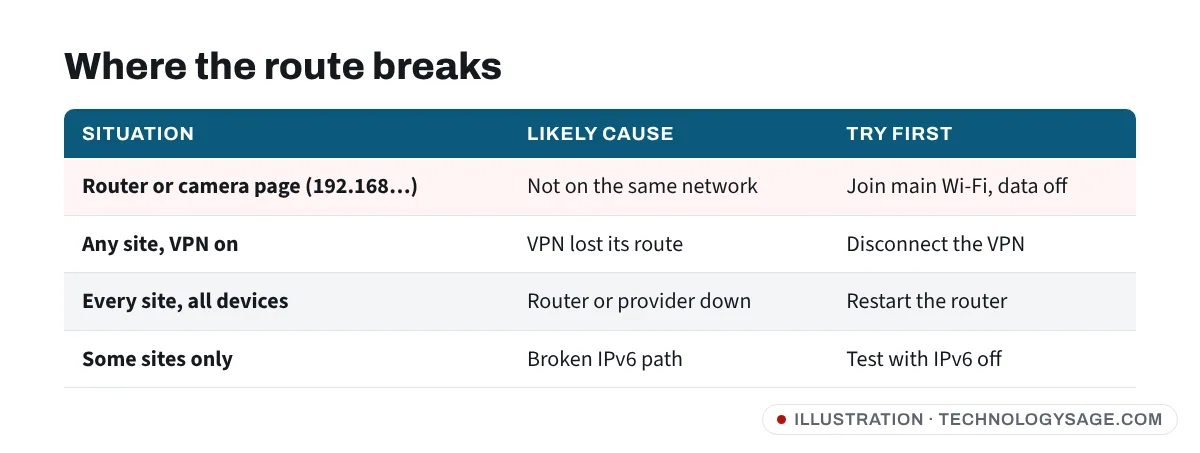
1. Opening a router or camera page? Get on the same network (all devices)
This is the most common case. Router admin pages, printers, CCTV recorders and smart-home hubs live at private addresses that only exist on your home network.
- Connect to the same Wi-Fi (or Ethernet) as the device. Guest Wi-Fi networks usually can’t see other devices, so use the main network.
- Phones: turn off mobile data for a moment. Many phones quietly switch to mobile data when the Wi-Fi has no internet (on iPhone this is Wi-Fi Assist; Android phones have a similar “switch to mobile data” option in their Wi-Fi settings), and then the router page becomes unreachable.
- Disconnect any VPN. A VPN sends all traffic, including 192.168 addresses, to the VPN server, where your router doesn’t exist. Some VPN apps have an “allow LAN” or “local network” option.
- Check the address is right. Your router’s address is on the sticker underneath it. On Windows, run
ipconfigand look at Default Gateway. On Android, open the Wi-Fi network’s details and look for Gateway or Router. On iPhone, Settings → Wi-Fi → tap (i) and look at Router.
If the address changed (for example after a router reset), the old bookmark won’t work.
2. Turn off your VPN and proxy (all devices)
For normal websites, a VPN that has lost its connection is a common reason for “no route”. Disconnect it fully, or switch to another server, and reload. Also check that no proxy is set: on Windows, Settings → Network & internet → Proxy; on a phone, the Wi-Fi network’s Proxy setting should be None (or Off on iPhone).
3. Restart the router and your device
Turn the device off and on, then unplug the router for 30 seconds. A router that has lost its connection to your provider can produce this error for every site. If the router’s internet light is red, see router red light; if Wi-Fi says “connected” but nothing loads, see Wi-Fi connected but no internet.
More fixes
4. Try mobile data or another network
Open the same site on mobile data. If it works there but not on your Wi-Fi, the problem is your router or provider. If it fails everywhere, the site itself may be down or may only be reachable over a connection type you don’t have.
5. Reset the network stack on Windows
Open Command Prompt as administrator and run:
ipconfig /release
ipconfig /renew
ipconfig /flushdns
netsh winsock reset
netsh int ip reset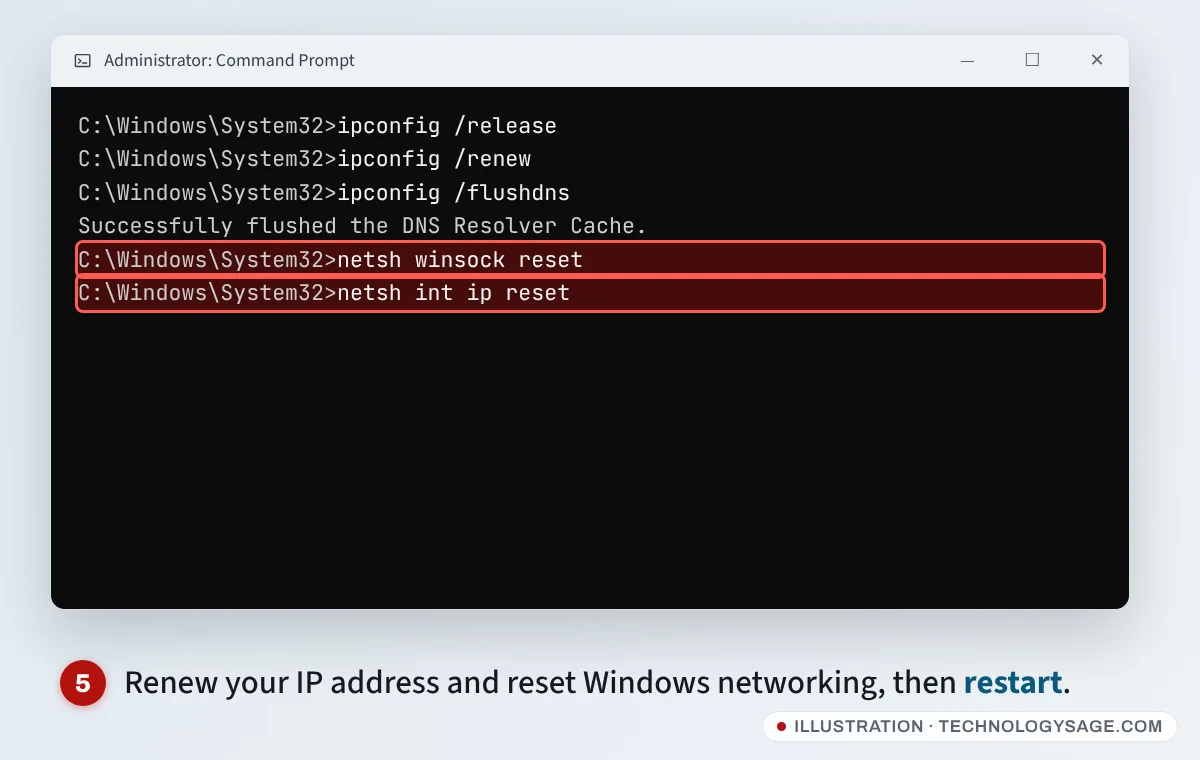
Restart the PC. If that doesn’t help, use Settings → Network & internet → Advanced network settings → Network reset. It reinstalls the network adapters and forgets saved Wi-Fi networks, so keep your Wi-Fi password handy.
6. Rule out an IPv6 problem (PC)
If many sites fail but some work, your connection may have a broken IPv6 path. On Windows, open Control Panel → Network and Sharing Center → Change adapter settings, right-click your adapter, choose Properties and untick Internet Protocol Version 6 (TCP/IPv6) as a test. If sites load afterwards, tell your provider or restart the router, then tick IPv6 again later; leaving it off permanently can cause other problems.
7. Forget and rejoin Wi-Fi, or reset network settings (phones)
Forget the Wi-Fi network, rejoin it, and test again. If the error continues in every app:
- Android: Settings → System → Reset options (on Samsung, General management → Reset) and choose the network settings reset. Newer versions split it into Wi-Fi and mobile network options.
- iPhone: Settings → General → Transfer or Reset iPhone → Reset → Reset Network Settings.
This clears saved Wi-Fi passwords and VPN settings but not your data. If your phone also refuses to join the Wi-Fi at all, see phone can’t connect to Wi-Fi but laptop can.
8. Check the browser itself
Open the site in an Incognito window and in a second browser. If it works there, turn off extensions (especially VPN, proxy and ad-blocking ones) and delete cached data with Ctrl+Shift+Delete. This error is rarely caused by the browser, but it takes a minute to rule out.
If you run the website
If visitors from many networks see ERR_ADDRESS_UNREACHABLE, check that your DNS records point to the current server IP (including any AAAA/IPv6 record), that the server is online, and that its firewall and routing accept traffic. If you moved hosts recently, wait for old DNS records to expire.
If nothing works
Note which address or site fails, on which networks, and whether a VPN is installed. If a router or device page is unreachable even on the same Wi-Fi with no VPN, the device may have a new address or be offline; check the maker’s app or reset instructions. If every site fails on your home connection, contact your internet provider with the router’s light status. The Google Chrome Help Community can help with browser-only cases, and Google keeps a list of common Chrome errors.
FAQ
Why can’t I open 192.168.1.1 (ERR_ADDRESS_UNREACHABLE)?
Your device isn’t on the router’s network at that moment, or the router uses a different address. Connect to the router’s main Wi-Fi, turn off mobile data and VPNs, and check the gateway address in your Wi-Fi details.
How do I fix ERR_ADDRESS_UNREACHABLE on Android?
Turn off any VPN, switch off mobile data while you use the local Wi-Fi, forget and rejoin the network, then reset network settings if needed. If only one website fails, try it on mobile data to see whether your Wi-Fi is the problem.
Is ERR_ADDRESS_UNREACHABLE a DNS error?
No. The DNS lookup succeeded; the browser has the address but no route to it. DNS errors show as DNS_PROBE_FINISHED_NO_INTERNET or ERR_NAME_NOT_RESOLVED instead.
Can my internet provider cause this error?
Yes. If the router has lost its connection, or the provider has a routing problem, sites can become unreachable for every device on your connection. Restart the router first, then contact the provider if it continues.
Is it the same as ERR_CONNECTION_RESET?
No. With ERR_CONNECTION_RESET the connection started and was then cut. With ERR_ADDRESS_UNREACHABLE the connection never started because there was no route.