In this guide
- What is a shared mailbox in Outlook?
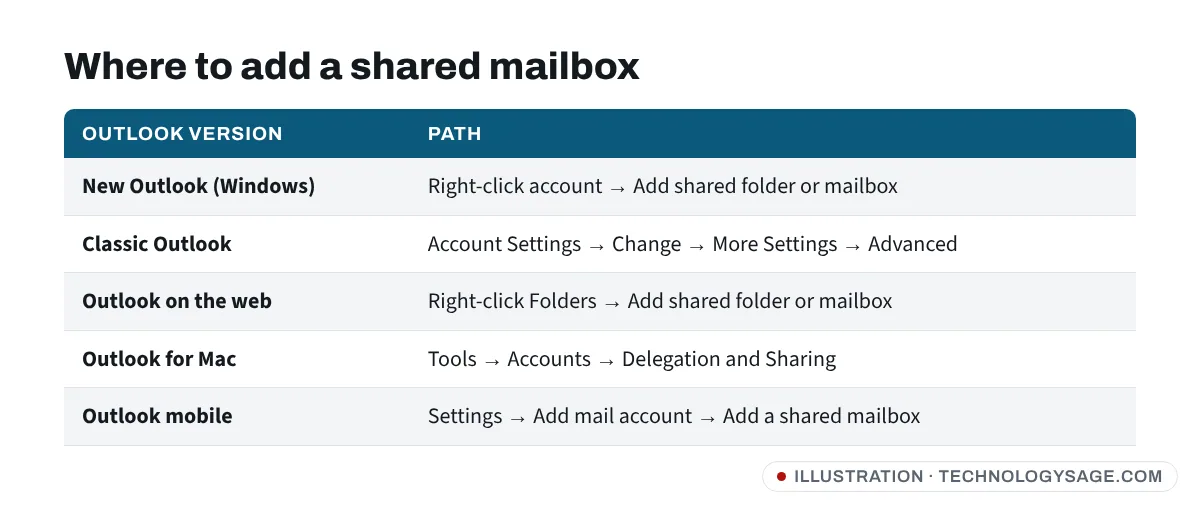
- How to add a shared mailbox in new Outlook for Windows
- How to add a shared mailbox in classic Outlook
- How to open a shared mailbox in Outlook on the web
- How to add a shared mailbox in Outlook for Mac
- How to send email from a shared mailbox
- Shared mailbox not showing in Outlook? Fixes in order
- When to contact your IT admin or Microsoft
- FAQ
An Outlook shared mailbox (such as info@ or support@ your company) appears on its own once your Microsoft 365 admin gives you access: close Outlook, open it again, and it shows in the folder list. If it doesn’t, add it yourself: in new Outlook or Outlook on the web, right-click your account (or Folders) and choose Add shared folder or mailbox; in classic Outlook, go to File → Account Settings → Account Settings → Change → More Settings → Advanced → Add. If it still won’t appear, the usual cause is missing permission, a delay after the admin’s change, or access given through a group.
What is a shared mailbox in Outlook?
A shared mailbox is an Exchange (Microsoft 365) mailbox that several people read and send from, with its own address, inbox, calendar and Sent Items. Nobody signs in to it with its own password; you open it with your work account, and Exchange checks whether you’ve been given access.
Two things have to be true before any of the steps below work:
- An admin has created the mailbox and added you as a member with Full Access (to read it) and, if you need to send from it, Send As or Send on Behalf. Microsoft’s own help says you can add the mailbox at any time, but you can’t use it until your admin adds you.
- You’re using a work or school Microsoft 365 (or Exchange) account. Shared mailboxes aren’t a feature of personal Outlook.com accounts.
If you’re the admin, Microsoft documents creating one and adding members in the Microsoft 365 admin center under Teams & groups → Shared mailboxes.
How to add a shared mailbox in new Outlook for Windows
New Outlook (the one with the New Outlook toggle at the top right, also used by the Windows Mail app replacement) adds most shared mailboxes for you.
- Close new Outlook and open it again. The mailbox should appear in the folder pane, often under Shared with me.
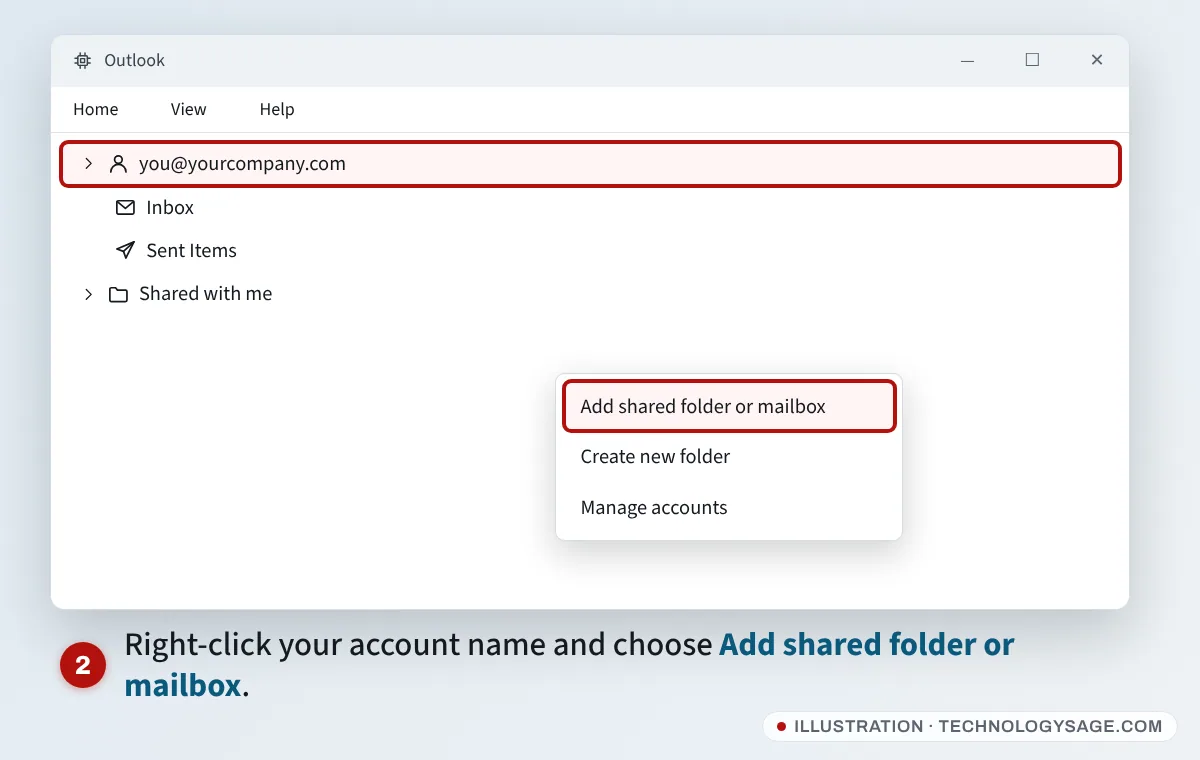
- If it isn’t there, go to Mail, right-click your account name in the folder pane and choose Add shared folder or mailbox.
- Type the shared address (for example
[email protected]), pick it from the suggestions and select Add.
Newer builds of new Outlook may add the mailbox as a full account rather than a shared folder when you have the right permission, which gives it its own notifications and search. Microsoft’s manage shared mailbox settings in new Outlook page explains how to switch between the two (Use as shared folder). Some features, such as contacts in shared mailboxes, aren’t available in new Outlook yet.
How to add a shared mailbox in classic Outlook
Classic Outlook (the desktop app with the File menu) uses automapping: when the admin gives you Full Access directly, Exchange tells Outlook to open the mailbox for you. Restart Outlook and look for the mailbox name under your own mailbox in the folder pane.
To add it manually:
- Select File → Account Settings → Account Settings.
- On the Email tab, select your own account and choose Change.
- Choose More Settings, open the Advanced tab and select Add.
- Type the shared mailbox’s address or name, then OK → OK → Next → Finish → Close.
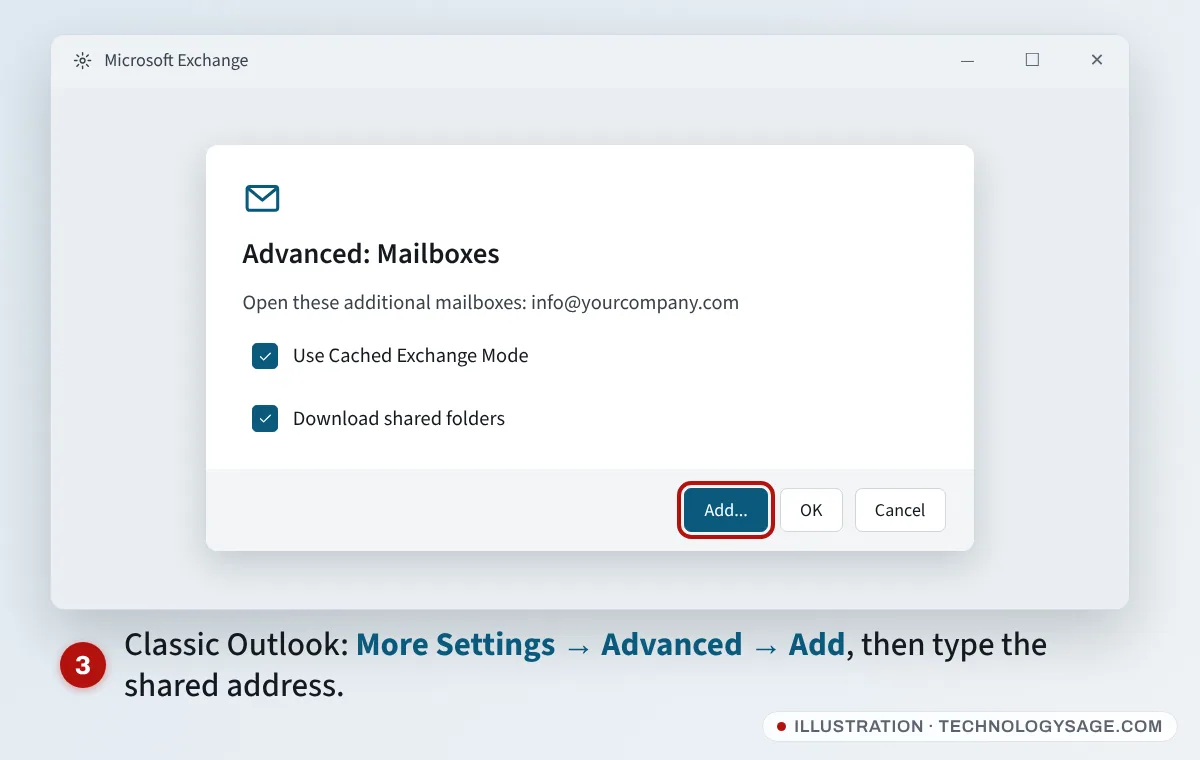
The mailbox appears in the folder pane under your own. These steps come from Microsoft’s open and use a shared mailbox in Outlook guide.
Add it as a second account (for reminders and separate Sent Items)
Classic Outlook doesn’t show calendar reminders for a shared mailbox that is automapped or added under Advanced. Microsoft’s article add a shared mailbox as an additional account gives the alternative:
- If the mailbox is already in your folder pane, remove it first (an automapped one has to be removed by your admin, and Microsoft says it can take up to an hour to disappear).
- Select File → Add Account, type the shared mailbox’s address and choose Connect.
- When asked to sign in, enter your own email address and password, not the shared mailbox’s. If the box won’t let you change the address, choose Sign in with another account.
- Restart Outlook.
How to open a shared mailbox in Outlook on the web
- Sign in at outlook.office.com (or your organisation’s Outlook web address).
- Right-click Folders in the left pane (on older on-premises Exchange, right-click your mailbox name) and choose Add shared folder or mailbox.
- Enter the shared address and select Add.
To get new-mail notifications for it, open it in its own tab instead: select your profile picture at the top right, choose Open another mailbox, type the address and select Open.
How to add a shared mailbox in Outlook for Mac
Outlook for Mac doesn’t automap shared mailboxes, so you always add them yourself:
- Go to Tools → Accounts (or Outlook → Settings → Accounts), select your work account and choose Delegation and Sharing.
- Open the Shared With Me tab, select +, find the shared mailbox and choose Add.
Microsoft notes that Outlook for Mac fully supports only Full Access permission for shared mailboxes. On phones, the Outlook app for iPhone and Android can add one too: tap your profile picture, the settings gear, then Add mail account → Add a shared mailbox (Microsoft’s add a shared mailbox to Outlook mobile guide).
How to send email from a shared mailbox
- Start a new message.
- If you don’t see a From box, turn it on: Options → Show From in new or classic Outlook, or More options (…) → Show From on the web.
- Select From and pick the shared address. If it isn’t listed, choose Other email address and type it in. Outlook remembers it after the first time.
Recipients see only the shared address when you have Send As permission. With Send on Behalf, they see “You on behalf of Shared Mailbox”. If you get an error such as “You don’t have permission to send the message on behalf of the specified user”, your admin hasn’t granted either one yet.
Where do sent messages go? By default, mail you send from a shared mailbox is saved in your Sent Items. Admins can change that in Exchange so a copy also lands in the shared mailbox’s Sent Items, which helps a team see who replied. If you add the mailbox as a separate account in classic Outlook, sent mail goes to its own Sent Items.
Shared mailbox not showing in Outlook? Fixes in order
Work through these from quickest to most involved.
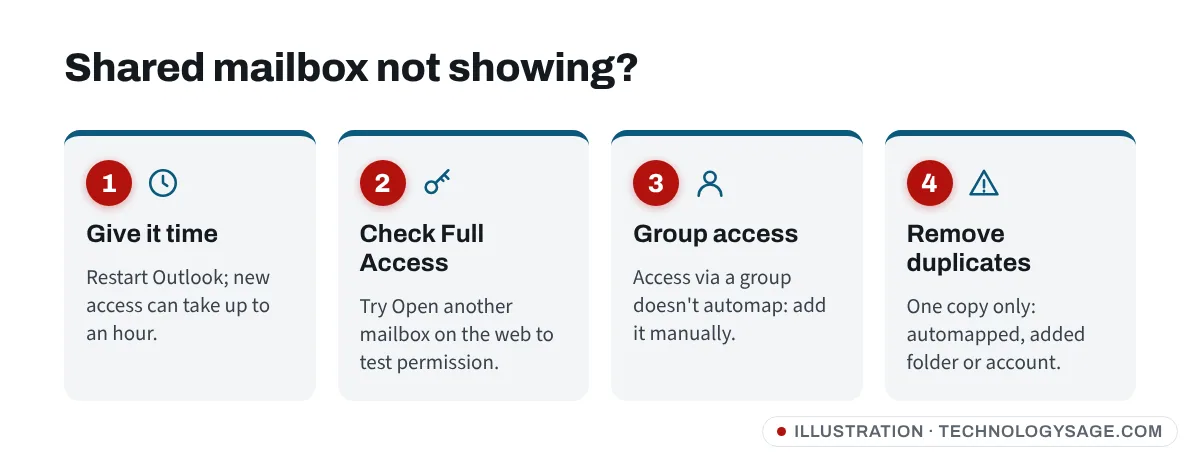
- Restart Outlook, then wait. After an admin grants access, it can take a while to reach Outlook. Microsoft’s guides suggest restarting after a few minutes; in practice permission changes can take up to an hour to show in classic Outlook.
- Check you’re actually a member. Ask your admin to confirm you have Full Access on that exact mailbox. Try opening it in Outlook on the web with Open another mailbox: if the web refuses too, it’s a permission problem, not your PC.
- Access through a group doesn’t automap. If the admin gave access to a security group you’re in rather than to you by name, classic Outlook won’t add the mailbox automatically. Add it manually (steps above) or ask for direct access.
- Check you’re in the right Outlook. If the steps don’t match your screen, you may be in classic Outlook instead of new Outlook (or the other way round). New Outlook has a New Outlook toggle at the top; classic has a File menu.
- Cached mode and large mailboxes. In classic Outlook, very big shared mailboxes can be slow to appear or show old mail. Under File → Account Settings → Account Settings → Change, see whether Download shared folders is ticked under More Settings → Advanced; turning it off makes Outlook read the shared mailbox online, which often fixes folders that won’t update.
- Remove duplicates. If the mailbox was added both by automapping and manually, or both as an account and a folder, remove one copy. Two copies can cause sync errors and “the set of folders cannot be opened”.
- Create a new Outlook profile (classic). Close Outlook, open Control Panel → Mail (Microsoft Outlook) → Show Profiles → Add, set up your account again and choose Always use this profile. Your mail stays on the Exchange server, so nothing is lost.
If mail in the shared mailbox itself isn’t arriving, the fixes in Outlook not receiving emails apply to it too, and not receiving emails covers causes on any service.
When to contact your IT admin or Microsoft
Your organisation’s IT admin controls who can open and send from a shared mailbox, so they’re the first stop for permission errors, a mailbox that vanished, or a request to save sent items in the shared mailbox. Admins can open a case from the Microsoft 365 admin center → Support.
Be careful with “Outlook support” numbers in search ads and forums. Microsoft doesn’t take calls about your company mailbox from a number on a random page, and real support never asks for your password, your two-step verification codes, gift cards or remote access to “unlock” a mailbox. Reach Microsoft only through the admin center or the help links inside Outlook itself.
If you also work from a POP or IMAP address alongside your work account, how to access Yahoo Mail in Outlook with POP3 or IMAP explains how those accounts differ from Exchange ones.
FAQ
How do I add a shared mailbox to Outlook?
In new Outlook or Outlook on the web, right-click your account (or Folders) and choose Add shared folder or mailbox, then type its address. In classic Outlook, go to File → Account Settings → Account Settings → Change → More Settings → Advanced → Add. Your admin must already have given you access.
Why is my shared mailbox not showing in Outlook?
Usually because the permission hasn’t reached Outlook yet (restart and wait up to an hour), you were given access through a group (which doesn’t automap), or you don’t have Full Access. Opening it with Open another mailbox in Outlook on the web tells you which.
Does a shared mailbox need a license?
In Microsoft 365, a shared mailbox normally doesn’t need its own license as long as it stays within the storage limit Microsoft sets for shared mailboxes and nobody signs in to it directly. Larger mailboxes, archiving or litigation hold need a license. Your admin can check this in the admin center.
Can I use a shared mailbox on my iPhone or Android phone?
Yes, with the Outlook app on a Microsoft 365 account: tap your profile picture, the settings gear, Add mail account, then Add a shared mailbox. The built-in Mail apps on iPhone and Android don’t support shared mailboxes.
Why do emails I send from the shared mailbox go to my Sent Items?
That’s Exchange’s default. Ask your admin to turn on saving a copy in the shared mailbox’s Sent Items, or add the shared mailbox as a separate account in classic Outlook.