In this guide
- Work out which problem you have
- 1. Restart the laptop properly
- 2. Turn off Filter Keys, Sticky Keys and Toggle Keys
- 3. Check Num Lock, Fn Lock and the keyboard layout
- 4. Reinstall the keyboard in Device Manager
- 5. Test the keyboard in the BIOS
- 6. Do a hard reset
- 7. Turn off Fast Startup
- 8. Clean the keys and check for damage
- If it still doesn’t work
- FAQ
If your laptop keyboard stops working, restart the laptop first, then check that Filter Keys is off in Settings → Accessibility → Keyboard. Filter Keys switches on when you hold Shift for 8 seconds and makes Windows ignore quick key presses, so the keyboard seems dead. If that’s not it, reinstall the keyboard in Device Manager and test the keys in the BIOS: if they work there, the problem is Windows, not the keyboard.
Use the touchpad or a USB mouse for the steps below. To type without the keyboard, press Windows + Ctrl + O for the on-screen keyboard, or open it from Settings → Accessibility → Keyboard → On-screen keyboard.
Work out which problem you have
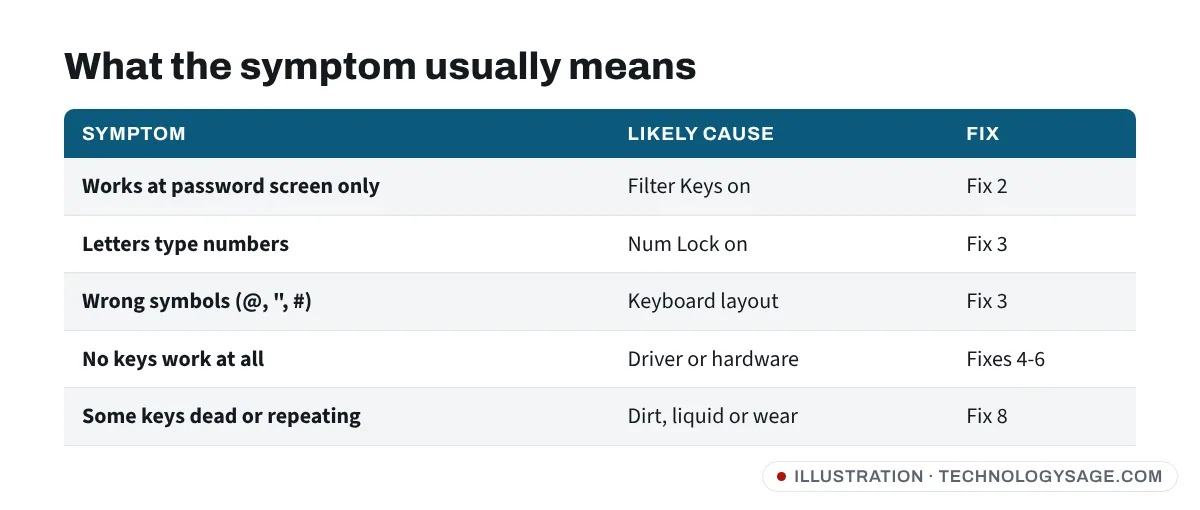
- No keys work at all, including Caps Lock: driver, a setting, or a hardware/cable fault.
- The keyboard works at the password screen but not after login: almost always Filter Keys (or another accessibility setting).
- Some keys type numbers instead of letters (u, i, o, j, k, l): Num Lock on a keyboard without a number pad.
- Wrong symbols (@ and ” swapped, £ instead of #): wrong keyboard layout.
- Only some keys don’t work, or keys repeat: dirt, liquid damage or a failing keyboard.
- F1-F12 keys do the wrong thing: the Fn lock or action keys setting.
1. Restart the laptop properly
Use the touchpad: Start → Power → Restart. A restart (not shut down) fully reloads drivers. If the keyboard works after a restart but not after you shut down and switch on again, see fix 7 on Fast Startup.
2. Turn off Filter Keys, Sticky Keys and Toggle Keys
- Open Settings → Accessibility → Keyboard.
- Make sure Filter keys, Sticky keys and Toggle keys are all Off.
- Click into Filter keys and turn off its keyboard shortcut so holding Shift doesn’t switch it back on.
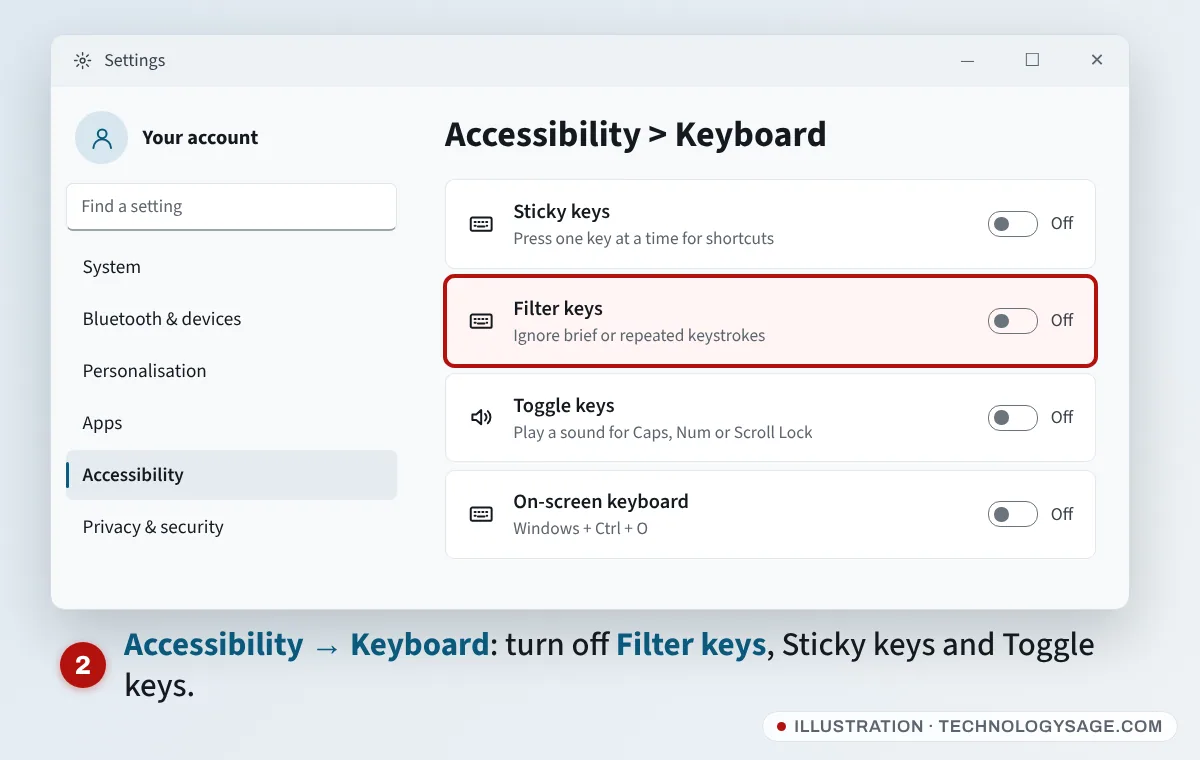
While you’re there, the On-screen keyboard toggle is a useful stopgap until the real keyboard works again.
3. Check Num Lock, Fn Lock and the keyboard layout
- Letters type numbers: press Num Lock (often Fn + NumLk, or Fn + Insert / Fn + F11 depending on the model) to switch it off.
- Function keys swapped: many Lenovo and Dell laptops use Fn + Esc as an Fn Lock. On HP laptops, the behaviour of the top row is set in the BIOS with Action Keys Mode. On Lenovo you can also change it in Lenovo Vantage.
- Wrong symbols: open Settings → Time & language → Language & region. Select the three dots next to your language, choose Language options, and under Keyboards make sure the right layout is listed (for example US or United Kingdom). Remove any you don’t use. Press Windows + Space to switch between installed layouts.
4. Reinstall the keyboard in Device Manager
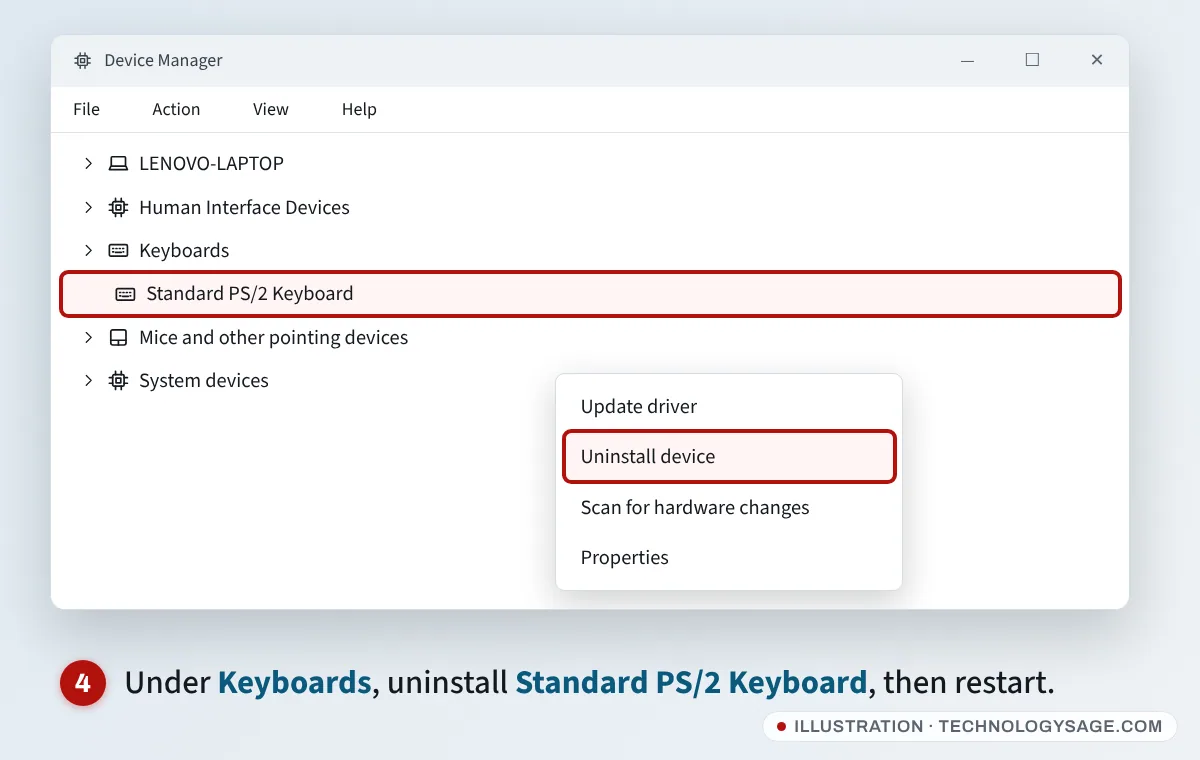
- Right-click Start and choose Device Manager.
- Expand Keyboards. A laptop’s built-in keyboard usually shows as Standard PS/2 Keyboard (sometimes HID Keyboard Device).
- Right-click it and choose Uninstall device, confirm, and then restart. Windows reinstalls it on startup.
If there’s a yellow warning sign on the keyboard, or it’s missing, also install the chipset and keyboard drivers for your model from the maker:
- Lenovo: Lenovo Vantage or support.lenovo.com.
- HP: HP Support Assistant or support.hp.com.
- Dell: SupportAssist or dell.com/support.
Our guide on how to install drivers covers installing them by hand. If the keyboard stopped working after a Windows update, check for a newer update in Settings → Windows Update, or uninstall the latest one under Update history → Uninstall updates.
5. Test the keyboard in the BIOS
This tells you whether the problem is Windows or the hardware.
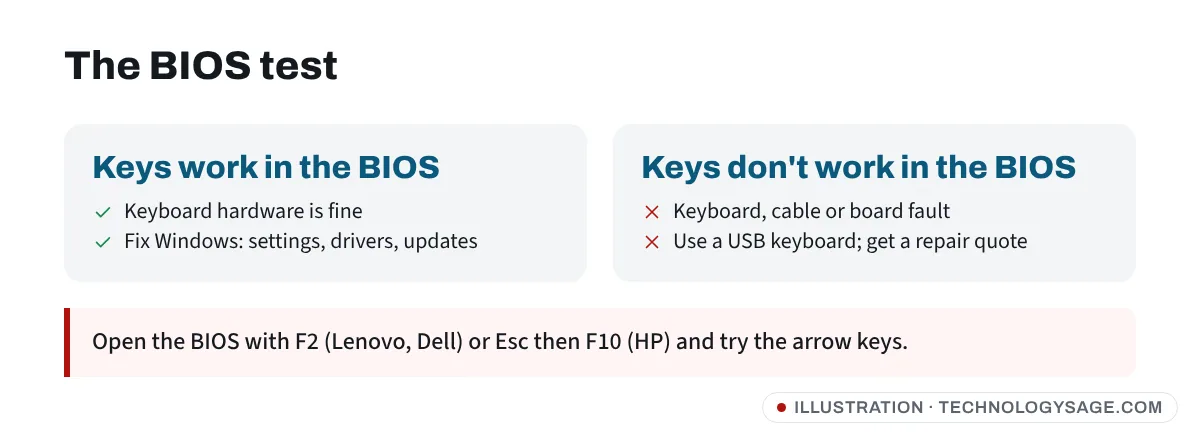
- Restart, and as soon as the screen goes black press the BIOS key repeatedly: F2 on most Lenovo and Dell laptops (some Lenovo IdeaPads need Fn + F2 or the small Novo button), and Esc then F10 on HP.
- If the BIOS opens and you can move around with the arrow keys and Enter, the keyboard hardware works. The fault is in Windows (drivers, settings or an app). Exit without saving.
- If the BIOS won’t open or the keys do nothing there, the keyboard, its cable or the mainboard is faulty.
HP laptops have a built-in keyboard test: press Esc at power-on, then F2 for System Diagnostics, and look for the component tests. Dell’s SupportAssist and Lenovo’s diagnostics in Lenovo Vantage can also test the keyboard.
6. Do a hard reset
A hard reset clears a keyboard controller that’s stuck. Shut down, unplug the charger and any USB devices, then hold the power button for 15-30 seconds. Plug the charger back in and switch on. On laptops with a removable battery, take it out first. Some Lenovo ThinkPads and IdeaPads have a tiny emergency-reset pinhole on the bottom of the case, which does the same job; press it with a straightened paper clip for a few seconds.
7. Turn off Fast Startup
If the keyboard only fails after you shut down and switch on (but works after a restart), Fast Startup may be the cause.
- Press the Windows key, type
control paneland open it. - Go to Hardware and Sound → Power Options → Choose what the power buttons do.
- Click Change settings that are currently unavailable, untick Turn on fast startup and click Save changes.
8. Clean the keys and check for damage
- Shut down, turn the laptop upside down at an angle and gently tap it to remove crumbs. Use compressed air between the keys if you have it.
- Don’t pull keycaps off unless you know how; the clips break easily.
- After a spill: switch off and unplug at once, turn the laptop upside down and let it dry for at least 48 hours before trying again. Don’t use a hair dryer. Liquid often damages the keyboard or mainboard, and it’s best to have it checked by a repairer.
- A raised or bulging keyboard deck can mean a swollen battery. Stop using the laptop and have the battery replaced; a swollen battery is a fire risk.
If it still doesn’t work
- Plug in a USB keyboard. If it works, Windows is fine and the laptop keyboard (or its ribbon cable) needs repair. A USB keyboard is a cheap long-term fix too.
- Keyboard and touchpad both dead: they often share a connection inside the laptop. See laptop touchpad not working for touchpad-specific checks, but a repair is likely.
- Laptop keyboards are usually replaceable. On many models it’s a separate part; on others it comes built into the top case, which costs more. Get a quote first, and read our tips on taking your laptop for repair.
- Under warranty? Contact Lenovo, HP or Dell through their official support websites. Official support never asks for payment in gift cards or airtime, and never asks for your Windows or Microsoft account password.
FAQ
Why is my laptop keyboard not typing?
The most common causes are Filter Keys being switched on, a driver problem after an update, the wrong keyboard layout, or a hardware fault such as liquid damage or a loose cable. Testing in the BIOS shows whether it’s Windows or hardware.
How do I unlock my Lenovo laptop keyboard?
Laptop keyboards don’t usually have a lock. Check that Filter Keys is off, press Num Lock if letters type numbers, and press Fn + Esc if the function keys behave strangely. Then reinstall the keyboard in Device Manager.
My HP laptop keyboard isn’t working but the touchpad is. What should I do?
Turn off Filter Keys, reinstall Standard PS/2 Keyboard in Device Manager and restart. Then run HP’s System Diagnostics (Esc, then F2 at power-on). If the keyboard test fails, it needs a repair.
Can I use my laptop without its keyboard?
Yes. Use the on-screen keyboard (Windows + Ctrl + O) for short tasks, or plug in any USB or Bluetooth keyboard.
How do I type faster once it’s fixed?
See our tips on improving your typing speed.