In this guide
- Before you start: what kind of flicker is it?
- 1. Restart the graphics driver
- 2. Do the Task Manager test
- 3. Roll back, update or reinstall the display driver
- 4. Check the refresh rate
- 5. Turn off power-saving display features
- 6. Find the app that causes it
- 7. Update the BIOS and Windows
- 8. Check for hardware problems
- If it still doesn’t work
- FAQ
To fix a flickering laptop screen on Windows 11, first press Windows + Ctrl + Shift + B to restart the graphics driver. Then open Task Manager (Ctrl + Shift + Esc) and watch it. If Task Manager flickers along with everything else, the display driver is the likely cause. If everything flickers except Task Manager, an app is causing it. That’s Microsoft’s own test, and it tells you which of the fixes below to use.
A third possibility is hardware: a loose display cable or a failing screen. The section on hardware below explains how to tell.
Before you start: what kind of flicker is it?
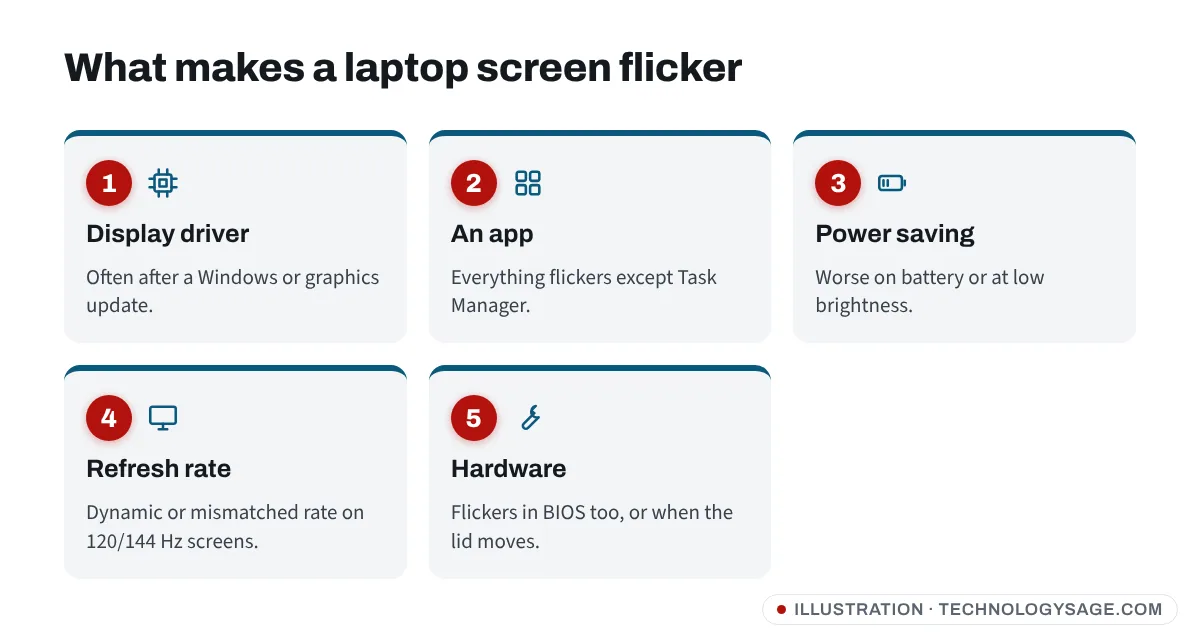
- The whole screen flickers, including Task Manager: display driver, refresh rate or power-saving feature.
- Everything flickers except Task Manager: an app (often an antivirus, an old screen recorder or a display utility).
- Flicker only when you move the screen lid, or only on battery: loose cable or power saving respectively.
- Lines, colour bands or flicker even in the BIOS screen: hardware. Settings won’t fix it.
1. Restart the graphics driver
Press Windows + Ctrl + Shift + B. The screen goes black for a second and comes back, and your open apps stay open. Microsoft’s flicker troubleshooting page suggests this as the first step. If the flicker stops, restart the laptop too, because a fresh start often keeps it away.
2. Do the Task Manager test
- Press Ctrl + Shift + Esc to open Task Manager.
- Watch it for 20-30 seconds while the rest of the screen flickers.
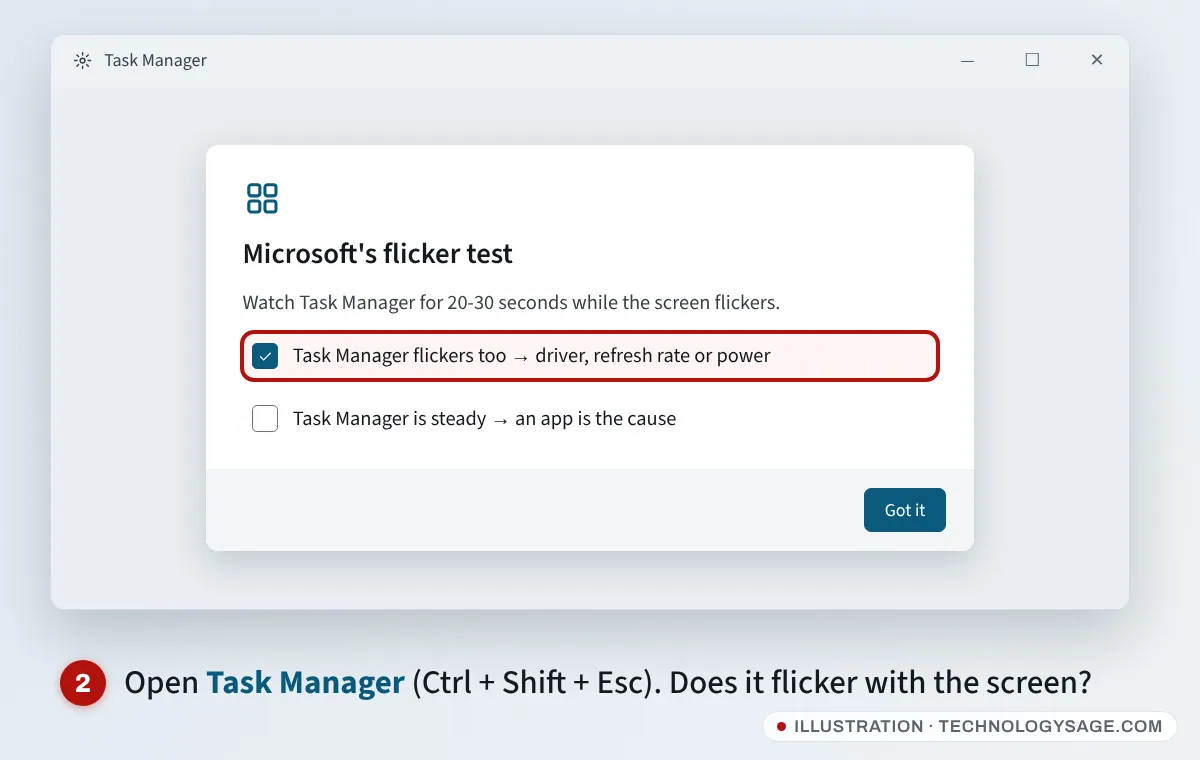
- If Task Manager flickers too, go to fixes 3, 4 and 5 (driver, refresh rate, power).
- If Task Manager is steady, go to fix 6 (apps).
3. Roll back, update or reinstall the display driver
Microsoft’s advice: if Windows Update recently updated your device, roll the driver back first. Otherwise update or reinstall it.
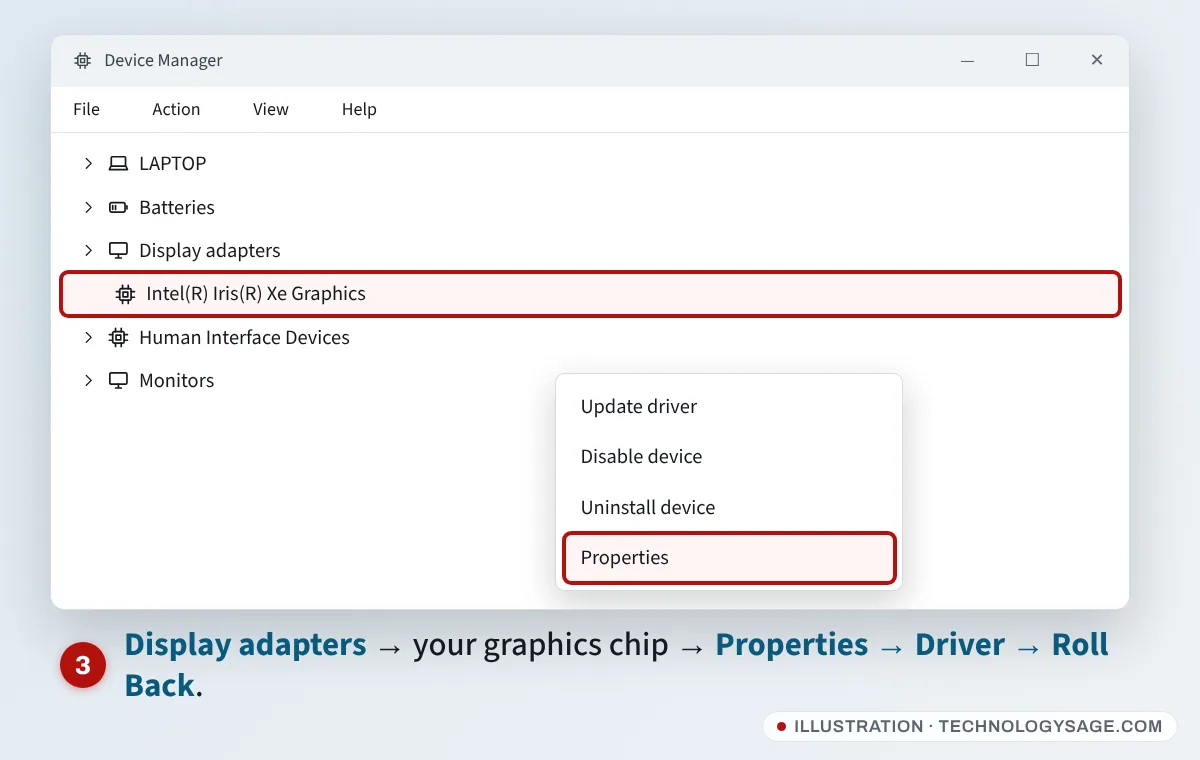
- Right-click Start and choose Device Manager.
- Expand Display adapters. You’ll see your graphics chip, for example Intel UHD/Iris Xe Graphics or AMD Radeon Graphics, plus NVIDIA on gaming laptops.
- Right-click it and choose Properties → Driver.
- Click Roll Back Driver if it’s available, and pick a reason. If it’s greyed out, there’s no older driver to go back to.
- If you can’t roll back, close the box, right-click the adapter and choose Update driver → Search automatically for drivers.
If that doesn’t help, choose Uninstall device instead (don’t tick the box to delete the driver unless you have a fresh one ready) and restart. Windows reinstalls a working driver.
For laptops, the best driver usually comes from the laptop maker, because they tune it for the built-in screen. Use HP Support Assistant, Lenovo Vantage, Dell SupportAssist or MyASUS, or download it from your model’s support page. Also check Settings → Windows Update → Advanced options → Optional updates for display or BIOS updates. See our guide on how to install drivers if you’re doing it by hand.
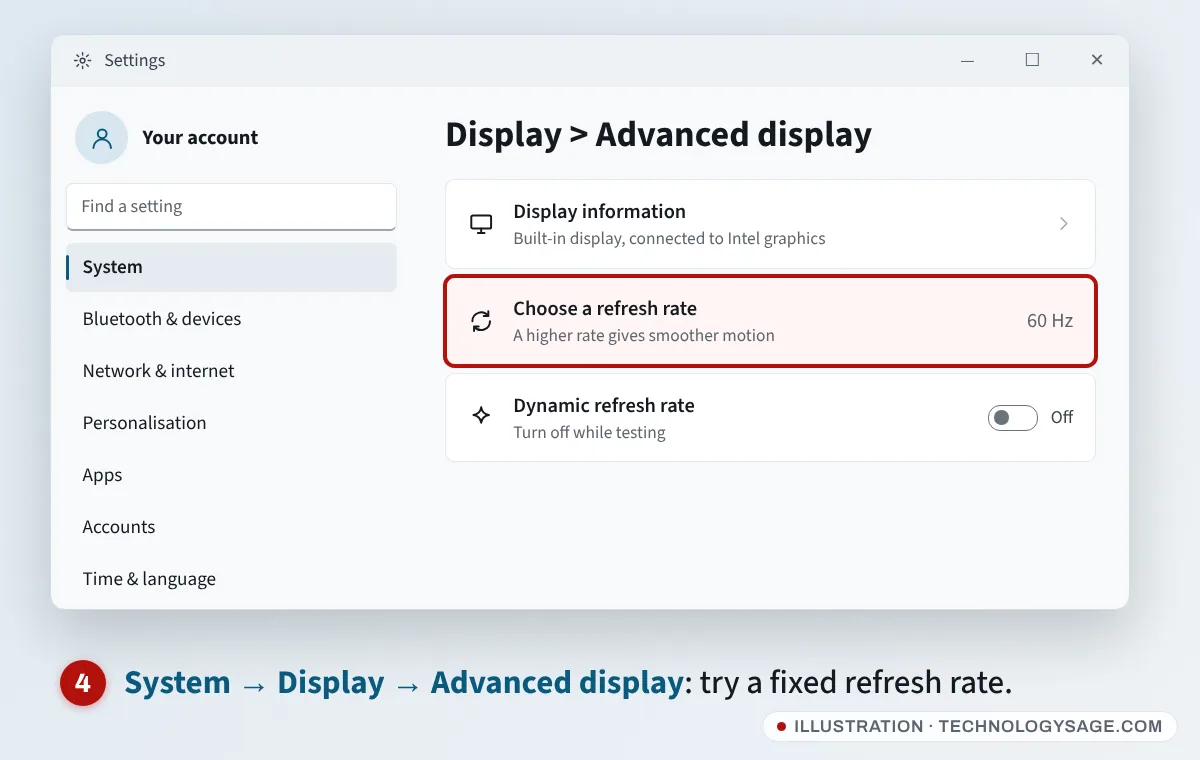
4. Check the refresh rate
A wrong or “dynamic” refresh rate can cause flicker, especially on 120 Hz and 144 Hz screens.
- Open Settings → System → Display → Advanced display.
- Under Choose a refresh rate, try the other values, for example 60 Hz if it’s set higher, or the panel’s full rate if it’s set lower.
- If you see a Dynamic option (it lowers the rate to save power), pick a fixed rate instead and see if the flicker stops.
5. Turn off power-saving display features
Many laptops dim or change the screen to save battery, and that can show up as flicker, particularly on battery.
- Content-based brightness: go to Settings → System → Display → Brightness and look for Change brightness based on content. Set it to Off. (On some laptops the brightness options are listed separately on the Display page.)
- Energy saver: go to Settings → System → Power & battery and check whether Energy saver is on. Turn it off to test.
- Power mode: set Power mode to Balanced or Best performance while testing.
- Graphics control panel: Intel, AMD and NVIDIA apps have their own display power-saving options (on Intel laptops look for Panel Self Refresh or a display power saving setting; on AMD, Vari-Bright). Turning these off fixes flicker on some models. Microsoft’s Surface guidance also suggests turning off display power saving and Panel Self Refresh.
If the flicker only happens with brightness turned low, that’s often the backlight dimming method (PWM) used by that screen. Using a slightly higher brightness can make it less noticeable. Our guide to brightness not changing covers related display settings.
6. Find the app that causes it
If Task Manager stayed steady in the test, an app is the likely cause.
- Think about what you installed or updated just before the flicker started.
- Go to Settings → Apps → Installed apps, find it, select the three dots and choose Uninstall. Common culprits are older antivirus programs, screen-recording or overlay tools and “display enhancement” utilities.
- For apps you need, update them from the Microsoft Store or the developer’s site.
If you’re not sure which app it is, a clean boot helps: press Windows + R, type msconfig, press Enter, open the Services tab, tick Hide all Microsoft services and click Disable all. Then restart. If the flicker is gone, turn services back on a few at a time to find the one causing it. Remember to undo this afterwards.
7. Update the BIOS and Windows
Laptop makers often fix screen flicker in BIOS and firmware updates, especially on newer OLED and high-refresh screens. Install updates from the maker’s support app, and install everything waiting in Settings → Windows Update. If an update gets stuck, see Windows Update stuck. Keep the laptop plugged in during a BIOS update and don’t switch it off.
8. Check for hardware problems
Software fixes won’t help if the hardware is at fault. Signs:
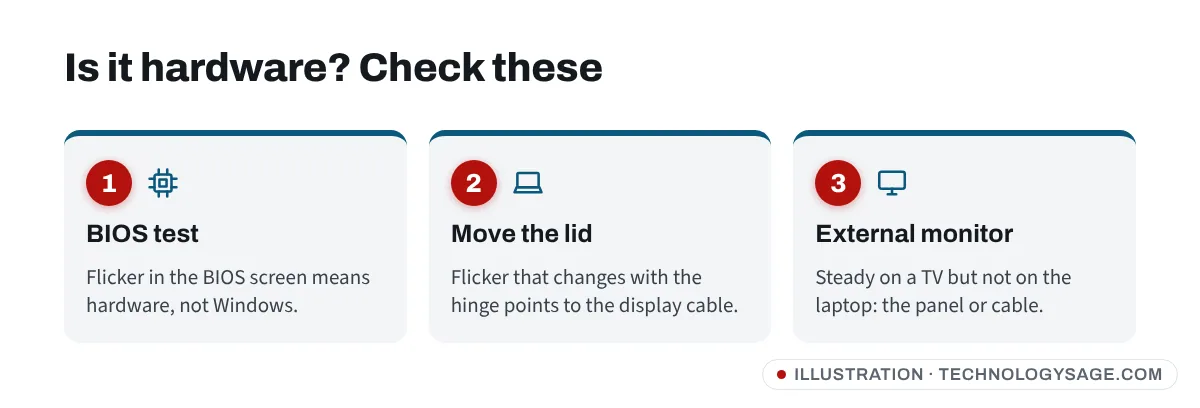
- Flicker in the BIOS or at the maker’s logo, before Windows loads. Restart and open the BIOS (usually F2, or Esc then F10 on HP). If it flickers there too, it’s hardware.
- Flicker changes when you move the lid. The display cable runs through the hinge and wears over time.
- An external monitor is fine. Connect a TV or monitor by HDMI and press Windows + P → Duplicate. If the external screen is steady while the laptop’s own screen flickers, the panel or cable is faulty.
HP laptops can run a built-in test: press Esc at power-on, then F2 for System Diagnostics. Lenovo, Dell and Asus have their own diagnostics in their support apps.
A cable or screen replacement is a repair job. Read our tips on taking your laptop for repair and ask for a quote before agreeing to anything. Check your warranty first.
If it still doesn’t work
- Flicker after waking from sleep only: update the graphics driver and BIOS. In the meantime, restart instead of using sleep.
- Flicker plus the screen going black: see HP laptop black screen. Most of those fixes work on other brands too.
- Flicker when the laptop is hot: clean the vents and check the fan. A struggling fan is also noisy (see laptop fan noise).
- Try a different charger: a faulty or non-original charger can cause flicker when plugged in.
FAQ
Why is my laptop screen flickering?
The most common causes are a display driver problem (often after an update), an incompatible app, a refresh-rate or power-saving setting, or a loose display cable or failing screen. Microsoft’s Task Manager test helps you narrow it down.
Can a virus cause screen flicker?
It’s rare. Flicker is far more often caused by drivers, apps or hardware. If you’re worried, run a full scan in Windows Security.
Is screen flickering a sign the laptop is dying?
Not usually. Most flicker is a driver or setting problem. If it flickers in the BIOS too or changes when you move the lid, the screen or cable needs a repair, but the rest of the laptop is often fine.
Does flicker damage your eyes?
Flicker can cause eye strain and headaches for some people. Fix it rather than living with it, and take regular breaks from the screen.
How much does it cost to fix a flickering laptop screen?
It depends on the model and your country. A display cable is usually much cheaper than a whole screen. Get a written quote from an authorised service centre or a trusted repairer first.