In this guide
- What “DPC watchdog violation” actually means
- Step 1: Find the driver behind the crash
- Step 2: Unplug external devices
- Step 3: Switch to the standard SATA AHCI controller driver
- Step 4: Update your SSD firmware
- Step 5: Update or roll back graphics, network and chipset drivers
- Step 6: Check the disk and system files
- Step 7: Update the BIOS and check new hardware
- If it doesn’t work
- FAQ
A DPC watchdog violation (bug check 0x133) means a driver took too long to finish its work, so Windows stopped the PC to protect itself. The usual culprits are the storage controller driver (especially Intel’s iaStorA.sys), outdated SSD firmware, and graphics, network or USB device drivers. To fix it, find the driver named in the crash file, then update, roll back or replace that driver.
The good news is that this stop code almost always points to one driver or device, not to Windows as a whole. Find that driver and you’ve usually found the fix.
What “DPC watchdog violation” actually means
A DPC (deferred procedure call) is a short task a driver hands to Windows to finish quickly, such as “this chunk of data has arrived from the SSD”. While it runs, the processor can’t do much else. Windows has a watchdog timer that checks those tasks finish on time. Microsoft’s documentation describes the error as the DPC watchdog detecting “a prolonged run time at an IRQL of DISPATCH_LEVEL or above”.
In plain words: a driver hogged the processor for too long, either in one go or by running too many tasks back to back. That’s why the PC often freezes for a few seconds before the blue screen appears.
Back up first. Repeated crashes while files are open can damage them. If Windows starts, copy your important files to a USB drive or cloud storage before changing drivers.
Step 1: Find the driver behind the crash
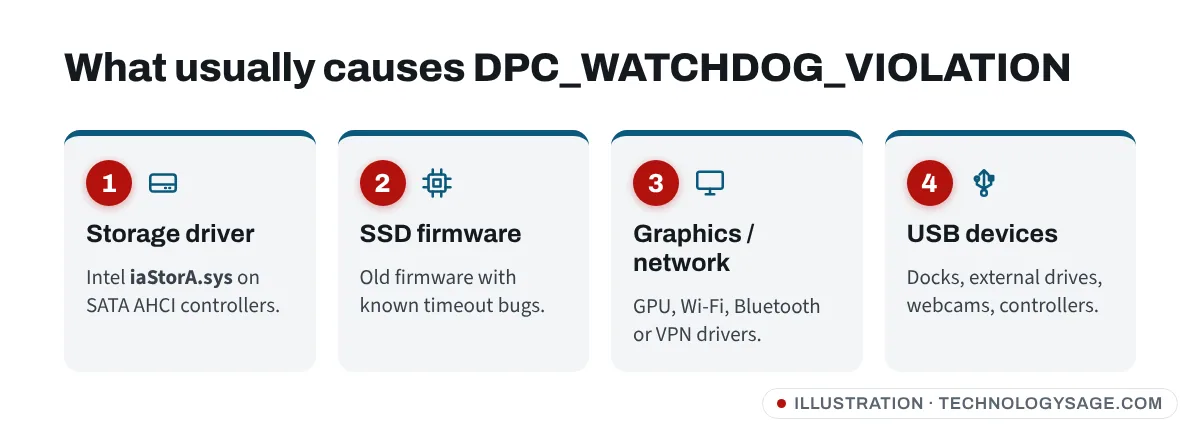
Windows saves a crash file for each blue screen. Reading it tells you which driver was running:
- Download BlueScreenView from NirSoft’s website, or WhoCrashed from Resplendence, and open it. Both read the files in
C:\Windows\Minidump. - Look at the Caused By Driver column for the DPC_WATCHDOG_VIOLATION crashes.
- Match the file name to the device:
| Driver file | What it belongs to | Go to |
|---|---|---|
| iaStorA.sys, iaStorAC.sys, iaStorAVC.sys | Intel storage (RST) driver | Step 3 |
| storahci.sys, stornvme.sys | Windows storage driver; often SSD firmware | Step 4 |
| nvlddmkm.sys, amdkmdag.sys, igdkmd64.sys | NVIDIA, AMD or Intel graphics | Step 5 |
| Wi-Fi, Ethernet, Bluetooth, VPN driver | Network adapters and VPN apps | Step 5 |
| ntoskrnl.exe only | Doesn’t name the real cause | Steps 2-6 in order |
Our full guide to finding what caused a blue screen shows how to use these tools, plus WinDbg for a more detailed answer. If the crashes stop you using Windows at all, start in Safe Mode (see the troubleshooting section) and work from there.
Step 2: Unplug external devices
USB docks, external hard drives, game controllers, webcams and printer drivers can all trigger this error, especially if the problem started after you connected something new.
- Shut down and unplug everything except the keyboard, mouse and monitor.
- Use the PC for a day. If the blue screens stop, plug things back in one at a time to find the one that brings them back.
- Update that device’s driver or firmware from the maker’s website, or try a different USB port (a port directly on the PC rather than a hub).
Step 3: Switch to the standard SATA AHCI controller driver
This is the best-known fix for DPC watchdog violation on Windows 10 and 11 PCs with SATA drives, and the one most often recommended on Microsoft’s support forums when the crash file names iaStorA.sys. You replace Intel’s storage driver with the one built into Windows.
Important: only do this if your controller is listed as a SATA AHCI controller. If your PC uses RAID, Intel RST Premium or Intel VMD (common on newer Intel laptops), changing the driver can stop Windows starting with an inaccessible boot device error. Create a restore point first: search the Start menu for Create a restore point, select Create and give it a name.
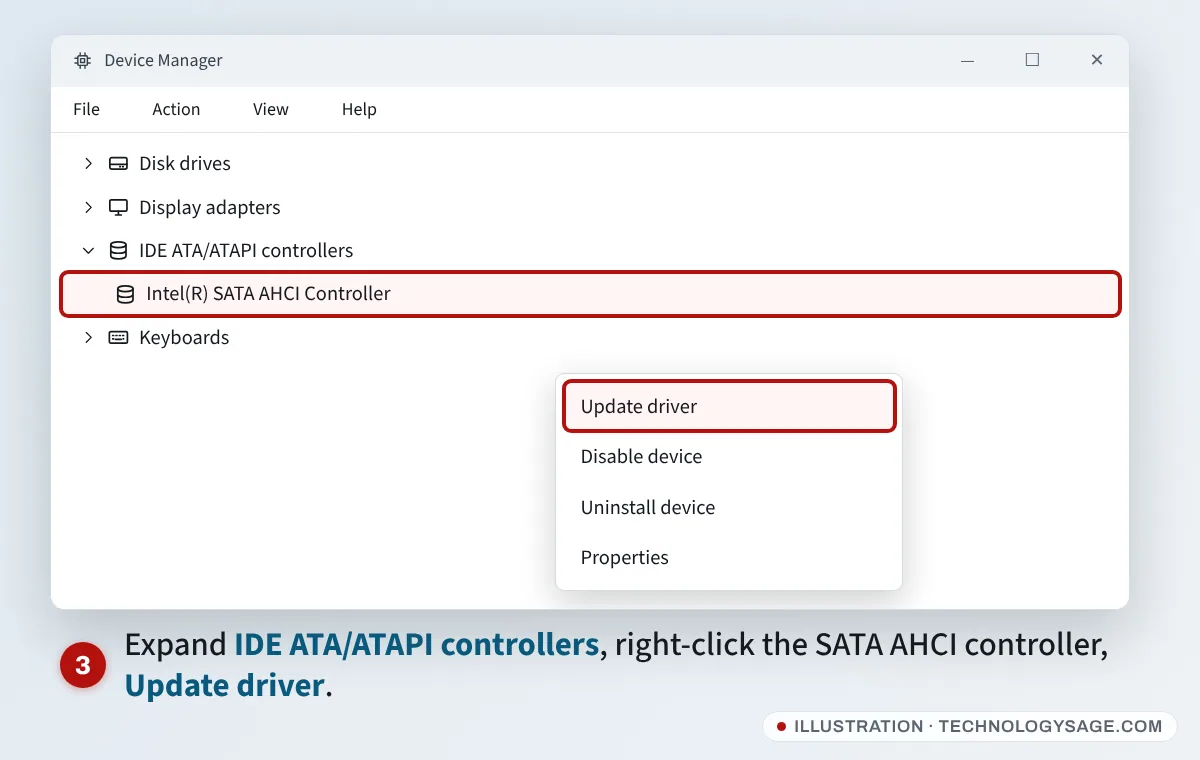
- Right-click Start and choose Device Manager.
- Expand IDE ATA/ATAPI controllers.
- Right-click the controller with SATA AHCI in its name and choose Properties → Driver → Driver Details. If the list shows
iaStorA.sys(or another iaStor file), carry on. If it already showsstorahci.sys, you’re already on the Windows driver; skip to Step 4. - Close that window. Right-click the controller again and choose Update driver.
- Select Browse my computer for drivers → Let me pick from a list of available drivers on my computer.
- Choose Standard SATA AHCI Controller and select Next.
- Restart the PC.
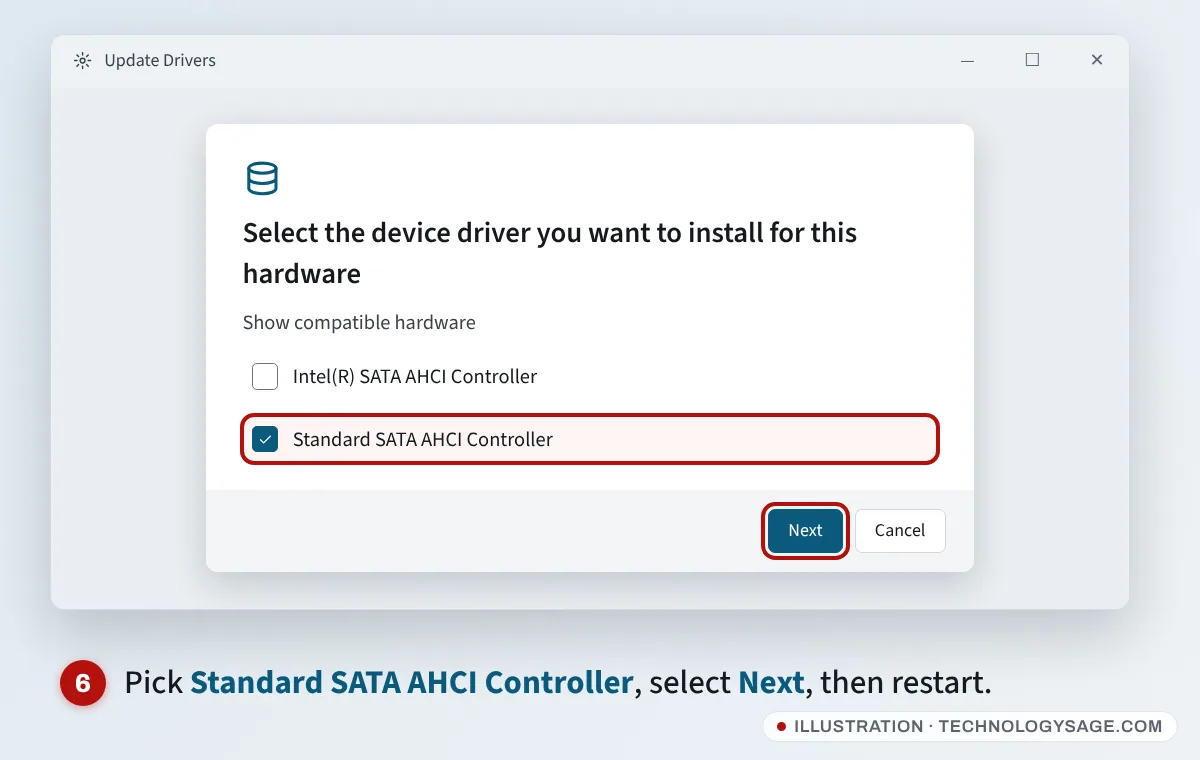
If you see no IDE ATA/ATAPI controllers section at all, look under Storage controllers instead. Drives that use NVMe show up there with the Windows driver (stornvme.sys) or the SSD maker’s own driver; for those, go to Step 4.
Step 4: Update your SSD firmware
SSD firmware bugs are a well-known cause of this stop code, even when the driver is the standard Windows one. SSD makers fix these in firmware updates.
- Find your SSD’s brand and model: Settings → System → Storage → Advanced storage settings → Disks & volumes, or Device Manager under Disk drives.
- Download the maker’s own SSD tool from its official website (for example Samsung Magician, Crucial Storage Executive, WD Dashboard or Kingston SSD Manager). Laptop makers’ support pages sometimes list SSD firmware for your model too.
- Use the tool to check for and install a firmware update. Back up before a firmware update; it’s rare, but a failed update can make the drive unreadable.
Step 5: Update or roll back graphics, network and chipset drivers
- Install everything in Settings → Windows Update, including Advanced options → Optional updates, where Windows offers driver updates.
- Get the latest graphics driver from NVIDIA, AMD or Intel, or from your laptop maker’s support page. NVIDIA and AMD installers both offer a clean-install option that removes old settings.
- Update the chipset and Wi-Fi/Bluetooth drivers from your PC or motherboard maker’s support page.
- If the crashes began just after a driver update, roll it back: in Device Manager, right-click the device, choose Properties → Driver → Roll Back Driver.
- Uninstall VPN apps, third-party antivirus and system “optimiser” tools for a while. They install low-level network and file drivers.
Our guide to installing drivers on Windows covers where to find official drivers.
Step 6: Check the disk and system files
Open Terminal (Admin) (right-click Start) and run:
chkdsk C: /scanThen:
DISM /Online /Cleanup-Image /RestoreHealthsfc /scannowRestart when they finish. See our guide to SFC vs DISM for what the results mean.
Step 7: Update the BIOS and check new hardware
- If you recently added a drive, graphics card or RAM, check it’s on your motherboard’s compatibility list and remove it to test.
- Install the latest BIOS/UEFI from your PC or motherboard maker’s support page. Updates often fix storage and power-management bugs. Follow the maker’s instructions exactly and don’t interrupt a BIOS update.
If it doesn’t work
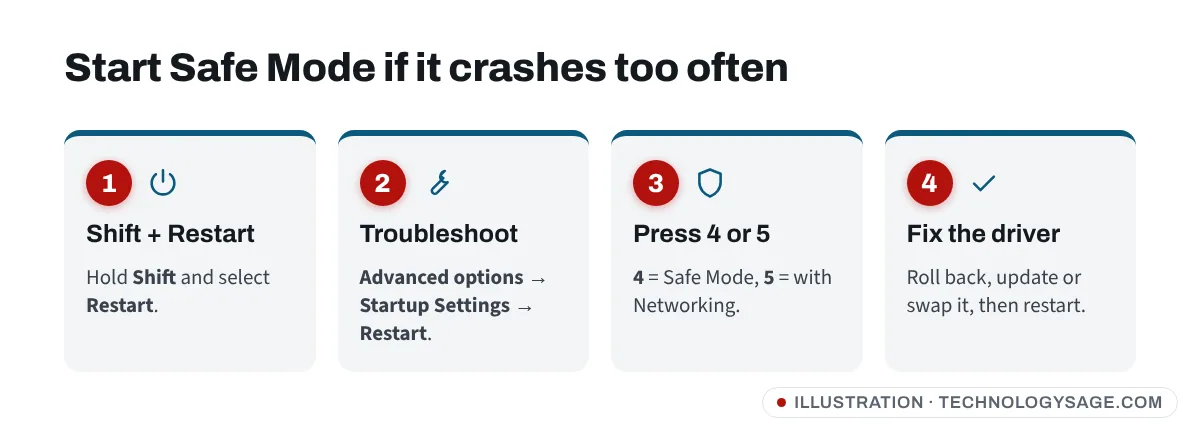
- The PC crashes too often to fix anything: start in Safe Mode, which loads only basic drivers. Hold Shift while you select Restart, then go to Troubleshoot → Advanced options → Startup Settings → Restart and press 4 (or 5 for Safe Mode with Networking to download drivers). Make the driver changes there.
- The standard AHCI driver made Windows unbootable: use System Restore from the recovery screen to go back to the restore point you made.
- Crashes continue with every driver up to date: a failing SSD can cause this too. Check its health in the maker’s tool and replace it if it reports problems. Copy your files off first.
- Different stop codes keep appearing: that points to hardware such as RAM or power. See our guides to the memory management blue screen and to a PC that restarts randomly.
- As a last resort: Settings → System → Recovery → Reset this PC → Keep my files reinstalls Windows and its drivers.
If the PC won’t start at all after a crash, see our PC won’t boot guide.
FAQ
Is DPC watchdog violation a hardware or software problem?
Usually software: a driver that takes too long. But the driver often belongs to a piece of hardware, such as the SSD, graphics card or a USB device, and SSD firmware bugs are a common cause too.
Can an SSD cause DPC watchdog violation?
Yes. Outdated SSD firmware and storage controller drivers are among the most common causes. Update the SSD firmware with the maker’s tool and check the storage driver as shown in Step 3.
Is it safe to switch to the Standard SATA AHCI Controller driver?
On a PC whose controller is already in AHCI mode, yes; it’s the Windows built-in driver. Don’t do it on a PC set up for RAID, Intel RST Premium or Intel VMD, as Windows may not start. Create a restore point first either way.
Can DPC watchdog violation damage my computer?
The crash itself doesn’t damage hardware, but sudden restarts can corrupt files that were open. Back up your work and fix the cause rather than living with it.
What is stop code 0x00000133?
It’s the bug check code for DPC_WATCHDOG_VIOLATION. You’ll see 0x133 in Event Viewer, Reliability Monitor or a crash dump.