In this guide
- What “the disk is write-protected” and “the media is write protected” mean
- Step 1: Copy your files to safety
- Step 2: Check the physical lock switch
- Step 3: Try another port or computer
- Step 4: Clear the read-only flag with diskpart
- Step 5: Remove a write-protection policy in the registry
- Step 6: Check the drive for errors
- Step 7: Format the drive (erases everything)
- On a Mac or Android phone
- Related problems
- FAQ
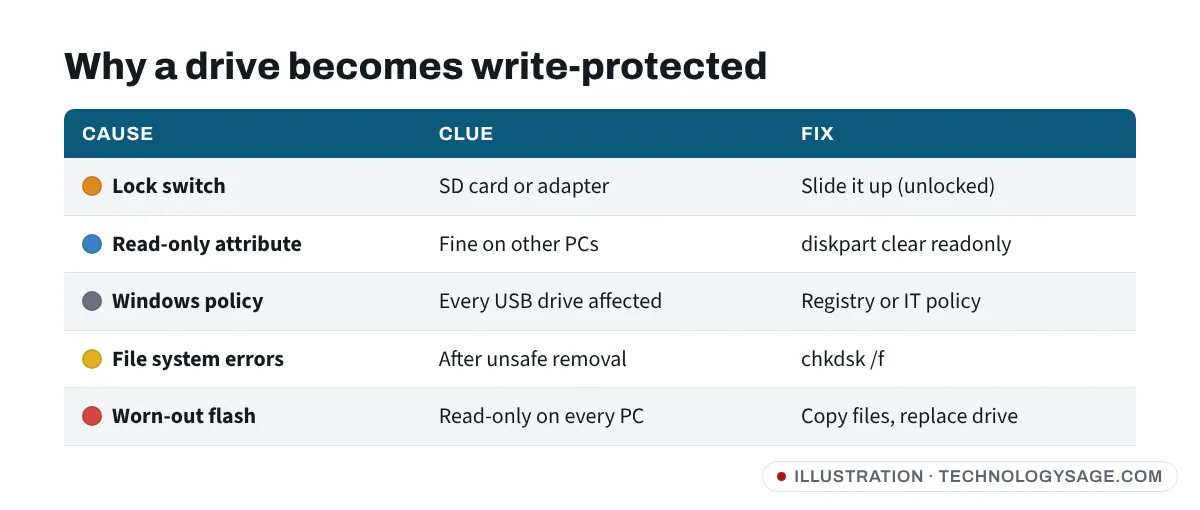
“The disk is write-protected” means Windows won’t let you change anything on the drive: you can open files but not copy, delete or format. On an SD card, the usual cause is the little lock switch on the side. On a USB flash drive, it’s usually a read-only flag you can clear with diskpart (attributes disk clear readonly), a Windows policy, or file-system errors. If the drive is read-only on every computer, the flash memory itself is wearing out, and the right move is to copy your files off and replace it.
Because a write-protected drive can still be read, copy your files off first, before trying any fix.
What “the disk is write-protected” and “the media is write protected” mean
You’ll see one of these messages:
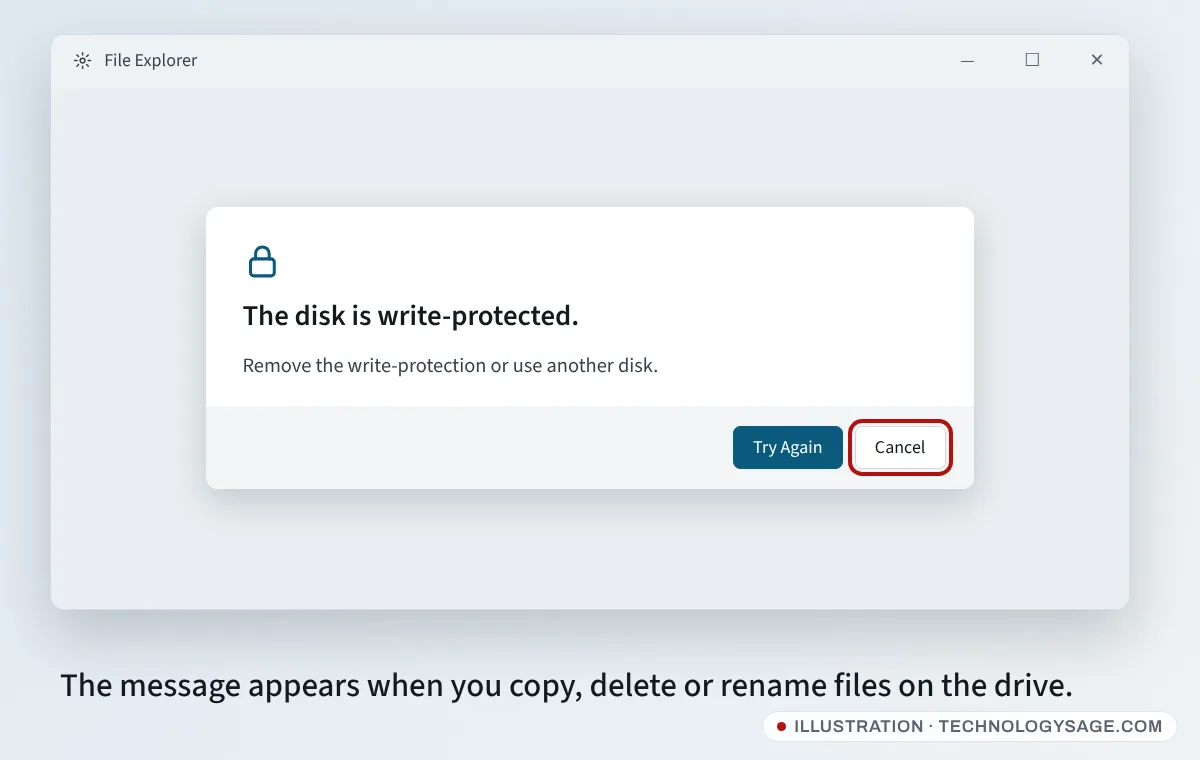
- The disk is write-protected. Remove the write-protection or use another disk. (copying, deleting or renaming in File Explorer)
- The media is write protected. (when formatting, or in diskpart)
- Windows was unable to complete the format. (often the same problem)
All of them mean the drive, Windows, or the drive’s own controller is refusing to write. The fix depends on which one.
Step 1: Copy your files to safety
Write protection doesn’t stop you reading. Open the drive in File Explorer and copy everything important to your computer or cloud storage now. If the drive is failing, it could stop working completely during a later fix, and some fixes (formatting) erase it.
Step 2: Check the physical lock switch
- SD cards and microSD adapters have a small slider on the left side. Slide it up, towards the contacts, to unlock. If the switch is loose or broken, or the adapter is worn, the reader may always see it as locked; try another adapter or reader.
- Some USB drives also have a lock switch. Look along the sides.
Remove the card or drive, change the switch, and plug it back in.
Step 3: Try another port or computer
Plug the drive into another USB port (directly, not through a hub) and, if possible, another computer.
- Works on another PC? The block is on your computer: a Windows setting or policy (steps 4 and 5).
- Read-only on every computer? The drive itself is protecting itself. Flash drives and memory cards often switch to permanent read-only mode when their memory wears out, to protect your data. No software can reliably undo that; copy your files and replace the drive (check if it’s still under warranty).
 Photo: Sara Kurfeß on Unsplash
Step 4: Clear the read-only flag with diskpart
Windows can mark a disk or volume as read-only. Diskpart can clear it. Be careful: diskpart works on whole disks, and choosing the wrong one can damage another drive. Only run the commands below; don’t run clean or any format command unless you mean to erase the drive.
- Click Start, type
cmd, right-click Command Prompt and choose Run as administrator. - Type
diskpartand press Enter. - Run these commands one at a time:
list disk
select disk 1
attributes disk
attributes disk clear readonly- In
list disk, find your USB drive or card by its size. Disk 0 is usually your computer’s own drive. Replace1with your drive’s number. attributes diskshows whether Current Read-only State is Yes; after clearing, it should say No.
- If it’s still read-only, also clear the volume flag:
list volume
select volume 5
attributes volume clear readonly
Replace 5 with the volume number that matches your drive’s letter and size.
- Type
exit, unplug the drive, plug it back in and try again.
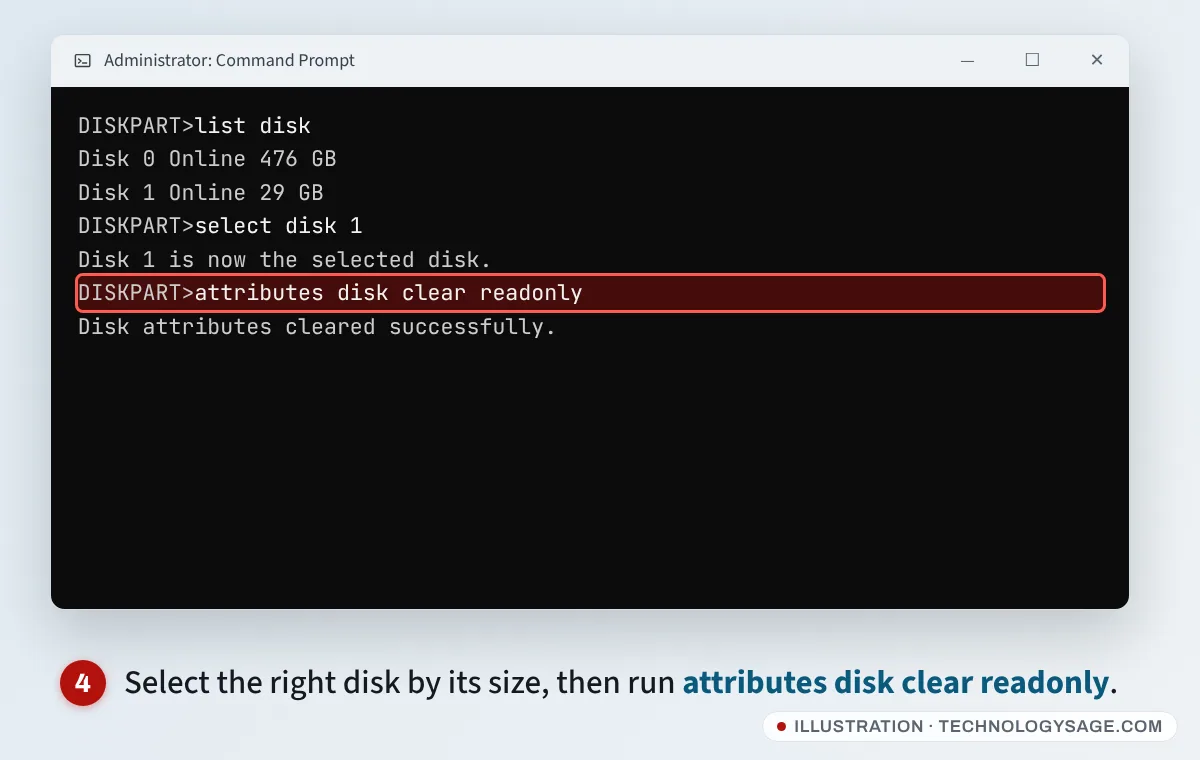
Microsoft’s documentation confirms that attributes disk clear readonly works only after you select a disk. Diskpart can’t remove write protection set by the drive’s hardware or firmware; if you get “The media is write protected” from diskpart itself, go back to step 3.
Step 5: Remove a write-protection policy in the registry
Windows has a setting that makes every USB storage drive read-only. Some apps, malware or IT departments turn it on.
Edit the registry carefully. Make a backup first (File → Export in Registry Editor).
- Click Start, type
regeditand open Registry Editor. - Go to
HKEY_LOCAL_MACHINE\SYSTEM\CurrentControlSet\Control\StorageDevicePolicies. - If you see a value named WriteProtect, double-click it and set it to
0, or right-click and Delete it. - If the StorageDevicePolicies key doesn’t exist, this isn’t your problem; close Registry Editor.
- Unplug the drive, restart the PC and plug it back in.
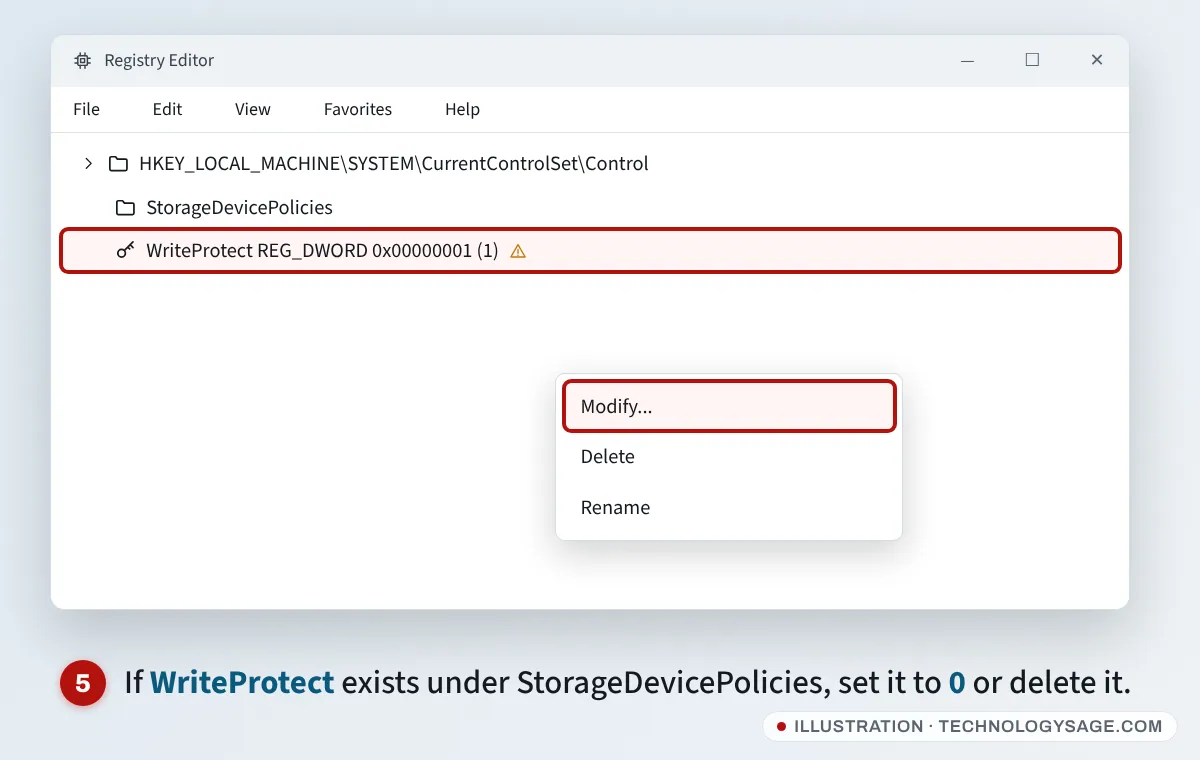
On Windows Pro, Enterprise or Education, a Group Policy can also block writing. Run gpedit.msc and check Computer Configuration → Administrative Templates → System → Removable Storage Access for Removable Disks: Deny write access. Set it to Not configured. On a work or school computer, these are usually set on purpose by your IT team; ask them instead of changing them.
Step 6: Check the drive for errors
A drive pulled out without being ejected can have file-system errors that make Windows treat it as read-only. With your files copied, run (replacing E: with the drive’s letter):
chkdsk E: /fRun it in an administrator Command Prompt. Also run a full scan with Windows Security, since some malware spread by USB drives changes drive settings.
Step 7: Format the drive (erases everything)
If the drive is no longer read-only but still misbehaves, formatting gives it a clean file system. This deletes everything on it, so only do it once your files are safe.
- In File Explorer, right-click the drive → Format.
- Choose exFAT (works on Windows, Mac and most TVs and cars) or NTFS (Windows only), or FAT32 for small drives and older devices.
- Click Start.
If Windows says it was unable to complete the format, or diskpart reports “The media is write protected”, the drive’s controller has locked it. Replace the drive. The tools some websites offer to “remove write protection” by reprogramming the controller are risky, maker-specific and often bundled with malware.
On a Mac or Android phone
- Mac: drives formatted as NTFS are read-only on macOS by default; that isn’t a fault. Copy your files, then reformat as exFAT in Disk Utility if you need to write from both Mac and Windows. For other drives, run Disk Utility → First Aid.
- Android: if the phone says the SD card is read-only, check the card’s file system on a computer and run the steps above. Phones can also set a card read-only when it’s failing.
Related problems
- A memory card that shows errors or asks to be formatted: how to fix a corrupted SD card.
- A drive that doesn’t appear in File Explorer at all: USB drive not showing up.
- “You need permission to perform this action” on files and folders: see you need permission to perform this action.
- “The file is too large for the destination file system” isn’t write protection: the drive uses FAT32, which can’t store files over 4 GB. Reformat it as exFAT (after backing up).
FAQ
How do I remove write protection from a USB drive?
Copy your files off, check for a lock switch, then in an administrator Command Prompt run diskpart, list disk, select disk N (your drive) and attributes disk clear readonly. If that doesn’t help, check the StorageDevicePolicies registry key. If the drive is read-only on every computer, it has failed and should be replaced.
Why is my SD card suddenly write-protected?
Most often the lock switch on the card or adapter slid down, or a worn adapter isn’t holding it in the unlocked position. If the switch is fine, the card may be failing or have file-system errors.
Can I format a write-protected drive?
Not until the write protection is removed; Windows will refuse. Clear the read-only flag or policy first. If formatting still fails with “The media is write protected”, the drive’s hardware has locked it.
Is a write-protected USB drive broken?
Not always. A switch, read-only flag or Windows policy can be undone. But if it’s read-only on every computer and diskpart can’t clear it, the flash memory is worn out. Copy your data while you still can.