In this guide
- Why Windows says you need permission
- Fix 1: Close the program using the file, then restart
- Fix 2: Check you’re signed in as an administrator
- Fix 3: Allow the app through Controlled folder access
- Fix 4: Take ownership with File Explorer
- Fix 5: Take ownership with Command Prompt
- Fix 6: Remove Windows.old and other leftovers the right way
- Fix 7: Try Safe Mode
- Fix 8: Check the drive and its system files
- FAQ
- How do I get permission from the Administrator to delete a folder?
- What does “You require permission from TrustedInstaller” mean?
- How do I fix “The action can’t be completed because the file is open in another program”?
- Why can’t I delete a folder even as administrator?
- Is it safe to take ownership of a folder?
“You need permission to perform this action” means Windows is blocking you from deleting, renaming or moving a file or folder because your account doesn’t own it or doesn’t have the right permissions — or because something else is using it. First close any program that might have the file open and restart the PC; if the message stays, take ownership of the folder through Properties → Security → Advanced and give your account Full control.
The full message usually reads “You require permission from Administrators / SYSTEM / TrustedInstaller / S-1-5-21-… to make changes to this folder.” Who it names is a big clue, so read it before you start. Work through the fixes below in order: the first three solve most cases without touching permissions at all.
Why Windows says you need permission
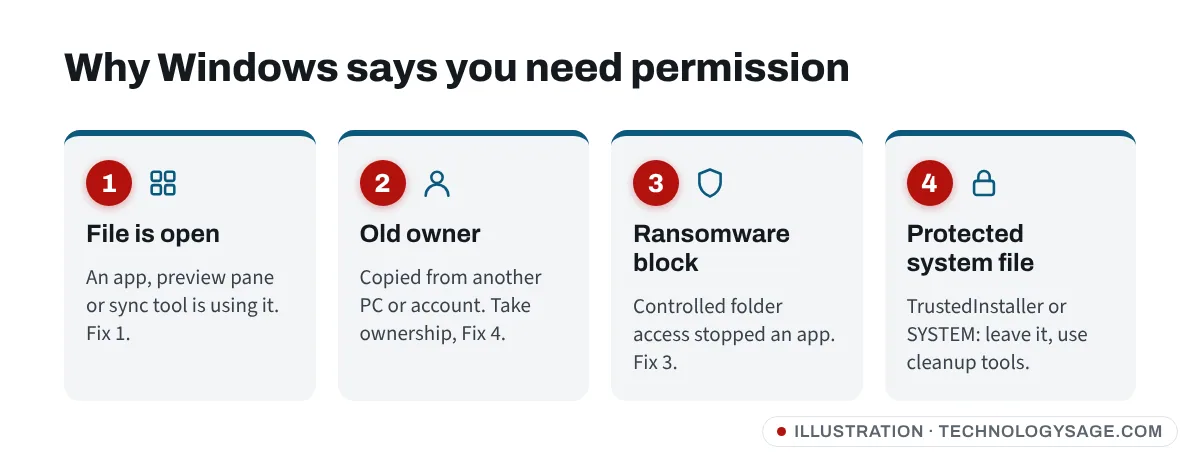
- The file is open somewhere. A program, a background process, a preview pane or a sync app holds it. Windows often shows “The action can’t be completed because the file is open in [program]” instead, but not always.
- It belongs to another account. Files copied from an old PC or an old drive keep the old owner — that’s the “S-1-5-21-…” number with no name.
- It’s a protected Windows file. Folders owned by TrustedInstaller or SYSTEM are protected on purpose.
- Ransomware protection blocked it. Windows Security’s Controlled folder access stops unknown apps changing your Documents, Pictures and other folders.
- Your account isn’t an administrator, or it’s a work or school PC with restrictions.
- The drive itself is the problem: errors, a read-only USB stick or a network share you only have read access to.
Don’t take ownership of Windows system folders like C:\Windows, C:\Program Files or the whole C: drive. Changing their permissions can break Windows updates, security and apps. The fixes below are for your own files, old user folders, and data drives.
Fix 1: Close the program using the file, then restart
- Close apps that might use the file: photo or video players, Office, PDF readers, and the File Explorer preview pane (press Alt + P to toggle it).
- Pause OneDrive, Google Drive or Dropbox sync if the file is in a synced folder.
- Restart the PC and try again. A restart releases nearly all file locks.
Find which program has the file open
If you can’t restart right now:
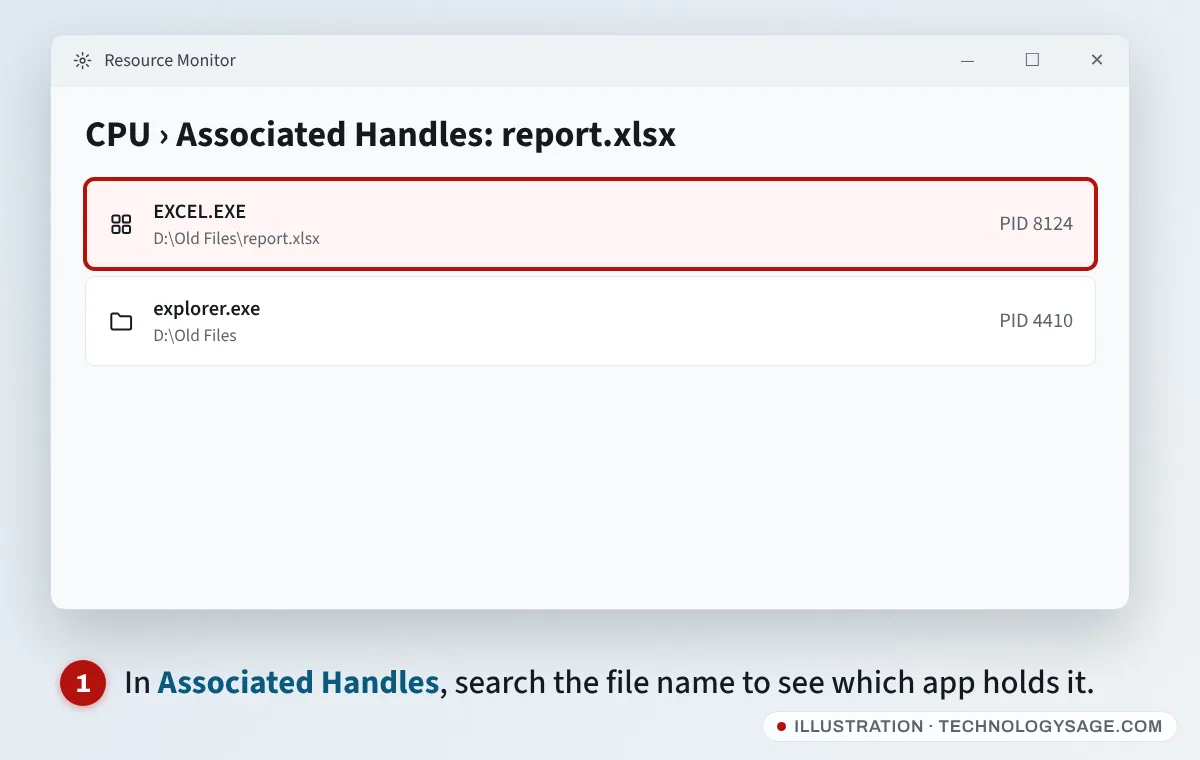
- Press Windows + R, type resmon and press Enter to open Resource Monitor.
- On the CPU tab, expand Associated Handles and type part of the file or folder name in its search box.
- The Image column shows which program has it open. Close that program normally — or right-click the process and choose End Process if it’s not something important.
Microsoft’s free PowerToys includes a File Locksmith tool that does the same thing from the right-click menu: right-click the file, choose Unlock with File Locksmith (on Windows 11 it may be under Show more options), and it lists the processes using it.
Fix 2: Check you’re signed in as an administrator
Open Settings → Accounts → Your info. Under your name it says Administrator or Standard user. If it’s a standard account, sign in with an admin account or ask whoever manages the PC. On a work or school laptop, permission blocks may be set by your IT department and you’ll need to ask them.
Fix 3: Allow the app through Controlled folder access
If the error appears when an app saves into Documents, Desktop or Pictures, ransomware protection may be blocking it — Windows usually shows a notification saying an unauthorised change was blocked.
- Open Windows Security → Virus & threat protection.
- Under Ransomware protection, click Manage ransomware protection.
- Choose Allow an app through Controlled folder access → Add an allowed app → Recently blocked apps, and allow the app only if you trust it.
Don’t just turn the protection off. If you use another antivirus, check its own ransomware or folder-shield setting instead.
Fix 4: Take ownership with File Explorer
This is the main fix for files from an old PC or an old Windows installation.
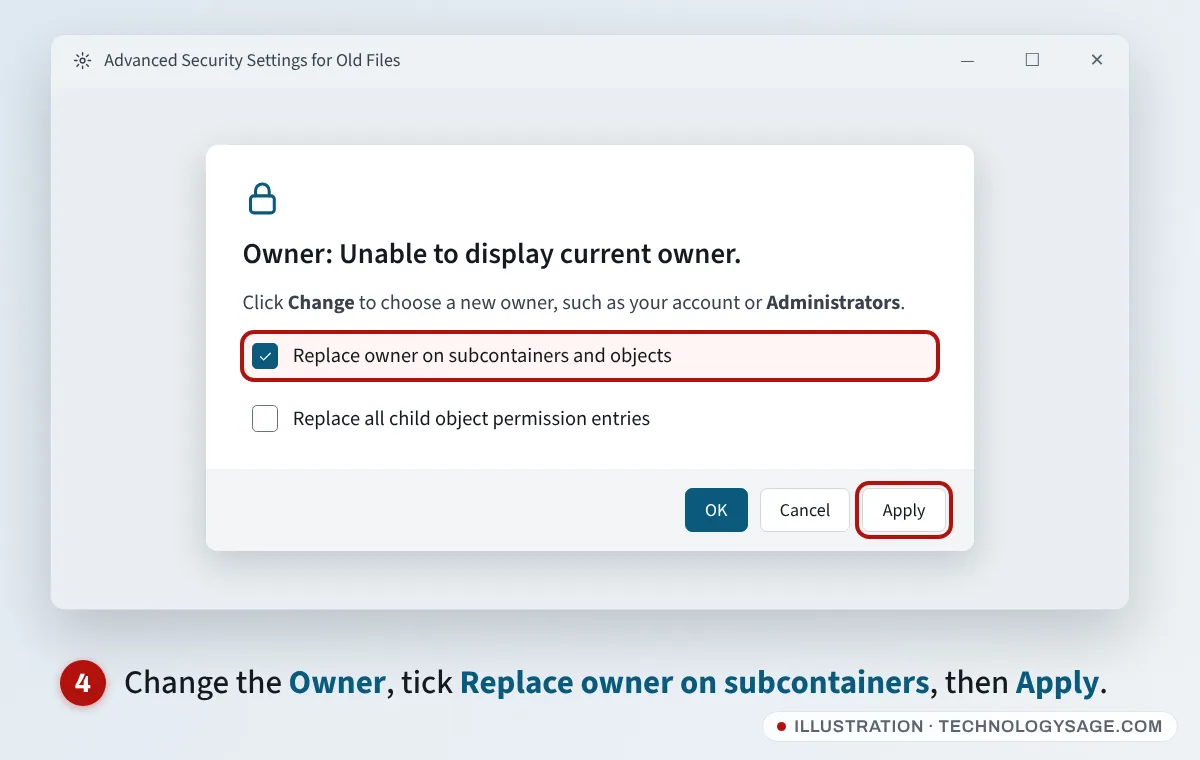
- Right-click the folder and choose Properties, then the Security tab, then Advanced.
- Next to Owner, click Change.
- Type your username (or Administrators) in the box, click Check Names, then OK.
- Tick Replace owner on subcontainers and objects, then click Apply. Accept the prompts.
- Close and reopen Properties → Security. Click Edit, then Add, type your username, Check Names, OK.
- Select your account, tick Full control under Allow, then Apply.
Try the delete, move or rename again.
Fix 5: Take ownership with Command Prompt
For big folders, the command line is faster. Open Command Prompt as administrator (search cmd, right-click, Run as administrator). Replace the path with your own and keep the quotes:
takeown /f "D:\Old Files" /r /d y
icacls "D:\Old Files" /grant Administrators:F /t
takeown /fsets the owner;/rincludes everything inside;/d yanswers “yes” automatically for folders you can’t list. On a non-English version of Windows, the letter for “yes” may be different.icacls … /grant Administrators:F /tgives the Administrators group full control of the folder and everything in it. On a non-English Windows where the group has another name, use*S-1-5-32-544:Finstead ofAdministrators:F.
Double-check the path before pressing Enter. Running these on C:\ or C:\Windows can damage your installation.
Fix 6: Remove Windows.old and other leftovers the right way
The Windows.old folder from an upgrade is owned by the system and often throws this error. Don’t fight its permissions: use Settings → System → Storage → Temporary files, tick Previous Windows installation(s) and click Remove files. Our guide on deleting the Windows.old folder has the details. For other system leftovers, Disk Cleanup (run as administrator with Clean up system files) is the safe tool.
Fix 7: Try Safe Mode
Some files are held by startup programs or drivers. Hold Shift while clicking Restart, then go to Troubleshoot → Advanced options → Startup Settings → Restart and press 4 for Safe Mode. Try the action, then restart normally.
Fix 8: Check the drive and its system files
If the error appears across a whole USB stick or memory card, the drive may be read-only or have errors. See the disk is write-protected and USB drive not showing up. For an internal drive, run chkdsk D: /scan (replace the letter) in an admin Command Prompt. If Windows’ own folders behave strangely, repair them with SFC and DISM rather than changing permissions.
On a network share or NAS, permissions are controlled by the computer or device sharing the folder. Ask whoever set it up to give your account write access.
FAQ
How do I get permission from the Administrator to delete a folder?
Sign in with an administrator account, then take ownership of the folder (Properties → Security → Advanced → Owner → Change) and give your account Full control. If you’re already an admin and it still fails, the file is probably open in another program — restart and try again.
What does “You require permission from TrustedInstaller” mean?
TrustedInstaller is the Windows service that owns system files. The message means you’re trying to change something Windows protects. If it’s inside C:\Windows or C:\Program Files, leave it alone; use the app’s uninstaller or Disk Cleanup instead.
How do I fix “The action can’t be completed because the file is open in another program”?
Close the named program, turn off the File Explorer preview pane, or restart. To find an unnamed program, search for the file under Associated Handles in Resource Monitor, or use PowerToys File Locksmith.
Why can’t I delete a folder even as administrator?
Being an administrator doesn’t automatically mean you own every file. Files copied from another PC or created by the system can belong to another account. Taking ownership, then granting your account Full control, fixes it.
Is it safe to take ownership of a folder?
Yes for your own files, old user folders and data drives. Not for Windows system folders, where changing the owner can stop updates and security features working.