In this guide
- Signs your SD card is corrupted
- Before you start: protect your files
- 1. Rule out the simple causes
- 2. Give the card a drive letter if it’s missing
- 3. Copy off everything that still opens
- 4. Recover files with a free recovery tool
- 5. Repair the file system with CHKDSK
- 6. Format the card (after your files are safe)
- If the card keeps getting corrupted
- FAQ
To fix a corrupted SD card without losing your files, do things in this order: stop using the card, copy off anything that still opens, recover the rest with a recovery tool, and only then repair it with CHKDSK (chkdsk E: /f) or reformat it. Never click Format disk when Windows offers it, and don’t let your phone “fix” or format the card until your photos are safe: formatting and repairs can wipe out files you could otherwise have recovered.
This works for SD, microSD and other memory cards from phones, cameras, drones, dashcams and Nintendo Switch consoles, using a Windows PC (with notes for Android and Mac).
Signs your SD card is corrupted
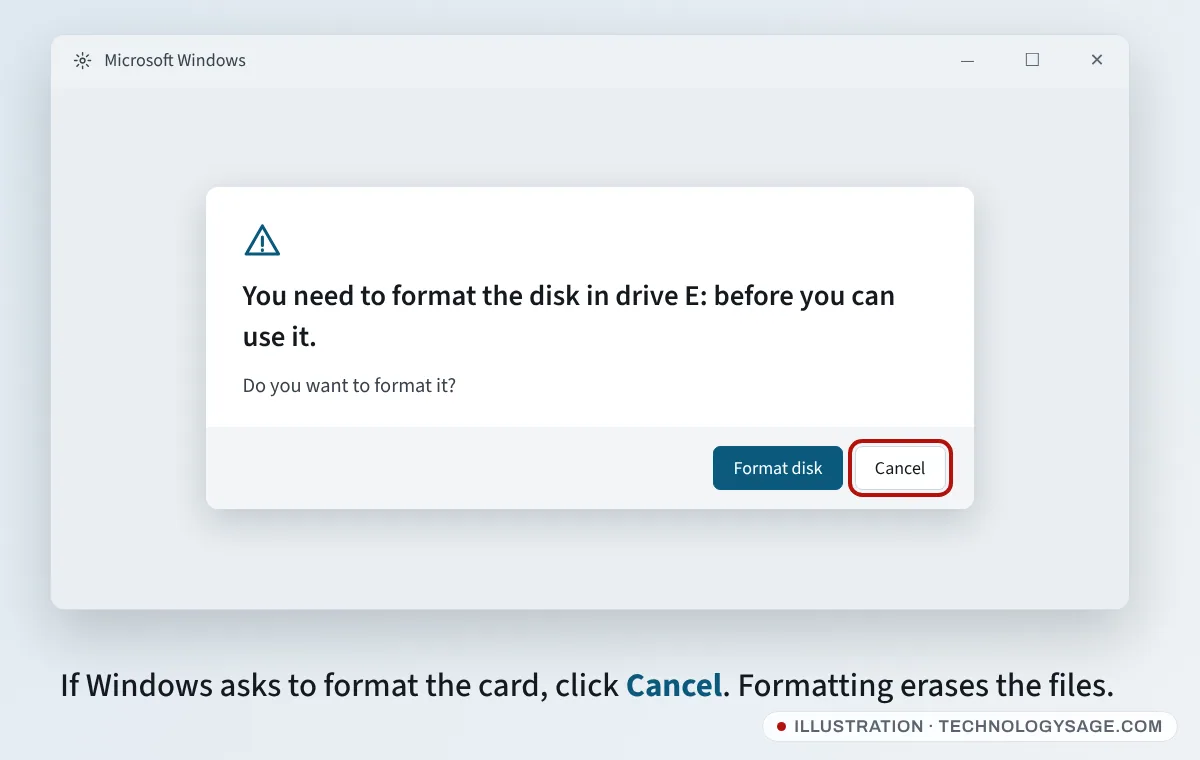
- Windows says “You need to format the disk in drive E: before you can use it”.
- The card shows as RAW in Disk Management, or Properties shows 0 bytes.
- Your phone says “SD card damaged”, “Unsupported SD card” or “Blank SD card”.
- Photos show as grey boxes, won’t open, or have odd names.
- The camera reports a “card error”, or the card shows up but won’t let you copy files.
Corruption usually happens when a card is removed while it’s being written to, a device’s battery dies mid-save, the card is moved between devices a lot, or the card is fake or worn out.
Before you start: protect your files
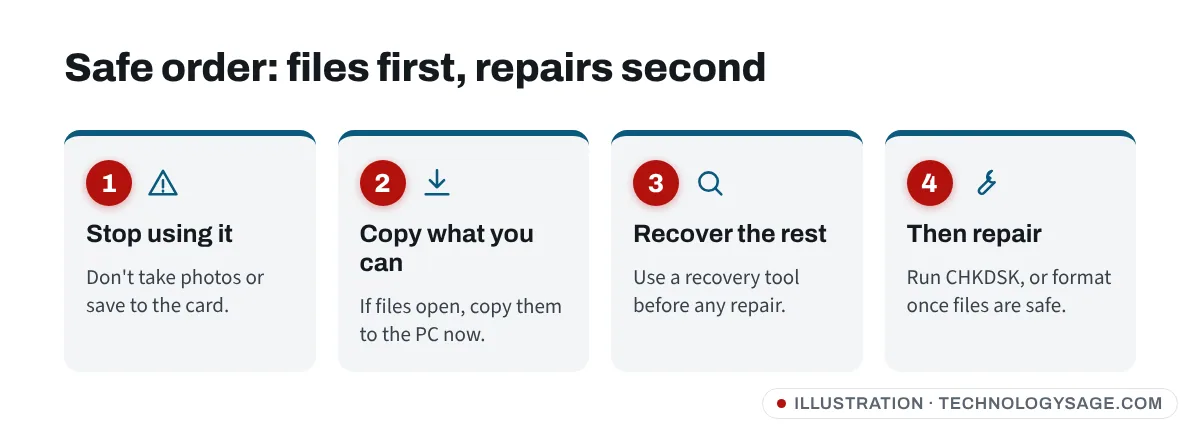
- Stop using the card. Every new photo or file can overwrite data you want back. Take it out of the phone or camera.
- Don’t format, and don’t accept a “repair” prompt yet. When Windows asks to format, click Cancel. On a phone, ignore any “Format” or “Fix” button for now.
- Use a card reader. A USB card reader or the laptop’s SD slot is more reliable than connecting the whole phone or camera.
If your phone used the card as internal storage (also called “adoptable storage” or “format as internal”), it’s encrypted to that phone and can’t be read on a computer. In that case, keep it in the original phone and try fixes 1 and 6 only.
1. Rule out the simple causes
- Try another reader or port. Cheap readers and loose adapters cause many “corrupted” cards. Try a different USB port, reader, or computer.
- Check the microSD adapter. A loose or worn adapter can make a good card look dead. Try another adapter.
- Check the lock switch. Full-size SD cards and adapters have a small lock slider on the side. If it’s down, the card is read-only; see the disk is write protected for that.
- Clean the contacts gently with a dry, soft cloth or a little isopropyl alcohol on a cotton bud.
- Restart the device and reinsert the card firmly.
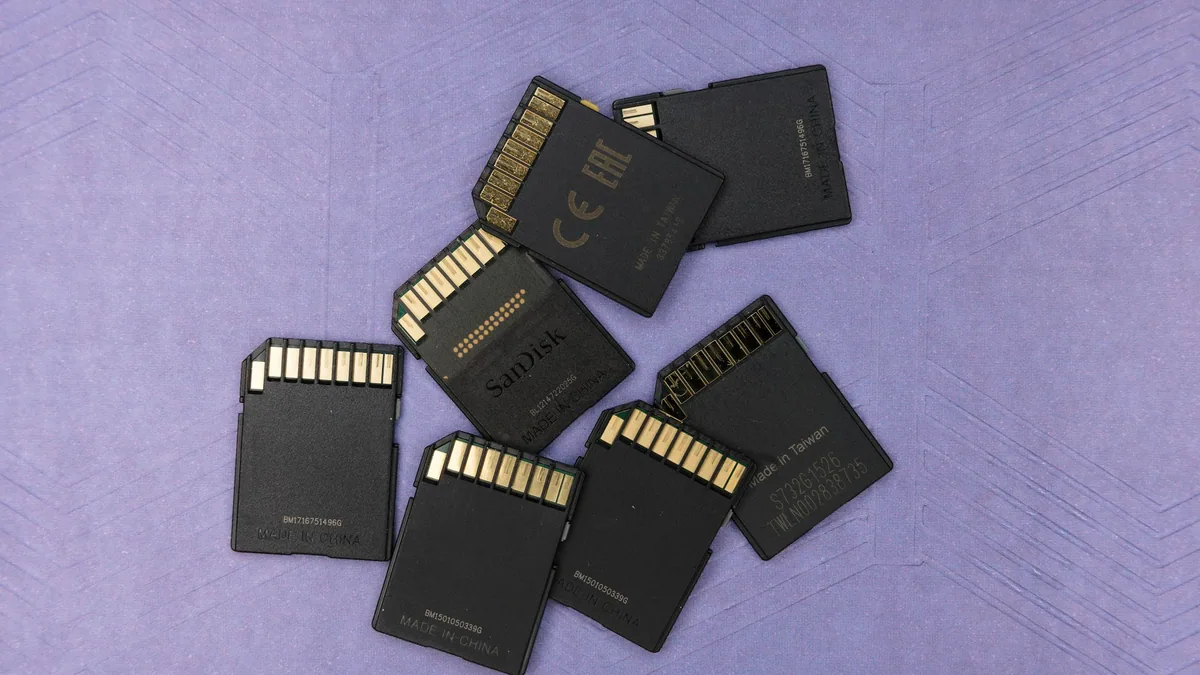
 Photo: Julio Lopez on Unsplash
2. Give the card a drive letter if it’s missing
If the card doesn’t appear in File Explorer, right-click Start, choose Disk Management, and look for a removable disk matching the card’s size. If it shows a healthy partition but no letter, right-click it → Change Drive Letter and Paths → Add. Don’t choose Format or Initialize Disk here. Our guide to a USB drive not showing up covers this in detail; the same steps apply to SD cards.
3. Copy off everything that still opens
If you can open the card in File Explorer, copy all its folders (usually DCIM for photos) to your computer’s drive now, before any repair. If some files give errors, skip them and copy the rest. Check that the copies open on the computer.
4. Recover files with a free recovery tool
If files are missing, or the card shows as RAW and won’t open, use a recovery tool before repairing or formatting. Always save recovered files to a different drive, never back onto the card.
Windows File Recovery (free, from Microsoft)
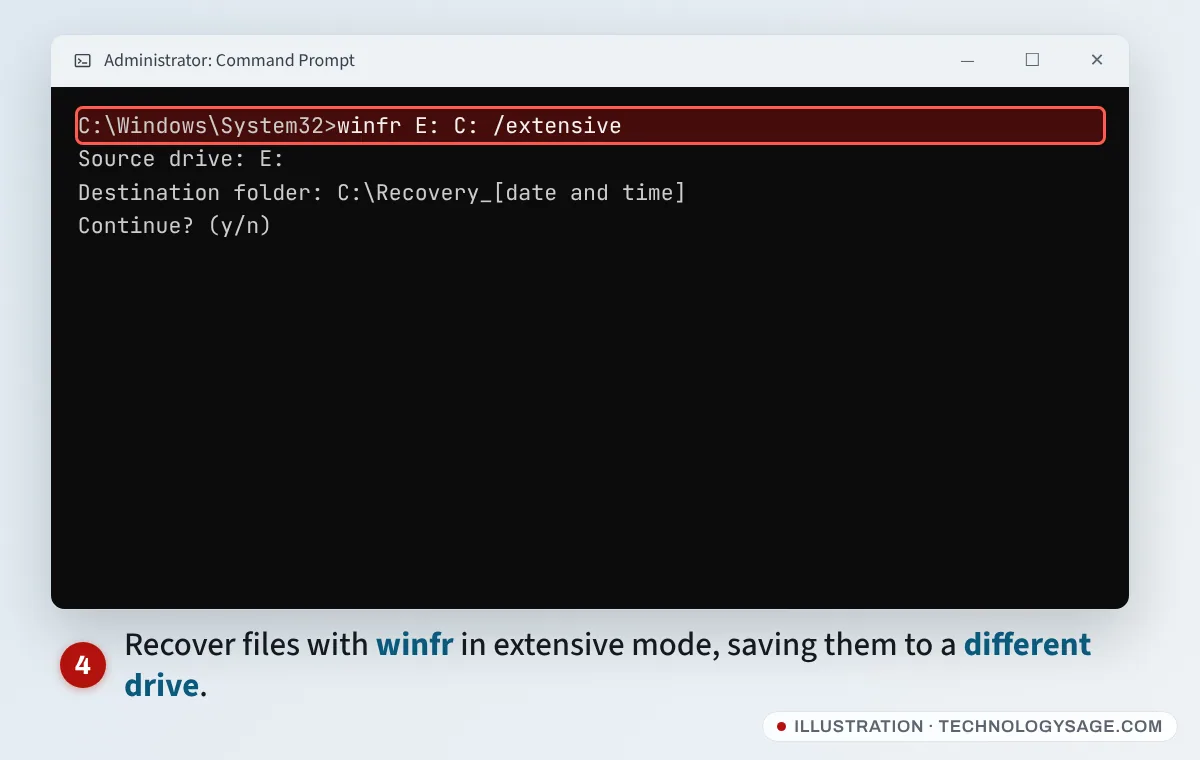
Microsoft’s Windows File Recovery is a free command-line tool you install from the Microsoft Store. For SD cards (which use the FAT or exFAT file system), Microsoft says to use extensive mode.
- Install Windows File Recovery from the Microsoft Store.
- Click Start, type
cmd, right-click Command Prompt and choose Run as administrator. - Run this, replacing
E:with your card’s letter andC:with the drive to save to:
winfr E: C: /extensive- Type
yto continue. Recovered files go into a new Recovery_ folder on the destination drive.
To look only for photos, add a filter, for example winfr E: C: /extensive /n *.jpg.
PhotoRec (free, Windows, Mac and Linux)
PhotoRec, from CGSecurity, is a free, open-source tool that’s good at recovering photos and videos from memory cards, including RAW and badly damaged ones. It works by reading the card without changing it. Download it only from the official CGSecurity website.
Avoid “free” recovery apps from unknown sites, and paid tools that ask you to pay before showing what they can recover; many are adware. If the photos are irreplaceable and the card is physically damaged (cracked, bent, wet, or not detected anywhere), stop and contact a professional data recovery service, because each new attempt can make things worse.
5. Repair the file system with CHKDSK
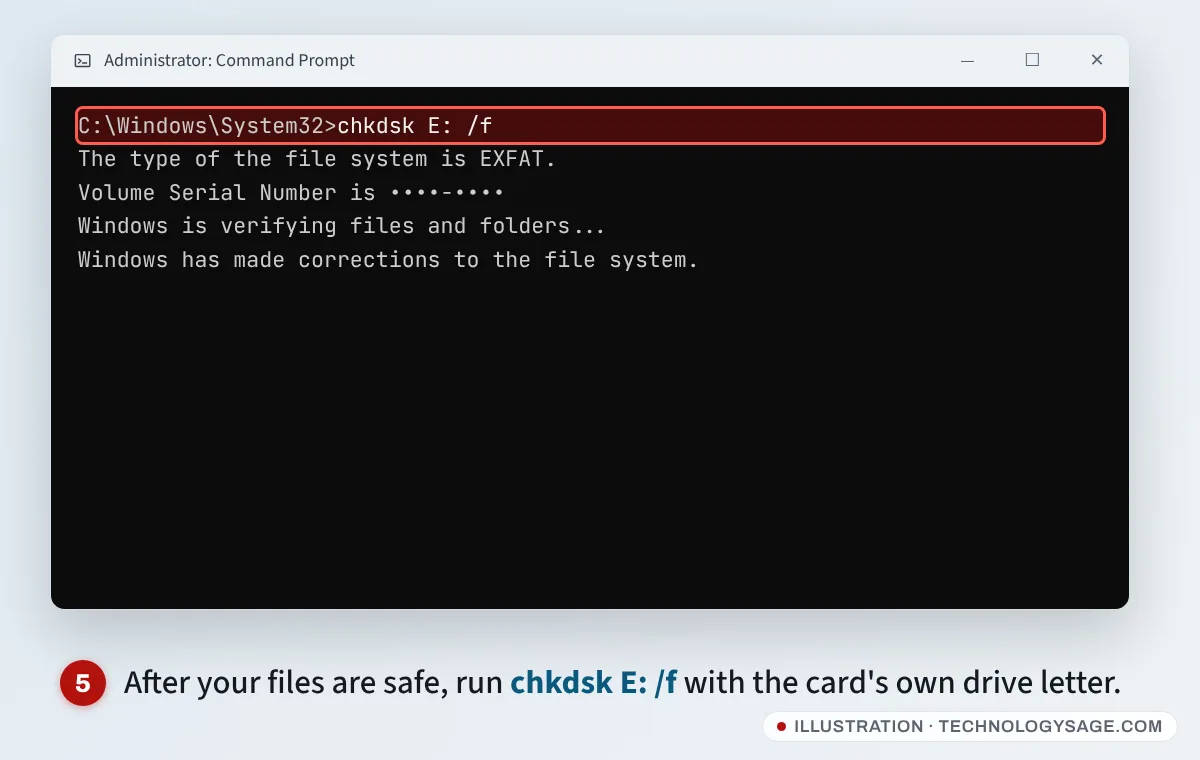
Once your files are safe, CHKDSK can fix file-system errors so the card works again, sometimes without formatting.
- Open Command Prompt as administrator.
- Run the command with your card’s letter:
chkdsk E: /f- When it finishes, reopen the card.
Notes:
- Double-check the drive letter.
C:is usually your Windows drive. - CHKDSK can move damaged fragments into a FOUND.000 folder and remove broken files; that’s why you rescue files first.
- If you see “CHKDSK is not available for RAW drives”, the file system is too damaged to repair; recover files (fix 4) and then format (fix 6).
- Without the command line: in File Explorer, right-click the card → Properties → Tools → Check.
6. Format the card (after your files are safe)
Formatting erases everything on the card, and it often brings a corrupted card back to life. Only do it once your files are copied or recovered.
On Windows:
- In File Explorer, right-click the card and choose Format.
- Choose exFAT for cards larger than 32 GB, or FAT32 for 32 GB and smaller (best for older cameras and devices).
- Untick Quick Format if you want Windows to check the whole card; it takes longer.
- Click Start.
The SD Association, which sets the SD standard, offers a free SD Memory Card Formatter on its official website (sdcard.org). It formats cards the way the standard expects and can help when Windows’ format fails.
On Android: open Settings → Storage (if you can’t find it, search Settings for “Storage” or “SD card”), select the SD card, then use Format from its menu. Choose portable storage if you want to read the card on a computer later.
In a camera: formatting the card in the camera you’ll use it in is often best for that camera.
If formatting fails, the card is probably failing or write-protected at the hardware level; see the next section.
If the card keeps getting corrupted
- Replace old or cheap cards. Memory cards wear out, especially in dashcams and security cameras that record constantly. Buy from a reputable shop; fake “high-capacity” cards are common.
- Check for a fake card. A card that reports more space than it really has will corrupt files once it’s “full”. Free tools such as H2testw (Windows) and F3 (Mac and Linux) test the real capacity.
- Always eject before removing, and don’t remove the card while a phone or camera is saving.
- Back up regularly to a computer or cloud storage. If your phone is running out of space, see Samsung internal storage full for ways to clear it without relying on the card.
FAQ
Can a corrupted SD card be fixed?
Often, yes. If the problem is in the file system, CHKDSK or a format makes the card usable again. If the card is physically damaged or worn out, it can’t be fixed reliably; recover your files and replace it.
How do I fix a corrupted SD card without formatting?
Try another reader and adapter, give the card a drive letter in Disk Management, then run chkdsk E: /f (after copying off what you can). If CHKDSK says the drive is RAW, you’ll need to recover the files and then format.
Can I recover photos from a corrupted SD card?
Usually, as long as you haven’t kept using the card. Use Windows File Recovery in extensive mode or PhotoRec, and save the results to a different drive.
Why does my phone say “SD card damaged”?
The card’s file system is corrupted, it’s formatted in a way the phone can’t read, or the card is failing. Don’t tap Format yet: put it in a computer, recover your files, then format it in the phone.