In this guide
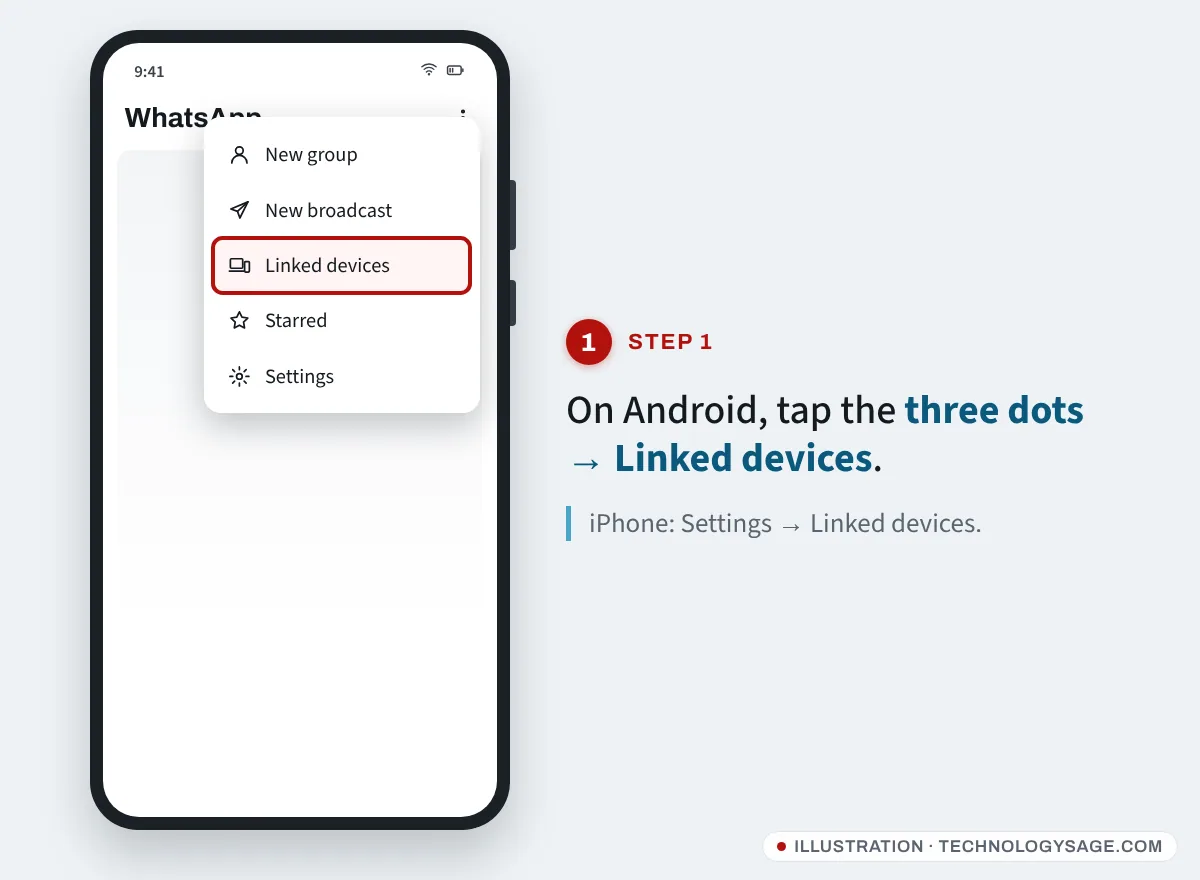
To see who is logged into your WhatsApp, open WhatsApp on your main phone and go to Linked devices: on Android tap the three dots → Linked devices; on iPhone tap Settings → Linked devices. Every computer, browser, tablet or extra phone using your account is listed with when it was last active. Tap any device you don’t recognise and choose Log out.
A stranger’s linked device can read your new messages without you noticing, so it’s worth checking now and then. Here is how linked devices work, how to remove one, and how to stop people linking to your account in the first place.
What “linked devices” means
WhatsApp lets you use one account on your main phone plus up to four linked devices, such as WhatsApp Web in a browser, the Windows or Mac app, a tablet, or a second phone. Linked devices keep working even when your main phone is off or has no internet, and messages stay end-to-end encrypted.
That convenience is exactly why linked devices matter for security: once a device is linked, it receives your new messages until it is logged out. If your main phone isn’t used for about 14 days, WhatsApp logs out the linked devices automatically, but a snooper can easily see weeks of chats before that.
How to check your linked devices
- Open WhatsApp on the phone where you registered your number.
- Android: tap the three dots at the top right, then Linked devices. iPhone: tap Settings at the bottom, then Linked devices.
- Look at the Device status list. Each entry shows the device type or browser (for example Chrome (Windows) or Google Chrome) and Last active time, or Active now.
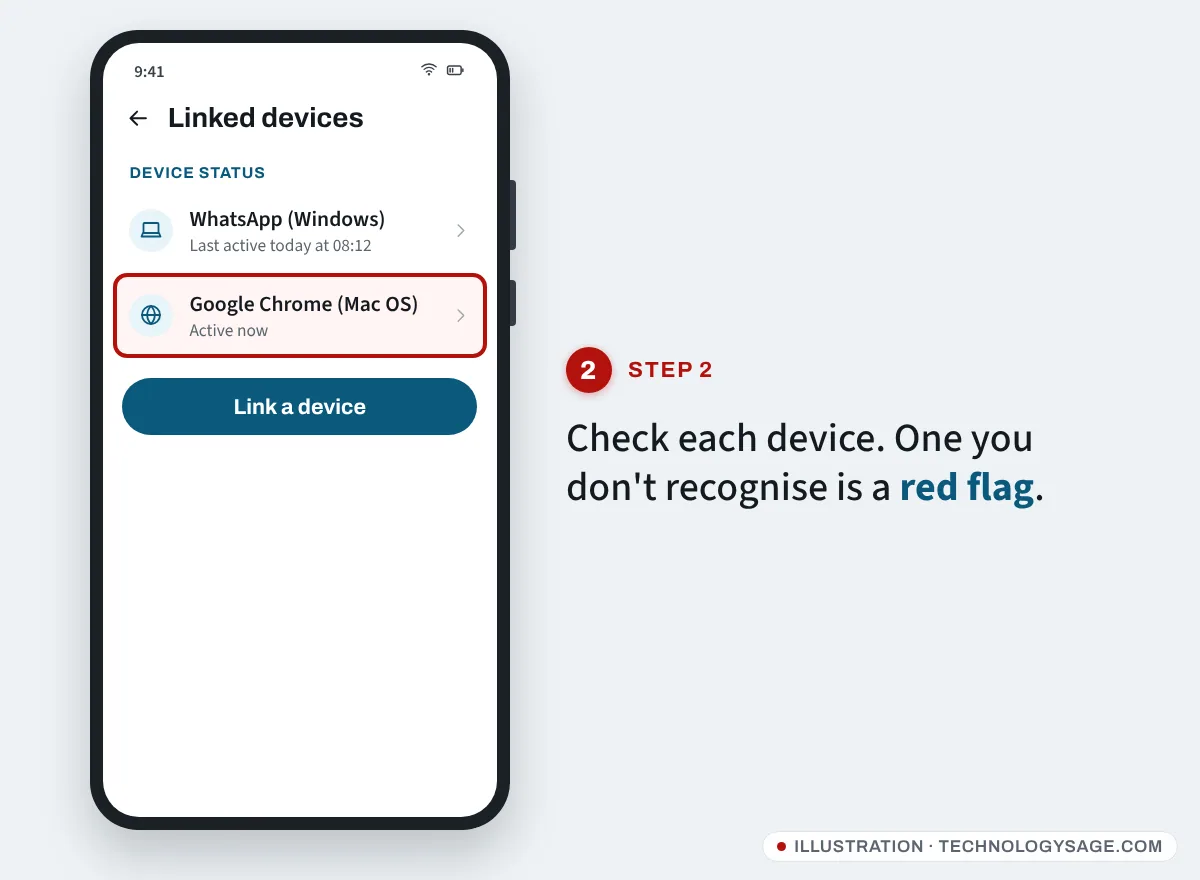
Ask yourself for each one: is this my laptop, my office PC, my tablet? A browser on an operating system you don’t use, or “Active now” when you’re not using a computer, is a red flag.
How to log out a linked device
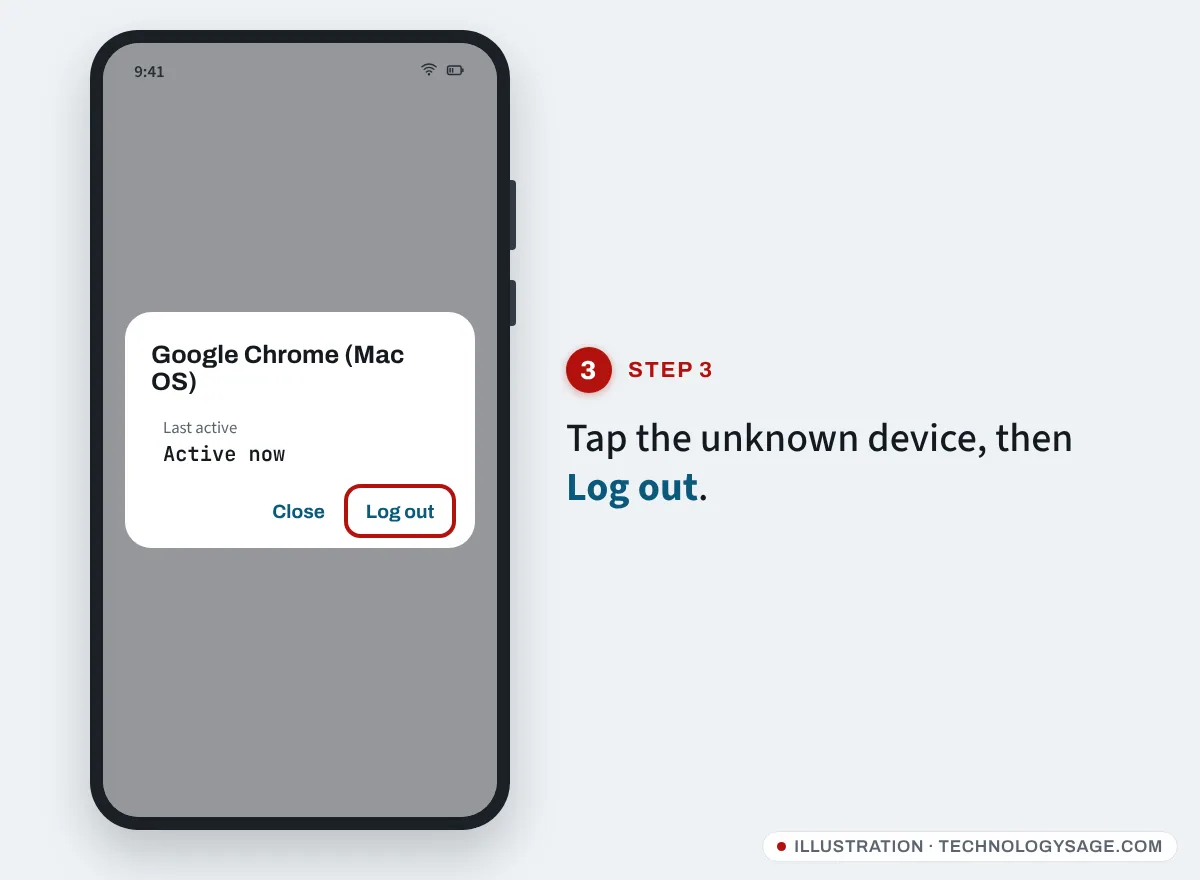
- In Linked devices, tap the device you want to remove.
- Tap Log out, then confirm.
Repeat this for each device you don’t recognise; WhatsApp logs them out one at a time. If you want to be thorough, log out everything and link your own computers again afterwards.
You can also log out from the linked device itself: in WhatsApp on the computer, open Settings and choose Log out. This is useful on a shared or office computer.
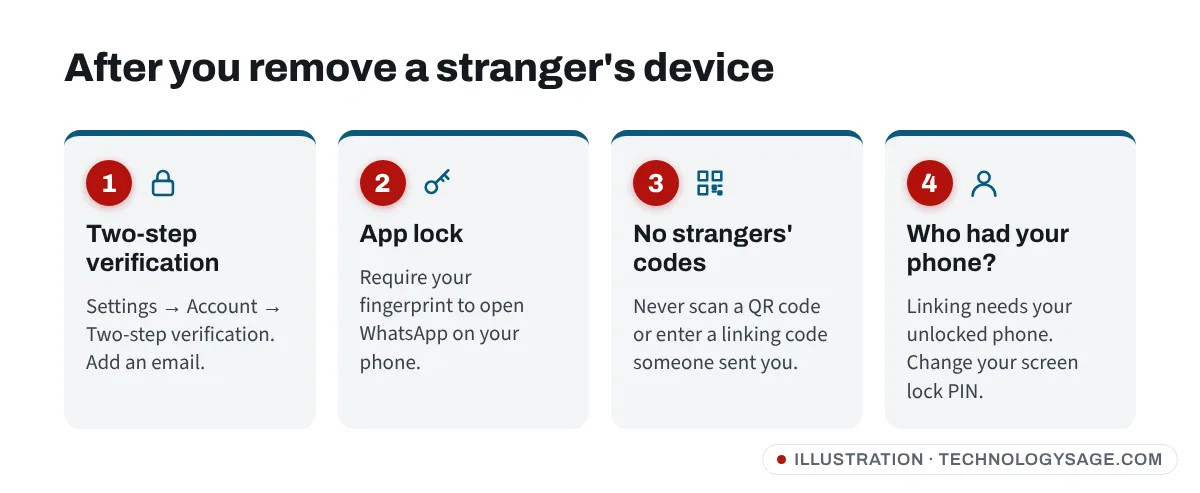
Found a stranger’s device? Do this next
- Log it out using the steps above.
- Turn on two-step verification: Settings → Account → Two-step verification → Turn on. Add an email so you can reset the PIN.
- Lock WhatsApp on your phone. On Android, go to Settings → Privacy → App lock and turn on fingerprint unlock (on older versions it is called Fingerprint lock). On iPhone, use Settings → Privacy → Screen lock. This stops someone who picks up your phone from linking a new device.
- Think about who had your phone. Linking needs access to your unlocked phone or a code you entered. A partner, colleague or repair shop could have done it.
- Check for other signs. If friends report odd messages, follow our guide to a hacked WhatsApp.
How people secretly link to your WhatsApp
- Borrowing your phone for a minute. They open WhatsApp Web on their laptop, then scan the QR code with your phone. It takes seconds.
- “Scan this QR code” messages. A scammer asks you to scan a code to “join a group”, “claim a prize” or “verify your account”. It is actually a WhatsApp Web login.
- Pairing code tricks. WhatsApp can link a device with an 8-character code instead of a QR code. If someone sends you a code and asks you to type it into WhatsApp, they are trying to link their device to your account.
- Fake WhatsApp Web sites. Always use web.whatsapp.com or the official desktop app from the Microsoft Store or Mac App Store.
Never scan a WhatsApp QR code or enter a linking code that someone else gave you. Only link devices you are holding yourself.
How to link your own computer safely
- On the computer, open web.whatsapp.com or the WhatsApp desktop app.
- On your phone, go to Linked devices → Link a device and unlock with your fingerprint or PIN.
- Point the phone at the QR code on the computer screen, or choose Link with phone number instead on the computer and type the code it shows into your phone.
- On a shared computer, log out when you finish.
Our guide to hiding WhatsApp last seen covers more privacy settings, and if you are moving to a new phone rather than adding a device, see how to transfer WhatsApp to a new phone.
If it doesn’t work
- No Linked devices option: update WhatsApp from the Play Store or App Store. On iPhone it is under Settings, not the chat list menu.
- A device comes back after you log it out: someone still has access to your phone or is being sent linking codes. Turn on app lock and two-step verification, and change your phone’s screen lock PIN.
- Your own devices keep logging out: use WhatsApp on your main phone at least once every couple of weeks, and keep both apps updated.
- “Couldn’t link device”: check the computer’s date and time, clear the browser cache or try the desktop app.
- Lost your main phone: get a replacement SIM and register WhatsApp on a new phone. That logs out the old phone; then review linked devices from the new one.
FAQ
Can someone see my WhatsApp messages from another device?
Yes, if they have linked a device to your account. They see chats synced to that device and new messages until it is logged out. Check Linked devices to be sure.
Does WhatsApp notify me when a new device is linked?
WhatsApp shows a notification on your main phone when a device is linked, and the device appears in the Linked devices list. If you missed it, the list is the reliable check.
How many devices can be linked to WhatsApp?
Up to four linked devices plus your main phone.
Will logging out a linked device delete my chats?
No. Your chats stay on your main phone. The removed device simply loses access.
Can I see the location of a linked device?
No. WhatsApp shows only the device or browser type and when it was last active, not its location.