In this guide
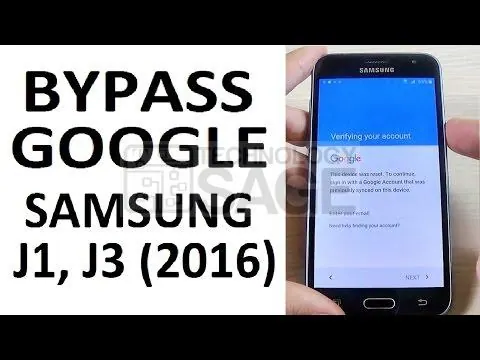
If you reset a Samsung phone and are now stuck at the screen asking for the Google account that was previously signed in, you have run into Factory Reset Protection (FRP). This guide explains what FRP is, the safest way to deal with it, and the manual steps that worked on older Samsung phones.
Important: only do this on a phone that belongs to you. FRP exists to stop thieves from using stolen phones, so this guide is for owners who have forgotten their own Google account, or who bought a phone the seller forgot to clear. If a phone is not yours, return it to the owner or seller. Back up any data you can before you start.
Read Also: Upgrade Samsung Galaxy S6810P to XXAMAA Android 4.1.2 official firmware
What has changed since this guide was written
This guide was written in 2018 for older Samsung phones running around Android 6 to 7. Since then, FRP bypasses have become much harder, and the steps here are unlikely to work on newer phones:
- FRP methods are tied to specific Android versions and security patches. Google and Samsung close these gaps with every security update, so an old trick usually stops working after a phone is updated.
- The safest fix is to recover your Google account. If you remember which Google account was on the phone, just sign in with it. If you have forgotten the password, use Google’s official recovery at accounts.google.com/signin/recovery on another device first. This avoids the whole bypass process.
- If you bought the phone second-hand, the proper fix is to ask the seller to sign in and remove their Google account, or to provide the details. Samsung and authorised service centres can also help an owner who can prove ownership with a purchase receipt.
- Be careful with downloads. FRP guides point to third-party APKs that can contain malware. Treat any such file with caution.
If recovering the account is genuinely not possible on your own phone, the manual steps below show the method that worked on older models.
Read Also: What are best alternatives to Samsung Galaxy S8?
How FRP works
Factory Reset Protection is a security feature Google added from Android 5 Lollipop onwards. If a thief steals a locked phone and performs a hard reset, the phone looks new but, during setup, asks for a Google account that was previously signed in on it. Without that account, the phone cannot be used. The downside is that honest owners who forget their own account, or buyers whose seller forgot to remove theirs, can get locked out too.
How to bypass Google account FRP on Samsung without a PC
The exact menus depend heavily on the Android version and Samsung software build, so some screens below may differ or may no longer be present on a given phone.
- Choose your language on the first screen.
- Connect to Wi-Fi. Join a home network or a hotspot from another phone. You need a working internet connection.
- Reach the Google account screen. Continue until you are asked to enter the Google account previously used on the phone.
- Open a hidden settings route. On older models, pressing the home button three times brought up a Talkback or voice/text-to-speech setting; from there, people could reach a browser or the Settings app. The exact gesture and route vary by model and version.
- Open a browser. Through the user manual, Talkback help, or a similar menu, open a web browser.
- Download the helper apps. Using the browser, download a trusted Android Google Account Manager APK and an FRP bypass APK that matches the phone’s Android version. (As noted above, only download from sources you trust.)
- Install the apps in order. Open your Downloads, then install the Google Account Manager app first, followed by the FRP bypass app. If prompted, allow installation from unknown sources in Settings, then return and finish.
- Sign in through the browser. Open the FRP bypass app. It asks you to retype a password; instead, tap the three-dot menu at the top right and choose Browser Sign in. Enter a Google account and password, or create a new account if prompted.
- Restart the phone. Long-press the power button and reboot.
After the reboot, go through setup again: choose the language, join Wi-Fi, and sign in with the account you added. The phone should then finish setup normally.
Troubleshooting
- The three-press or Talkback trick does nothing. This route has been removed on most current software. Recover your original Google account instead.
- A step’s menu is missing or named differently. FRP methods are very sensitive to the exact version. If the screens do not match, the method has likely been patched on your phone.
- You still cannot get past verification. Use Google’s official account recovery on another device, or take proof of purchase to a Samsung service centre.
- An app will not install. Enable installation from unknown sources, and make sure the APK matches the phone’s Android version.
The safest long-term fix
To avoid being locked out in future, write down the Google account and password used on the phone, add a recovery phone number and email to that Google account, and remove the account from the phone (Settings > Accounts) before doing a factory reset or selling the phone. For a Samsung phone, also remove your Samsung account.
Frequently asked questions
What is FRP on a Samsung phone?
Factory Reset Protection locks the phone to the Google account that was signed in before a reset, so a stolen, reset phone cannot be used without that account.
Is it legal to bypass FRP?
Bypassing FRP on your own phone, when you have forgotten your account, is generally acceptable. Doing it on a phone that is not yours is not. This guide is only for owners.
What is the easiest way past the Google account screen?
Sign in with the account that was on the phone. If you have forgotten the password, recover it through Google’s official recovery process first.
Will these steps work on a new Samsung phone?
Most likely not. The method relies on gaps in older Android and Samsung software that have since been fixed. Newer phones need account recovery or a method specific to that model and version.